The Disk Macintosh HD Can't Be Unlocked? Here Are Solutions
Some users have encountered the error "The disk Macintosh HD can't be unlocked," despite Apple's robust system. While rare, this issue can still occur.
Users are unable to manage the Macintosh HD drive, which is locked, and can only access it in read-only mode, unable to create, delete or edit files. The drive contains several applications and files, and is a storage drive.
The "disk Macintosh HD can't be unlocked" error can occur due to various reasons, but fortunately, there are several solutions that can help resolve the issue.
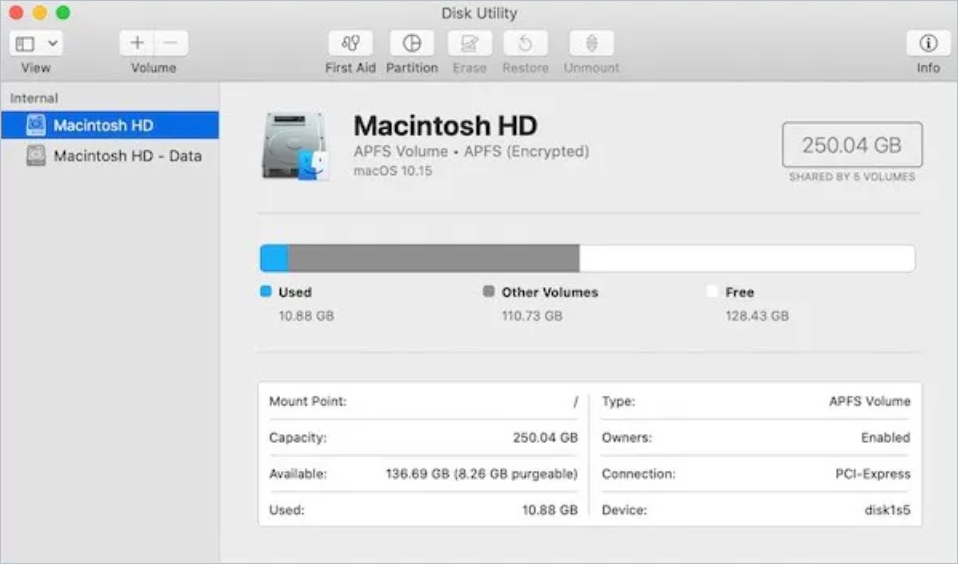
Macintosh HD vs. Macintosh HD Data
This post will provide an overview of the definition and differences between Macintosh HD and Macintosh HD Data. It will explain what Macintosh HD and Macintosh HD Data are, and highlight the key distinctions between the two.
Why Can't the Disk Macintosh HD Be Unlocked
The "The disk Macintosh HD can't be unlocked" error occurs due to various reasons, including issues with the disk permissions, problems with the disk's file system, or conflicts with the operating system. The error can also be caused by a corrupted or damaged disk, or even a faulty disk controller. Additionally, if the disk is not properly formatted or if there are issues with the disk's partition table, it can also lead to this error.
-
🗝️Incorrect or forgotten disk password
The error is likely due to an incorrect password, which can cause the disk to become locked. To resolve this, it's essential to have a physical copy of the password stored safely. This ensures that even if the password is forgotten or lost, access to the disk can still be regained.
-
💼Corrupted file system or encryption data
A disk-locked error may occur due to a damaged or corrupted file system. To resolve this, you can remove the files or repair disk issues using Disk Utility.
-
📀Hardware issues, such as a failing hard drive
A locked Macintosh HD disk error can occur due to hardware issues, such as a damaged or corrupted hard drive. If the issue persists, it may be necessary to replace the hard drive. If the problem is not understood, seeking assistance from experts may be helpful.
-
💻Incompatible or outdated macOS version
If you have an outdated macOS, that could be the reason for the "The disk Macintosh HD can't be unlocked" error, as hardware and software incompatibility can lead to issues.
Let's learn 5 ways to fix the issue "The disk Macintosh HD can't be unlocked"! Before we start, don't forget to share this helpful info on Facebook, Twitter, or your favorite SNS. We'll explore different methods to resolve this problem and get your Mac up and running smoothly again.
5 Solutions to Fix the Disk Macintosh HD Can't Be Unlocked Error
Users experiencing the "The disk Macintosh HD can't be unlocked" error can apply various solutions, but it's essential to prioritize data security first. Before attempting any fixes, ensure your data is safeguarded to prevent potential loss.
Check them out here -
- Solution 1. Erase the Redundant Volume
- Solution 2. Repair disk issues using Disk Utility
- Solution 3. Update macOS to the latest version
- Solution 4. Delete extra duplicate volumes
- Solution 5. Seek professional data recovery services
Solution 1. Erase the Redundant Volume
You can try erasing the redundant volume to see if the problem is fixed. To do this, go to Settings > General > Reset and then select Erase All Content and Settings. This will erase the redundant volume and may resolve the issue.
Step 2 Go to "Disk Utility".
Step 3. Select the "View" menu.
Step 4. Click on "Show All Devices".
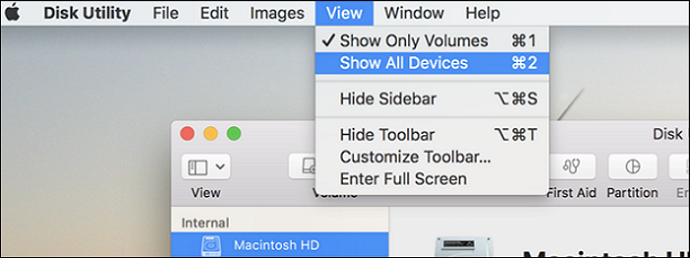
Step 5. Here, you can find a list of all the drives and disks.
Step 6. Select "Macintosh HD".
Step 7. Select the "Erase" button.
Step 8. Enter the name and format of the drive.
Step 9. Click the "Erase" button.
Step 10. If asked, give the Apple ID details.
Step 11. After the erase process is complete, return to the Utilities window to reinstall macOS.
Solution 2. Repair disk issues using Disk Utility
One of the best solutions is to repair disk issues with Disk Utility. For that, you can run First Aid. Here are the steps you need to follow -
Step 1. Enter the macOS Recovery Mode.
Step 2. Go to "Disk Utility".
Step 3. Select the "View" menu.
Step 4. Click on "Show All Devices".
Step 5. Here, you can find a list of all the drives and disks.
Step 6. Select "Macintosh HD".
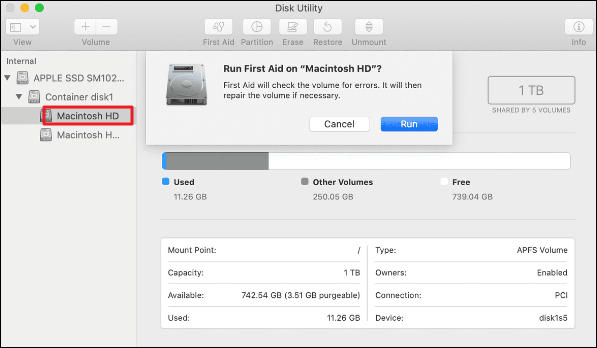
Step 7. Click on "First Aid".
Step 8.
Step 9. Reboot the system.
Now check if the issue is resolved or not.
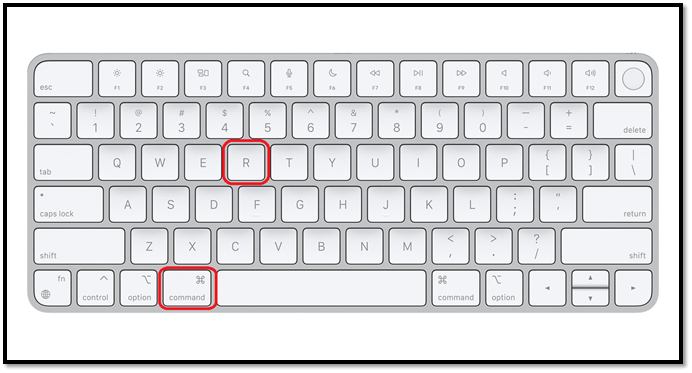
To boot your Mac into Disk Utility or Recovery Mode, you can use the following startup keys:
Disk Utility is a Mac storage manager that enables users to manage partitions on their Mac. It is a built-in tool that allows users to create, erase, and manage disk partitions, making it a useful utility for Mac users who need to manage their storage.
Solution 3. Update macOS to the latest version
Updating your macOS to the latest version can resolve the disk-locked error. To do this, follow these steps:
Step 1. Click on the "Apple menu".
Step 2. Select "System Settings".
Step 3. Go to "General".
Step 4. Choose "Software Update" on the right-hand side.
To update your Mac, go to the Apple menu and select "System Preferences". From there, click on "Software Update" to check for and install any available updates.
| 💡Note: If any updates are available, download and install them immediately. |
Solution 4. Delete extra duplicate volumes
Deleting extra duplicate volumes might resolve the problem.
Here are the steps you need to follow –
Step 1. Open "Finder".
Step 2. Click on "Utilities" from the menu and select "Go" from the drop-down menu.
Step 3. Open Terminal.
Step 4. Navigate to the Downloads directory by running the command `cd ~/Downloads`. This will change the current working directory to the Downloads folder on your system.
Step 6. Hit Return.
Step 7. The command uses various tools to find duplicate files within a directory by size, then checks the checksum of each file, sorts and filters the output to find duplicates, and finally writes the results to a file named "duplicates.txt".
Step 8. Hit "Return".
Step 9. Open duplicates.txt
Step 10. you can find a list of the duplicate files.
Step 11. You need to check it and delete it manually.
Solution 5. Seek professional data recovery services
You can opt for professional data recovery services or use software solutions to unlock the disk and restore lost data with ease. One highly efficient software solution is the Qiling professional team.
Recover Data from macOS When It Stuck
A frozen Mac is a nightmare scenario that could lead to users resorting to a drastic measure of erasing and reinstalling macOS, risking precious data loss. If you're unfortunate enough to experience data loss, consider using powerful data recovery software to salvage your files.
Deep Data Recovery is a reliable yet user-friendly data recovery tool that helps users restore data in any situation, and also aids in the restoration of different data types with ease, making it a favorite amongst beginners due to its simple user interface.
Highlights:
- Recover and repair corrupted files, videos, photos, documents, emails, etc.
- Restoration of data from Mac-based devices like SSD, HDD, fusion drive, etc.
- Send the restored data to cloud storage services like Google Drive, Dropbox, etc. for safekeeping.
- A team of IT experts is available to provide assistance whenever you need it.
Here's how to recover data from a stuck macOS: If your Mac is stuck, try booting in Safe Mode by restarting and immediately holding the Shift key. If that doesn't work, try booting in Recovery Mode by restarting and immediately holding the Command (⌘) + R keys. If you're unable to boot, try using a bootable USB drive or CD/DVD to boot your Mac.
Step 1. To recover data from a Mac that won't boot, install and run Deep Data Recovery for Mac on another Mac computer, then select the "Unbootable Mac > Start" option.
Step 2. Insert a prepared USB drive, select it and click "Next" to create a bootable disc.
- Warning
- To prepare a USB drive for a specific task, the creator will first prompt you to erase the drive to reallocate the space. This will then allow the drive to be written with bootable files. Please ensure that you back up all files on the USB before proceeding with the "Eraser" process.
Step 3. The program creates a 2GB space on the USB and saves the boot files there, freeing up the rest of the space for storage.
Step 4. To resolve the issue with your Mac, follow the guide to create a bootable disc, which will allow you to boot your Mac from the disc and start the recovery process. Once complete, boot your Mac from the disc and follow the on-screen instructions to restore your data to an external hard drive. This will help you recover your data and potentially fix the corruption issue.
Step 5. After booting the Mac, launch Deep Data Recovery for Mac. Select the disk location where you lost data and files, and the recovery tool will scan for lost files automatically.
Note: Before attempting data recovery, it's recommended to create a backup of your Mac to prevent further data loss. Once the backup is in place, data recovery software can be used to restore data from the backup, allowing your computer to write new data again.

Final Words
The "disk Macintosh HD can't be unlocked" error is a common Mac issue that prevents users from accessing or managing their drive. This problem can arise due to various reasons, including forgotten passwords or corrupted files, among others. Fortunately, there are multiple solutions available to resolve this issue.
If you encounter issues with your Mac, such as redundant volume or repair disk problems, you can take steps to resolve them. For example, you can erase the redundant volume or repair disk issues, and also update macOS to the latest version. However, if data loss occurs during these processes, you can try Deep Data Recovery for Mac, a powerful, easy-to-use, and reliable data recovery software.
Download and install Deep Data Recovery for Mac!
The Disk Macintosh HD Can't Be Unlocked FAQs
The "The disk Macintosh HD can't be unlocked" error can be resolved using various methods. These include booting in Safe Mode, using the built-in Disk Utility, and running a third-party disk repair tool. Additionally, you can try booting from an external drive, resetting the System Management Controller (SMC), or using the Command + R key to boot in Recovery Mode.
1. Why does my Mac say Macintosh HD data can't be unlocked?
Your Mac says Macintosh HD data can't be unlocked due to a wrong password, corrupted files, outdated macOS, or hardware issues.
2. What does the disk Macintosh HD can't be unlocked mean?
The Macintosh HD data is locked, preventing users from managing the hard drive, thereby blocking access to files and apps within the drive.
3. How do you unlock Macintosh HD encrypted disk?
To unlock Macintosh HD encrypted disk, you can run disk repair from the Disk Utility option in Recovery Mode, which can be accessed by following different steps depending on your Mac model.
4. How to change the password to unlock the disk Macintosh HD data?
To change the password to unlock the disk Macintosh HD data, type "resetpassword" in the Terminal window and hit Return.
Related Articles
- [SOLVED] The Operation Cannot Be Performed Because the Message Has Been Changed
- How to Format a Disk on Mac? 2024 Step-By-Step Guide
- How to Fix Outlook Rules Not Working [8 Ways Included]
- IS 75 Degrees Too Hot For a PC? Everything You Should Know
Is your PC getting slow? Is 75 Degrees too hot for a PC? If you have all these questions, then you're in luck. The guide below answers all your PC temperature concerns and help you get the best performance. So, what are you waiting for? Dive straight in and get your PC working smoothly. - You May Not Install to This Volume Because It Is Currently Being Encrypted
Fix the macOS message you may not install to this volume. Learn causes, disk format checks, and safe installation options. - How to Fix Zsh Command Not Found Brew Error [Mac Terminal Guideline]
This article addresses the zsh command not found brew error on Mac or Linux, providing five fixes to resolve the issue. It offers step-by-step instructions to resolve the zsh command not found brew problem on a Mac using the terminal.
Products
Articles & Tutorials
- Data Recovery
- Data Backup
- File Recovery
- File Backup
- System Backup and Restore
- Disk and Partition Clone
- Technical articles
- Mobile articles
- Disk Master Help
- Windows Data Recovery Tutorials
- Windows Secure Delete Tutorials
- Windows Partition Management Tutorials
- Windows File Backup and Restore Tutorials
- Windows System Backup and Restore Tutorials
- Windows Disk Backup and Restore Tutorials
- Windows Clone Tutorials