First Aid Found Corruption That Needs to Be Repaired, What Should I Do
Mac users may encounter the error message "First Aid found corruption that needs to be repaired" and this article will provide a step-by-step guide on how to resolve this issue.
| Workable Solutions | Step-by-step Troubleshooting |
|---|---|
| Fix 1. Run First Aid from Recovery Mode on Mac | Open your Mac Device by holding the Command + R keys together till the logo appears on display...Full steps |
| Fix 2. Run First Aid from Internet Recovery on Mac | Hold down Command + Option + R throughout Mac's restart process until the startup options appear...Full steps |
| Fix 3. Erase Mac Startup Disk and Reinstall macOS | Start the Mac from macOS Recovery by holding Command + R to open the Utilities window...Full steps |
First Aid on macOS is a built-in program that identifies and fixes disk and file system faults, attempting to repair corruption if found.
If your MacBook Pro/Air displays "First Aid found corruption that needs to be repaired" error, it means that the built-in First Aid tool has detected corrupted data on your startup disk, which can cause problems with your Mac's startup process. To resolve this issue, you can try running First Aid again, force quitting the Disk Utility app, or using the Terminal to run a repair command. If none of these methods work, you may need to reinstall macOS or seek professional help.
What First Aid Found Corruption That Needs to Be Repaired Means
When you see the notice "First Aid found corruption that needs to be repaired", it's a sign that your Mac's disk or file system is corrupted and requires fixing, often triggered by regular disk health checks or the use of First Aid in Disk Utility.
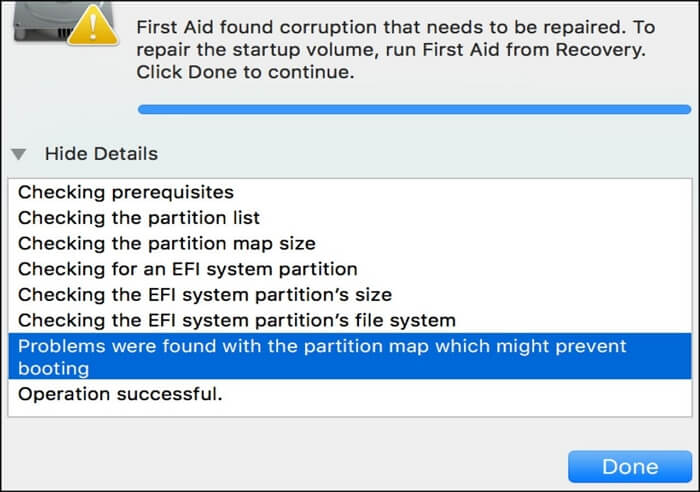
The notice indicates that inconsistencies or corruptions have been detected in the data structures or files on your Mac, which could potentially impact its performance and reliability if left unattended.
Mac disk issues can be quickly diagnosed and fixed using macOS's built-in First Aid application, which verifies the integrity of the disk's directory structure, file permissions, and other system files.
First Aid scans for corrupted data, fixes it by repairing corrupted files on Mac, protecting the storage system from future damage and keeping the device running smoothly.
Guide on Fix First Aid Found Corruption That Needs to Be Repaired Issue
For those who have seen the "First Aid found corruption that needs to be repaired" notice on their Macs, the issue can be resolved by running a repair disk in Disk Utility, which can be accessed by restarting in Recovery Mode, and then selecting the option to run Disk Utility from the Utilities window. This process will scan and repair any corrupted disk permissions, which is the likely cause of the notice.
To resolve the "First Aid found corruption that needs to be repaired" issue, you can try the following workarounds:
Fix 1. Run First Aid from Recovery Mode on Mac
In Mac Recovery Mode, you can resolve startup disk corruption by running First Aid. To do this, restart your Mac, immediately hold down the Command (⌘) + R keys, and select Disk Utility from the Utilities window. Select your startup disk and click "First Aid".
Step 1. To start your Mac in Recovery Mode, hold the Command + R keys together as soon as you turn it on, until the Apple logo appears on the screen. This will initiate the Recovery Mode.
Step 2. Once the Mac re-opens, open "Disk Utility" from the "Utilities" menu.
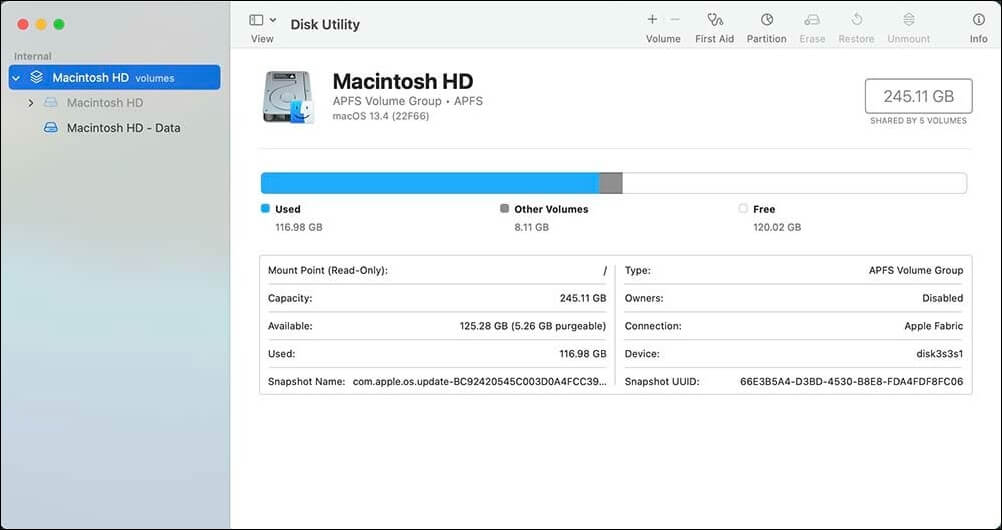
Step 3. Run Disk Utility and click on the "First Aid" button. This will scan your disk for errors and attempt to repair them.
Step 4. Click on "Run" to begin fixing the problem. Hold tight till it's done.
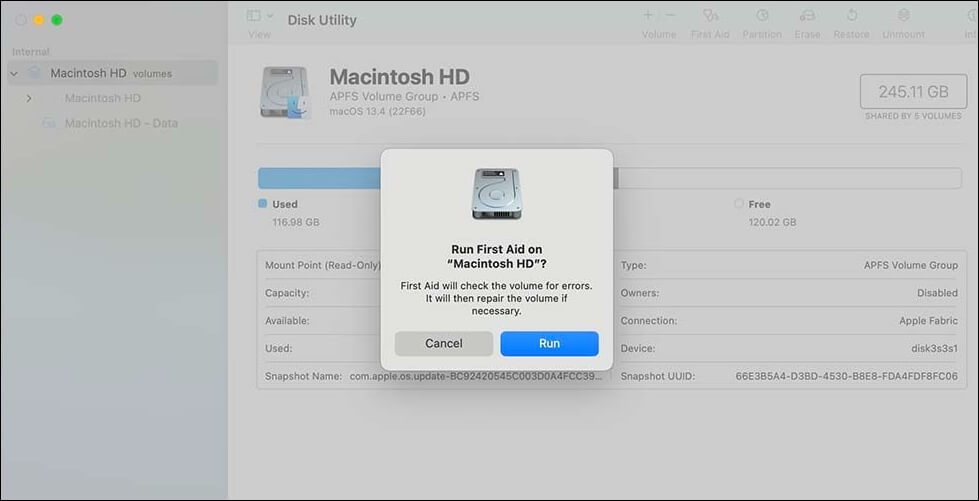
Step 5. Try a normal restart to see if your Mac's problems have been resolved.
First Aid found corruption that needs to be repaired. Share this article on social media to help others fix the issue.
Fix 2. Run First Aid from Internet Recovery
If your Mac won't boot into Recovery Mode or you don't have a Recovery Partition, you can try using Mac Internet Recovery to get your Mac back up and running. To do this, turn on your Mac and immediately hold down the power button until the light next to the power button turns blue, then release the power button. Your Mac will then boot from the internet and you'll be able to access the Recovery Mode.
Step 1. To access the Startup Options on a Mac, hold down the "Command + Option + R" keys throughout the restart process until the Startup Options appear.
Step 2. Select a wireless network and log in using its credentials.
Step 3. When the macOS Utilities window displays, choose "Disk Utility".
Step 4. Repeat what you did in Solution 1 to launch First Aid and fix the problem.
Fix 3. Erase Mac Startup Disk and Reinstall macOS.
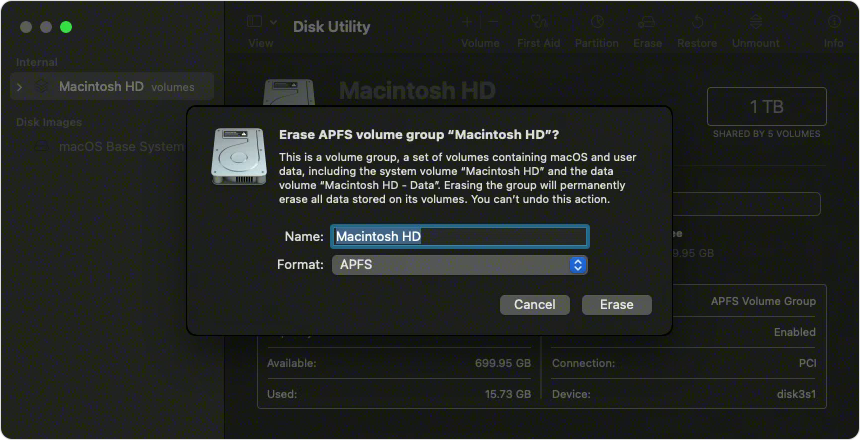
If the above fixes don't help, you could format your startup disk drive or erase all content and settings, and then reinstall macOS. To format your startup disk on Mac, you can go to Disk Utility, select your startup disk, click the "Erase" button, and follow the prompts to erase all content and settings. This will delete all files, apps, and settings on your Mac. Once erased, you can then reinstall macOS from the Recovery Mode or by creating a bootable USB drive with the macOS installer.
Step 1. To start the Mac from macOS Recovery, hold the "Command + R" keys while booting up the computer, which will open the "Utilities" window.
Step 2. To access Disk Utility, click on the "Utilities" window in the macOS Recovery mode, then select the "Disk Utility" option and click "Continue".
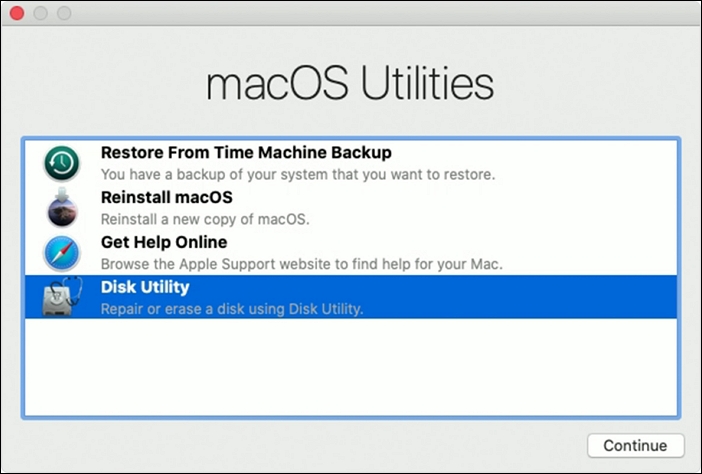
Step 3. Find the data volume with the hard drive name and select it.
Step 4. To delete an APFS volume, click "Edit" in the top menu bar, followed by selecting "Delete APFS Volume" from the drop-down menu, or click the delete button.
Step 5. Select "Delete" from the pop-up.
Step 6. Press the "Erase" button, reinstall macOS, and see if it resolves the First Aid corruption error.
If all other options have been exhausted, you can try using a professional data recovery tool to recover deleted files on your Mac, but remember that this fix can cause data loss.
Deep Data Recovery is a robust and trustworthy data recovery software that can safely recover files lost due to reinstalling macOS.
To recover lost/deleted data after reinstalling macOS, follow these steps: First, check if Time Machine backups are available, and if so, restore from the latest backup. If not, try to recover data from an external drive or a cloud storage service like iCloud or Google Drive.
Note: To create a backup, click on "Disk Backup" on the left, which allows you to recover data from a backup image in case the disk is damaged or data is accidentally deleted or lost.
Step 1. Select the location
After updating to macOS Sonoma/Ventura/Monterey/Big Sur, select the disk where you lost data and click "Search for lost files".

Step 2. Find lost data after the scan
Deep Data Recovery for Mac scans the selected disk volume, displaying the results in the left pane, allowing users to find specific data using file type and file path.

Step 3. Recover data after macOS update
Select the target files that were unknowingly lost during or after the update, and click the "Recover" button to retrieve them all.

Conclusion
To resolve the corruption issue, boot into Recovery Mode or use Internet Recovery and follow the offered instructions in Part 3, which will help keep your Mac running smoothly by fixing the "First Aid found corruption that needs to be repaired" problem.
To resolve the issue, you can try Solution 3, which involves wiping your Mac's startup drive and reinstalling macOS. However, this approach comes with the risk of losing your data. To minimize this risk, consider using a reliable data recovery tool like Deep Data Recovery for Mac.
If you're experiencing issues with your computer, combining suggested remedies with data recovery software may help fix the problem efficiently with minimal data loss. It's also essential to have a backup of your critical information, and if you need assistance, don't hesitate to ask for help.
First Aid Found Corruption That Needs to Be Repaired FAQs
Here are some frequently asked questions related to First Aid found corruption that needs to be repaired:
1. What is First Aid found corruption that needs to be repaired to repair from startup volume?
The macOS system has detected corruption or issues on the startup drive; use the First Aid software to resolve the problem.
2. How do I fix a corrupted Macintosh HD?
You can use Mac Recovery Mode or Internet Recovery to launch First Aid and repair a damaged Macintosh hard drive.
3. How do I run First Aid in recovery?
To repair a damaged volume on your Mac, restart your Mac while holding down the Command and R keys. This will boot your Mac into recovery mode, and you can select Disk Utility from the Utilities window. From there, choose the damaged volume you want to repair, and follow the on-screen instructions to complete the process.
4. How do I get my Mac out of recovery mode?
To exit recovery mode, simply restart your Mac normally, without holding down any special keys, and it will boot up to the standard macOS desktop.
Related Articles
- Fix 99% or 100% High CPU Usage Issue in Windows 10 Fall Creators
- Fix There Are No Free MBR Slots on the Disk [2023 Best Solution]
- Invalid Value for Registry JPG/JPEG/PNG Files on Windows 10? Fix it Now!
- Tutorial for Tesla Format USB, Everything You Should Know in 2023
- What Is MOV File | How to Play MOV Video Files
this guide contains all the information about the MOV file. You'll learn what is MOV and how to open MOV files on Windows, macOS, Android, and iOS. By the way, we also mention the differences between MOV and MP4. - MP4 File Format | What Is MP4 Video Format
MP4 (MPEG-4) is a digital container format that stores video, audio, subtitles, and images, commonly used for sharing and streaming video content online.
Products
Articles & Tutorials
- Data Recovery
- Data Backup
- File Recovery
- File Backup
- System Backup and Restore
- Disk and Partition Clone
- Technical articles
- Mobile articles
- Disk Master Help
- Windows Data Recovery Tutorials
- Windows Secure Delete Tutorials
- Windows Partition Management Tutorials
- Windows File Backup and Restore Tutorials
- Windows System Backup and Restore Tutorials
- Windows Disk Backup and Restore Tutorials
- Windows Clone Tutorials