How to Fix WAN Miniport Driver Issues in Windows OS [Updated 2023]
The WAN Miniport driver is a software component that facilitates network connections on a Windows PC, serving as an alternative to traditional network connections. To ensure a faster and smoother internet experience, it's essential to keep the WAN Miniport driver updated. However, issues with the WAN Miniport driver can occur, necessitating a fix to resolve the problem.
Types of WAN Miniport Drivers
Before moving on to the solutions, let's learn about WAN (Wide Area Network) Miniport Drivers. There are two kinds of WAN Miniport Drivers, which include:
- CoNDIS WAN: The technology helps maintain the functionality of a larger system that controls WAN data communications. However, it is only supported in newer OS versions.
- NDIS WAN: Older and newer versions of Operating Systems support NDIS WAN, which enables the transfer of data from one PC to another using network adapter cards.
Reasons Behind Glitch in WAN Miniport Driver
WAN Miniport drivers are responsible for handling various functionalities, including wireless and alternative connections. However, glitches in these drivers can lead to disturbed connectivity, which may be caused by issues such as.
- The PC system is unhealthy.
- A bug has infected the system, causing disruptions to driver functionality.
- If the drivers have become outdated, you need more competent ones to match the updated demand in Windows.
- The driver version is incorrect or outdated, causing the PC's performance to become unstable or even leading to damage to the WAN Miniport.
- System files can malfunction due to malware attacks, version mismatches, power outages, or update-related errors. Installing antivirus software like TotalAV can help clean malware and resolve the issue.
- If drivers become corrupted, it can result in hardware malfunctions, communication issues, or connectivity problems.
To resolve Miniport driver issues in Windows, you can try reinstalling the driver, updating the driver, or rolling back the driver to a previous version. Additionally, you can try disabling and re-enabling the device, or using the Device Manager to troubleshoot and resolve the issue.
How to Fix WAN Miniport Driver Issues in Windows OS?
There are efficient ways to fix this issue better. Let us walk through:
- Solution 1: Manual Update WAN Miniport Driver Using Device Manager
- Solution 2: Fix the Corrupt Files using SFC
- Solution 3: Automatically Update the WAN Miniport Driver
Solution 1: Manual Update WAN Miniport Driver Using Device Manager
To resolve WAN Miniport driver issues in Windows, you can manually download and update the driver. This process requires a stable internet connection, and can be completed by following the necessary steps.
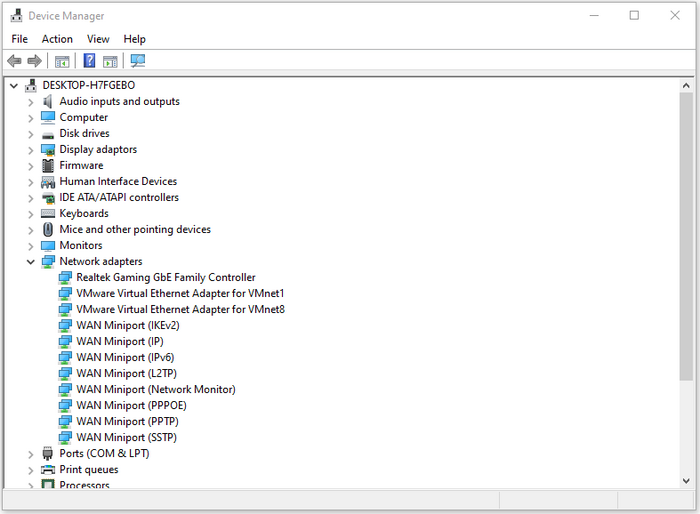
Step 1. Pressing the Windows key and the R key simultaneously on your keyboard will open the Run box on your screen. This is a quick way to access various system functions and applications without having to navigate through the Start menu or other menus.
Note: To access the Device Manager, there are more efficient ways than right-clicking on This PC. You can check out this article to learn how to open Windows Device Manager quickly and easily.
Step 2. In Device Manager, tap twice on the "Network Adapters."
Step 3. On the WAN Miniport, right-click and select the "Update Driver" option.
Step 4. Go ahead with choosing the "Search automatically for updated drivers software."
Step 5. You can see a few instructions on the screen, follow them, and complete the process.
Solution 2: Fix the Corrupt Files using SFC
You can resolve issues with the wan Miniport driver in Windows by using the System File Checker (SFC) command, specifically the Scannow command, which searches for corrupted files and repairs them automatically. This can help fix the problem without needing to know the underlying cause.
Step 1. To open the Command Prompt as an administrator, right-click on the search result for "Command Prompt" in the Windows search box and select "Run as administrator" from the context menu. This will open a new Command Prompt window with elevated privileges.
Step 2. Write the sfc/scan now command in the given area and go ahead by tapping on the "Enter" key.
After verifying your identity, you'll need to take a break and let the verification process finish. Once that's done, you can restart your PC to see if the problem has been fully resolved.
If scannow or sfc can't fix your WAN issue, try using DISM. Run the command to set the Windows system's image by typing "DISM /Online /Cleanup-Image /RestoreHealth" to see if that resolves the problem.
Dism /Online /Cleanup-Image /CheckHealth
Dism /Online /Cleanup-Image /ScanHealth
Dism /Online /Cleanup-Image /restorehealth
After executing the given commands, verify if the WAN Miniport driver issues in Windows OS have been completely resolved.
Solution 3: Automatically Update the WAN Miniport Driver
If you're having trouble with your WAN driver, you may need to manually download and update it, but this can be a time-consuming process. Alternatively, you can use tools like SFC and DISM, but a more efficient option is to use software like Driver Easy, which can automatically identify your system and find the correct drivers for you, saving you time and effort.
Step 1. Start by completing the downloading and then installing Driver Easy.

Step 2. To resolve driver issues, run the software and select the "Scan Now" option. The software will then initiate a scan, identifying drivers with problems or issues. This process will help you identify and potentially fix any driver-related problems on your system.
Step 3. To update the driver for the flagged network adapter, tap on the button labeled "Update" beside it. This will automatically download the correct version of the driver for your PC, and the free version will assist you with the task.
After updating the driver list, you can proceed with the installation of the driver. Alternatively, you can choose to update all drivers at once by tapping on the "Update All" option. However, this feature is only available in the PRO version, as the free version does not support it.
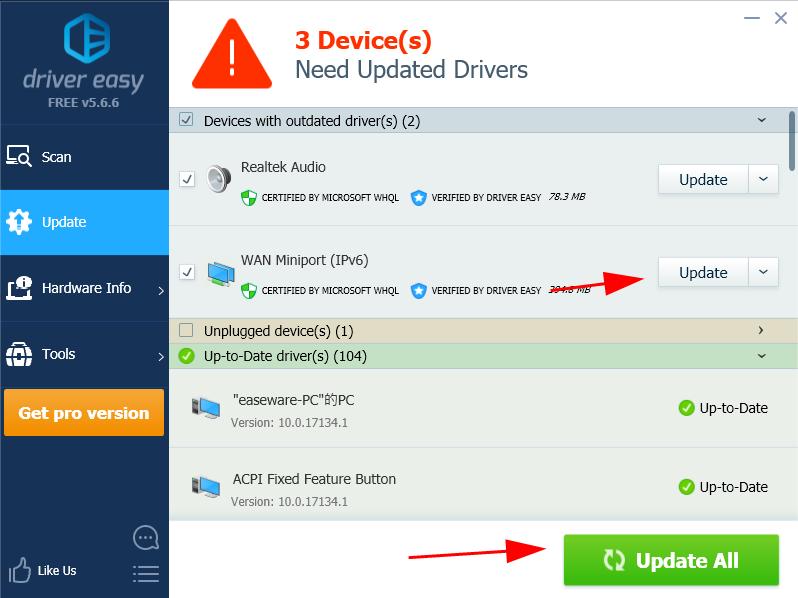
Step 4. To effect the changes, proceed with restarting your PC.
Once the process is completed, you can use the latest version for drivers related to WAN Miniport.
To protect your PC, Mac, and phones from viruses, consider using real-time protection software like TotalAV. This can help safeguard your devices against malware.
 TOTALAV
TotalAV is an award-winning antivirus and security software that provides real-time protection against viruses, malware, and online threats.
Antivirus Protection Enabled
Conclusion
To fix wan Miniport driver issues in Windows OS, follow our suggested findings, which include running anti-malware to detect and block malware and viruses responsible for driver corruption, and updating Windows to provide patches for any errors. If the issue persists or you're unable to execute the commands, consider seeking professional help to resolve the issue.
Related Articles
- How to Fix Xbox External Hard Drive Not Working [Full Guide in 2023]
- How to Fix Windows 11 23H2 Update Failure in 5 Ways
- Automatically Copy Files When USB Drive Connected
- How to Use Git Delete File [Full Tutorial for Git]
- 2022 Aptio Setup Utility Ultimate Guide | How to Access and Fix It
Learn what Aptio Setup Utility is, how to access and configure AMI BIOS settings, fix boot loop errors, and recover data from an unbootable PC using bootable recovery software. - Archive vs Delete: What's the Difference and Which One to Use
This post will explain the Archive and Delete features and highlight their key differences. We'll cover what Archive and Delete mean, and provide a concise list of the main distinctions between the two, making it easy to understand which option is best for your needs. - Fix Windows 11 Wi-Fi Not Working (2026 Guide)
Products
Articles & Tutorials
- Data Recovery
- Data Backup
- File Recovery
- File Backup
- System Backup and Restore
- Disk and Partition Clone
- Technical articles
- Mobile articles
- Disk Master Help
- Windows Data Recovery Tutorials
- Windows Secure Delete Tutorials
- Windows Partition Management Tutorials
- Windows File Backup and Restore Tutorials
- Windows System Backup and Restore Tutorials
- Windows Disk Backup and Restore Tutorials
- Windows Clone Tutorials