How to Factory Reset MacBook Air [Manual and Automatic Ways]
When You Need to Factory Reset MacBook Air
If you're experiencing a decline in your MacBook Air's performance, you may want to consider factory resetting it. This can help resolve any software issues and restore your laptop to its original settings. If you're looking to sell your MacBook Air, a factory reset can also be a good idea, as it will erase any personal data and return the laptop to its original factory settings, making it more appealing to potential buyers.
If your MacBook Air is slowing down, you can factory reset it to restore its original speed. Alternatively, if you're selling your device, you can erase all contents and settings to ensure a clean start for the new user, or try to factory reset it without a password if you're selling.
Before factory resetting your MacBook Air, it's crucial to back up your Mac first. You can use a data recovery software like Qiling to backup and restore your data, ensuring that you don't lose any important files.
Back Up Your Mac and Never Lose Data
Back up and restore your MacBook/iMac without Time Machine, iCloud, or external hard drives.
Method 1. Factory Reset MacBook Air Automatically
You can factory reset your MacBook Air in two different ways. One method is to use the macOS Erase Assistant, which guides you through the process of restoring your device to its original settings. This is a straightforward and user-friendly option that helps you reset your MacBook Air to its factory settings.
Here are the steps you need to follow:
Step 1. Go to the Apple Menu. Select System Settings.
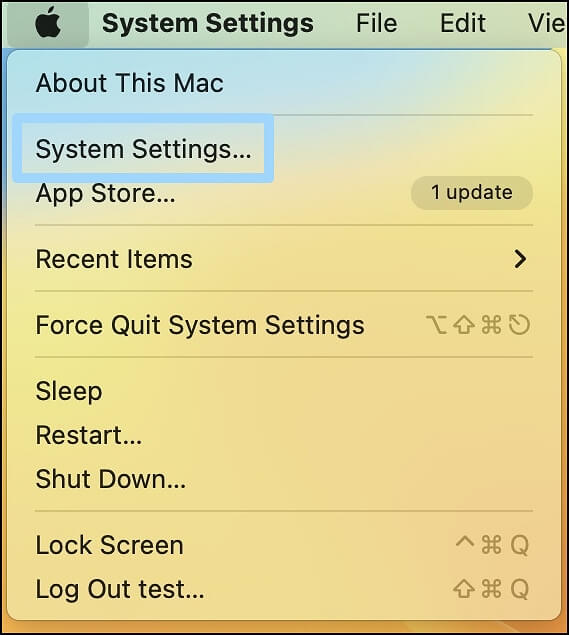
Step 2. To reset your account, click on the "General" tab from the left-hand sidebar, then select the "Transfer or Reset" option from the right-hand sidebar.

Step 3. Click on "Erase All Content and Settings". Sign in with the administrator credentials. Log in to the device with your password. Click "OK".
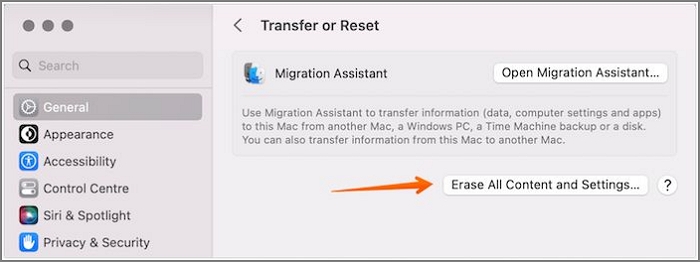
Step 4. To erase your iPhone, go to Settings, General, Reset, and select "Erase All Content and Settings". This will completely wipe your iPhone, including settings, media, and data. If prompted, sign out of your Apple ID and enter your password again. You can also use Time Machine to backup your data before erasing your iPhone, but this is optional.
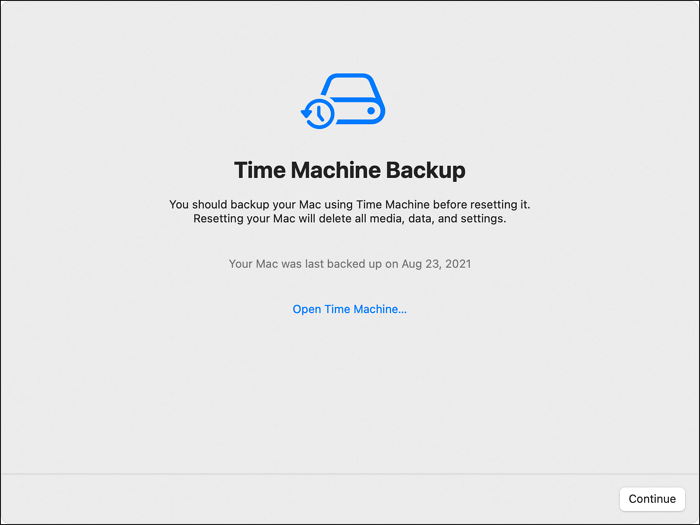
Step 5. Select Erase All Content and Settings.
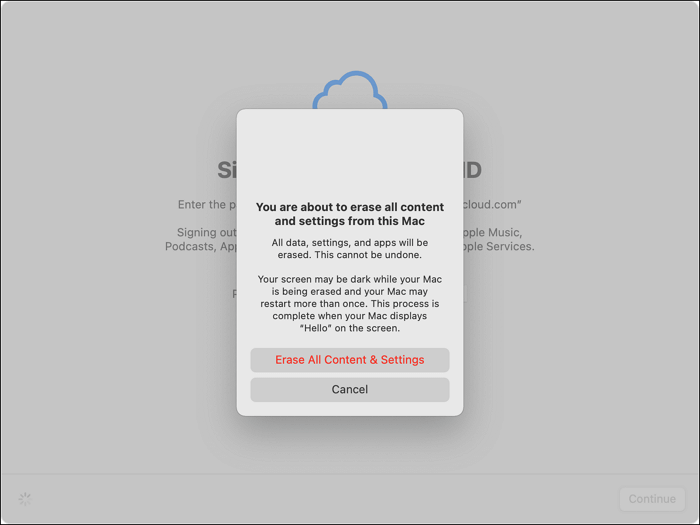
Note: These steps are applicable for macOS Monterey and Ventura. If you use macOS Big Sur or earlier versions, you should update your macOS base system.
Method 2. How to Factory Reset MacBook Air Manually
To manually factory reset your MacBook Air, you'll need to restart your computer and immediately hold down the Command (⌘) + R keys. This will boot your MacBook Air into Recovery Mode.
Things You Need to Do Before Factory Reset MacBook Air
Before resetting your MacBook, there are several things you need to do.
1. Back Up Data Before a MacBook Air Factory Reset
Backing up your data is crucial before resetting your MacBook Air, as it allows you to protect valuable information. You can use Time Machine for this purpose.
2. Sign OIt of iMessage on Your MacBook Air
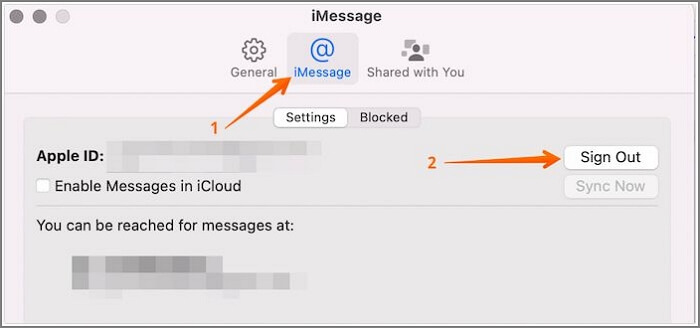
To sign out of iMessage, go to Settings > Messages, then toggle off iMessage, and finally, toggle off Send & Receive. This will log you out of the service.
Step 1. Go to Messages. Select Messages. Go to Settings.
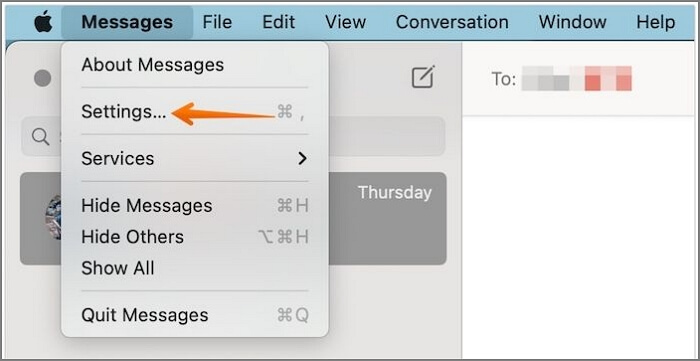
Step 2. To sign out of iMessage on an iPhone, click on the @ icon located at the top of the screen, then select "Sign out" from the menu.
3. Sign Out of iCloud on Your MacBook Air
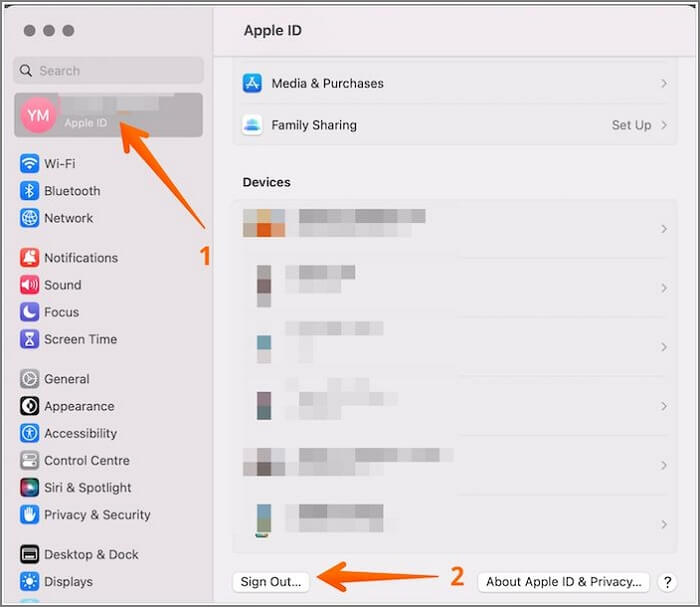
To sign out of iCloud, go to Settings on your device, tap on your name at the top, then tap on "Sign Out" from the list of options. If prompted, enter your Apple ID password to confirm.
Step 1. Go to System Settings. Select Apple ID.
Step 2. To sign out of your iCloud account, scroll down and click on "Sign out". This will log you out of your account.
4. How to Sign Out of iTunes on MacBook Air
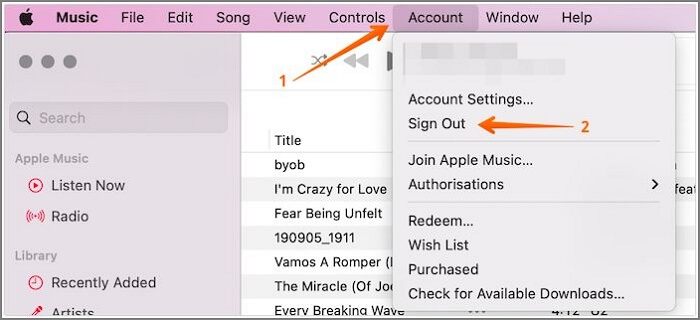
To sign out of iTunes on your MacBook Air, go to the iTunes menu, select 'Sign Out', and confirm your action. This will remove your account information and log you out of the application.
Step 1. Go to the Music app.
Step 2. To sign out of your account, click on Account and select "Sign Out" from the drop-down menu. Then, select "Authorizations" from the menu.
5. How to Unpair Bluetooth Devices Before Factory Reset MacBook Air
To unpair a Bluetooth device, you will need to delete the device from your device's Bluetooth settings. This will disconnect the device from your device and prevent it from automatically reconnecting in the future.
Step 1. Go to System Settings.
Step 2. Choose "Bluetooth" from the left-hand sidebar.
Step 3. Unpair your Bluetooth device by selecting the "X" button next to it under My Devices on the right-hand side of the screen.
Step 4. Unpair all the devices to your MacBook.
How to Factory Reset MacBook Air in Recovery Mode
To factory reset your MacBook Air, start by shutting it down completely. Then, turn it back on and immediately hold down the power button until the startup chime sounds for the second time.
Step 1. Go to the Apple logo. Select Shut Down
Step 2. Turn on the system.
Step 3. Press the Command and R keys on your Mac and hold them until you see the Apple logo. This will boot your Mac in recovery mode.
Step 4. To access the Disk Utility on a Mac, navigate to the Utilities window, select Disk Utility, and then click "Continue" to proceed.
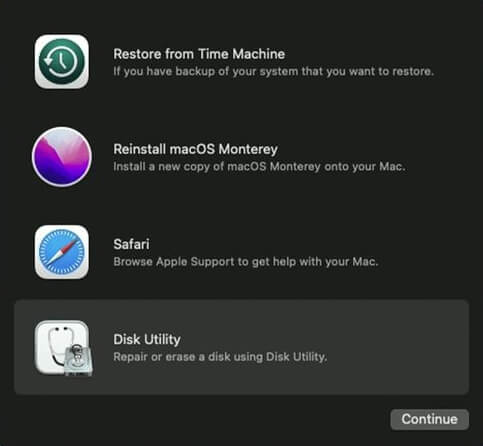
Step 5. To erase the startup disk, click on the internal disk or startup disk, then select "Erase" from the top of the window.
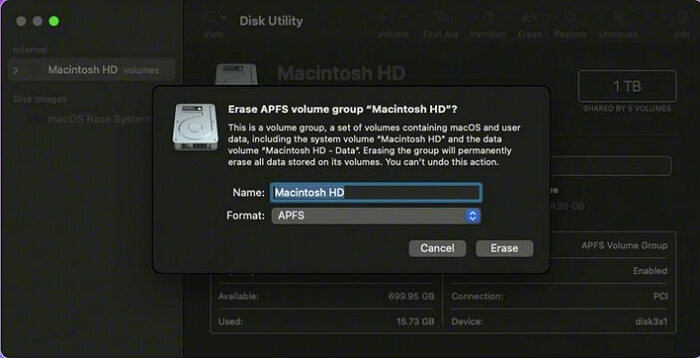
Step 6. You can give a name to the disk and choose the format as APFS. Select "Erase Volume Group" to reset the drive.
Step 7. You will be redirected to the utility window, where you need to click on "Reinstall macOS".
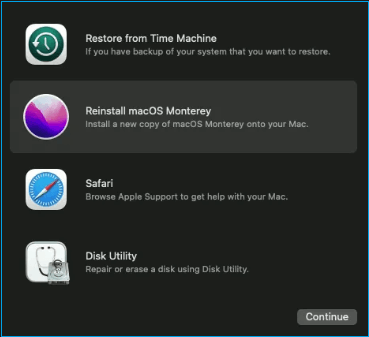
Step 8. After completing the macOS installation, follow the on-screen instructions. Once the installation is complete, the Setup Assistant will open. Quit the Setup Assistant.
Step 9. Turn off the system.
Recover Lost Data with Software After Factory Reset MacBook Air
If you've lost data after factory resetting your MacBook Air, you may be able to recover it with a reliable recovery tool, such as Deep Data Recovery.
- Recover data from various scenarios, including deletion without a backup, malware attacks, hardware failures, formatting during macOS updates, system crashes, manual errors, and sudden shutdowns. The tool can also recover data from an emptied Mac Trash, providing a second chance at retrieving lost files.
- Data can be restored in various forms, including music files, photos, emails, videos, and documents.
- You can recover deleted files from various Mac-based devices, including Time Machine backup drives, memory cards, fusion drives, HDD, USB drives, SSD, cameras, and more.
To use Deep Data Recovery for Mac, simply follow these easy-to-follow steps.
Step 1. Search for lost files
Select the disk location to search for lost files and click the "Search for lost files" button to start the recovery process.
Note: Before attempting data recovery, it's recommended to create a backup of your HDD/SSD by clicking "Disk Backup" from the left sidebar to prevent further data loss. This backup allows the software to recover data from it, and you can then reuse your HDD or SSD.

Step 2. Go through the scanning results
This software will immediately scan your selected disk volume and display various types of files, including pictures, documents, audio, videos, and emails, in the left pane.

Step 3. Select the file(s) and recover
To recover deleted data, first, click on the data you want to recover. Then, click the "Recover" button.

Bottom Line
Factory resetting MacBook Air is sometimes necessary, especially when you want to sell the device or optimize its performance. There are two ways to do it: using Erase Assistant or doing it manually via the Recovery mode. This process essentially wipes the device clean of all data and settings, returning it to its original factory state.
Before opting for a factory reset, it's crucial to back up your data to prevent loss. If you do lose data, consider using professional data recovery software like Deep Data Recovery for Mac to retrieve your files.
Factory Reset MacBook Air FAQs
If you're looking to know more about Factory Reset MacBook Air, this guide can help. Here are some answers to frequently asked questions about the process: What is a factory reset, and how does it work? What are the benefits and risks of performing a factory reset on your MacBook Air?
How do I reset my MacBook Air to factory settings at startup?
To reset a MacBook Air to its factory settings at startup, restart the system, go to the Apple Menu, click on Shut Down, and hold the power button until "Loading startup options" appears on the screen. Then, select Erase Assistant to wipe out the device.
To reinstall macOS, click on Options and select Continue. Then, follow the instructions provided. In the Recovery app window, choose Reinstall and select your macOS release. Finally, select Continue and complete the process as instructed.
Can I erase all content and settings on my MacBook Air?
To erase all content and settings on your MacBook Air, go to the Apple menu, select System settings, click on General, choose Transfer or Reset, and proceed with Erase All Contents and Settings.
How do I force a hard reset on my Mac?
To perform a hard reset on a Mac, follow these steps: Press the power button and immediately hold down the Command (⌘) + Option (⌥) + P + R keys. Keep holding them down until you hear the boot chimes for the second time, then release the keys.
- 1. Press and hold down the power button on your Mac for at least 10 seconds to completely shut it down.
- 2. Release the power button or Touch ID.
- 3. Press the power button on the Mac to turn it back on. Wait a few seconds for the computer to boot up.
Can I recover lost data from my MacBook Air after a factory reset?
If you've factory reset your MacBook Air and lost data, don't worry - you can recover it. However, if you didn't back up your data using Time Machine, you'll need to use professional data recovery software to get your files back.
Related Articles
- How to Open Terminal on Mac and How to Use it [2023 Guide]
- Call of Duty Warzone File Location [All You Want to Know]
- Fix System Was Unable to Find the Specified Registry Key or Value [Four Efficient Solutions!]
- PC Not Working Properly? Try A Fresh Install Windows 10
- Does Formatting a Drive Erase Everything? No!
Does formatting a drive erase everything? No! Learn what formatting actually does, how it differs from wiping, and how to securely erase or recover data from a formatted hard drive. - Does Formatting Laptop Make It Faster? HereAre The Full Answers!
Does formatting a laptop make it faster? Learn the pros and cons, when formatting is worth it, and how to recover accidentally formatted data using reliable recovery software.
Products
Articles & Tutorials
- Data Recovery
- Data Backup
- File Recovery
- File Backup
- System Backup and Restore
- Disk and Partition Clone
- Technical articles
- Mobile articles
- Disk Master Help
- Windows Data Recovery Tutorials
- Windows Secure Delete Tutorials
- Windows Partition Management Tutorials
- Windows File Backup and Restore Tutorials
- Windows System Backup and Restore Tutorials
- Windows Disk Backup and Restore Tutorials
- Windows Clone Tutorials