How to Open Zip File on Mac [Ventura/Monterey/Big Sur]
To open zip files on a Mac, you can use the built-in Archive Utility, which is part of the operating system. Simply double-click the zip file to open it, and you'll be able to view its contents. You can also right-click (or control-click) the zip file and select "Open with" > "Archive Utility" to open it. Alternatively, you can use a third-party app like The Unarchiver or 7-Zip to open and extract zip files. Just drag and drop the zip file into the app, and it will extract its contents.
Zip files compress information, allowing users to combine smaller files into one, making them easier to move and manage. Additionally, encrypting zip files with passwords provides an extra layer of security, protecting them from unauthorized access. This feature also enables users to easily transfer zip files between folders or systems, including opening them on Mac devices.
| Workable Solutions | Step-by-step Troubleshooting |
|---|---|
| Fix 1. Double-Click to Open | The simplest method to open zip files on Mac is to double-click them...Full steps |
| Fix 2. Open with Archive Utility | Another solution to open zip files on Mac is via the Archive Utility...Full steps |
| Fix 3. Use Decompression Utility | There are several Decompression Utility Software solutions available...Full steps |
| Fix 4. Use Terminal | It might seem messy or complicated, but this does the job may...Full steps |
Possibility: Can Mac Open Zip Files?
The ZIP file format is a widely used compression standard for file compression and archiving, and macOS supports it by interacting with ZIP files at the API level. This allows users to open and work with ZIP files on their Mac using the built-in tools, as well as third-party tools.
Here is the list of reasons why Mac can open Zip Files:
📱Native App Support
Mac can open and extract files from Zip archives and other formats, including tar, gzip, and bzip2, using its built-in Archive Utility tool.
🧑💻Third-party support
Other apps, following the same API as the native utility, can open archive files and offer additional features beyond what the native utility provides.
📂File System Support
You can navigate through a ZIP file like a folder and drag and drop files from it without extracting the files.
To fix the "Unable to Expand Zip on Mac" error, first, ensure that the Zip file is not corrupted by trying to extract it with a different tool. If the issue persists, check if the Zip file is saved in the correct location, such as the desktop or documents folder, and not in a network drive or external hard drive.
Mac users may experience issues with opening zip files due to incorrect download or transfer, leading them to seek effective solutions to resolve this problem.
How to Open Zip File on Mac [4 Ways]
To open a zip file on Mac, you have several options. However, before proceeding, make sure your data is safely backed up. Once that's taken care of, you can use the built-in Archive Utility to extract the contents of the zip file, or you can download a third-party app like The Unarchiver to help with the process. Alternatively, you can also use the Preview app to quickly view the contents of the zip file without having to extract it. Just right-click on the zip file and select "Open With" to choose your preferred method.
| 4 Methods | When to Use: |
| 🖱️Double-Click to Open Zip Files on Mac | This method is the easiest and most convenient way to open a zip file on a Mac, allowing the user to open a single zip file without the need for additional software installation. |
| 🗂️Open Zip Files on Mac with Archive Utility | Archive Utility is a built-Mac users can use a single application to open and extract multiple zip files at once, making it easier to manage and access the contents of multiple archives. This method allows users to extract the contents of all zip files simultaneously, saving time and effort. |
| 🌐Use Decompression Utility Software | If Archive Utility isn't working or the zip file is corrupted, you can use a third-party decompression software like WinZip or 7-Zip to open the file, which can be helpful when built-in tools are insufficient. |
| 🎚️Use Terminal to View the Zip Files | The Terminal is a powerful command-On a Mac, users can use the command line to view the contents of a zip file without extracting it, making it a useful tool for quickly previewing files without the need for extraction. |
When opening zip files on a Mac, users should consider their needs and preferences. If they need to open multiple files, using an app like The Unarchiver or Zip, Zip, Pierre might be more convenient.
Method 1. Double-Click to Open Zip Files on Mac
The simplest method to open zip files on Mac is to double-click them. This will automatically open the zip file and allow you to view and extract its contents, making it easy to access and use the files within.
Step 1. Go to the zipped file.
Step 2. Double-click it.
Step 3. The Archive Utility tool will automatically extract the contents of the compressed file, making it accessible on the computer.

Step 4. The unzipped file will be in the same folder as the zipped file.
Method 2. Open Zip Files on Mac with Archive Utility
To open a zip file on a Mac using the Archive Utility, locate the zip file, right-click on it, and select "Open with" > "Archive Utility". The Archive Utility will automatically extract the contents of the zip file into a new folder, allowing you to access the extracted files in the new folder. This method is a convenient and straightforward way to open zip files on a Mac without needing to download any additional software, using a built-in feature of macOS.
Step 1. Right-click on the zip file.
Step 2. Select "Open" if you have Archive Utility as default.
Step 3. If not, click the "Open With" option.
Step 4. Select "Archive Utility".
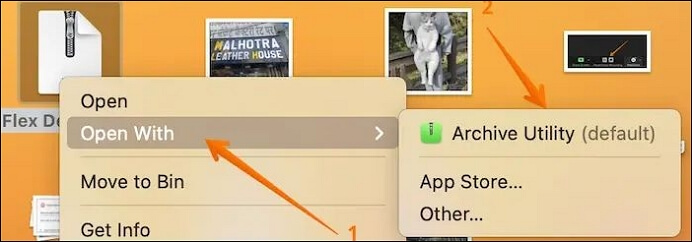
Step 5. Tap on the icons to get the extracted files.
Method 3. Use Decompression Utility Software
There are several Decompression Utility Software solutions available, offering various features to suit different needs. Some of the best zip file openers include WinZip for Mac and BetterZip, among others, making it essential to research and choose the one that best fits your requirements.
Method 4. Use Terminal to View the Zip Files
You can use Terminal to view zip files by opening Terminal, navigating to the directory where the zip file is located, and typing `unzip filename.zip` to extract and view the contents of the zip file. Alternatively, you can use `unzip -l filename.zip` to list the contents of the zip file without extracting it.
Check out these steps –
Step 1. To open Terminal, click on the "Utilities" folder, and then find the Terminal app.

Step 2. To view information about the contents of an archive, type the command `zipinfo` followed by the location of the archive, for example, `zipinfo ~/Downloads/Archive.zip`. This will display details about the archive's contents, such as file names, sizes, and compression ratios.
Step 3. Take a look at the output.
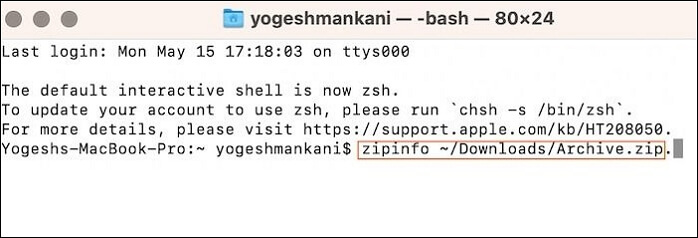
While it may seem cluttered or complicated, this method effectively gets the job done. Alternatively, you could consider using a third-party app for a more polished look.
How to Recover Zip Files on Mac?
Zip files may not be as secure as you think, and if you don't take extra precautions, data loss can occur. In such cases, using a reliable data recovery tool is a good idea to ensure your data's safety. It's essential to take measures to safeguard your data.
The Deep Data Recovery is a powerful data recovery program designed to help users recover lost data due to various situations, including macOS updates that can't be installed, system crashes, and virus attacks, with a user-friendly interface making it suitable for both beginners and experts.
Highlights:
- You can recover deleted ZIP and RAR files on Mac, as well as other types of files, such as music files, videos, emails, documents, etc. by using a reliable data recovery software or service.
- Data retrieval from Mac-based devices like SSD, HDD, memory card, camera, etc.
- To recover files, first, you need to identify the files you want to recover. This can be done by previewing recoverable files.
- A team of remote IT support experts is available to provide assistance whenever needed, offering timely and efficient help from anywhere in the world.
To recover lost files and documents, download a reliable data recovery software that can scan your system, external drives, or other storage devices for deleted or corrupted files. The software will then display a list of recoverable files, and you can select the ones you want to retrieve.
Note: To create a backup and recover your document, click on "Disk Backup" on the left. This process will create a backup image, which can then be used to recover your document, preventing further damage and making your data safer and more reliable.
Step 1. Scan for lost documents
To recover lost Word, Excel, PPT, Numbers, or Pages documents, select the location where the files were lost, and click the "Search for lost files" option. This will initiate a search for the missing documents.

Step 2. Find lost documents on Mac
Deep Data Recovery for Mac will start a scan on your selected disk volume, presenting scanning results in the left pane, allowing you to select "Documents" and filter lost DOC/PDF/PPT/XLS files.
Step 3. Recover lost/deleted documents
Select the target files and preview them by double-clicking them. Then, click "Recover" to retrieve lost documents instantly.
Final Words
On a Mac, it's essential to know how to open zip files, as they are compressed files that take up less space and can be easily transferred between systems. Fortunately, there are four easy methods to open zip files on a Mac, which can be completed in just a few seconds.
Even if files are zipped, data loss can still occur. In such cases, using a professional data recovery tool is a good idea. The Deep Data Recovery for Mac is a user-friendly yet reliable software that can recover different data types.
Download Deep Data Recovery for Mac today and recover your lost data with ease!
How to Open Zip Files on Mac FAQs
To learn more about zip files on Mac, check out the following questions and answers:
1. Why can't I unzip a file on my Mac?
You're having trouble unzipping a file on your Mac because it didn't download correctly. Try redownloading it with a stable internet connection. The file might be stuck in limbo, and a fresh download should resolve the issue.
2. How to open zip files on Mac without WinZip?
To open zip files on a Mac without WinZip, right-click on the zip file and select either "Open" or "Open With" Archive Utility, depending on whether Archive Utility is enabled.
3. Do zip files work on a Mac?
On a Mac, you can compress and decompress files using the built-in compression feature, which allows you to create zip files that can be easily opened and accessed later.
4. How do I open a zip file on my Mac without extracting it?
To open a zip file on Mac without extracting it, go to Terminal and type "zipinfo" followed by the location of the archive, for example "zipinfo ~/Downloads/Archive.zip". This command allows you to view the contents of the zip file without extracting it.
Related Articles
- Mac Startup Disk Full: 6 Effective Solutions for the Free Up Space
- Fix Windows 10 Hangs or Stuck on Shut Down Error
- Where Is The Hard Drive on A Laptop?
- How to Solve "Steam Takes Forever to Allocate Disk Space" Issue?
- Hard Drive Data Recovery Glossary
Comprehensive hard drive data recovery glossary covering key terms from Access to Zoned Recording. Learn hard drive terminology, components, and recovery concepts explained in simple terms. - HD Video Repair Utility Free Download for Windows and Mac: MP4 MOV Full Repair
Download the top 1 HD video repair utility for Windows and Mac for free to easily fix corrupted MP4 and MOV video files with simple steps.
Products
Articles & Tutorials
- Data Recovery
- Data Backup
- File Recovery
- File Backup
- System Backup and Restore
- Disk and Partition Clone
- Technical articles
- Mobile articles
- Disk Master Help
- Windows Data Recovery Tutorials
- Windows Secure Delete Tutorials
- Windows Partition Management Tutorials
- Windows File Backup and Restore Tutorials
- Windows System Backup and Restore Tutorials
- Windows Disk Backup and Restore Tutorials
- Windows Clone Tutorials