Full Guide: Move Partition Gparted in Windows 11/10/8/7 [Step-by-Step Guide]
On this page, you can learn why to move a partition and two ways to move a partition:
If you're looking to improve your Windows user experience, you might want to consider moving your partition using Gparted. This article provides a step-by-step guide on how to do so, addressing common issues in disk management. Whether you're seeking to free up space, optimize performance, or simply reorganize your disk layout, this topic is a valuable resource to explore.
Why Need to Move Partition
Moving a partition in Windows 10/11/8/7 and other versions refers to relocating allocated drives and spaces to other locations or drives. This process is considered when users need to free up space, improve system performance, or relocate their operating system to a different drive. Let's discuss this further.
Make unallocated space adjacent to the target partition: To address the issue of moving partitions and low disk space, you can first allocate unallocated space to a specific location on the computer. This will then allow you to extend your hard drive using the newly allocated space, thereby resolving the low disk space problem.
Better management of data: To make the most of your hard drive space, consider shifting or moving partitions to free up space in cluttered drives and avoid running out of space. By doing so, you can utilize the unallocated space and make room in drives with excess data, effectively maximizing your hard drive capacity.
Now, you will require proper techniques to move partitions in your Windows computer.
Full Guide on Move Partition Gparted - Complex
To move partitions, a great method is to use Gparted, a powerful application designed for managing disk space. With Gparted, you can directly move partitions to a new location, making it a convenient and efficient solution. The process is straightforward and can be completed using the steps provided, offering a comprehensive guide to successfully relocating partitions using Gparted.
Step 1: Resize the partition by moving the slider to the right, reducing its space to half of the available space.

Step 2: After that, click on the "Resize/Move" button to confirm the change, and then click "OK" on the warning that appears to finalize the process.
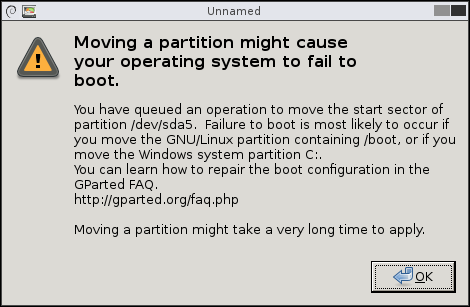
Step 3: To resize the extended partition, select it and choose the "Resize/Move" option. Drag the left side to the right, leaving no space between the boundaries, and then click "Resize/Move" to proceed.
Step 4: To free up space on your computer, look into the partition that requires more space and select the "Resize/Move" option. Then, drag the right-hand side of the slider to the far right side and click on the "Resize/Move" button to execute the changes.
Step 5: To proceed, navigate to the "Edit" tab, select "Apply All Operations" to run all queued operations, and then click "Apply" on the confirmation message.
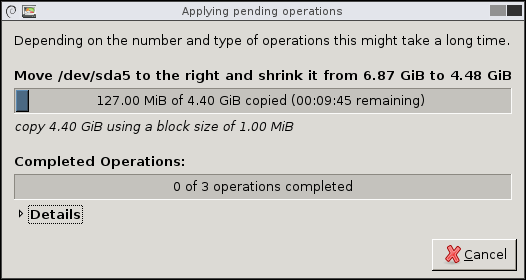
While Gparted is a user-friendly application, it may still be challenging for some users, particularly when it comes to complex operations like resizing or moving partitions. If you're not comfortable with the long steps involved, you may want to consider alternative options. However, Gparted can still perform a variety of tasks, such as resizing GPT partitions.
Move Partition with Qiling Disk Master - Easier
Qiling Disk Master Professional is a tool that helps manage partitions on a computer's hard drive, allowing users to move partitions easily through a user-friendly interface, without the need to create USB-bootable media.
Step 1: Locate and select the target drive/partition
Launch Qiling Disk Master, go to Partition Manager, select the target drive/partition, right-click and choose "Resize/Move" to adjust its size.

Step 2: Resize or move the partition
1.To shrink the partition, simply drag one of its ends to free up unallocated space.
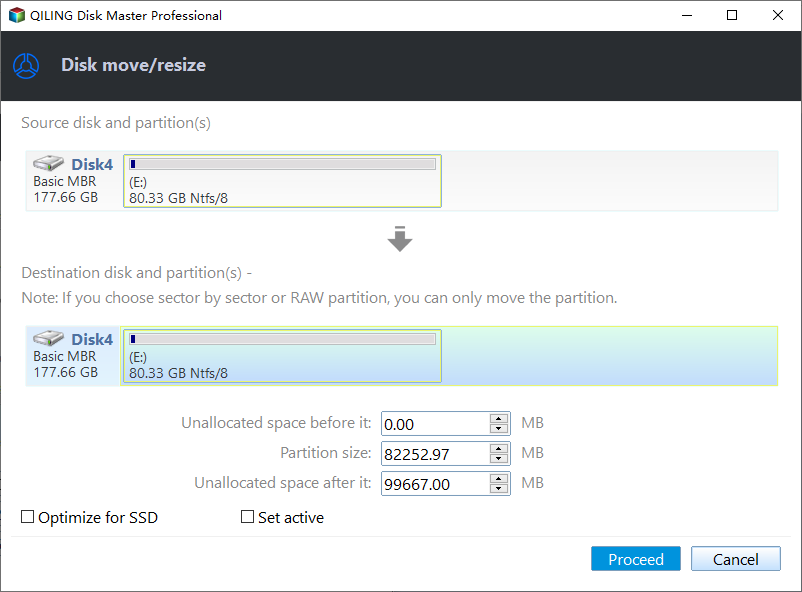
2. To extend the partition, ensure there's unallocated space available. If not, create some by resizing an existing partition. Then, drag the mouse into the unallocated space to extend the partition.

3. To move a partition position, you need to have unallocated space next to the target partition. If there isn't any, free up some space first.
Right-To resize/move a partition, click on the target partition, select "Resize/Move" from the context menu. Then, drag the whole partition leftward or rightward to adjust its position.
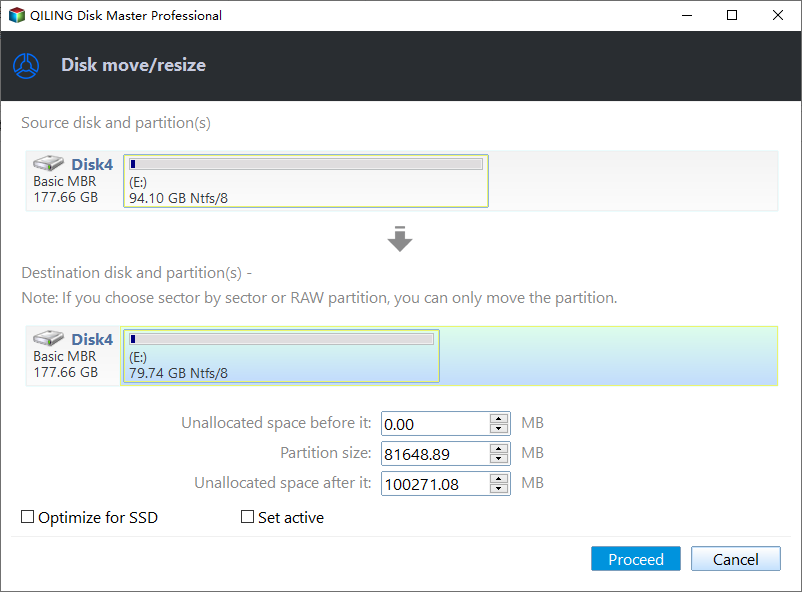
Step 3: Confirm the result and apply changes
At this stage, you will see the updated disk partition information and diagram, showcasing the changes made to the disk configuration.
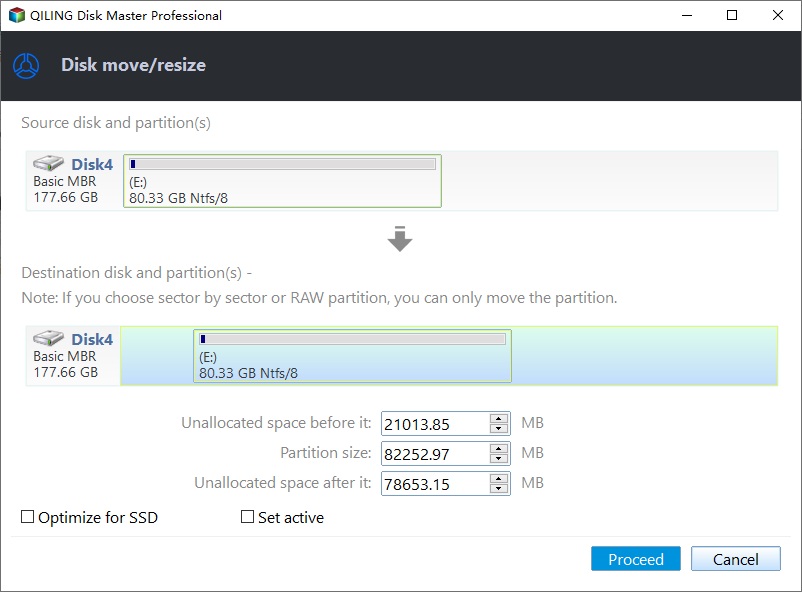
To save changes, click the "Proceed".

Key Features of Qiling Disk Master
Qiling Disk Master stands out as a great tool thanks to its exquisite pointers, making it ideal for moving partitions. Some notable features that make it the best option include.
- Move unallocated space to C drive
- You can delete/create/split/extend partitions
- Resize encrypted partition or merge partitions on SSD
- EasyBCD is a free tool that allows you to convert a Master Boot Record (MBR) to a GUID Partition Table (GPT) on Windows 11 devices, making it easier to manage and maintain your system's boot configuration.
- The system includes a cloning mechanism that replicates system partitions, making it easier to manage disks.
To effectively manage your disk partitions, consider downloading a reliable disk partition manager. This tool will provide the necessary assistance to help you navigate and optimize your disk space, ensuring a smooth and efficient computing experience.
Conclusion
To make space in your disk, you can use techniques like Gparted to move partitions and free up space. Tools like Qiling Disk Master can simplify the process, making it easier to create space on your disk.
You may also like the following links:
FAQs Related to Move Partition Gparted
The GParted partition manager is a free and open-source tool used to create, delete, resize, and move partitions on a hard drive, solid-state drive, or other storage devices. It can be used to prepare a hard drive for a new operating system installation, recover deleted partitions, or resize a partition to make more space available.
1. Can a partition be moved?
It is possible to transfer partitions in a Windows computer, and tools like Qiling Disk Master can make the process easier.
2. How do I move my partitions?
To move partitions, you can use tools like Gparted or Qiling Disk Master, which can be run from a bootable USB drive to manage partition movements.
3. How do I move space from one partition to another?
To move one partition to another, you can use Disk Management to shrink the partition with extra space and then allocate that space to the other drive, effectively moving the partition.
Related Articles
- Disk Boot Failure - Insert System Disk and Press Enter in Windows 10
- How to Fix Virtual Disk Service Error: The Disk Is Not Empty [Full Guide]
- Why Can't I Format My External Hard Drive on PS4? [Ultimate Answer and Tutorial]
- Windows Mail Backup and Restore [Everything You Need Know]
- What Is Wifi Card and How to Use It? [Everything You Need to Know]
Learn all about the Wi-Fi card in detail. What is a Wi-Fi card? Go through the key advantages of a Wi-Fi card and the detailed process of using a Wi-Fi card. - What is Wi-Fi? Learn and Get How Does It Work?
This quick guide will walk you through what Wi-Fi is, how it works and how it can be used.
Products
Articles & Tutorials
- Data Recovery
- Data Backup
- File Recovery
- File Backup
- System Backup and Restore
- Disk and Partition Clone
- Technical articles
- Mobile articles
- Disk Master Help
- Windows Data Recovery Tutorials
- Windows Secure Delete Tutorials
- Windows Partition Management Tutorials
- Windows File Backup and Restore Tutorials
- Windows System Backup and Restore Tutorials
- Windows Disk Backup and Restore Tutorials
- Windows Clone Tutorials