4 Ways Included | How to Fix Windows Won't Boot from CD
Users may experience issues with Windows not booting from a CD, a problem that can occur with various Windows versions, including Windows 7, 8, 10, and 11. Instead of relying on CDs or DVDs, many users opt for creating a bootable USB drive, which can save them time and effort in the process of downloading and preparing a bootable drive.

When Windows won't boot from CD, it can be difficult. The issue can be caused by a variety of factors, including a faulty CD drive, a corrupted boot sector, or a BIOS setting that's preventing the CD from being recognized. Fortunately, there are steps you can take to resolve the problem, and we'll outline them in this article, along with a bonus tip to help you get back up and running.
Why Windows Won't Boot from CD
Windows may not boot from CD due to a damaged or scratched DVD/CD, which can prevent the installation process. This is often the culprit, not a broken CD or bad installation file. It's worth checking the CD for any physical damage before assuming it's the operating system's fault.
If your Windows computer won't boot from a CD, there are several possible reasons, including a faulty CD drive, a BIOS setting that prevents booting from CD, or a corrupted boot sector on the CD. Additionally, the CD drive may be set as a secondary boot device, or the CD itself may be damaged or not properly burned.
- Incorrect configuration in the BIOS not prompting CD boot
- Inability to use CD boot in some recent motherboards
- Bad or damaged Windows CD/DVD
- Corrupted files on your CD/DVD
- Bad power connection on the CD/DVD ROM drive
- Bad power supply connection
If you're experiencing issues with your PC not booting from a CD, it's likely due to the CD not being recognized by the BIOS or the CD drive being malfunctioning. The CD might be damaged, the CD drive might be set to boot from the hard drive instead of the CD, or the BIOS settings might be incorrect. To resolve this, try cleaning the CD, checking the CD drive settings, and updating the BIOS to the latest version.
4 Ways to Fix Windows Computer Won't Boot from CD
Now that we understand the reasons behind Windows not booting from CD, let's discuss the fixes. The easiest solution is often the best, so we've identified four common fixes for common issues: these include the fixes below.
- Way 1. Ensure your PC Is Powered on
- Way 2. Recheck Boot Order in BIOS
- Way 3. Clean the Disc
- Way 4. Create a Bootable CD Correctly
Way 1. Ensure your PC Is Powered on
To troubleshoot your PC's power issue, ensure it's powered on and connected to the wall outlet correctly. This involves checking three key things: that the power button is functioning properly, that the power cord is securely plugged into both the PC and the wall outlet, and that the outlet itself is working by plugging in another device to test it.
- Power cable
- ATX/CPU Power Cable
- Wall outlet where PC is connected
If one of the three connectors (power cord, power button, or CD/DVD drive) isn't seated or plugged in properly, your PC won't power on correctly or boot from a CD. To troubleshoot, check that the power cord is securely connected to both the PC and the wall outlet, the power button is firmly attached to the motherboard, and the CD/DVD drive is properly connected to the motherboard and the PC case.
- Check if the Power Cable (A) is securely connected to your PC's Power Supply (B) to ensure proper power delivery.
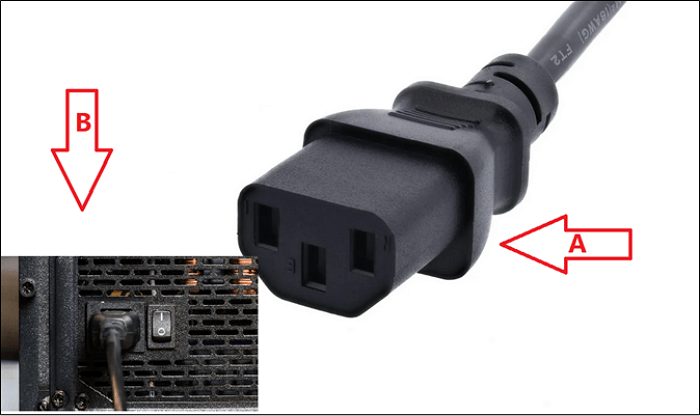
- If this is connected, open your PC case's side panel
- Check if the ATX cable is securely connected to the motherboard, making sure it's fully seated and not loose. Ensure the cable is plugged into the correct slot on the motherboard, usually marked as the "ATX" or "24-pin" connector.
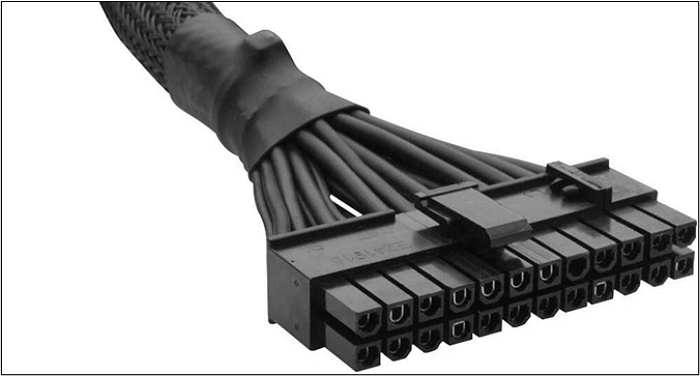
- Unplug, then plug the cable back in
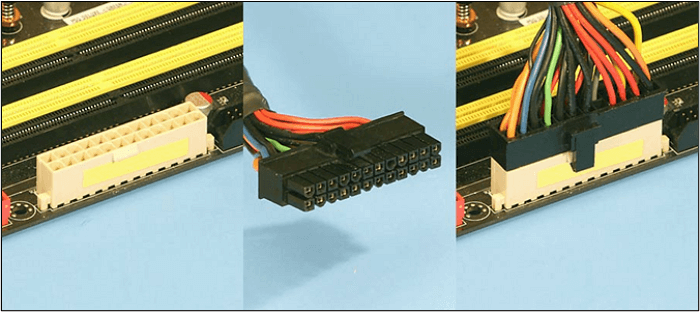
- Done
To check the CPU cable connection, ensure the CPU is securely fastened to the motherboard using the provided mounting system. Next, verify that the CPU cable is properly connected to the CPU and the motherboard. It's also essential to check that the cable is not damaged or pinched, which could cause issues.
- Find the 8-Pin CPU Power Connector in the top-left of your motherboard

- Unplug the 8-pin cable, then plug it back in
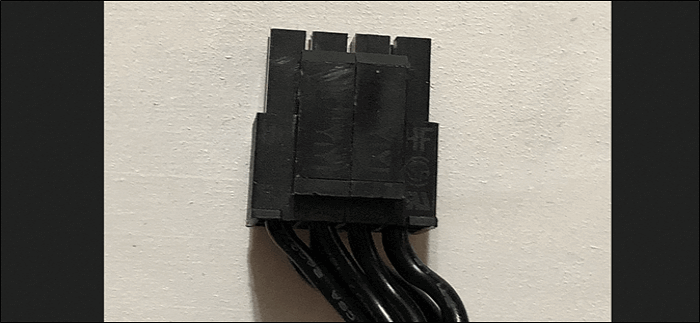
- Done
Check the wall outlet and ensure it's securely connected and not sparking. Once you've confirmed this, try turning on your PC and see if Windows boots from CD. If not, proceed to the next step.
Way 2. Recheck Boot Order in BIOS
To resolve a PC skipping past CD boot, check the BIOS settings to ensure CD/DVD ROM is set as the first boot device. This typically involves accessing the BIOS, navigating to the boot order section, and selecting CD/DVD ROM as the primary boot device. This allows the PC to prioritize booting from the CD or DVD drive, enabling the installation or repair of Windows from a CD.
- Restart your PC
- On the boot screen, press the F2, F10, or DEL key to access the BIOS (check your motherboard's manual for the correct key).
- Head into BOOT (A) Section
- Take the CD ROM (B) to the top of the boot options
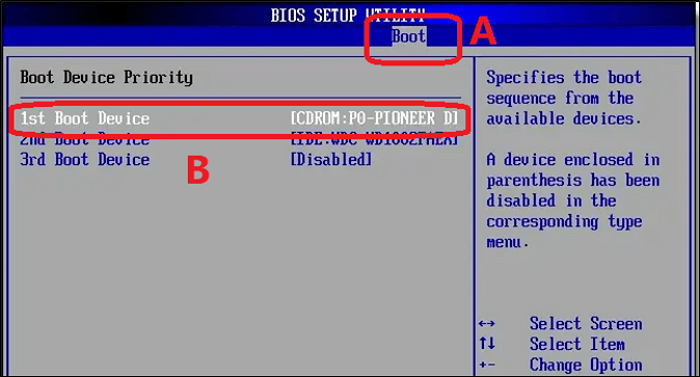
- Done
Once you've completed these steps, simply restart your PC and press any button when the prompt to boot from CD appears.
Way 3. Clean the Disc
If the settings and power connections are all in place, you need to ensure your CD isn't damaged or scratched. Or, you will have to clean it, as sometimes bad reading also prevents Windows from booting through CD. Here's how:
- Pull out the CD from the CD/DVD room
- Grab a microfiber cloth
- Clean the CD gently
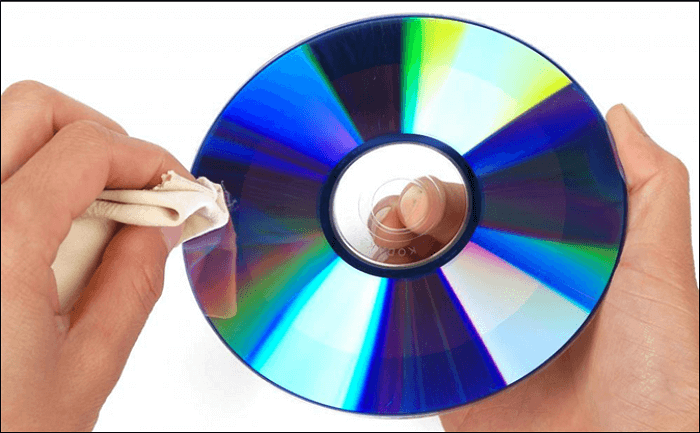
- Done
Once you've made the necessary changes, remove the CD and insert it again. Then, try rebooting your system and see if you can boot from the CD.
Way 4. Create a Bootable CD Correctly
If the steps above didn't work, it's likely that your Windows wasn't burned to CD/DVD properly, so you'll need to create a bootable CD correctly. To do this, follow the steps below:
- Insert the empty CD-RW into your CD/DVD ROM
- Then head into the folder where your Windows ISO file is
- Right-To burn the Windows 7, 10, or 11 ISO file, click on the ISO file, then click on the Burn Disc Image option.
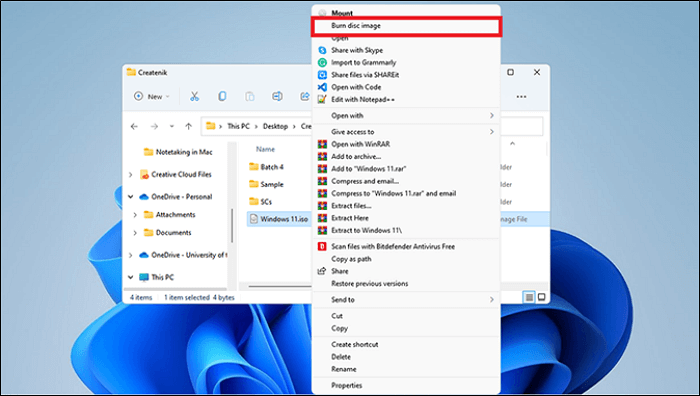
- Select the DVD/CD ROM path in Disc Burner, then tap Burn.
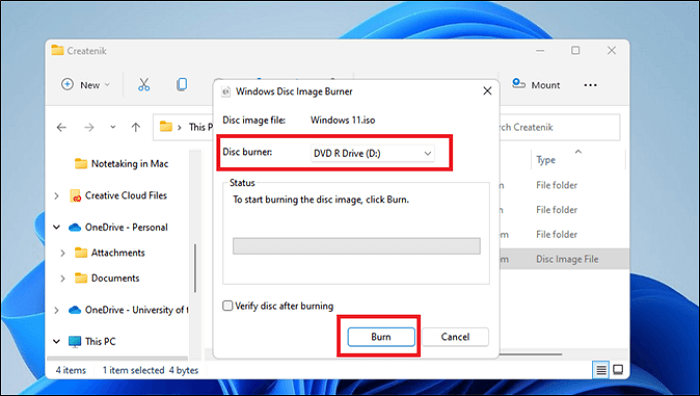
- Wait for it to finish
- Done
Once you've recreated the CD, try booting from it again. This should allow you to boot successfully, as the CD is now properly created.
Bonus Tip: How to Make a CD Bootable
Creating a bootable CD is crucial to ensure your computer boots correctly, and using an ISO file is a viable option for making one. If a bootable CD is not created correctly, it may result in a failure to boot Windows. Therefore, making a bootable media that can boot your computer is vital.
Another way to create a bootable CD is using professional backup software, such as Qiling Disk Master Pro.
Qiling Disk Master Pro allows you to create a WinPE emergency bootable disk and a bootable CD, as well as offering other useful features.
- Create a backup that's safe and easy to recover
- Perform full, incremental, and differential backups
- I need to create an image of an SD card and an ISO image from a hard drive.
- The free 250GB cloud storage allows you to store essential data, such as documents, photos, and videos, securely and accessibly from anywhere. This feature is particularly useful for individuals and businesses that need to collaborate on projects, share files, and maintain a centralized repository of important information.
- Compress backups to save space.
To create a bootable CD and use the ISO file properly, you can use a tool to help you with the process. This tool will allow you to create a bootable CD from the ISO file, making it easy to use the ISO file on a computer without a CD drive.
Step 1. Prepare a USB drive which can be written and read.
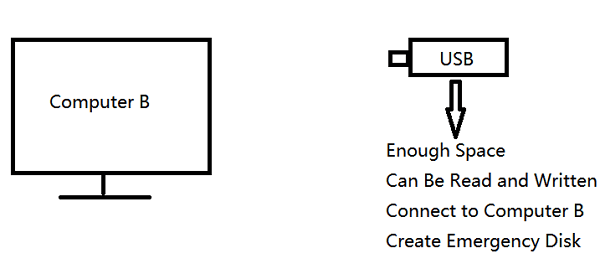
Step 2. Launch and install Qiling Disk Master on the Computer B.
Step 3. Find and click "Tools" and choose "Create Emergency Disk".
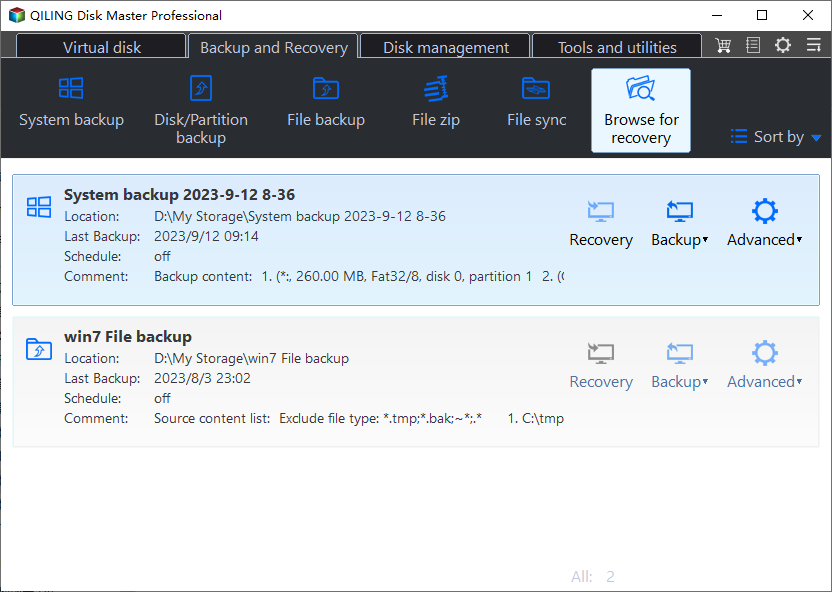
Step 4. Choose the method to create a bootable media for your operating system installation. This can be an ISO file, a bootable USB drive, or a CD/DVD disc.

Step 5. Then click "Create" to start.
The Bottom Line
If your Windows won't boot from CD, try these fixes: check the CD/DVD drive for errors, ensure the CD/DVD is compatible with your computer, check the BIOS settings, and try booting from a different CD/DVD drive. If none of these work, it's likely that the CD/DVD itself was at fault.
To resolve the issue of creating a bootable CD, use Qiling Disk Master to ensure proper creation of a bootable CD, thus preventing further problems. This multi-functional backup tool allows for various tasks to be performed.
FAQs
1. How do I force Windows to boot from CD?
To insert the Windows boot CD, restart your PC, and enter the boot menu (not BIOS) by tapping the F2, F10, or Del keys, depending on your motherboard. From there, select the CD/DVD drive to boot from the CD.
2. How do I boot from CD from BIOS?
To set your PC to boot from a CD/DVD ROM, you need to change the BIOS settings to prioritize the CD/DVD ROM as the first boot option. To do this, restart your PC, enter the BIOS menu, and adjust the boot order to put the CD/DVD ROM at the top. Once you've made this change, save the settings and restart your PC again. It should now boot directly from the CD/DVD ROM.
3. How to install Windows from CD?
To install Windows, you'll need a bootable CD. Insert the CD into your DVD drive, go to your motherboard's boot menu, and select CD/DVD ROM as the boot device. Then, follow the on-screen instructions to set up Windows.
4. Why Windows cannot be installed on this disk?
The issue might be caused by UEFI BIOS compatibility or a bad Windows CD/DVD. To resolve this, ensure that your BIOS and hard drive are configured in UEFI mode, and then try booting from a valid Windows CD/DVD.
Related Articles
- How to Recover Browser/Internet History?
- How to Restore Files from OneDrive to PC [A Full Guide]
- How to Choose QNAP External Drive Format [2024 Detailed Tutorial]
- You May Not Install to This Volume Because It Is Currently Being Encrypted
Fix the macOS message you may not install to this volume. Learn causes, disk format checks, and safe installation options. - How to Solve "Format FS=NTFS Stuck at 0% or 10%" [Full Guide]
If you're experiencing issues with the 'format fs=ntfs stuck' problem, this guide provides four solutions to help you resolve the issue. - How to Format SD Card on Chromebook [With Specific Steps]
Chromebook offers a simple option to format SD cards through the Chrome OS File Manager, eliminating the need for additional apps or actions.
Products
Articles & Tutorials
- Data Recovery
- Data Backup
- File Recovery
- File Backup
- System Backup and Restore
- Disk and Partition Clone
- Technical articles
- Mobile articles
- Disk Master Help
- Windows Data Recovery Tutorials
- Windows Secure Delete Tutorials
- Windows Partition Management Tutorials
- Windows File Backup and Restore Tutorials
- Windows System Backup and Restore Tutorials
- Windows Disk Backup and Restore Tutorials
- Windows Clone Tutorials