How to Enable and Disable Airplane Mode on Windows
The guideline to turn on your device in airplane mode when boarding a flight is to prevent devices from interrupting mainstream internet connections during the flight. This is why.
Airplane mode on a laptop is a feature that disables all wireless communication, such as Wi-Fi, Bluetooth, and cellular connectivity, to conserve battery life and comply with flight regulations. To turn on or off airplane mode on Windows, you can follow these steps: go to the system tray, usually located in the bottom right corner of the screen, and click on the airplane icon or right-click on it to select "Turn Airplane Mode On" or "Turn Airplane Mode Off.
What Is Airplane Mode on a Laptop
Most portable electronics have an option called "airplane mode" that disables the device's wireless transmitters, including Wi-Fi and cellular radio, to prevent interference with airplane navigation systems.
Bluetooth and GPS may be disabled in airplane mode to prevent radio interference with aircraft systems.
Using airplane mode on your device can help save power by turning off non-essential components, which in turn reduces battery consumption.
How to Turn on Airplane Mode on Windows
To enable airplane mode on Windows 10, you can do it through the Action Center, Network list, or Settings app, with at least three ways to achieve this.
To turn on airplane mode on a laptop, press the designated key or the keyboard shortcut "Function + Airplane" if available, or locate the physical key to toggle the feature on.
To access the Action Center, go to Settings > System > Notifications & actions, then toggle the switch to the "On" position. This will allow you to customize your notifications and actions.
Action Center
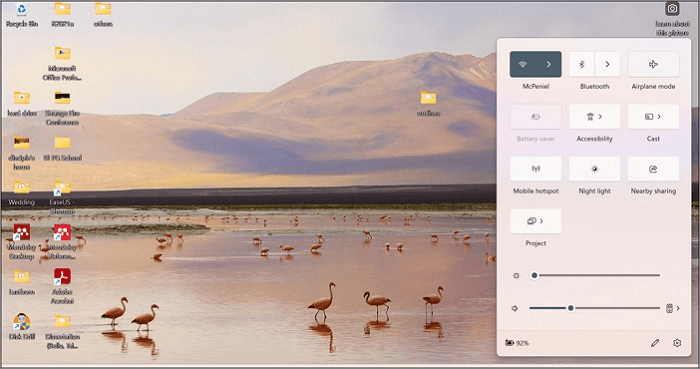
Action Center, located around the notification center on your Windows device, is handy for enabling airplane mode on your laptop. To turn on Airplane mode using Action Center, follow these steps.
Step 1. To press the "Action Center" button, click on the bottom right corner of the screen.
Step 2. To enable Airplane mode, select "Expand" from the menu (if applicable), and then click the "Airplane mode" button.
Settings
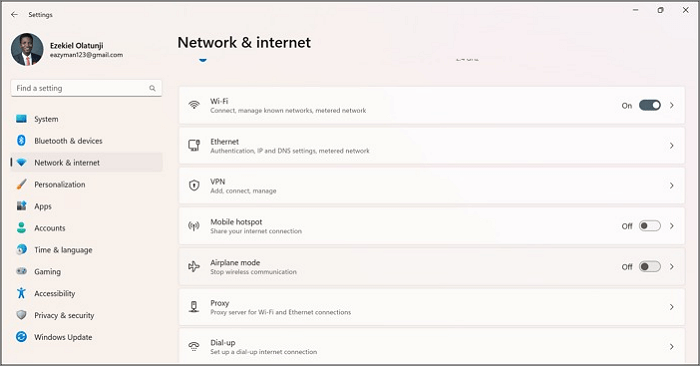
You can disable all wireless communications using the Settings app by going to Settings, then clicking on "Network & Internet", then clicking on "Wi-Fi", then clicking on the toggle switch to turn Wi-Fi off, then clicking on "Bluetooth", then clicking on the toggle switch to turn Bluetooth off, and finally clicking on "Location", then clicking on the toggle switch to turn Location Services off. Alternatively, you can also go to Settings, then clicking on "Network & Internet", then clicking on "Mobile Hotspot", then clicking on the toggle switch to turn Mobile Hotspot off. This will disable all wireless communications on your device.
Step 1. Click on Settings.
Step 2. Click on "Network" and "Internet."
Step 3. Toggle on the "Airplane mode" button.
Lock screen
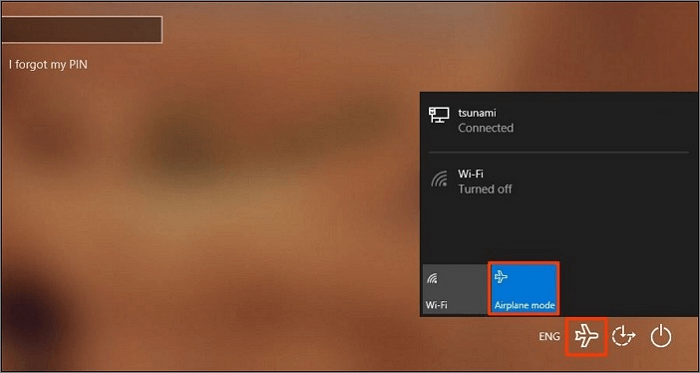
To enable airplane mode on your computer through the lock screen, you can simply swipe down from the top right corner of your screen, click on the "All Settings" option, and then toggle the switch next to "Airplane mode" to the "On" position. This will quickly enable airplane mode on your computer, blocking all internet and network connections.
Step 1. Start your device.
Step 2. Click the "Network" button; this depends on your Windows version.
Step 3. Toggle on the "Airplane mode" switch.
How to Turn off Airplane Mode on Windows
To disable or turn off airplane mode on Windows, you can use the same route you took to turn it on, press the "Function key + airplane key" or use other methods.
Action Center
The Action Center in Windows is a central hub where users can view and manage notifications, as well as take actions to maintain the operating system's performance and efficiency.
Follow these steps to turn off Airplane mode in Windows.
Step 1. Press the "Action Center" button, or use the keyboard shortcut "Windows Key + A".
Step 2. Turn off Airplane mode by clicking the button for it in the menu and selecting "Expand" if necessary.
Settings
Follow these instructions to turn off Airplane mode so that Bluetooth devices and the Internet can be used.
Step 1. Launch Settings.
Step 2. Select "Network & Internet."
Step 3. Toggle the "Airplane mode" to switch it off.
Lock screen
Disabling airplane mode on your computer from the lock screen is also possible. Follow the steps below to achieve this.
Step 1. Start your device.
Step 2. To connect to a Wi-Fi network on your Windows computer, click on the "Network" or "Wi-Fi" button, which can be found in the system tray, typically located in the bottom right corner of the screen. This button may appear as an icon with a series of overlapping waves or a Wi-Fi symbol.
Step 3. Toggle off the "Airplane mode" switch.
Conclusion
This article provides an overview of Airplane mode, including its definition, and offers three tips on how to turn it on and off on Windows. The tips are designed to be helpful and informative, and the article aims to provide readers with the information they need to use Airplane mode effectively.
Related Articles
- Quick Fix External Hard Drive Access Denied Error
- Solved: What Is Taking Up Space on My Hard Drive in Windows 10/8/7
- Fixed: ATA/SATA Hard Drive Not Detected or Recognized in BIOS
- What Graphics Card Do I have? Here's How to Check Graphics Card
- How to Restart Windows 11 [Updated 2023]
If your Windows PC is stuck, unresponsive, or you're experiencing issues with the mouse or menu. There are 7 easy ways to restore Windows 11 and get your PC up and running smoothly again. - Revert Windows 11 to 10? How to Downgrade Windows OS
If you want to revert from Windows 11 to Windows 10, you can do so within 10 days of installing Windows 11, or there are alternative methods to do so if you've waited longer.
Products
Articles & Tutorials
- Data Recovery
- Data Backup
- File Recovery
- File Backup
- System Backup and Restore
- Disk and Partition Clone
- Technical articles
- Mobile articles
- Disk Master Help
- Windows Data Recovery Tutorials
- Windows Secure Delete Tutorials
- Windows Partition Management Tutorials
- Windows File Backup and Restore Tutorials
- Windows System Backup and Restore Tutorials
- Windows Disk Backup and Restore Tutorials
- Windows Clone Tutorials