What Is Single User Mode Mac? How to Boot Into it? [Everything you need to know]
Over the past decade, Apple's revenue has skyrocketed from $108 billion to $365 billion, with a significant portion of this growth attributed to Mac device sales. The Mac's diverse functionality and durability make it a fantastic user experience, but many users may not be aware that they can start their Mac in single-user mode, making it essential to learn about this feature.
The Mac's single-user mode allows users to access and use the operating system in a limited capacity, typically when the system has failed or is malfunctioning. This mode can be accessed by holding down the 's' key during startup, and it enables users to login and perform tasks, but with some limitations, making it a useful troubleshooting option.
What Is Single User Mode Mac
The single-In single-user mode, the minimal UNIX environment operates with a primary console that supports the command line, basic system daemons running, and no graphical shell. This state is characteristic of a typical multi-user UNIX environment, where only maintenance tasks are performed to access shared resources by forcing the system to single-user mode.
The single-Mac's single-user mode is used for tasks such as repairing the startup drive, ejecting stuck media, and more. This mode provides a minimalist environment where users can execute specific essential commands, including starting system daemons, reading and writing files, mounting other storage devices, and performing basic repairs to the startup drive. The UNIX-based commands can be quickly added to the single-user mode for these tasks.
You may be interested in How to Factory Reset Mac.
How to Boot into Single User Mode Mac
Depending on the type of Mac, it is easy to boot into single-user mode. There are three common types of Mac based on the T2 chip, and the process of booting into single-user mode may vary slightly depending on the specific model. However, the general steps remain the same.
Steps to check if Mac has a T2 Chip:
Apple introduced the T2 security chip in 2018, and you can determine if your Mac has one by following these simple steps. The T2 chip was introduced in 2018. The steps to know about the T2 chip availability in the Mac are:
Step 1. Select the Apple menu, then click on "About this Mac".
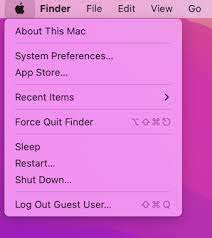
Step 2. Select the "system report" menu and "controller."
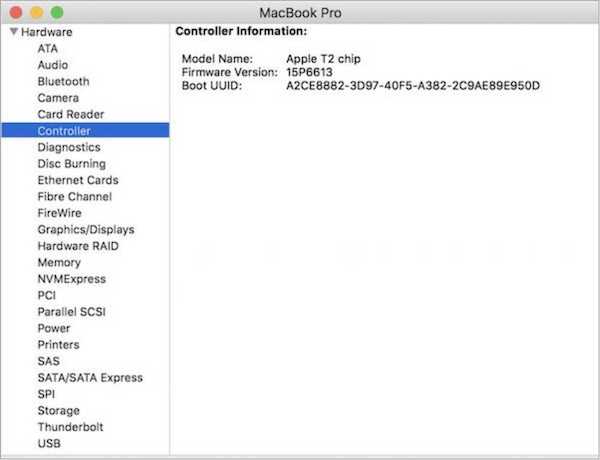
Step 3. Search for any reference to the T2 security.
Top three Mac categories:
Based on the T2 security chip, Mac devices can be categorized into three categories: those that have the T2 chip, those that have a T1 chip, and those that have no T1 or T2 chip. The T2 chip provides advanced security features, including secure boot, encrypted storage, and secure enclave, which enables features like Touch ID and Face ID.
- 1. Boot Single-user Mode in Apple Silicon Macs
- 2. Boot Single-user Mode in Macs with T2 Security Chips and Intel CPU
- 3. Boot Single-user Mode in Older Macs Without T2 Security Chips
1. Boot Single-user Mode in Apple Silicon Macs
Step 1. To shut down the Mac, click the Apple logo in the top left corner, then select "Shut Down" from the dropdown menu. Next, press and hold the power button on the Mac until it shuts down. This will initiate the shutdown process, and once complete, you can release the power button.
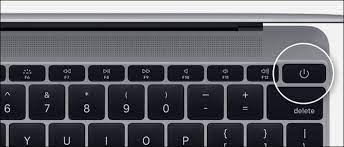
Step 2. To turn on your Mac, press and hold the power button until the spinning globe or Apple logo appears on the screen. Release the power button once the globe or logo is reflected.
Step 3. Select the "Disc Utility" menu from the "macOS Utilities" menu.
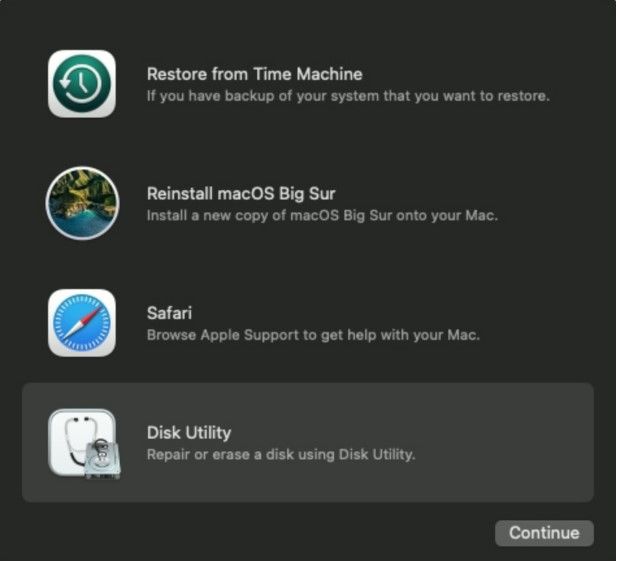
Step 4. To proceed, click on the startup volume and press "Mount". Then, quit the Disk Utility and select Terminal from the Utility menu.
2. To boot a Mac in single-user mode with a T2 security chip and Intel CPU, follow these steps:
In Macs with T2 security chips and Intel CPU, the single-user mode is prevented by the working of the "Startup Security Utility" in recovery mode. To boot this mode using the Terminal menu, follow these steps:
Step 1. Turn off the Mac and power up by holding Command-R.
Step 2. Press and hold the "power" button on your Apple device until you see the Apple logo or a spinning globe on the screen. This will initiate the boot process.
Step 3. Select the "Disc Utility" menu from the "macOS Utilities" menu.
Step 4. To mount the startup volume, click on it in the Disk Utility window, then press the "Mount" button. Quit the Disk Utility and select Terminal from the Utilities menu.
3. Boot Single-user Mode in Older Macs Without T2 Security Chips
Step 1. Shut down the Mac. Power up your system and immediately hold the Command + S keys.

Step 2. To access the system, enter your password when prompted. After entering your password, you will be taken to a black background with white text. Once you are in this interface, press the key labeled "S" to proceed.
Step 3. You can now enter the commands as per your requirement. Once you're done, type and enter shutdown -r to restart your computer.
Conclusion
The single-user mode Mac allows exclusive access to shared resources, ideal for security purposes or special cases like repairs. To boot a Mac device into this mode, follow the steps: restart your Mac, press and hold Command+S during startup, and wait for the command-line interface to appear. This mode is useful for security purposes or exclusive access to shared resources in special cases, making it a valuable tool for Mac users.
The Terminal app on Mac is a user-friendly command-line interface that allows users to troubleshoot and fix issues without needing external help. It provides a simple and efficient way to solve Mac problems, and related top-rated questions are available to address common queries.
FAQs
Solving main queries related to single-user mode Mac is easy when you have a detailed list of probable questions. A quick check on top questions faced by users reveals common issues, which can be resolved with the best solutions.
1. What are the commands in single-user mode on Mac?
The top commands in single-On a Mac, user mode is responsible for starting system daemons, performing basic repairs for drive startup, file writing or reading, and other tasks.
2. How do you get into single-user mode on a Mac?
It is easy to get single-To boot a Mac in safe mode, follow these steps: On older Macs without a T2 chip, Apple Silicon Macs, and Macs with an Intel CPU and T2 chip, shut down the Mac, press the power button, and hold the "Command-S" keys. Release the keys when the screen turns black and displays white text. You may be prompted to enter your password.
3. What is the difference between single-user and multi-user operating systems?
The single-The main difference between single-user and multi-user operating systems is that the former provides facilities to one user at a time, whereas the latter offers resources and services to multiple users simultaneously. Single-user OS examples include single-user multi-task OS and single-task OS, while multi-user OS examples include distributed OS, timesharing OS, and others.
4. What can you do in the single-user mode, Mac?
The single-Mac's User mode allows for administrative tasks and troubleshooting of various Mac issues. It also enables quick booting of the Mac with no drive volumes mounted on startup, and provides a minimal text-based environment with no graphics.
5. What is the main purpose of single-user mode in Mac?
The main goal of single-user mode in Mac is to maintain multi-user environments like network servers by booting the computer into a single superuser mode.
Related Articles
- Can I Upgrade My Motherboard and CPU Without Reinstalling Windows 10? [New Updated 2022]
- Clean C Drive without Formatting in Windows 10/8/7 [Tested & Worked]
- 5 Best Registry Cleaner for Windows PC [Updated 2022]
- (2 Simple Solutions) How to Re-image a Computer for Windows 11/10/8/7
- Lost Windows License? Top 10 Best Windows Key Finders Can Help - Qiling
The page provides a list of the top 10 Windows key finder software and tools that can help you locate the missing product key for your Windows OS and other installed software. With these tools, you can easily find your Windows license on your own. - Here Is Your Ultimate Guide of Windows Password Recovery
If you've forgotten or lost your Windows password, you can easily reset it using Qiling Key Finder. This tool guides you through the process of recovering or resetting your Windows password quickly and efficiently.
Products
Articles & Tutorials
- Data Recovery
- Data Backup
- File Recovery
- File Backup
- System Backup and Restore
- Disk and Partition Clone
- Technical articles
- Mobile articles
- Disk Master Help
- Windows Data Recovery Tutorials
- Windows Secure Delete Tutorials
- Windows Partition Management Tutorials
- Windows File Backup and Restore Tutorials
- Windows System Backup and Restore Tutorials
- Windows Disk Backup and Restore Tutorials
- Windows Clone Tutorials