Windows Password Recovery Guide
| Workable Solutions | Step-by-step Troubleshooting |
|---|---|
| #1. Use Qiling Key Finder | Step 1. Launch Qiling Key Finder, and click "Windows Credentials" on the left pane; Step 2. Now, you...Full steps |
| #2. Reset Password on The Sign-in Screen | Step 1: Firstly, click on the Windows button; Step 2: Click on the Control Panel; Step 3: Click on the User...Full steps |
| #3. Reset Microsoft Account Password | Step 1: Type your email address and click Next, you can see a forgot password option, so click...Full steps |
Introduction
Forgetting passwords is a common issue, but with the advancement of technology, we can find solutions to ease our concerns. Fortunately, there's a hassle-free way to recover lost or forgotten Windows passwords using easy methods and a fantastic tool that's simple to use for everyone, providing a quick and easy solution to password recovery.
We introduce you to a simple tool that provides excellent facilities, eliminating the hassle of remembering Adobe or Office passwords.
Forgot Windows Password, How Do I Log into My Computer
Forgetting your computer password can be frustrating, making it difficult to log in. However, there is a way to reset your password and regain access. By booting your PC in safe mode, you can reset your password and regain control of your computer. This is a helpful solution that can get you back up and running quickly.
Look at some steps below to better understand how to log into the computer. It's not so difficult for anyone to know about the basic features of a window recovery.
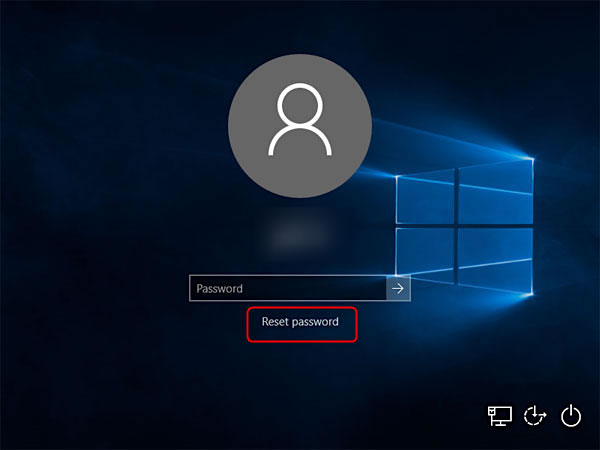
Step 1: After entering the wrong password, click on the "Reset password" option that appears automatically.
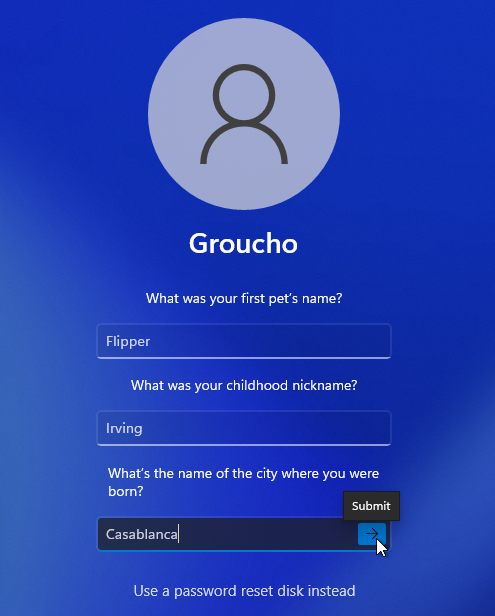
Step 2:It requires some questions that you should have to answer.
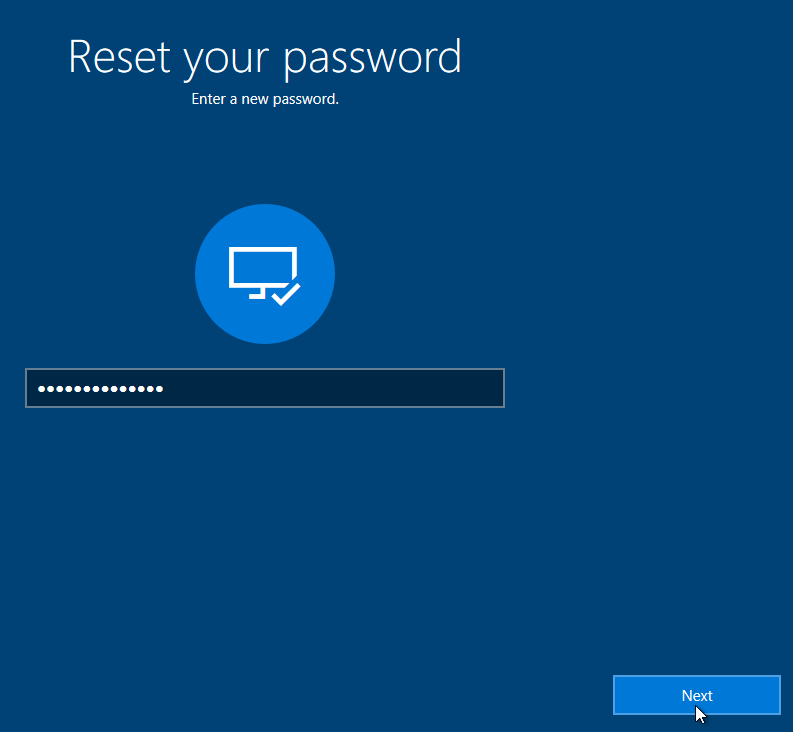
Step 3:To change your password, first click on the "Change Password" button. Then, enter your current password and a new password (make sure you choose one that you can remember).
Step 4:Now, you can log in to your computer easily.
How to Recover Your Windows Password?
Here are some more ways of recovering a Windows password. Maybe you are familiar with any of them because these are the three most common ways of recovering a Windows password.
- 1.Windows Recovering through a tool
- Windows users can reset their password through a built-in recovery option that appears on the sign-in screen. This feature allows users to recover their account by answering security questions or using a recovery PIN, and then reset their password to a new one. This process can be done without needing to access the desktop or login to the account, making it a convenient and secure way to regain access to the account.
- 3.Reset a Forgotten Microsoft Account Password
While the easiest way to recover a password is with a readily available tool for Windows users, it's accessible and requires no effort. In contrast, methods 2 and 3 are more suitable for experienced users who may find them slightly more challenging.
If you are trapped in a Windows password recovery problem, you will find the most effective solutions here.
#1. Use Windows Password Recovery Tool
Qiling Key Finder is a helpful tool that assists in recovering a lost or forgotten Windows password with just simple clicks, allowing you to open your Windows quickly. Additionally, it can also be used to find your Microsoft Office product key.
Step 1.Launch Qiling Key Finder, and click "Windows Credentials" on the left pane.
Step 2.Now, you can check all available Windows Credential addresses with respective user names, and passwords.
You can click "Copy", "Print", or "Save" all Windows Credentials' accounts and passwords at once.
Qiling Key Finder provides a quick and easy way to recover passwords, revealing those stored in web browsers like Internet Explorer, Mozilla Firefox, and Google Chrome. It doesn't require a lengthy list of information, making it a convenient solution for password recovery, and can be used without wasting time on unnecessary requirements. This makes it an all-in-one solution for recovering passwords.
#2. Reset Windows Password on The Sign-in Screen
Follow these steps to reset a Windows password from the sign-in screen:
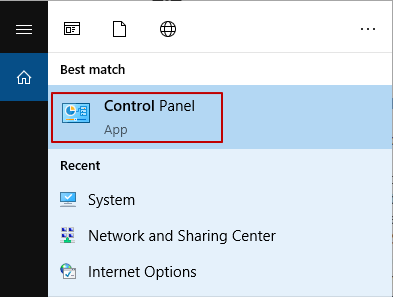
Step 1: Firstly, click on the Windows button.
Step 2:Click on the Control Panel.
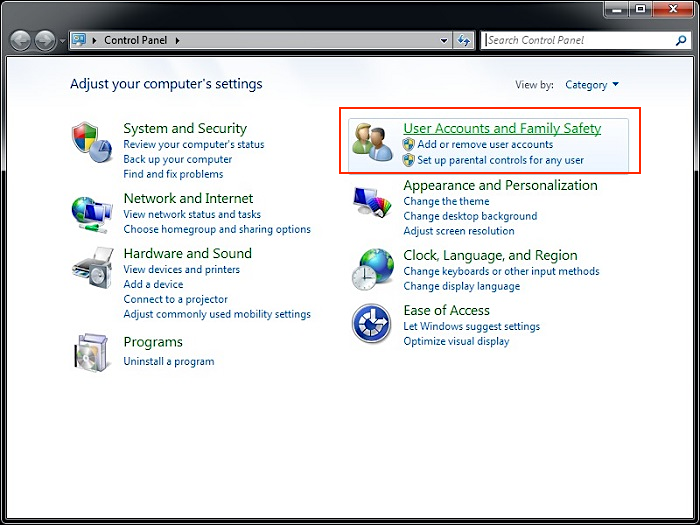
Step 3:Click on the User Accounts and Family Safety.
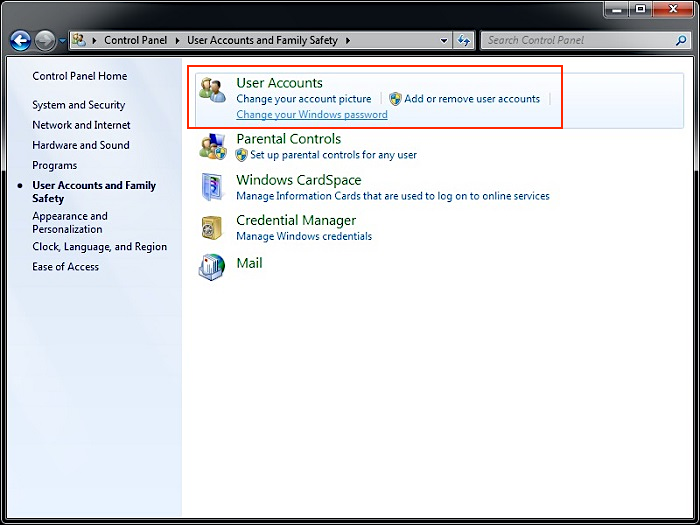
Step 4:Click on the Change your Windows password.
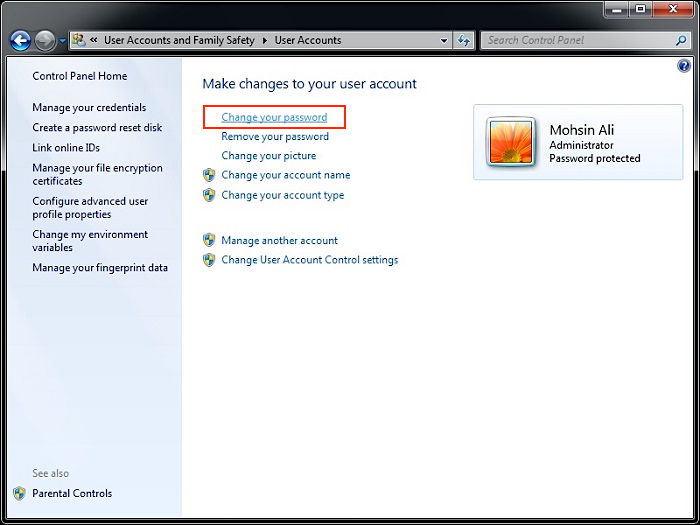
Step 5:Finally, click on the Change your password option.
To reset your password on the sign-in screen, follow these steps: Tap the "Forgot password" option, enter your username or the email address associated with your account, and then follow the prompts to reset your password. This process should be straightforward and easy to follow.
#3. Reset a Forgotten Microsoft Account Password
To recover a Windows password, you can reset your Microsoft account password. This can be done by following these steps: go to the Microsoft account website, click on "Forgot password", enter your Microsoft account email address, select the reason for the forgotten password, and follow the prompts to reset your password. This process should allow you to regain access to your Windows account.
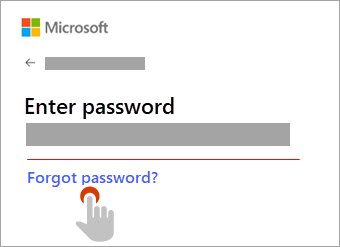
Step 1:To reset your password, click on the "forgot password" option and follow the prompts, or go to the reset password option.
Step 2:Please provide the information of your email or phone number so that they can send a recovery code. Click Get code.
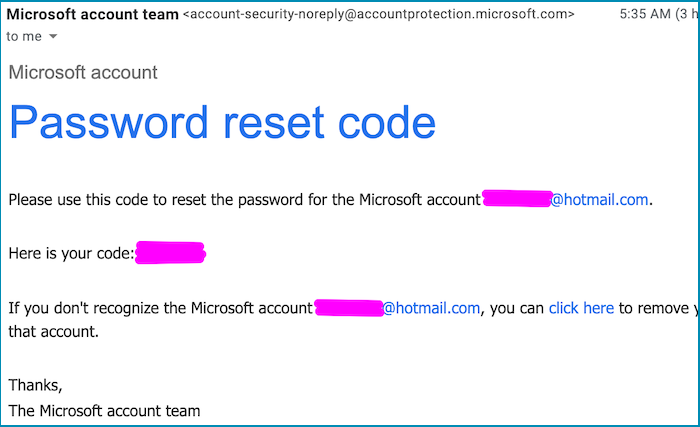
Step 3:To confirm your account, enter the code you received from the chosen method (Email or Phone) into the designated field. This code is a unique, time-sensitive verification that ensures your account is secure and authentic.
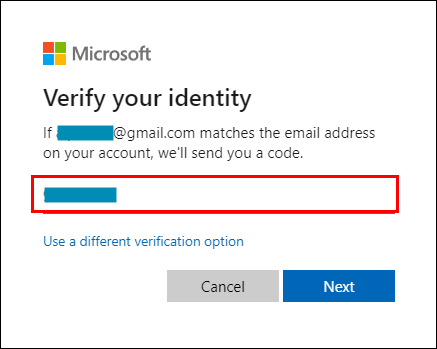
Step 4:Then, copy and paste the code you received and click on the Next option.
Step 5:The new password has been set, and the account has been successfully reset. You can now use your new password to access your account.
Bonus Tip: How to Protect Windows Password
Protecting a password is easy if you're aware of some features that help you remember it easily. You can use techniques like creating a password with a combination of letters, numbers, and special characters, or using a password manager to store and generate unique passwords for each of your accounts. Additionally, you can use a passphrase, which is a phrase or a sentence that is easy for you to remember, but hard for others to guess. By using these features, you can save your Windows password and keep it secure.
- Take a backup of the Windows password to a cloud drive.
- Keep the password as simple as possible to remember.
- Take a Windows password recovery tool for help.
- Sharing your password with others can be a security risk, as they may be able to change your password and gain unauthorized access to your account.
- Create a private folder on your mobile phone or laptop, and write down each password in it. To ensure it remains secure, set a private key to access the folder, so only you can open it and view the passwords. This way, you can keep all your passwords in one safe place while maintaining confidentiality.
- Here's a password that relates to your birthday: "MyBdayIs" followed by the year you were born. For example, if you were born in 1990, your password would be "MyBdayIs1990".
Conclusion
Remembering passwords can be a hassle, but technology has made it easier to recover them quickly. Qiling Key Finder, a top product key finder, offers effortless and instant ways to recover passwords for Windows, Office, Adobe, and Chrome, making password recovery a breeze.
With Qiling Key Finder, you can quickly recover your lost, forgotten, or missing passwords in just a couple of minutes, making it a user-friendly and effective tool to rely on.
We hope you find this information helpful in recovering your lost, forgotten, or missing passwords with ease, just a couple of clicks away.
Related Articles
- How to Find or Recover Microsoft Office 2010 Product Key Already Installed
- Where and How Do I Find or Recover Origin Password
- How to See Saved Passwords in Opera GX
- How to Find Chrome Account and Password
- How to fix the error DNS PROBE FINISHED NO INTERNET? [A Complete Guide]
If you're reinstalling Office 2010 and need the 25-character product key, but can't find it, you can try various methods to recover it. - How to Fix Dying Light 2 Multiplayer Not Working
If you're experiencing issues with Dying Light 2's multiplayer, the problem may be serious, but the solutions are endless! This guide has the perfect solution to fix the issue, so you can get back to gaming with friends.
Products
Articles & Tutorials
- Data Recovery
- Data Backup
- File Recovery
- File Backup
- System Backup and Restore
- Disk and Partition Clone
- Technical articles
- Mobile articles
- Disk Master Help
- Windows Data Recovery Tutorials
- Windows Secure Delete Tutorials
- Windows Partition Management Tutorials
- Windows File Backup and Restore Tutorials
- Windows System Backup and Restore Tutorials
- Windows Disk Backup and Restore Tutorials
- Windows Clone Tutorials