How to Recover Deleted Large Video Files | Reliable Video Recovery Software
What Leads to Large Video Loss
- You delete videos by accident.
- A file transfer error has caused a video to be lost, likely due to an interruption in the transfer process or a malfunctioning external device.
- Formatted hard drive - Be extremely cautious when using the format option, as it will completely erase all data on the selected disk. If you have important files or data stored on the hard drive, make sure to back them up before proceeding.
- Virus deletion - Large videos may be lost due to malware or viruses on the storage device.
- Dead hard drive/USB - When your hard drive or USB gets corrupted, it can cause significant data loss and inconvenience. Fortunately, there are solutions available to recover data from corrupted hard drives or USB drives.
You may lose your video files in various scenarios, but the result is the same: your video is lost, and you need to retrieve your data, which can be easily done by taking the approaches explained to recover deleted large video files.
How to Recover Deleted Large Video Files from Laptop/PC (Best Way)
The key to successful video recovery in Windows 10 is starting the process as soon as possible, as the sooner you act, the better your chances of retrieving deleted files. A reliable file recovery software can help you efficiently recover deleted large video files.
The Reliable Video File Recovery Tool - Deep Data Recovery (Recommended)
Deep Data Recovery serves as a professional data recovery tool with the most advanced data recovery algorithm. It allows scanning devices and filtering lost video files that can be recovered, eliminating the need for a backup plan or extra guidance.
- The software supports recovery of various video formats, including AVI, MOV, MP4, M4V, 3GP, 3G2, WMV, MKV, ASF, and FLV.
- Support recovering and fixing corrupted video files after data recovery
- Also support photo recovery, document recovery, email recovery, and more.
- Recover video files from various devices, including cameras, SD cards, PCs, laptops, and more, with a tool that can help you retrieve lost or deleted videos.
Steps to recover large video files with Deep Data Recovery:
Step 1. Run Deep Data Recovery, select the location or device where you lost/deleted videos, and click "Scan" to find the missing videos.

Step 2. After scanning, go to the "Videos" section, select either "Lost" or "All" to find the desired videos, and then click "Preview" to view them.

Step 3. Select the video files you want to restore and click "Recover" to save them to a secure location.

How to Recover Deleted Large Video Files in Other Ways
If you don't want to use a third-party file recovery tool, you can try recovering large deleted files by using the built-in Windows search feature or by checking the Recycle Bin. Start by checking the Recycle Bin for the deleted file, as it may still be there.
Recover Deleted Large Video Files from Recycle Bin
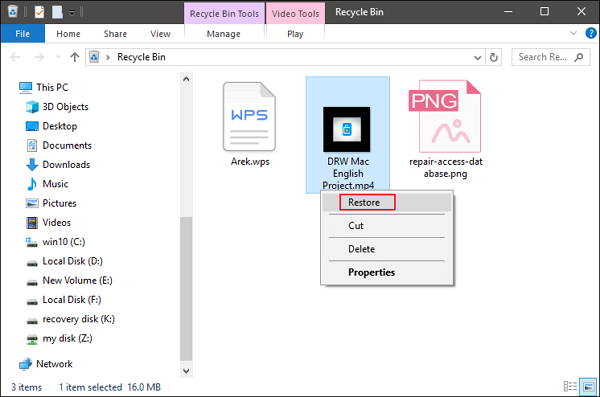
Holding the Shift+DEL key combination can permanently delete files, bypassing the recycle bin. If you haven't used this method to delete videos, you can still recover them from the recycle bin.
To recover a recently deleted video, open the Recycle bin, search for the video, click on it, and right-click to select the "Restore" option. This will move the video back to its original location.
Restore Large Video Files Using File Backup
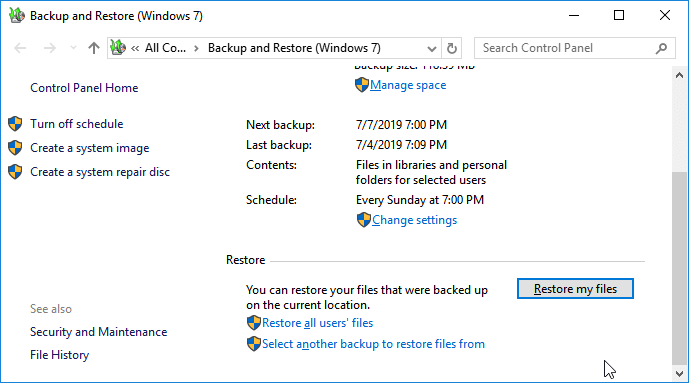
Step 1. To access Backup and Restore (Windows 7) in Windows 10, go to Settings from the start menu, click on "Update & Security", then choose "Backup" and select "Go to Backup and Restore (Windows 7)".
Step 2. To restore your files, click on "Restore my files" and then browse for the backup file you created earlier. This will allow you to select the specific files you want to restore.
Wrap Up
You can recover large deleted video files from various devices using Deep Data Recovery, which can also retrieve permanently deleted files, including those from PCs, laptops, SD cards, cameras, and USB drives.
Recycle Bin allows for quick restoration of temporarily removed video files, while users who have created backups can easily retrieve deleted large video files from their backup files.
Recover Large Deleted Video Files FAQs
If you've accidentally deleted a video file on your Android device, don't worry - there are still ways to recover it. Additional guides on restoring deleted video files on Android devices are available, providing you with more options to try.
How to Retrieve Deleted Large Video Files from Android
To recover deleted videos from Android phone:
- Open the Android gallery and tap "Album".
- Scroll down to find the "Recently deleted" folder.
- Hold the video you want to restore.
- Tap "Restore" to get the video back from Android.
How Do I Recover Large Deleted Videos?
You have different ways to recover deleted large video files:
- Restore deleted video files from Recycle Bin
- Recover permanently deleted large videos with data recovery software
- Retrieve video files from backup files
How Can I Recover Deleted Large Video Files from My Laptop?
To recover deleted or permanently deleted video files, download Qiling data recovery software and follow a three-step process.
- Run Deep Data Recovery and choose the device where you lost videos to scan. Run Deep Data Recovery and choose the device where you lost videos to scan.
- Preview the found video files you need.
- Restore the large videos to a safe place.
Related Articles
- The Best 6 Data Recovery Services Near Me in Dallas, TX
- Deep Data Recovery 15.2 Crack with License Code 2023
- Recover Data from Deleted or Lost Partition
- How to Format USB Drive Without Losing Data
- Where Do Photos/Pictures Go After Recently Deleted on Mac/Windows/Android Phone/iPhone
Don't know where do your photos go after recently deleted? Do you want to know where do your permanently deleted photos go? Read this article to know the answer from various angles. - Windows File Recovery Tutorials
Read this guide to learn Windows File Recovery Tutorials with clear steps, practical tips, and safer troubleshooting methods.
Products
Articles & Tutorials
- Data Recovery
- Data Backup
- File Recovery
- File Backup
- System Backup and Restore
- Disk and Partition Clone
- Technical articles
- Mobile articles
- Disk Master Help
- Windows Data Recovery Tutorials
- Windows Secure Delete Tutorials
- Windows Partition Management Tutorials
- Windows File Backup and Restore Tutorials
- Windows System Backup and Restore Tutorials
- Windows Disk Backup and Restore Tutorials
- Windows Clone Tutorials