6 Best Ways to Recover Lost Game Data on PC/Steam/PS4
- 1. Recover Lost Game Data with Data Recovery Software
- 2. Recover Deleted Steam Game Data from Recycle Bin
- 3. Recover Lost Game Data from the Game Library
- 4. Recover Lost Game Data from Backups
- 5. Restore Lost Game Data from PC with File History
- 6. Restore Lost Game Data from the PC with System Restore
Losing saved game and profile data can be devastating, especially after investing hours into completing levels or rankings. However, if you've experienced a lost save file due to disk failure, accidental deletion, or a glitch, there are ways to recover your hard-earned gaming accomplishments. Whether you're a serious gamer or just a casual player, it's reassuring to know that your progress can be salvaged.
If you've lost game data, don't worry! There are 6 effective methods to recover it, allowing you to get back to your gaming activities quickly. In this blog post, we'll explore these methods and show you just how easy it can be to get your game back on track.
What Are the Causes of Game Data Loss
Game data loss on Steam, PS4, or PCs can be frustrating, but several causes can be identified, including hardware failures, software glitches, and user errors, which can lead to lost saved data without warning.
Application crash: One of the common causes of the issue is an application or system crash due to driver incompatibility or outdated files.
Hardware failures: Unexpected power and hard drive failures can also lead to losses of saved games and other data.
Malware attacks: Malware attacks can downgrade a computer's settings, potentially resulting in corrupted files.
Accidental deletions: Users can cause game data loss when deleting important game files while uninstalling apps or modifying registry entries.
Incomplete installation: An incomplete installation of a game patch or DLC can lead to significant bugs that result in the loss of saved game data, preventing further gameplay.
To prevent game data loss on Steam and PC, it's crucial to regularly back up save data and run antivirus software to safeguard against potential threats.
6 Best Ways to Recover Deleted/Lost Game Data from Steam/PC
These causes are just the tip of the iceberg. In any case, we all have methods that can effectively solve every problem. To recover lost game data from any device, follow the methods below.
Method 1. Recover Lost Game Data with Data Recovery Software (Recommended)
Data recovery software is the most effective way to restore lost game data, and Qiling Data Recovery Wizard is a powerful program designed to recover crashed, corrupted or lost games, providing an easy and comprehensive solution to restore data lost due to unexpected errors, system crashes, and more.
- Deep Data Recovery achieves outstanding results thanks to its support of various file formats and flexible scanning options.
- Users can enjoy convenient features such as deep scan recovery mode and image preview capability before restoring files.
- This software provides fast analysis and recovery speed through advanced algorithms, enabling users to quickly recover deleted files.
You can download this tool to quickly and securely recover lost game data.
Step 1. To proceed, select the specific file location you want to scan and click the "Scan" button.

Step 2. After the process, select the "Deleted Files" and "Other Lost Files" folders in the left panel to view the deleted files. You can then use the "Filter" feature or click the "Search files or folders" button to locate the specific deleted files you're looking for.

Step 3. After recovering the files, click the "Recover" button and save the restored files in a location other than the original one. This ensures the recovered files are safe and not overwritten.

Method 2. Recover Deleted Steam Game Data from Recycle Bin
Recovering deleted game data from the Recycle Bin in Windows 10 can be a relatively simple and quick process.
Step 1. To begin, open the Recycle Bin on your desktop and search for the game file(s),
Step 2. If you've recently deleted files and they're still in the Recycle Bin, right-click the file and choose "Restore" to bring it back.
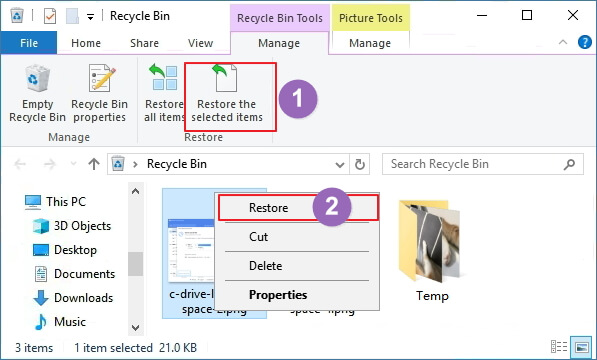
If you can't find your deleted game data in the Recycle Bin, it's likely been permanently erased and can't be recovered with this method. However, if you've checked all folders and still can't find it, it's worth reviewing all folder locations within the Recycle Bin again, as sometimes deleted files can be stored in other places. If it's still not found, it's possible it's been permanently erased.
Method 3. Recover Lost Game Data from the Game Library
If you've lost your Steam game data, you can recover it by checking the location where Steam saves your game data, which varies depending on the game. For instance, if you're trying to recover lost Steam game data, you can try looking in the Steam Cloud or the Steam client's "Save" folder. This information can be found in the game's settings or documentation, so be sure to check there first.
Step 1. To access the Steam game player on your device, open the Steam application. Then, navigate to the Library section within Steam.
Step 2. To find the lost game name on the left panel, right-click on it and select "Properties".

Step 3. On the Properties window, click "LOCAL FILES" and select "VERIFY INTEGRITY OF GAME FILES..." to resolve the issue.
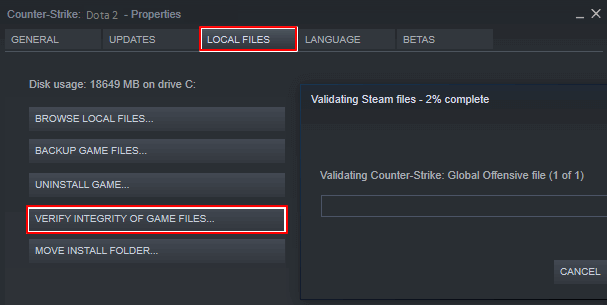
After following the steps, you can try opening the game again to see if the lost game data has been restored.
Method 4. Recover Lost Game Data from Backups
Usually, you can create backups for your games. Thus, you can restore lost game data with backups when you lose game data. Here are the steps to recover lost game data from Steam backups.
Step 1. Go to "Steam > Backup and Restore Games".
Step 2. Choose "Restore a Previous Backup".
Step 3. To proceed, click "Browse" and navigate to the Steam backups folder. Select your title from the list, then click "Next".
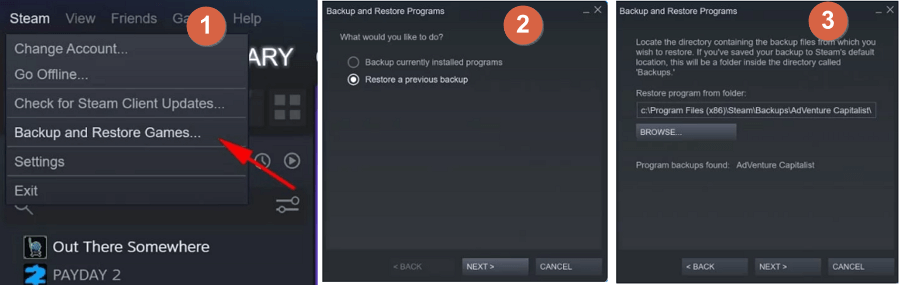
Then, follow the on-screen instructions.
Method 5. Restore Lost Game Data from PC with File History
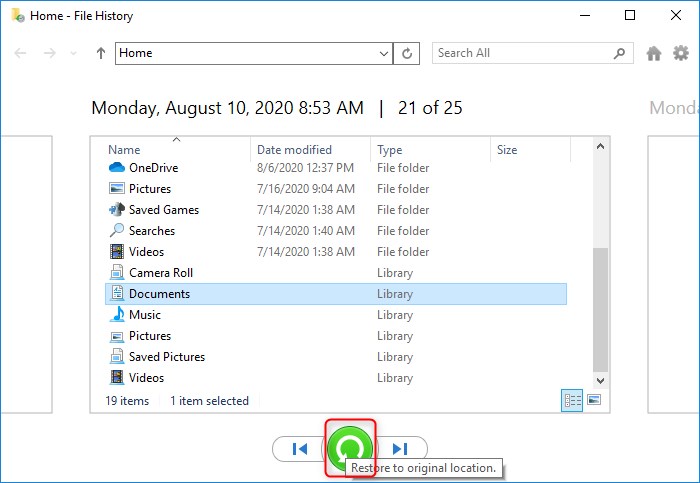
If you can't recover lost game data with the solutions above, try File History, a built-in data backup tool that can back up specific files, including Documents, Pictures, Videos, Music, or offline OneDrive files, to recover lost game data on a PC with Windows 10 File History.
Step 1. Open Control Panel.
Step 2. Go to "File History > Restore personal files".
Step 3. To recover deleted files, click the green "Restore" button.
Method 6. Restore Lost Game Data from the PC with System Restore
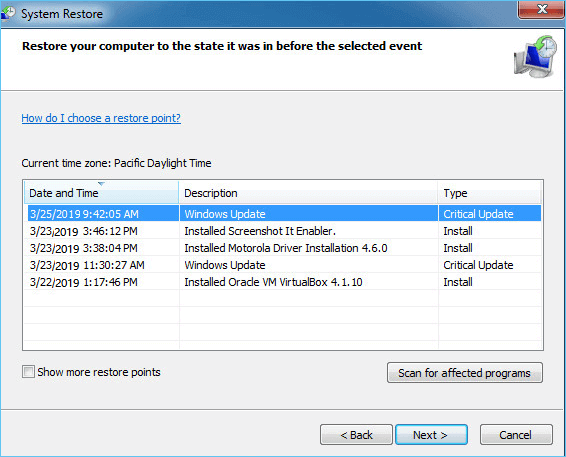
To restore the game backups, go to the System Restore window, select the restore point that was created before the game data was corrupted, and follow the on-screen instructions to complete the restore process. This should restore the game backups you had stored with System Restore. If you're unable to restore the backups, you might need to reinstall the game or seek further assistance from the game's support team.
Step 1. To open the Run box in Windows 10/8/7, press the Windows key + R keys simultaneously. This will bring up the Run dialog box, where you can type a command or program name to execute it.
Step 2. Type rstrui.exe in the empty box and hit Enter to open System Restore.
Step 3. Select "Choose a different restore point" and click "Next".
Step 4. To restore your game files, select the restore point where your game files haven't been deleted or lost. This will ensure that your game files are restored to a previous state where they were still intact.
Conclusion
Recovering lost game data is now easier than ever with Qiling data recovery software. Whether you have a backup or not, this software can help you recover lost or deleted game data with just a few clicks. It's a simple and effective way to restore lost game data, making it the best solution for your needs. You can download the software and get started with recovering your lost game data right away.
Recover Lost Game Data FAQs
If you still have problems, read the questions and answers below to get additional help.
1. Can you recover deleted game data?
A professional recovery tool, such as Qiling hard drive recovery software, can be the best solution if your game files are missing on Windows 11/10/8/7 and you have never backed them up. This tool can recover kinds of files from a hard drive, SD card, flash drive, etc.
2. Does Steam back up game data?
Steam allows you to back up your game data, so you won't have to download the entire game again if you uninstall it. This feature can be especially useful for saving progress in games that don't have cloud saving enabled.
3. How do I restore Steam game saves?
Here are the steps:
- To access the Steam Library Folder, launch Steam and navigate to Steam > Settings > Downloads, then click on the "Steam Library Folder" option.
- This will open all your current Steam Library folders.
- To add the library folder, click on the "Add Library Folder" button and select the folder where your installed games are located.
- Once the adding process is complete, any games that appeared to be uninstalled will reappear in your Steam Library. This is a normal part of the process and does not indicate any issues with the games themselves. The games will be restored to their original state, and you can continue to use them as before.
If the lost data is a Windows 11 game save, recovering deleted game saves helps identify the local save folder and check cloud copies before restoring.
Related Articles
- Synology Data Recovery: How to Recover Deleted Files from Synology NAS Device
- How to Fix 'Python Setup.py egg_info' Failed with Error Code 1
- 3 Working Ways to Recover Deleted CCTV (DVR) Footage
- How to Recover Deleted Photos on Android, iPhone, PC, and Mac
- 2 Proven Ways to Recover Civilization VI Game Save
If you've lost Civilization VI game data, there are two ways to recover it. You can try recovering lost game data with Civilization VI's autosave feature, or use Qiling game data recovery software to restore your game saves. - Recover Data from SATA Hard Drive in 3 Steps [2023 Guide]
Recover data from SATA hard drive can use backup and recovery software solutions. SATA is a previous-generation technology, and the PCs utilizing it are older. Therefore, there are a few limitations. This article provides the methods for SATA data recovery.
Products
Articles & Tutorials
- Data Recovery
- Data Backup
- File Recovery
- File Backup
- System Backup and Restore
- Disk and Partition Clone
- Technical articles
- Mobile articles
- Disk Master Help
- Windows Data Recovery Tutorials
- Windows Secure Delete Tutorials
- Windows Partition Management Tutorials
- Windows File Backup and Restore Tutorials
- Windows System Backup and Restore Tutorials
- Windows Disk Backup and Restore Tutorials
- Windows Clone Tutorials