3 Ways to Recover Monster Hunter World/Rise Save Game Data on PC/Steam/Switch
The Monster Hunter series allows players to restore lost save files, providing a convenient way to recover their progress. To do so, players can refer to the in-game menu or consult the game's official documentation for specific instructions on how to recover their save files. Additionally, players can also contact the game's customer support team for assistance. By following these steps, players can easily restore their lost save files and continue their gaming experience without any interruptions.
In Monster Hunter, you take on the role of a hunter, hunting down monsters to gain rewards, with an intense combat system and immersive world that provides hours of entertainment for any gamer.
If you've lost your progress in Monster Hunter: Rise or Monster Hunter World, you're not alone. Issues arise when players lose their save file, but there's hope to recover it. If you're looking to restore your deleted save file, we can show you how.
Lost All Monster Hunter Data and Cannot Recover on Steam/Switch
The Monster Hunter series is a highly popular video game franchise, but it's not uncommon for players to experience game data loss due to technical issues.
The issues with Monster Hunter save data loss include accidental deletion, corrupted files, and hardware failure, resulting in users losing their progress and data. This can occur when users delete their save data by mistake, experience file corruption due to software or hardware issues, or encounter hardware failure such as a faulty hard drive. As a result, users may lose their progress and data, requiring them to restart their gameplay from the beginning.
- If you've accidentally deleted an entire folder, don't worry, it's a common mistake. The first step is to check your Recycle Bin or Trash to see if the folder is still there.
- Virus attacks can cause corruption or deletion of saved files.
- A power shortage can cause a PC to crash and potentially corrupt the save file, resulting in lost progress and data.
- The game crashed, which may have resulted in the save file being corrupted during the crash.
Fortunately, there are ways to recover Monster Hunter game saves and data if they become lost or deleted. This article will explore how to recover your Monster Hunter data and save files if they have been deleted or lost.
We'll attempt to recover Monster Hunter game saves using three main methods. Let's continue to explore each of these methods to see if we can successfully retrieve the saved game data.
1. Recover Monster Hunter: World/Rise Save Data with Software
To recover Monster Hunter data, the first step is to use professional recovery software, specifically designed to help recover deleted save files from Monster Hunter World. Qiling Data Recovery Wizard is a suitable option for this purpose.
Qiling Data Recovery Wizard is a data recovery tool that helps users recover lost or deleted data from various storage devices, including hard drives, memory cards, and USB flash drives.
Qiling Data Recovery Wizard is a user-friendly tool that allows anyone to recover lost or deleted files quickly and easily, thanks to its intuitive interface and powerful features.
Qiling Game Data Recovery Tool
- To recover lost PC game data, including popular titles like Stray, Genshin Impact, and Cyberpunk 2077, you can try various methods. First, check if the game's save data is still present in the game's installation directory or in the Steam Cloud (for Steam games).
- To recover deleted files on a formatted hard drive, emptied recycle bin, memory card, flash drive, digital camera, etc., you can use data recovery software.
- Our tool provides robust game data recovery capabilities, safeguarding against sudden deletion, formatting, hard drive corruption, virus attacks, and system crashes. This ensures that your game progress and files are protected and can be recovered in case of unexpected events.
To use this tool, you can follow these steps: First, download and install the tool on your computer. Next, launch the tool and follow the on-screen instructions to select the drive or location where your deleted files were stored. Then, the tool will scan the selected drive or location for any recoverable files. Once the scan is complete, you can preview the recovered files and select the ones you want to restore.
Step 1. To recover lost files, run Qiling Data Recovery Wizard, choose the drive where the files were lost, and start scanning. This software can recover lost data from various devices, including hard drives, solid-state drives, USB drives, SD cards, pen drives, cameras, and more.

Step 2. Qiling data recovery software allows you to browse the full scan results and choose the file type you need by clicking on the file type filter. It supports 1000+ file types, including photos, videos, documents, emails, audio files, and many more.

Step 3. Select the files you want to preview. Click "Recover" and set a storage location to save the recovered data.

After recovering the lost Monster Hunter game save from your PC, copy the file to the Monster Hunter save file location.
C:\Program Files (x86)\Steam\steamapps\common\Monster Hunter World
2. Recover Monster Hunter: World/Rise Save Data via Steam Cloud
To recover lost game files, you can use Steam Cloud, which creates a backup of your game saves and allows you to sync them with your computer, enabling you to recover lost files by syncing the two again.
To download the last saved files from the cloud to your PC, follow these steps:
Step 1. To access the Steam settings, open Steam on your PC and navigate to the "View" menu, then select "Settings" from the drop-down list.
Step 2. Select "Cloud > Enable Steam Cloud synchronization".
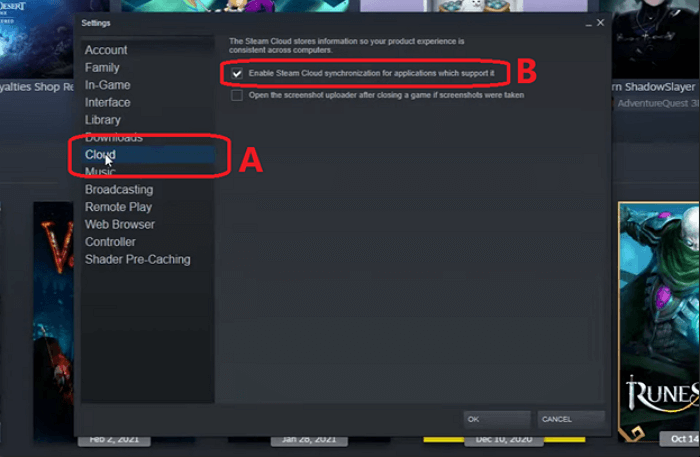
Step 3. Press OK and head into the following directory:
C:\Program Files (x86)\Steam\userdata\Your User Number\remote
Step 4. Copy all the files from this directory into the save folder.
To access your restored progress in Monster Hunter: World or Rise, head to the directory where your user number is located, which is a series of digits, and start the game. This will allow you to see your previously saved progress.
3. Recover Monster Hunter Data from Local Game Directory
To recover Monster Hunter game files through the local directory, first, ensure Steam Cloud sync is disabled. If it's already disabled, proceed with the following steps. Navigate to the Steam directory, usually located in the 'C:\Program Files (x86)\Steam' folder, and find the 'steamapps' directory. Inside, look for the 'appmanifest.
Step 1. Head into Steam settings and open the "Cloud" option.
Step 2. Disable/uncheck the "Steam Cloud Synchronization" option.
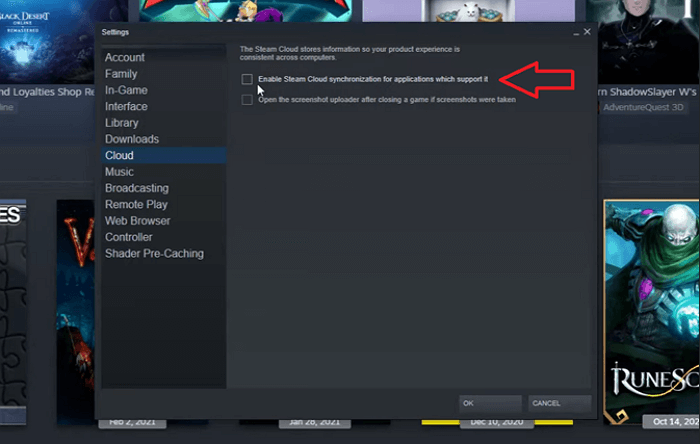
Step 3. Once done, head into the backup directory/game directory:
C:\Program Files (x86)\Steam\steamapps\common\Monster Hunter World\savedata_backup
Step 4. Copy your saved file into this folder, usually called SAVEDATA1000.
This process will restore your game data to the primary game folder, then run the Monster Hunter game to see if progress has been restored.
Conclusion
You can comprehensively and quickly restore your deleted Monster Hunter game saves using these leading methods. Each method, when followed properly, virtually guarantees that you'll restore the saved files. These methods allow you to do it comprehensively and quickly, making them a reliable solution to your problem.
If you're looking to ensure a thorough recovery, it's suggested that you try Qiling data recovery software, as it's the only way to recover a lost file if it's gone from both the local directory and the Steam cloud.
Monster Hunter Data Recovery FAQs
You will find their answers in this section if you have any further questions.
1. How do I recover lost PS4 game data?
Recovering PS4 data is quite straightforward if you have your cloud enabled. You can simply access your saved data through the cloud, making it easy to recover your game saves, profiles, and other important information.
- Head into Settings, then select Application Saved Data Management
- After that, click on Saved Data in Online Storage
- In the following menu, select Download to System Storage
Once the download finishes, try the game that you wish to recover the lost files. It's most likely that the files are now restored.
2. Where is my Monster Hunter World save file?
The save file for Monster Hunter: World is typically stored in the directory C:\Program Files (x86)\Steam\steamapps\common\Monster Hunter World\savedata_backup.
If you're unable to find the Steam user data directory, you can try looking in a different location. If the above path doesn't work, you can try looking in C:\Program Files (x86)\Steam\user data.
You'll find the user number, typically 528010, followed by your saved files in the Remote Folder within this folder.
3. How to recover lost game data on Xbox One?
To restore lost game data on Xbox One, navigate to the "Settings" app, select "Account," then "Save/Load Game Data," and finally "Restore Saved Games." This process will retrieve any saved game data that was previously backed up to the cloud. Alternatively, you can also use the "Quick Resume" feature to resume a game from where you left off, but this may not restore all lost data.
- Head into Settings, then click on Account.
- To restore game data, go to the Download History section and click on the game you want to recover the data for.
- Click on Download Again.
To restore your lost data, simply follow these steps for each game you want the data restored. This will retrieve the data you lost, and you can continue this process until all the games you want the data restored have been recovered.
4. Does MHW auto-save after every hunt?
The game does have an auto-The game will feature an auto-save function that appears on the right side of the screen every time a hunt is finished, allowing for seamless transitions between hunts.
Related Articles
- How to Recover Files from Fdisked Hard Drives in Windows 10/11
- 4 Best Ways to Recover Lost Save Data in Hogwarts Legacy
- WD External Hard Drive Data Recovery Services (That You Can Afford!)
- Raw Drive Recovery: How to Recover Data from RAW Drive with Ease
- 6 Ways to Recover Deleted Snapchat Memories in 2023
Keep calm even if you lose Snapchat memories. This post provides six practical ways to restore deleted Snapchat memories. Follow the steps below and download Snapchat data recovery software to restore the wanted data as soon as possible. - How to Recover Deleted VHD and VHDX Files in Windows 10/11
This how-to article offers users a feasible solution to recover deleted, damaged, or corrupted .vhd and .vhdx files created on a virtual hard disk as system image files. Follow the steps below to recover deleted or corrupted VHD/VHDX files.
Products
Articles & Tutorials
- Data Recovery
- Data Backup
- File Recovery
- File Backup
- System Backup and Restore
- Disk and Partition Clone
- Technical articles
- Mobile articles
- Disk Master Help
- Windows Data Recovery Tutorials
- Windows Secure Delete Tutorials
- Windows Partition Management Tutorials
- Windows File Backup and Restore Tutorials
- Windows System Backup and Restore Tutorials
- Windows Disk Backup and Restore Tutorials
- Windows Clone Tutorials