Backup Error 0x80070015: The Device Is Not Ready
Quick Navigation:
- What the Error Means
- Keep the Drive Awake and Powered
- Fix the Port and the Letter
- Run a Stable Backup
- Frequently Asked Questions
The task fails within seconds and the log shows 0x80070015 with the message that the device is not ready. Windows reached the destination path but found no volume behind it at that moment, so no data was written and the previous backup set is untouched. The drive often looks fine in File Explorer a minute later, which is exactly what makes this error confusing.
What the Error Means
The code is a plain status from the storage stack: the device exists in the system but cannot accept a request yet. It covers a drive that is still spinning up, a USB enclosure that has not finished enumerating, a card reader with no card, and a drive that dropped off and has not come back.
This is a different failure from an I/O error during a write. With 0x8007045D the job runs for a while and then loses the device; here the job never starts because the device was not ready when it was opened. That difference decides where to look first: power, enumeration, and drive letters rather than bad sectors.
Scheduled tasks make it more likely. A backup that starts at logon can fire before the USB stack has finished bringing the external drive online, and a backup that starts at night can fire after the enclosure has put the disk to sleep.
Keep the Drive Awake and Powered
Portable 2.5-inch drives take their power from the USB port, and a port that shares current with a keyboard, a webcam, or a hub can brown out during spin-up. Use a rear port on a desktop, avoid unpowered hubs, and prefer a drive with its own power supply for anything larger than a pocket drive.
Check the power settings for the device as well. In Device Manager, which is a Windows built-in tool and not part of the backup software below, open the properties of the USB hub and the disk, then clear the option that lets Windows turn the device off to save power. A drive that is allowed to sleep will be asleep when the schedule fires.
Set the plan's hard disk sleep timer to Never on a machine that runs overnight backups. If the enclosure has its own sleep firmware, copy a small file to it a few minutes before the schedule or use a scheduled task that touches the drive first.
Listen to the drive when the error appears. A repeated spin-up followed by a click means the drive is not getting enough current, while a silent drive means it never received the wake command at all.
Fix the Port and the Letter
Drive letters are handed out in the order devices appear, so a card reader or a phone can take the letter the backup disk had yesterday. The task then opens a volume that has no media and reports that the device is not ready.
Open Disk Management, a Windows built-in console, and compare the letter on the backup disk with the path stored in the task. If they differ, change the letter of the backup disk back to the original one instead of editing the task, because other tools that reference the same drive will follow the letter.
Aim for a letter high in the alphabet that removable devices rarely claim, and keep the drive in the same port. Moving a drive between ports on some docking stations changes both the letter and the device path that a scheduled task recorded.
If the letter is correct and the drive is still not ready, test the cable and the port, then test the drive on another machine. A drive that fails the same way on a second computer has an enclosure or firmware fault, not a Windows configuration problem, and the no usable drives found checklist covers the variant where the drive never appears in the picker at all.
Run a Stable Backup
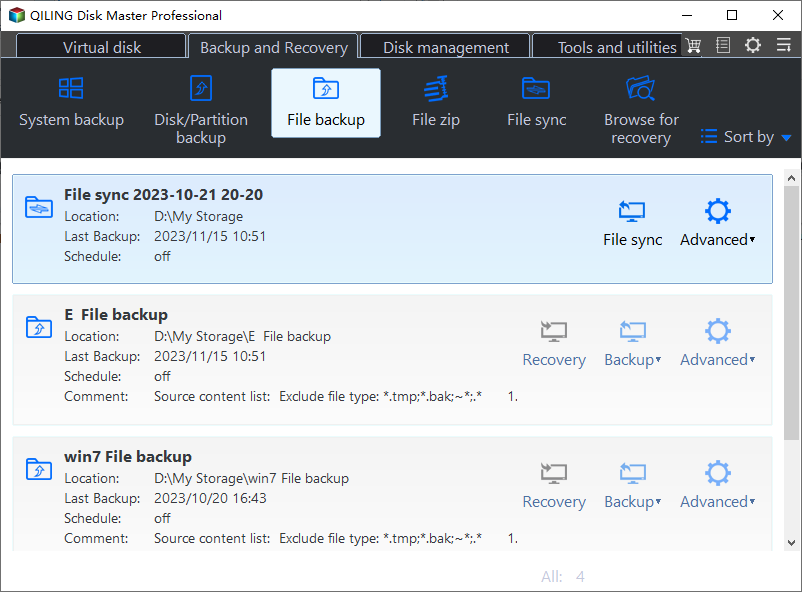
Qiling Disk Master stores the destination path inside each backup task and shows it in the task card before the run starts, so a missing drive is visible before the job fires. The same card keeps the last backup time, which makes a skipped run obvious instead of silent.
Step 1. Open File Backup
On the Backup and Recovery tab, click File Backup. The home screen lists existing tasks with their location and schedule, so check that the destination disk is connected and shows the letter you expect.
Step 2. Select the Files and the Destination
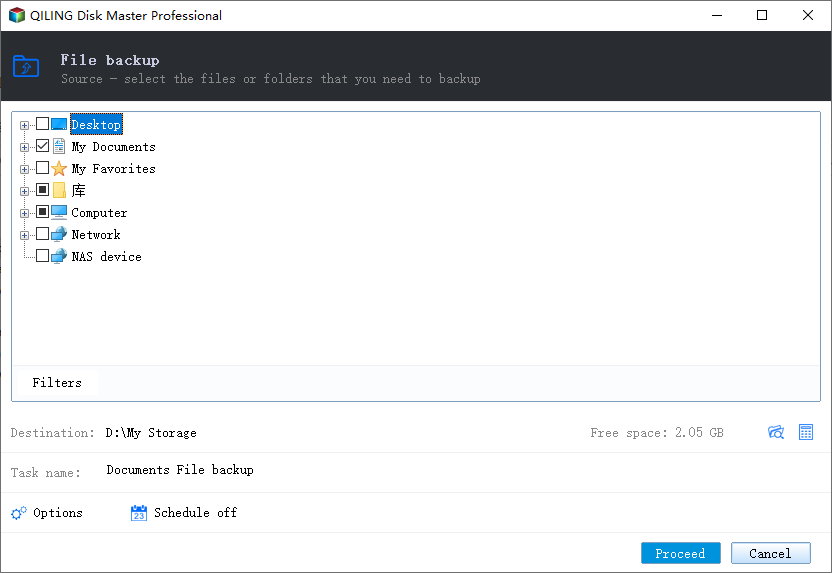
Tick the folders on the left, read the free space shown next to the destination path, and confirm the drive behind that path stays connected while the window is open. A destination that disappears here will fail the same way when the schedule fires.
Step 3. Start the Backup
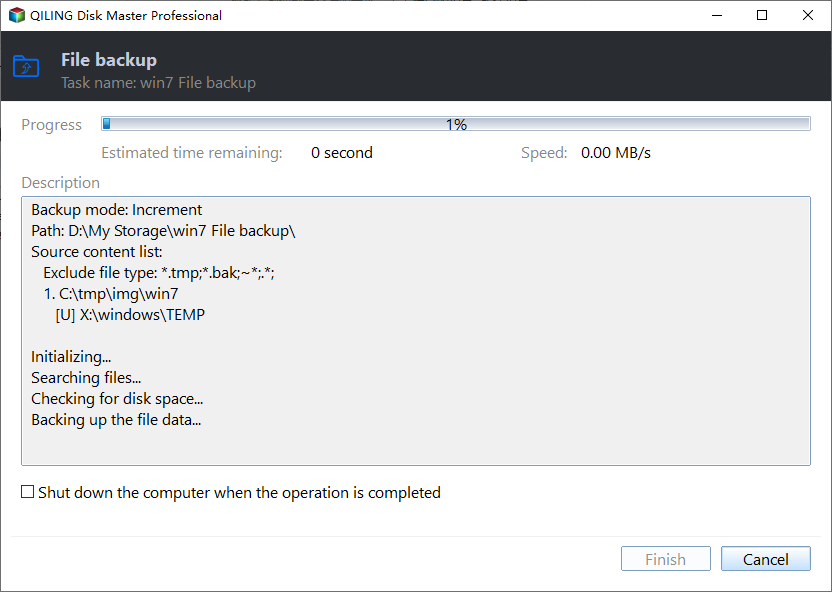
Set the schedule in Options and click Proceed. Watch the first run to the end once, because a drive that survives a full write is ready for unattended runs; the progress window also shows the destination path that the task recorded.
Frequently Asked Questions
Why does the drive work when I click it but fail in the backup?
Clicking wakes the drive before Windows opens it. A scheduled task opens the path first, so a sleeping or slow enclosure is not ready in time.
Does 0x80070015 mean the backup file is damaged?
No. The job stops before writing, so the destination keeps whatever it had, and the last complete backup is still usable.
Will a powered USB hub solve it?
Often, yes, when the drive spins up but drops under load. A hub with its own power supply gives the drive a steady current that a laptop port cannot always provide.
Related Articles
- USB External Hard Drive Not Showing Up in Windows 11
- Windows Backup No Usable Drives Found
- Windows Backup Error 0x81000019: Shadow Copy Failed
- Backup Error 0x8007002F on the D: Drive
- How to Restore Windows 10 From a Backup
Products
Articles & Tutorials
- Data Recovery
- Data Backup
- File Recovery
- File Backup
- System Backup and Restore
- Disk and Partition Clone
- Technical articles
- Mobile articles
- Disk Master Help
- Windows Data Recovery Tutorials
- Windows Secure Delete Tutorials
- Windows Partition Management Tutorials
- Windows File Backup and Restore Tutorials
- Windows System Backup and Restore Tutorials
- Windows Disk Backup and Restore Tutorials
- Windows Clone Tutorials