Windows Backup Error 0x81000019: Shadow Copy Failed
Quick Navigation:
- What the Code Reports
- Check Shadow Storage and Free Space
- Check the Writers
- Retry and Verify
- Frequently Asked Questions
Error 0x81000019 is reported when the volume shadow copy service cannot create the snapshot that the backup is built on. Without that snapshot there is no consistent point in time to copy, so the job stops before it reads a single file. The cause sits in one of three places: the shadow storage on the source volume, a writer that is not responding, or the free space and health of the destination.
1 What the Code Reports
A backup of an open volume needs a snapshot first. The service briefly freezes writes, records the state of the volume, and then lets the backup read that frozen copy while Windows keeps writing to the live volume.
0x81000019 means that step failed. It is not a read error and not a permission error on a file, because the job never reaches your data. The message in the backup log is usually short, and the detail is written to the application log at the same moment.
Three conditions produce it most often: the shadow storage limit for the volume is full, a writer is stuck in a waiting state, or the volume has so little free space that the snapshot cannot be held until the copy is done.
2 Check Shadow Storage and Free Space
Open System Protection for the source volume and compare the current usage with the maximum. A volume whose shadow storage has reached its limit cannot take another snapshot until older copies are removed or the limit is raised.
Free space on the source matters as much as the limit. A snapshot grows with every write made while it exists, so a nearly full volume fills the storage before the backup has read much of it. Clear temporary files and old restore points, or move the job to a quiet window.
Check the destination as well. The image needs room for the whole selection plus working space, and a destination that is nearly full fails in the same place once the snapshot exists but the write cannot continue.
3 Check the Writers
Open the Services console and confirm that the Volume Shadow Copy service is running and set to start automatically. A service that is stopped, or one disabled by a cleanup tool, fails every job at this step.
Open Event Viewer and read the Application log around the failure time. The service records which writer failed and how long it waited, and a writer for a database or a mail server that never reports completion is a common cause on a server that also hosts applications.
Restart the service once, then retry. If the same writer fails again, the problem belongs to that application rather than to the backup: stop the application service, take the backup, and start it again in a maintenance window.
4 Retry and Verify
Qiling Disk Master records the snapshot result in the task log and shows the source folders before the job starts, so the same selection can be retried without rebuilding the task. The steps below also leave a copy that does not depend on the shadow storage you just repaired.
Step 1. Open File Backup
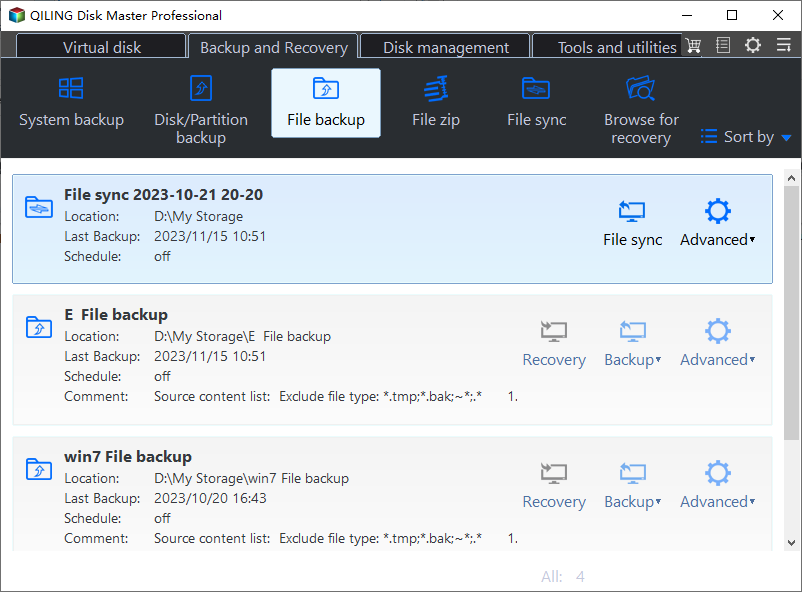
Open Backup and Recovery and click File backup. The task cards list each existing job with its location, last backup time, schedule, and the Recovery, Backup, and Advanced actions; find the task that failed and note its destination, because the new run writes to the same folder.
Step 2. Confirm the Source Selection
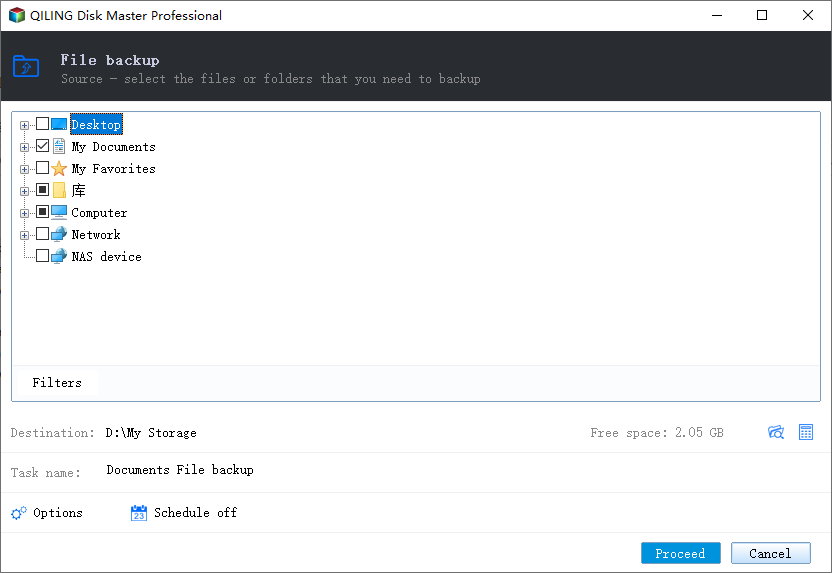
Expand Computer in the source tree and tick the folders or the volume you want to protect; the tree also lists Desktop, My Documents, My Favorites, Library, Network, and NAS device. Use Filters to drop temporary files, and keep the selection narrow enough that the snapshot does not have to live for long.
Step 3. Set the Destination and Start
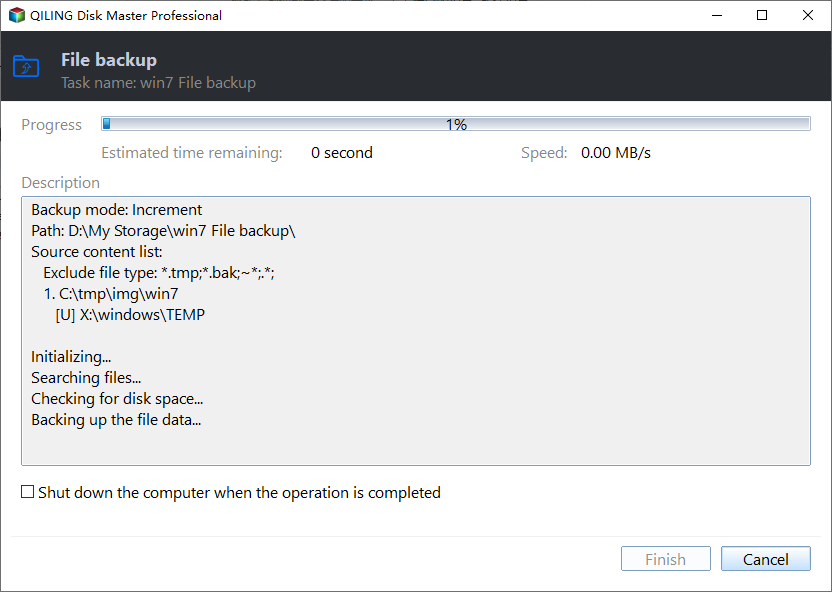
Click the folder icon beside Destination, choose a folder with free space on a disk other than the source, and click OK. Check the free space figure, name the task, and click Proceed. The progress window shows the percentage, the estimated time remaining, the speed, and a description with the path and the source list; if the snapshot fails, the job stops here before the percentage moves.
After the job ends, open the log and confirm that the snapshot was created and that the file count matches the selection. Then restore one folder to a spare location, which proves the set is readable rather than merely complete.
5 Frequently Asked Questions
Is 0x81000019 the same as error 0x800423F4?
No. This code says the snapshot could not be created at all, while 0x800423F4 reports a writer failure inside a snapshot that already exists.
Does deleting restore points free the shadow storage?
Yes. Older copies share the same storage, so removing them or lowering retention frees the space the new snapshot needs.
Can a full backup disk cause the same error?
It can end the job at the same point. The log then shows a write failure after the snapshot, which tells you the source is fine and the destination is not.
Related Articles
- Backup Fails With VSS Error 0x800423F4
- VSS Writer Error 0x800423F0
- System Image Restore Failed 0x80042412
- Windows Backup Error 0x8078005D
- System Restore Fails After Windows 11 26H2
Products
Articles & Tutorials
- Data Recovery
- Data Backup
- File Recovery
- File Backup
- System Backup and Restore
- Disk and Partition Clone
- Technical articles
- Mobile articles
- Disk Master Help
- Windows Data Recovery Tutorials
- Windows Secure Delete Tutorials
- Windows Partition Management Tutorials
- Windows File Backup and Restore Tutorials
- Windows System Backup and Restore Tutorials
- Windows Disk Backup and Restore Tutorials
- Windows Clone Tutorials