System Image Restore Failed With 0x80042412
Quick Navigation:
- What 0x80042412 Means
- Check the Target Disk
- Prepare a Clean Disk
- Restore and Verify
- Frequently Asked Questions
System Image Recovery in the Windows recovery environment reports 0x80042412 with the text that no disk can be used for recovering the image. The image file is usually intact; the environment simply cannot find a local disk that matches the image's partition style and size, so the job stops before anything is written.
What 0x80042412 Means
The error comes from the restore wizard, not from the backup itself. Before it copies a single block, the wizard scans the attached disks and looks for one that can accept the image: the disk has to be visible, at least as large as the disk the image was taken from, and on the same partition style as the firmware mode in use.
A common trigger is a replacement drive that is smaller than the source, or a larger drive that still carries partitions from an earlier layout. The wizard counts the free space where the image can start, so leftover partitions hide the room the image needs.
The other group of causes is visibility. A disk behind an NVMe adapter or a USB enclosure may need a driver that the recovery environment does not load, and a controller switched from AHCI to RAID in firmware hides every disk behind it.
Check the Target Disk
Start the recovery environment and open the restore wizard until it reaches the disk step. Note whether the list is empty or the disk is listed and then refused, because the two cases need different fixes.
If the disk is missing, check the hardware path first. Reseat the drive, try a direct SATA or M.2 slot instead of an enclosure, and confirm in firmware setup that the controller mode matches the mode Windows was installed with.
If the disk appears, compare its capacity, partition style, and free space with the source disk recorded when the image was created. Write those values down; they decide whether the disk can be used as it is or has to be cleared.
Prepare a Clean Disk
Move any files on the destination disk somewhere else before you continue. A restore writes over the whole disk, so this is the last point at which the data can still be saved.
Remove every partition from the disk and leave it unallocated. Disk Management can delete the volumes when Windows is running; if the disk is not reachable there, the command-line disk tool inside the recovery environment does the same job, and it should be treated as its own step with the disk number checked twice.
A disk that is smaller than the source cannot work at all, so fit one of equal or larger capacity. On a larger disk the extra space stays unallocated after the restore and can hold a new volume later.
Restore and Verify
With the disk clean and the image stored on a local drive, Qiling Disk Master can run the restore from Windows and show a preview before anything is written, so the size and layout check stays visible instead of hidden inside the wizard.
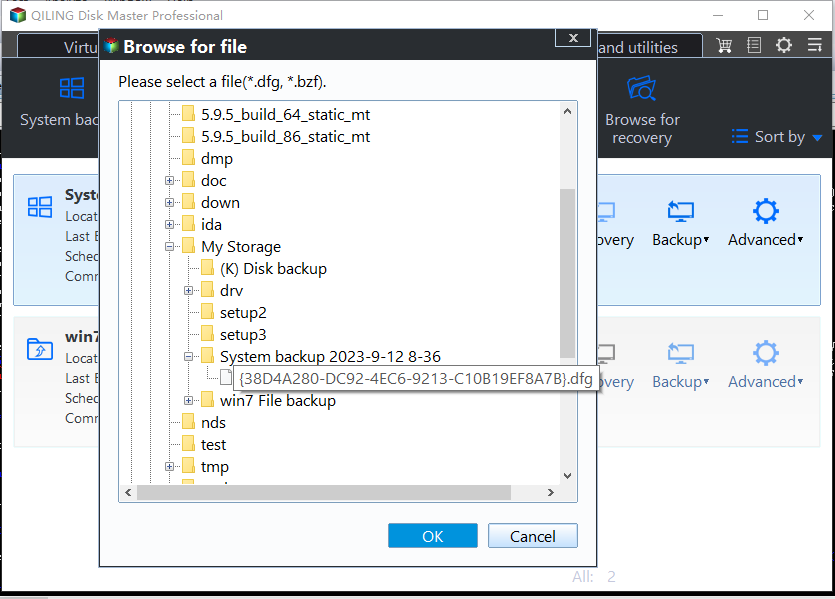
Step 1. Select the Backup Image
Open the program, choose Restore, and point it at the image file or the folder that holds it. The list shows each image with its creation date and the size of the source disk, so pick the newest one that belongs to this machine.
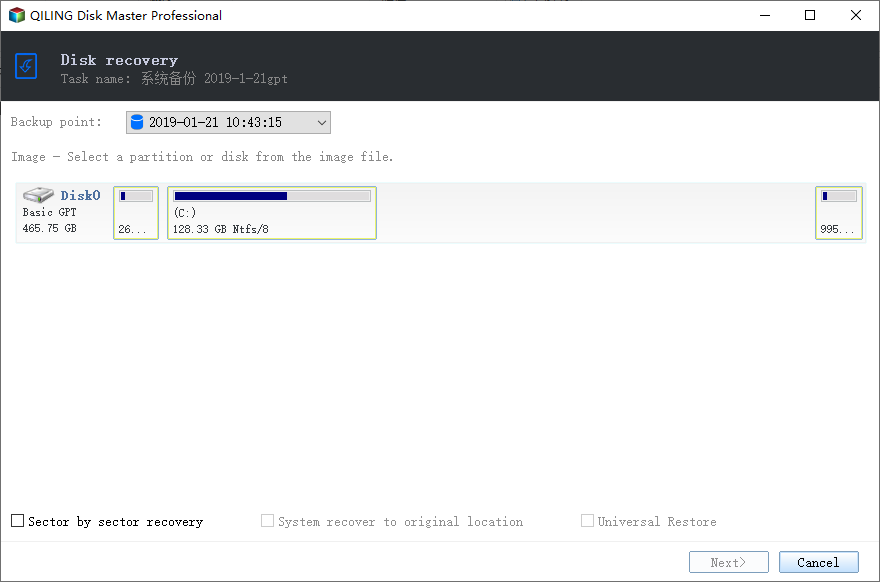
Step 2. Choose the Backup Point and the Disk Inside the Image
The task usually keeps several backup points. Pick the one created before the failure, then tick the disk or the partition inside the image that has to be restored. The same window offers sector-by-sector recovery for a damaged source and a universal restore option when the hardware is different.
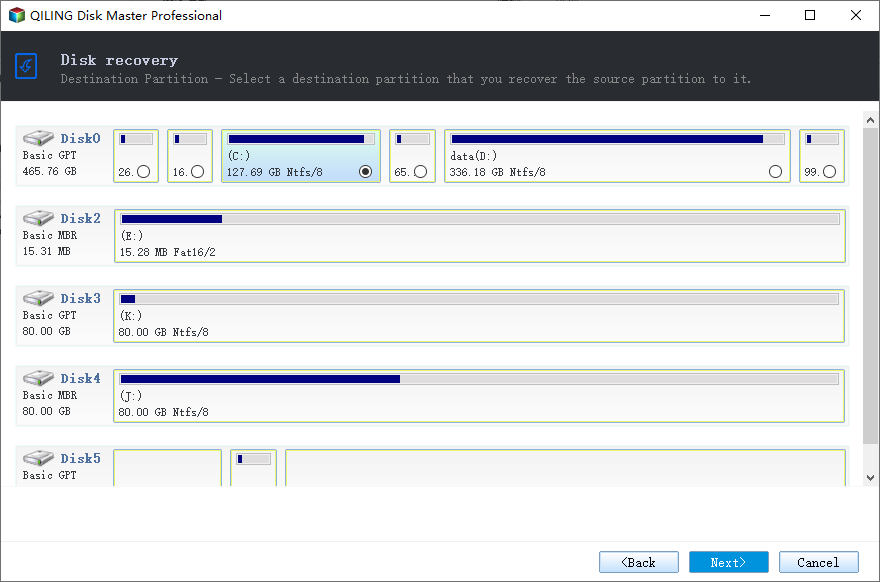
Step 3. Select the Destination Disk
On the next page, choose the clean target disk from the disk map. Match it by capacity and pick only that disk; the source and the other drives must stay unticked, and a destination smaller than the source cannot be used at all.
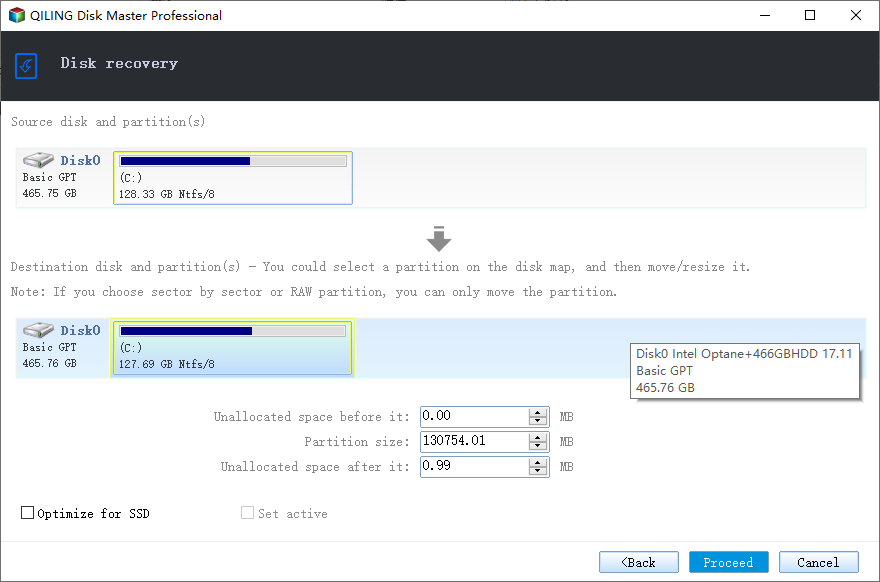
Step 4. Check the Mapping and Proceed
The last page puts the source and the destination side by side, with the partition size and the unallocated space before and after it. Compare those values with the clean disk, then click Proceed; every partition on the destination is overwritten from that point. When the job ends, restart and confirm that Windows comes up from the restored disk with the files you expect.
Frequently Asked Questions
Why does the recovery environment not see my new SSD?
The drive probably sits behind a controller or an enclosure whose driver the recovery environment does not include. Attach it to a port Windows itself uses, or load the driver during setup.
Can a large image be restored to a smaller disk?
No. The destination must be at least as large as the source disk, even when the used space is smaller, because the restore recreates the original layout rather than a copy of the files.
Does the restore keep the files that were on the destination disk?
No. Every partition on the destination is replaced, which is why the disk has to be cleared first and its old data copied somewhere else.
Related Articles
- System Image Recovery vs. System Restore
- System Restore Fails After the Windows 11 26H2 Update
- Windows Backup Error 0x8078005D on System Images
- Backup Fails With VSS Error 0x800423f4
- Cloned Drive Shows as RAW: Recover Data
Products
Articles & Tutorials
- Data Recovery
- Data Backup
- File Recovery
- File Backup
- System Backup and Restore
- Disk and Partition Clone
- Technical articles
- Mobile articles
- Disk Master Help
- Windows Data Recovery Tutorials
- Windows Secure Delete Tutorials
- Windows Partition Management Tutorials
- Windows File Backup and Restore Tutorials
- Windows System Backup and Restore Tutorials
- Windows Disk Backup and Restore Tutorials
- Windows Clone Tutorials