Backup Error 0x8007045D: I/O Device Error
Quick Navigation:
- What 0x8007045D Means
- Check the Disk and the USB Link
- Find the Drop and Rescue Data
- Back Up to a Stable Target
- Frequently Asked Questions
A system image that stops partway through with 0x8007045D did not run out of space and did not hit a permissions problem. Windows returns this code when a read or write request never reached the device or never came back, so the backup engine abandons the volume it was writing to. The cause sits almost always on the destination path: a failing disk, a loose cable, or an enclosure that dropped off the bus in the middle of the job.
What 0x8007045D Means
The full message is that the request could not be performed because of an I/O device error. It is a transport-level answer, not a file-level one: Windows handed a block to the storage stack and the stack reported that the device failed to complete it. The backup file itself is rarely the problem, because the tool cannot even reach the sectors it wanted to write.
The same code covers two very different faults. In the first, the device answers but rejects a specific sector, which points at the media on the target disk. In the second, the device stops answering altogether for a moment and then reappears, which points at power, the cable, or the controller in the enclosure.
The position of the failure tells the two apart. A job that dies at the same percentage on every attempt is retrying the same bad area, while a job that dies at a random point is losing the link under load. Write the percentage down each time; three attempts are usually enough to see which pattern you have.
Check the Disk and the USB Link
Change the cheap parts before you blame the drive. Use the cable that shipped with it, move it to a rear port on the desktop or a direct port on the laptop, and remove every hub, dock, and extension cable from the path. Front-panel ports and bus-powered hubs deliver less current, and a 2.5-inch drive that browns out under a long write is a classic source of this error.
If the error disappears after the move, the drive is healthy and the old port was the weak point. Label that port and keep backups away from it; a port that fails once under load will fail again with a larger job.
If the job fails on two cables and two ports, treat the destination as suspect. Listen for repeated clicking or spin-up cycles, and read the drive health data that Windows and the vendor utility expose. A drive that already shows reallocated sectors should not be the only copy of anything, and an external drive that keeps disappearing in Windows 11 needs the same check before the next attempt.
Stop repeating full backups on a suspect disk while you diagnose it. Every attempt writes tens of gigabytes and heats the platters, which turns a marginal drive into a dead one before you have copied anything off it.
Find the Drop and Rescue Data
Note the exact clock time when the job stopped and what the tool was writing at that moment: the file, the partition, or the percentage. A drop that happens at the same minute as a scheduled task, a Windows update, or a laptop switching to battery is a power or load event rather than a disk defect. A job that instead stops with a shadow copy code such as 0x8078005D never reached the destination at all, so the disk is not involved in that case.
The Event Viewer is a Windows built-in tool and is not part of the backup software described below. Open it, expand Windows Logs, and read the System log around that minute; entries about a disk, a controller reset, or a device that was surprise removed show whether the volume left the system and came back.
Rescue the data before you repair anything. Connect the drive through a different adapter, create a folder on a known-good disk, and copy the most important folders first in small batches instead of starting one huge transfer. When a batch fails, split it further; the goal is to get the documents out while the drive still answers.
If the drive vanishes during reads as well as writes, stop using it as a working disk. A drive that cannot finish a read is failing, and a backup written onto it would inherit the same fault.
Back Up to a Stable Target
Qiling Disk Master writes a system image to the destination you choose and lists the source partitions, the target path, and the current phase in the task window, so a job that loses the device stops with the last completed step visible instead of a bare error code. Running the image to a second internal disk avoids the USB link entirely.
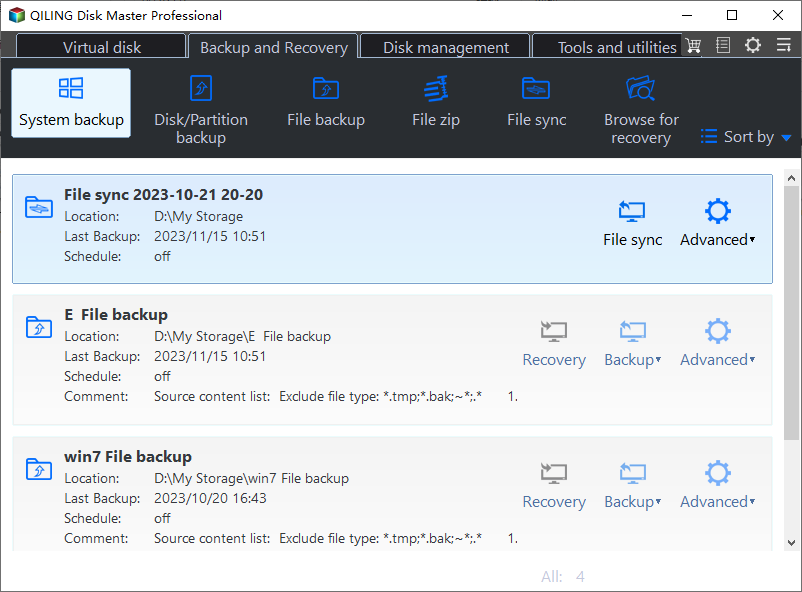
Step 1. Open System Backup
On the Backup and Recovery tab, click System Backup. The default selection covers the system partition and the boot files, which is what a recovery needs, and the source disk is read only during the job.
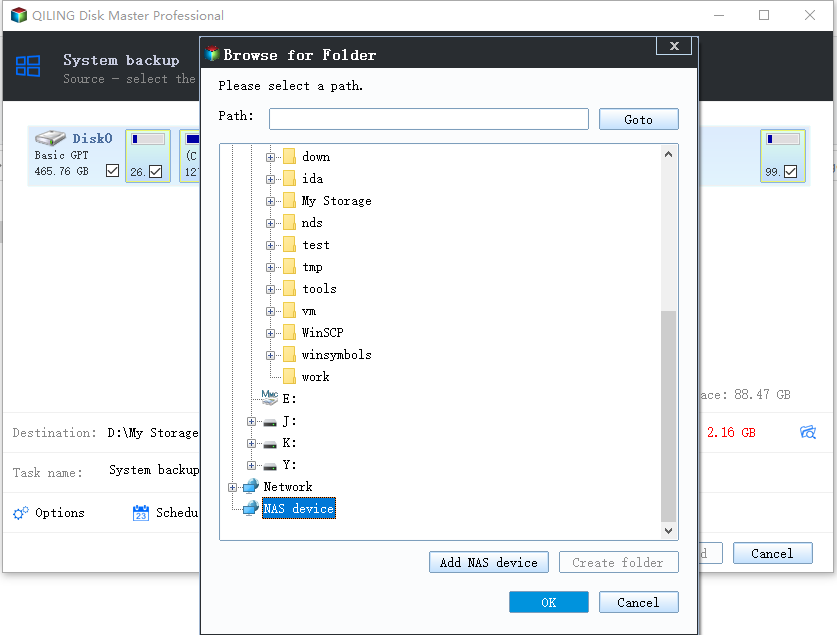
Step 2. Select the Backup Destination
Choose a folder on a second physical disk with more free space than the used space of the system drive. If the only option is USB, connect the drive directly to the machine and confirm that the path shown in the Destination field belongs to that drive and not to a card reader.
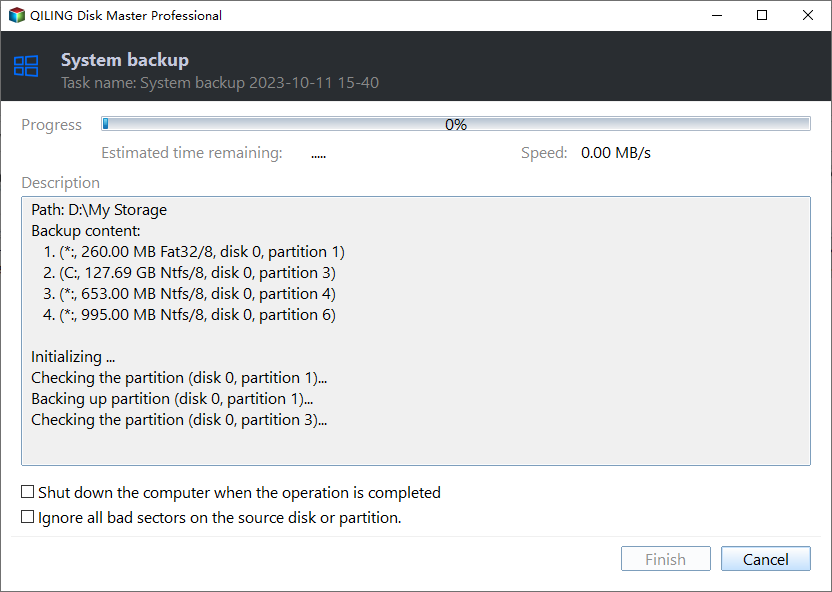
Step 3. Start the Job and Watch the Write Phase
Click Proceed and keep the task window open until the progress reaches 100%. The Description pane names the partition being written, so a stall at the same partition on a second run points at that area of the target disk rather than at the software.
Frequently Asked Questions
Is the partially written image usable after 0x8007045D?
No. The file has no valid end marker, so the restore tool cannot verify or mount it. Delete the incomplete set and keep the last full image, which is still intact.
Can I keep using the drive after one I/O error?
Only after the cable and port have been changed and the drive has passed a health check. A drive that produced this error once under load should never hold the only copy of a backup.
Does an error at 99% mean the image is almost complete?
No. The percentage reflects the data copied, not the structures that make the image usable. A job that dies near the end still leaves an unreadable file, which is why the target has to be stable for the whole run.
Related Articles
- Windows Backup Error 0x8078005D on System Images
- Windows Backup Stuck at 97%: What to Check
- USB External Hard Drive Not Showing Up in Windows 11
- Windows Backup Error 0x81000019: Shadow Copy Failed
- Backup Error 0x8007002F on the D: Drive
Products
Articles & Tutorials
- Data Recovery
- Data Backup
- File Recovery
- File Backup
- System Backup and Restore
- Disk and Partition Clone
- Technical articles
- Mobile articles
- Disk Master Help
- Windows Data Recovery Tutorials
- Windows Secure Delete Tutorials
- Windows Partition Management Tutorials
- Windows File Backup and Restore Tutorials
- Windows System Backup and Restore Tutorials
- Windows Disk Backup and Restore Tutorials
- Windows Clone Tutorials