Backup Error 0x8007002F on the D: Drive
Quick Navigation:
- What 0x8007002F Reports
- Check the Source Drive
- Repair the Path
- Rerun and Verify
- Frequently Asked Questions
0x8007002F comes from the file system rather than from the backup engine. The job records the items it intends to copy, and when it returns to open one of them the path no longer resolves: the drive letter changed, the volume dropped offline, a folder was renamed, or a link now points at nothing. The copy stops at that item, and the rest of the selection is not protected.
1 What 0x8007002F Reports
The 8007 prefix shows that Windows returned a file-system error through the backup interface, and the trailing 2F is the code underneath. In practice the job fails while opening a source item, not while writing to the destination.
The log usually names the path that failed, or the folder that contains it. A path that opens without trouble in Explorer after the job has ended is typical, because the failure was a moment in time rather than a permanent permission problem.
Because the job stops, the image or the file set is incomplete. Do not restore from it: find the path first, rerun the job, and then check that the result covers everything you selected.
2 Check the Source Drive
Open Disk Management and confirm that D: is online and still holds the same letter and file system. A drive that came back as another letter after a reconnect breaks every task that refers to the old one.
Look for a volume mounted in a folder rather than given a letter, and for a drive that is one partition on a disk which also hosts other volumes. If that disk drops for a moment, all of its volumes disappear at once.
Check the event log for disk warnings at the time of the failure. Repeated controller resets or bad-block reports point to hardware, and a job that fails at a different file each time is a stronger sign of a failing drive than of a broken path.
3 Repair the Path
Restore the original letter in Disk Management, then reopen the folder that the log names. If it was renamed or moved, either put it back or rebuild the task with the new selection, because a task that still holds the old path fails again.
Remove links and junctions that point at a missing target, and shorten paths that sit near the length limit by selecting the parent folder instead of the deepest one. Files that exist only in the cloud as placeholders also fail when they cannot be downloaded during the job.
Exclude folders that change while the job runs, such as a download directory or a virtual machine store, or move them to another volume. A path deleted while the copy reads it produces the same error as a broken link.
4 Rerun and Verify
Qiling Disk Master builds the file list from the source at the moment the job starts, so a corrected selection is picked up without rebuilding the old task. The steps below produce a fresh copy of the repaired D: volume and a result you can check.
Step 1. Check the Last Good Copy
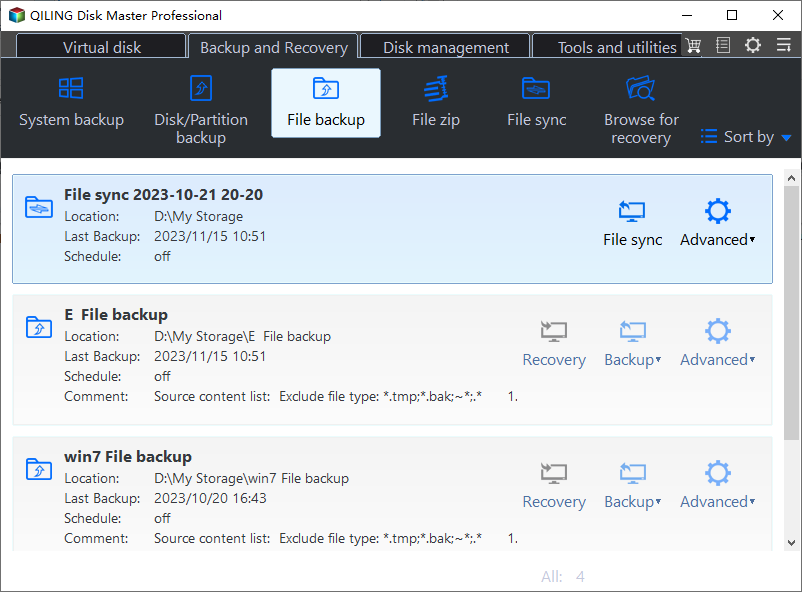
Open Backup and Recovery and click File backup. The cards list each task with its location, last backup time, schedule, and the Recovery, Backup, and Advanced actions; find the task that covers D: and note whether its last backup finished.
Step 2. Reselect the Repaired Source
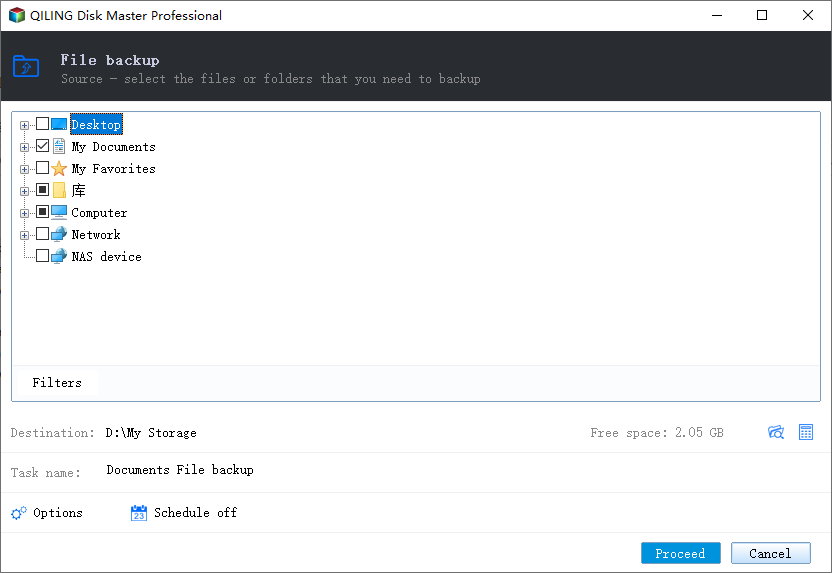
Expand Computer and tick the D: volume, or open it and tick the folders that matter. Use Filters to skip temporary files, and confirm that the folders you just repaired appear in the list rather than a link that points at nothing.
Step 3. Start the Job and Watch the First Pass
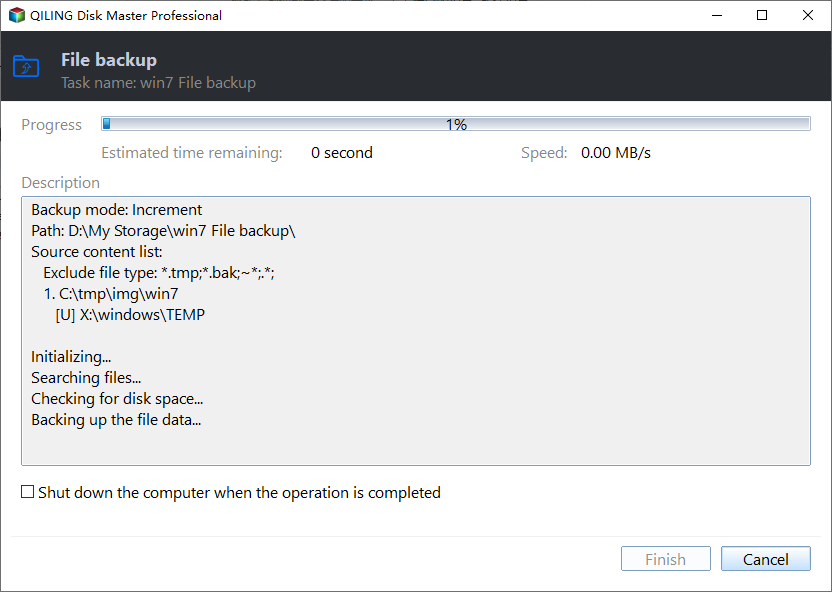
Set the destination, click Proceed, and watch the percentage in the progress window together with the description that lists the source paths. A job that fails at once points to a path you missed, while a job that passes the earlier failure point is reading the repaired volume correctly.
When the run ends, compare the item count and the total size with the D: volume, then open a few files from the copy. Only after that should you delete the incomplete set that the failed job left behind.
5 Frequently Asked Questions
Does 0x8007002F mean the D: drive is failing?
Not necessarily. A changed letter or a moved folder produces the same code. Check the event log for disk errors before you replace hardware.
Can the job resume from the file that failed?
No. The run has ended, so start a new job after the path is fixed. A resumed run would still hold the old path.
Why does it fail on the same folder every time?
The cause is still present: a link with no target, a placeholder that cannot download, or a folder that is renamed on a schedule.
Related Articles
- Windows Backup Error 0x8078005D
- Backup Fails With VSS Error 0x800423F4
- System Image Restore Failed 0x80042412
- Backup Fails on a Deduplicated Volume
- System Restore Fails After Windows 11 26H2
Products
Articles & Tutorials
- Data Recovery
- Data Backup
- File Recovery
- File Backup
- System Backup and Restore
- Disk and Partition Clone
- Technical articles
- Mobile articles
- Disk Master Help
- Windows Data Recovery Tutorials
- Windows Secure Delete Tutorials
- Windows Partition Management Tutorials
- Windows File Backup and Restore Tutorials
- Windows System Backup and Restore Tutorials
- Windows Disk Backup and Restore Tutorials
- Windows Clone Tutorials