Backup Error 0x80070017: CRC Error Explained
Quick Navigation:
- What a CRC Error Tells You
- Where the Bad Data Comes From
- Test the Disk Surface First
- Image the Disk, Then Back Up
- Frequently Asked Questions
The backup stops with 0x80070017 and a message about a cyclic redundancy check. The code is a read failure: a block came back from the storage stack with data that did not match its checksum. It is reported at a byte offset, and the file being read at that moment is the first clue.
What a CRC Error Tells You
Every layer in the storage path adds or verifies a checksum. A mismatch means the data changed between the moment it left the disk and the moment the backup engine received it, or that the disk could not read the sector at all.
The error is not a permission problem, a full destination, or a corrupt backup catalog. Those failures produce different codes, and a CRC failure usually reappears at the same file or the same percentage when the job is retried.
A single occurrence in a long job can come from a marginal cable. A repeat at the same offset points at the source disk, which is why the result of the second run is worth more than the text of the first error.
Where the Bad Data Comes From
On the source disk, a failing sector returns a CRC error every time the same block is read. The drive may also click, slow down, or log reallocated sectors, and the failure often appears near the end of a large file.
In the data path, a loose SATA cable, a marginal power connector, or a failing USB bridge produces errors at random offsets. The same drive tests clean on another cable, and the failing offset moves when the job is rerun.
On the destination, a write failure appears late in the job after the disk has been writing for a while. Free space looks fine, yet the drive drops off the bus or reports a write fault under sustained load, which matches the pattern of an I/O device error during backup.
A USB hub or a front-panel port adds a fourth variable. The enclosure that fails through a hub can finish a full job on a rear port, so the port belongs in the test rather than in the afterthought. A drive that already logs reallocated sectors is also a poor backup target, and the notes on choosing a backup HDD explain what to look for.
Test the Disk Surface First
Run the drive maker's own diagnostic first, because it reads the SMART attributes and performs a surface scan that generic tools skip. Reallocated or pending sectors turn a vague CRC error into a clear verdict.
The Windows error-checking dialog, a built-in tool that is not part of the software below, can scan the volume for bad sectors, but a full scan on a large disk takes hours. Start it only after you have copied the files you cannot lose.
Stop writing to a disk that reports pending sectors. Every extra write can push a weak sector over the edge, and a drive that is merely slow today can become unreadable tomorrow. The procedure for copying files from a disk with bad sectors covers the order to use when time matters.
Image the Disk, Then Back Up
When the source disk is failing, image it before you try to back up individual files. An image reads the disk once, sequentially, and stores what can be read, so you can mount it later and copy files from a stable source instead of a dying one.
Qiling Disk Master can create that image on a healthy destination and keep it as a task you can rerun. Choose the sector-by-sector option for a damaged disk, because it reads every block instead of skipping unreadable areas silently; the file is larger, but one pass is safer than repeated reads.
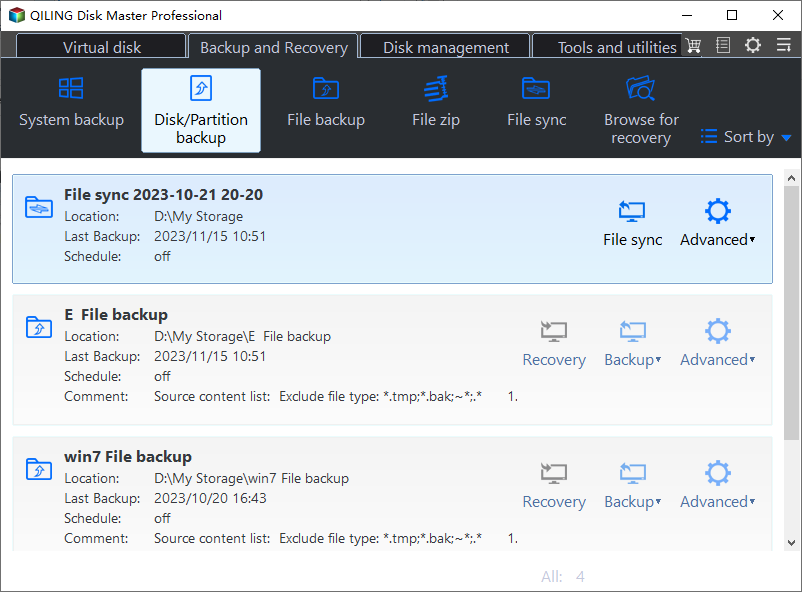
Step 1. Open Disk Backup
On the Backup and Recovery tab, click Disk Backup. Use this entry rather than the clone wizard, because a backup image can be mounted and read while a clone overwrites a destination disk.
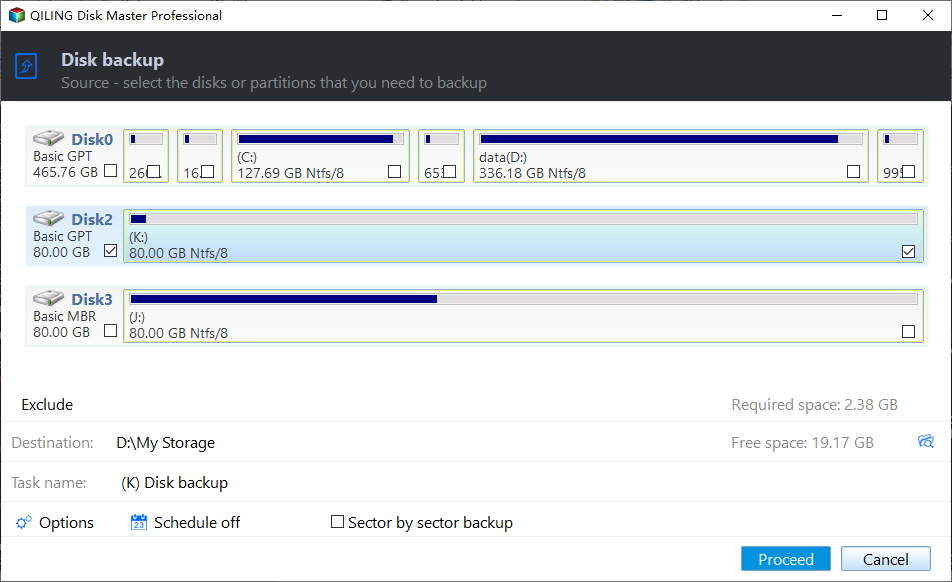
Step 2. Select the Source Disk
Pick the disk that contains the failing volume, not a single partition, so the image keeps the partition layout along with the data. Confirm the disk number against the one that logged the CRC error.
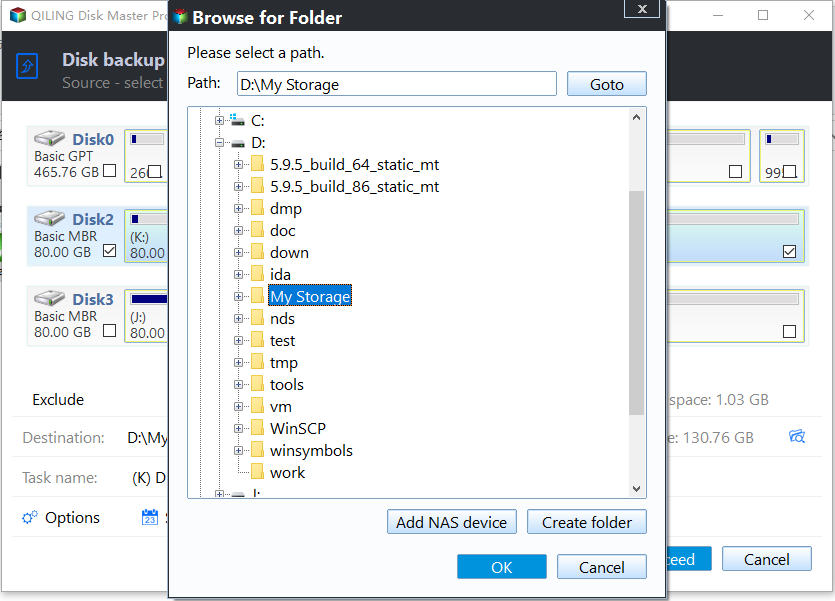
Step 3. Choose a Destination Outside the Failing Disk
Select a folder on a healthy disk or a network share with room for a full image. Never store the image on the same physical drive, since a head crash would destroy both the original and the copy.
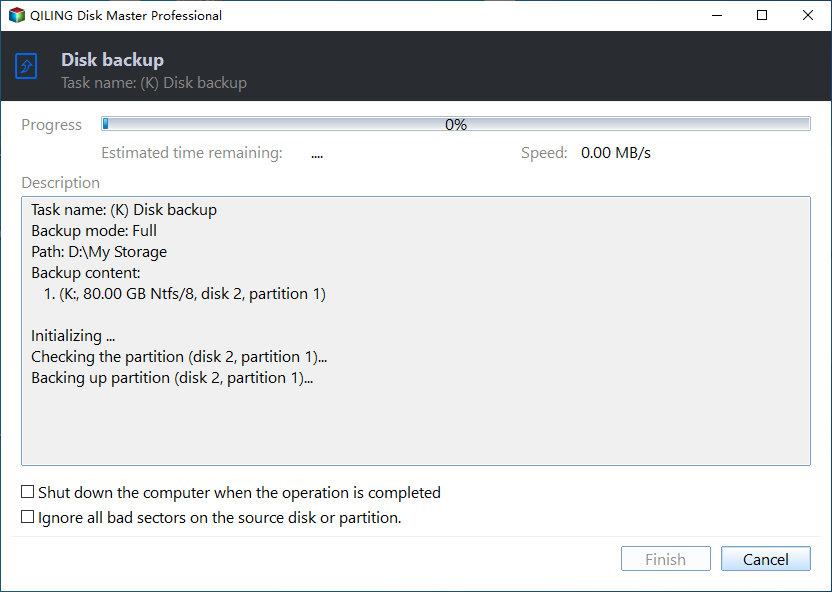
Step 4. Start the Image Job
Click Proceed and watch the progress pane for the file being read. If the job stops at the same block twice, note the offset, stop the run, and treat the source disk as failing rather than retrying indefinitely.
Frequently Asked Questions
Does 0x80070017 always mean the disk is dying?
No. A cable, a USB bridge, or the destination can produce the same code. A failure that repeats at the same offset is the strongest sign that the source disk is at fault.
Can I skip the file that fails and finish the backup?
You can exclude it, but do that only after imaging the disk. Skipping hides how far the damage has spread and leaves the most important file unprotected.
Will a new external drive fix the error?
Only if the destination was the failing link. Test another cable and port, read the SMART values of both disks, and replace the part that actually reports errors.
Related Articles
- How to Transfer/Copy Files from Hard Drive with Bad Sectors
- Backup Error 0x8007045D: I/O Device Error
- Backup Error 0x80070015: The Device Is Not Ready
- How to Fix Windows Backup Stuck at 97%
- The 5 Best HDD for Backup Recommend in 2022
Products
Articles & Tutorials
- Data Recovery
- Data Backup
- File Recovery
- File Backup
- System Backup and Restore
- Disk and Partition Clone
- Technical articles
- Mobile articles
- Disk Master Help
- Windows Data Recovery Tutorials
- Windows Secure Delete Tutorials
- Windows Partition Management Tutorials
- Windows File Backup and Restore Tutorials
- Windows System Backup and Restore Tutorials
- Windows Disk Backup and Restore Tutorials
- Windows Clone Tutorials