Backup Error 0x81000037: Reparse Point Cannot Be Read
Quick Navigation:
- What a Reparse Point Is
- Locate the Link That Stopped the Job
- Protect the Real Folder Behind It
- Back Up the Target Folder
- Frequently Asked Questions
The backup reaches a folder, stops, and reports 0x81000037 with a message that the requested files could not be backed up. The item it could not read is a reparse point: a file-system entry that points somewhere else, such as a junction left over from an older Windows version, a mounted volume, a symbolic link, or a cloud placeholder that exists only as a stub. The file itself is usually healthy. The backup engine simply refuses to follow a redirect it cannot resolve inside the selected set. This page shows how to find the link, protect the real data behind it, and finish a backup that includes that data.
What a Reparse Point Is
A reparse point is a normal file-system object with an extra tag that tells Windows to look somewhere else. Junctions, mount points, symbolic links, and the placeholders used by cloud storage all use that tag. Windows has relied on junctions for years to keep old paths working: the Application Data and My Documents entries inside a user profile are redirects into AppData, not real folders.
The backup engine reads a folder, meets the tag, and tries to resolve the target. When the target sits outside the selected folders, is offline, or points back into the tree, the engine has nothing valid to copy and returns 0x81000037 instead of skipping the item silently. The job then cancels, and the destination keeps whatever it had before the run.
This is a readability problem, not corruption. The link may be deliberate, and the data behind it can be perfectly intact. Deleting the link to make the error disappear is the wrong fix, because some applications and some Windows features still depend on those legacy paths.
Locate the Link That Stopped the Job
The error dialog or the backup log names the folder that failed. If it sits inside a user profile, suspect the legacy junctions first, then look at the folders that sync with a cloud service. A path that ends in a familiar folder name but opens a different location in File Explorer is a strong hint that a link is involved.
Cloud placeholders are the second common source. OneDrive, Dropbox, and similar clients can replace a local file with a stub that carries a reparse tag, and the backup cannot read a stub whose content is not on the disk. The green tick or cloud icon beside the file in File Explorer tells you that the content is local; a cloud-only icon means the backup has nothing to read.
A mounted virtual disk is the third source. When a VHD or another volume is mounted into an empty folder, that folder becomes a reparse point to the mounted volume. If the volume is not part of the selection, the backup meets a redirect that leads outside the job.
File Explorer and Event Viewer are built into Windows and belong to Microsoft; they are not part of Qiling Disk Master and are described here only to help you read the path and the failure record. Write down the exact path before you change anything, because the fix depends on what the link points to.
Protect the Real Folder Behind It
Find the target of the link and confirm that it is included in the backup through its real path. A junction inside the profile that leads to a folder on another drive is backed up only when that folder is selected, and excluding the junction without selecting the target leaves the data out of the job.
For cloud placeholders, open the folder and choose the option that keeps the files on the device before the next run, or copy the folder to a local path that does not use placeholders. Then back up the local copy. The original stays in the cloud, and the backup gains a complete local set.
Keep the last good backup until the new one finishes and is verified. Excluding one link can shrink the backup by gigabytes without any warning, and the gap is easy to miss until a restore is attempted. Compare the size of the new set with the old one before you delete anything.
Back Up the Target Folder
Qiling Disk Master shows the folder tree before the job starts, so you can leave a junction unticked and tick the folder it points to in the same task. The filter list under Options also lets you drop a cloud folder that keeps returning the error without touching the rest of the selection.
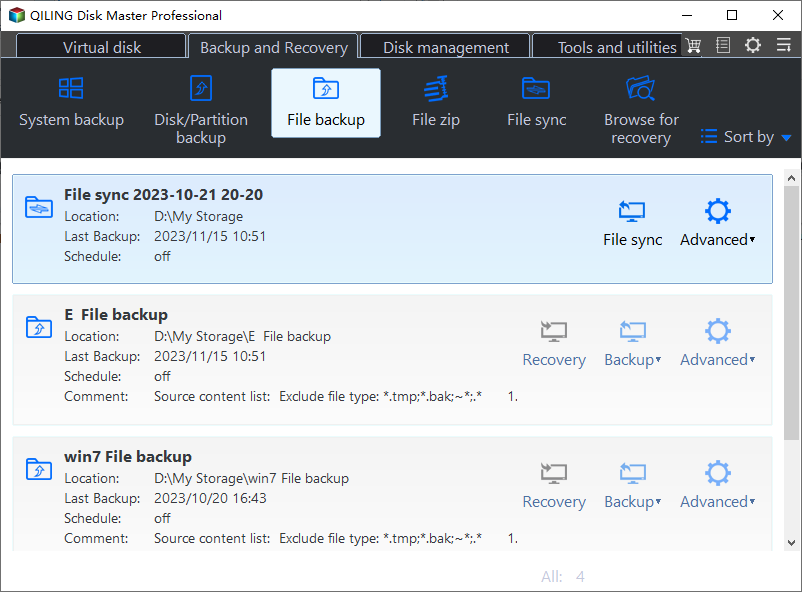
Step 1. Open File Backup
Click File Backup on the Backup and Recovery tab. Existing tasks appear with their destination and last result, so you can see whether the failed run created a partial folder on the target disk.
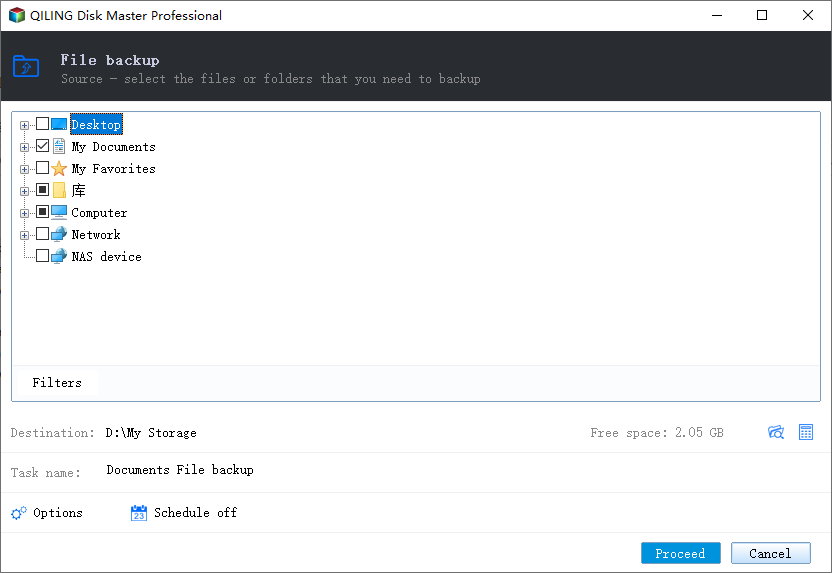
Step 2. Select the Real Folders
Expand Computer and tick the folders that hold the data, leaving the junction itself unticked and ticking the folder it points to instead. The Filters button opens the exclude list if a cloud folder still returns the error.
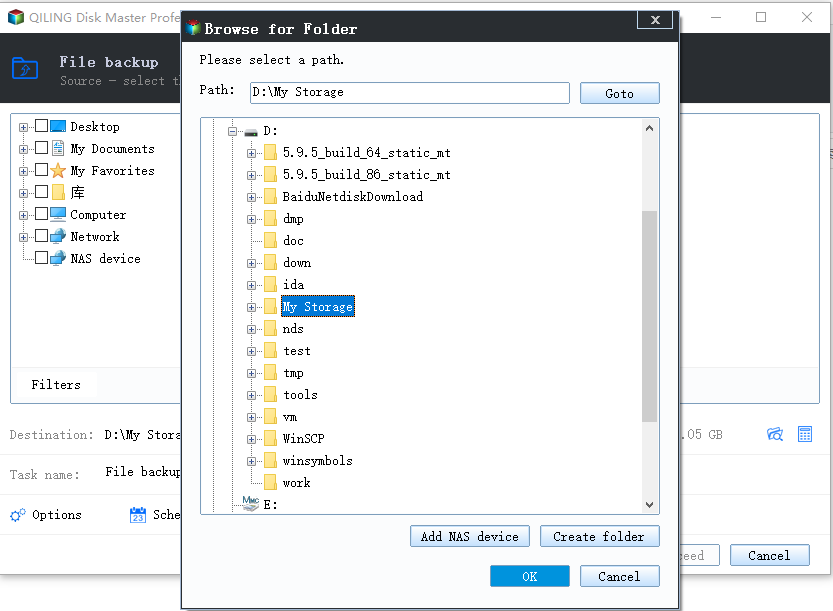
Step 3. Point the Task at a Destination and Proceed
Use the folder icon beside Destination to browse to a location outside the folders you have just selected. A destination on the same disk as the source doubles the write load and gives you no protection if that disk fails. Preview the pending operation, click Proceed, and wait until the task window reports that the run has finished.
Frequently Asked Questions
Is a reparse point a virus?
No. It is a documented file-system feature that Windows and applications use for compatibility, redirection, and cloud storage. The backup stops because it cannot follow the redirect, not because the link is malicious.
Will excluding the junction leave a gap in my backup?
Only if the target folder is not selected elsewhere. Select the folder the junction points to, and the data is copied once under its real path.
Why did the error appear only after I enabled OneDrive?
Files On-Demand replaces local files with placeholders that carry a reparse tag. When a placeholder is not available offline, the backup cannot read it and returns 0x81000037.
Related Articles
- Windows Backup Error 0x81000019: Shadow Copy Failed
- Windows Backup Error 0x8098011E: Image Backup Failed
- Windows 7 Backup Fails: Causes and Fixes
- What Files Should I Back Up?
- Types of Backup Explained
Products
Articles & Tutorials
- Data Recovery
- Data Backup
- File Recovery
- File Backup
- System Backup and Restore
- Disk and Partition Clone
- Technical articles
- Mobile articles
- Disk Master Help
- Windows Data Recovery Tutorials
- Windows Secure Delete Tutorials
- Windows Partition Management Tutorials
- Windows File Backup and Restore Tutorials
- Windows System Backup and Restore Tutorials
- Windows Disk Backup and Restore Tutorials
- Windows Clone Tutorials