Windows Backup Error 0x8098011E on the EFI Partition
Quick Navigation:
- What the Error Reports
- Find What Holds the Partition
- Release the Lock and Retry
- Verify the Image
- Frequently Asked Questions
Error 0x8098011E stops a Windows Backup image job when the engine cannot take exclusive access to the EFI system partition. The partition is small and has no drive letter, yet the image has to read it as a unit, and any component that holds a handle to it blocks that read. The job ends before the first block is written, so the existing backup set is untouched; the run simply never starts.
1 What the Error Reports
The EFI system partition is a FAT32 partition that holds the boot manager and the files the firmware reads before Windows loads. An image job must open it exclusively so those files cannot change while they are copied; if another process holds even a read handle, the request fails and the job returns 0x8098011E.
In the backup log the failure sits at the start of the run, often at zero percent, and the message names the partition or the volume rather than a single file. That detail separates it from a disk-full or a bad-sector error, which appear later in the run.
The lock is released when the last handle closes, so the fault is usually temporary. What makes it repeat is a program that opens the partition at every start, or a drive letter that keeps the partition mounted.
2 Find What Holds the Partition
Close every disk utility, partition tool, and backup program before you start the job, including the tray agents that stay resident. A tool that reads the partition table at start-up keeps a handle open for as long as it runs.
Security software that scans boot sectors is the next suspect. Pause real-time scanning for the length of the job rather than uninstalling the product, and exclude the backup engine's process when the job runs unattended on a schedule.
Check whether the partition has a drive letter, because a letter lets Explorer, indexing, and antivirus open the volume at any time; if one was assigned for a manual repair, remove it in Disk Management. A pending restart, an update that is still staging files, or a second backup job aimed at the same disk can hold the partition as well.
3 Release the Lock and Retry
Stop the other job or the tool, pause the scanner, and remove the letter from the EFI partition in Disk Management. Give the system a minute to close the handles, then start the same task again rather than creating a new one.
If the error survives that, restart the machine. A restart clears handles owned by a service or a driver, and it also finishes an update that was staging files on the boot volume; do not run the backup while a restart is pending.
When the job must run on a schedule, move the schedule outside the window used by the antivirus scan and the update deadline. Two jobs that both need the boot partition cannot overlap, no matter which tool runs first.
4 Verify the Image
A finished job is not proof of a usable image. Qiling Disk Master writes a system image with its own snapshot handling, lists every partition it will capture before the job starts, and lets you browse the result afterwards, which is a simple way to confirm that the boot partition is really inside the file.
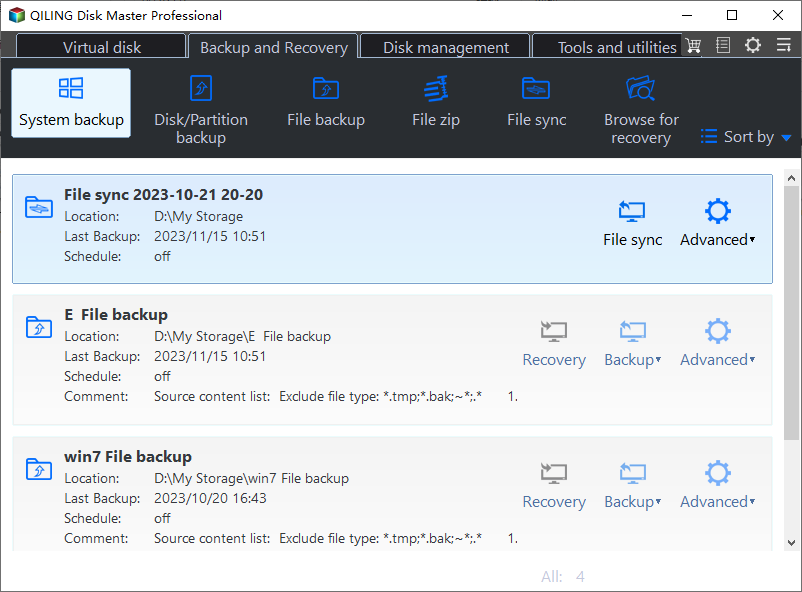
Step 1. Open System Backup
Start the program, open Backup and Recovery, and click System backup. The task cards below the buttons list earlier jobs with their location, last backup time, schedule, and the Recovery, Backup, and Advanced actions, so you can see at a glance whether a good image already exists before you add another.
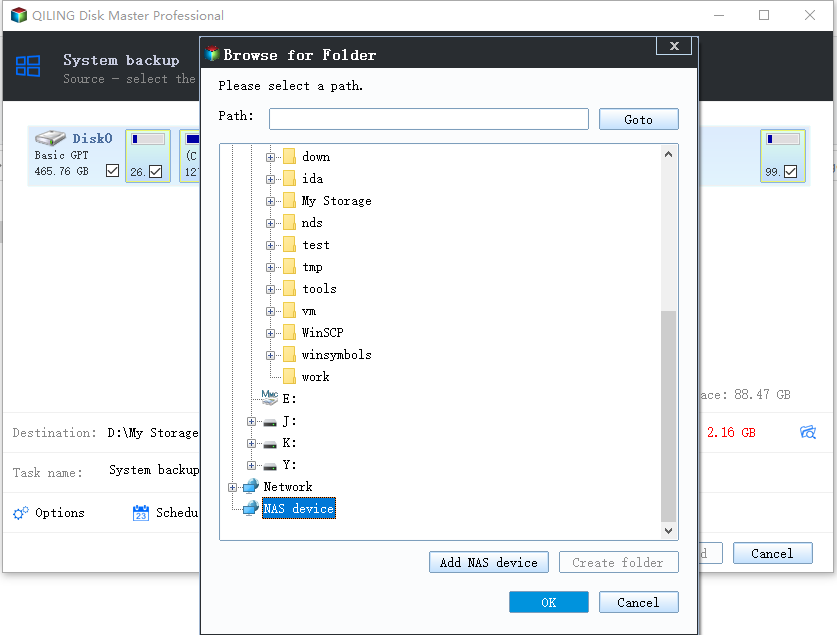
Step 2. Choose the Destination
Set the destination with Browse for Folder. The dialog offers a path field, the local drives, Network, and NAS device, plus the Add NAS device and Create folder buttons; choose a folder on a disk that is not the boot disk and click OK. Confirm the free space figure on the main window before you continue.
Step 3. Start the Job and Read the Progress
Click Proceed. The progress window shows the percentage, the estimated time remaining, and the speed, followed by a description that lists the destination path and each partition in the job, such as the FAT32 boot partition and the NTFS system volume. A lock problem fails within the first seconds, before the percentage moves, so watch that first tick rather than the end of the run.
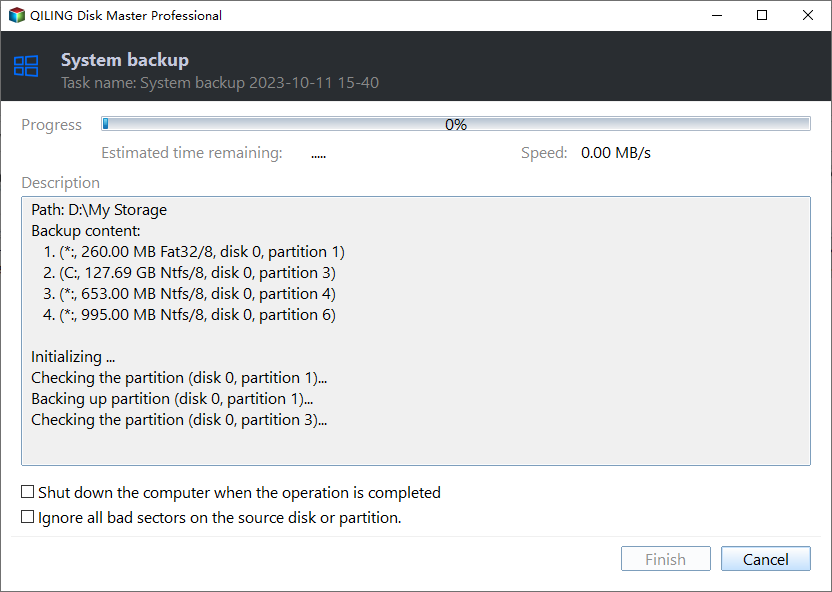
When the job finishes, open the image in the recovery browser and confirm that the EFI partition and the system volume are both listed. A system image without the boot partition restores to a disk that will not start.
5 Frequently Asked Questions
Does the error damage the existing backup set?
No. The job stops before it writes anything, so the previous image stays intact and can still be used for a restore.
Can I leave the EFI partition out of the image?
No. The boot manager and the firmware files live there, and an image without them restores to a disk that cannot start Windows.
Why does the error return after every restart?
Something opens the partition at start-up, such as a disk tool, a boot-sector scanner, or a drive letter left on the volume. Find that component instead of running the job again.
Related Articles
- System Restore Fails After Windows 11 26H2
- VSS Writer Error 0x800423F0
- Backup Fails With VSS Error 0x800423F4
- Windows Backup Error 0x8078005D
- System Image Restore Failed 0x80042412
Products
Articles & Tutorials
- Data Recovery
- Data Backup
- File Recovery
- File Backup
- System Backup and Restore
- Disk and Partition Clone
- Technical articles
- Mobile articles
- Disk Master Help
- Windows Data Recovery Tutorials
- Windows Secure Delete Tutorials
- Windows Partition Management Tutorials
- Windows File Backup and Restore Tutorials
- Windows System Backup and Restore Tutorials
- Windows Disk Backup and Restore Tutorials
- Windows Clone Tutorials