Can You Reinstall Windows Without Losing Programs (Check the Answer!)
Reinstalling the operating system (OS) on a computer that has been used for a long time can help improve its performance. This is because the OS can become cluttered with unnecessary files and programs, slowing it down. Fortunately, it is possible to reinstall Windows without losing programs. In fact, this article will provide guidance on how to reinstall Windows 10 without losing any installed programs.
When & Why Do You Need to Reinstall Windows
Here are some situations where you may need to reinstall your computer:
- A problem occurs after the Windows update.
- The computer is slow to respond to mouse movements, making it difficult to navigate.
- Opening or closing a program is very slow.
- You need to forcibly shut down your computer before you can use it as usual.
Reinstalling Windows can be necessary for various reasons, including fixing system problems, removing malware or bloatware, speeding up computer performance, and cleaning up system garbage, ultimately providing a fresh and virus-free operating system.
Does Reinstalling Windows Delete Programs or Files
Knowing when and why you need to reinstall a Windows computer, you may wonder if you can reinstall Windows without any data loss. Fortunately, it's possible to reinstall Windows without losing your data, depending on the method you use.
Reinstalling Windows can be a good option, but it's crucial to back up your files and programs before doing so, as the system drive may be formatted and data lost during the process.
Fortunately, you don't have to worry about losing your programs when reinstalling Windows. There are a few methods that can help you achieve this, which we will discuss in the next section.
Three Ways to Reinstall Windows Without Losing Programs
You can reinstall Windows without losing your existing programs using three simple methods. By following these steps carefully, you can avoid losing data or installed programs during the Windows installation process. The three methods allow you to reinstall Windows while keeping all your programs intact, making it easy to start fresh without sacrificing any of your installed software.
| Workable Solutions | Step-by-step Troubleshooting |
|---|---|
| Method 1. Using Professional Backup Software | If you plan to reinstall Windows, it is a good idea to back up...Full steps |
| Method 2. Using Windows Built-in Tool | Microsoft Windows also offers a tool for its users to create...Full steps |
| Method 3. Creating Windows ISO Image File | Windows 10 Media Creator Tool enables computer users to create...Full steps |
Method 1. Using Professional Backup Software
To backup programs on Windows, you can use third-party software like Qiling Backup, which allows you to create a system image or disk image, including programs, on your computer. This helps ensure that your programs are preserved during a Windows reinstallation.
Qiling Backup Home is an all-in-one backup tool for Windows 11/10/8/7, allowing you to automatically backup files to external hard drives and backup disks, systems, partitions, etc. It also offers 250G of free cloud storage, meeting diverse storage needs. This backup utility provides a comprehensive solution for backing up your computer.
- Store backups in multiple locations, including local drives, a secure zone, NAS devices, and the cloud, for redundancy and protection.
- Create automatic, scheduled, full, incremental and differential backups.
- Cloning a bootable hard drive and migrating Windows 10 from a hard disk drive (HDD) to a solid-state drive (SSD) can be achieved through a few methods. One approach is to use a cloning software such as Qiling Disk Master, which can create an exact replica of the HDD's contents, including the operating system, programs, and data, onto the SSD.
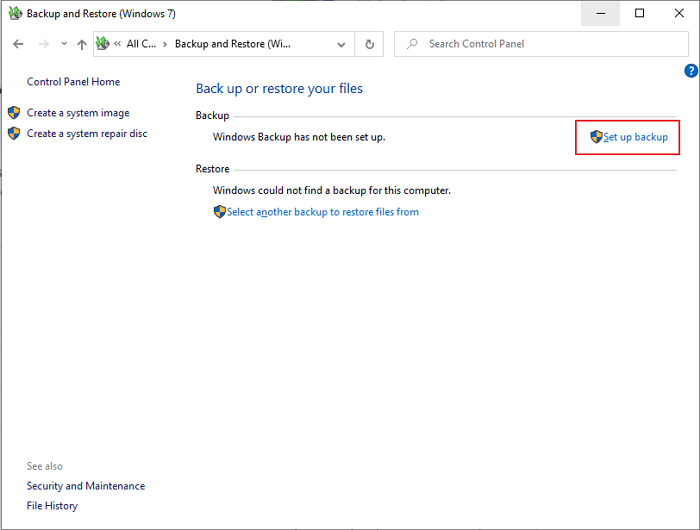
To create a system backup on a Windows computer, start by opening the Control Panel and selecting the "System and Security" category. From there, click on "Backup and Restore (Windows Backup)" and then select "Set up backup" to create a new backup job.
Step 1. Launch Qiling Backup on your computer, and click System Backup on the home screen to start the backup process.

Step 2. Windows will automatically select all system related files and partitions, so you don't need to manually select them. Next, choose a location to save the system image backup by clicking on the designated area.

Step 3. The backup location can be a local drive, external hard drive, network, cloud, or NAS, but it's recommended to use an external physical drive or cloud to preserve system backup files.

Step 4. The Windows system backup process can be customized with settings such as enabling an automatic backup schedule on a daily, weekly, monthly, or event basis. Additionally, options for differential and incremental backups are available through the Options button. Once customized, clicking Proceed initiates the backup process, and the completed task is displayed on the left side in a card style.

The following are steps to restoring the system image to a different computer.
To perform system recovery on a non-bootable machine, try booting the computer through the installation media, such as a USB drive or CD/DVD, to access the recovery options.Qiling Backup emergency disk.
Step 1. Launch Qiling Backup, click "Browse to Recover".

Step 2. To access your backup, go to your backup destination and select the system backup file you need. The backup file created by Qiling Backup is a .fvd file.
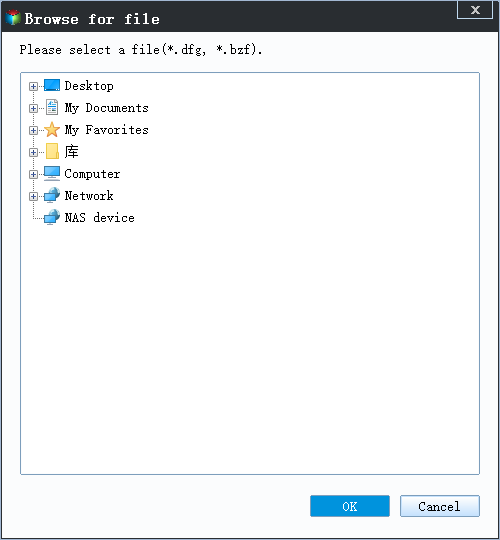
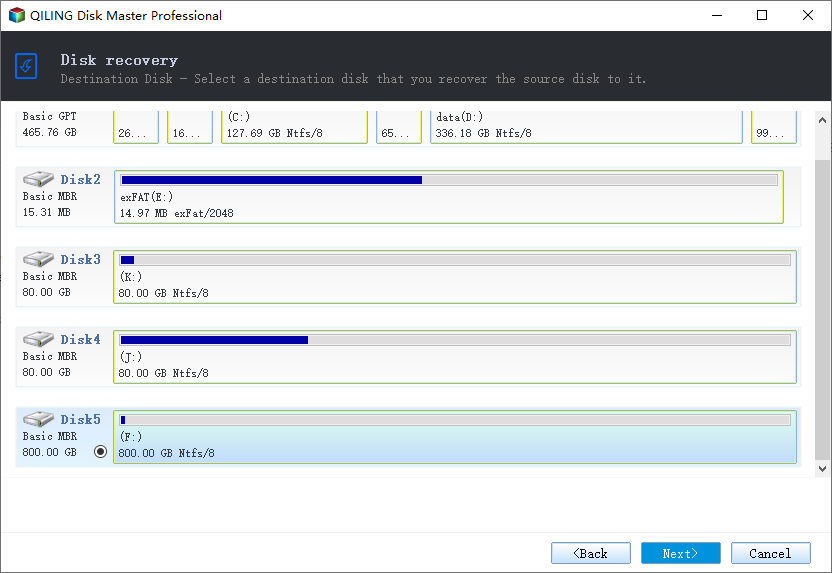
Step 3. To ensure a smooth recovery process, select the recovery disk that matches the partition style of the source disk, guaranteeing they share the same format.
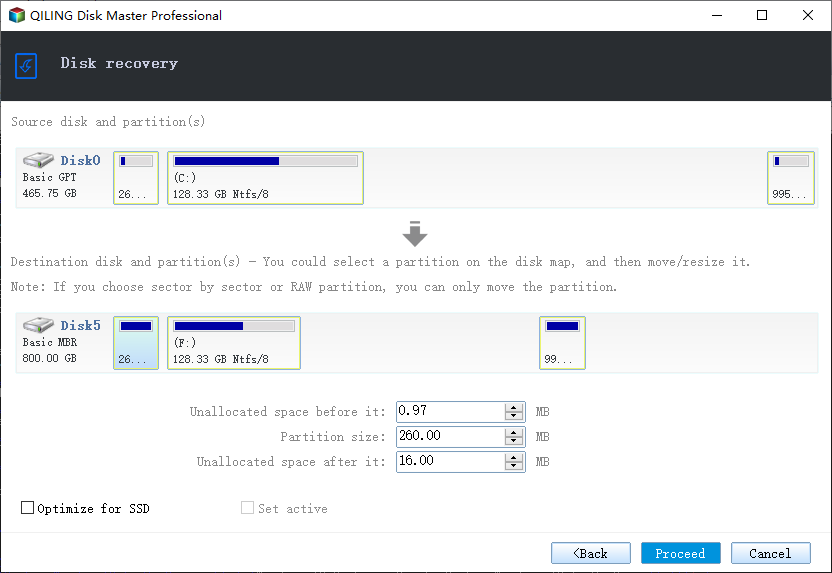
Step 4. You can customize the disk layout according to your needs, then click "Proceed" to start system backup recovery.
Method 2. Using Windows Built-in Tool
Microsoft Windows offers a tool called Backup and Restore (Windows 7) that allows users to create a system image and backup files to prevent data loss. This built-in tool enables users to back up programs and restore files via a system image.
How to Use Backup and Restore in Windows 7/10
Backup and Restore is a process that allows you to save and recover data in case of any loss or corruption. It works by creating a copy of your important files and data, which can then be stored safely in a separate location, such as an external hard drive, cloud storage, or another device.
Method 3. Creating Windows ISO Image File
The Windows 10 Media Creator Tool allows users to create an ISO image of their Windows 10 installation, enabling them to create a bootable USB stick or reinstall Windows 10 while keeping their programs. This tool can be downloaded from Microsoft's official site, providing a convenient method for users to back up and restore their Windows 10 installation.
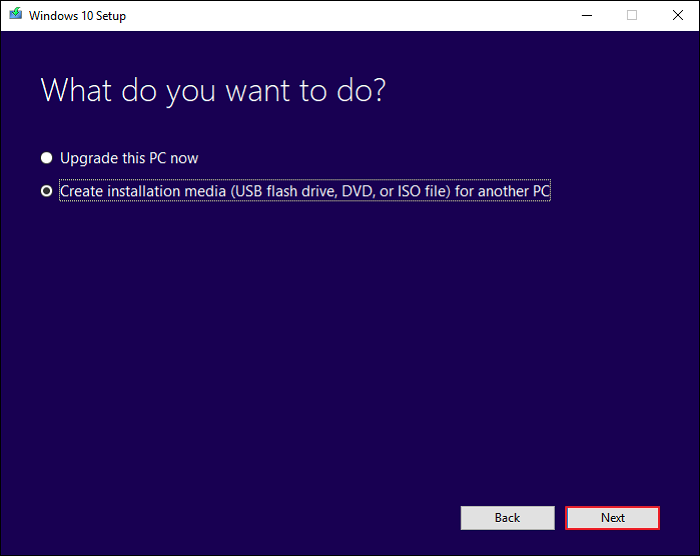
Step 1. To create a Windows 10 installation media, download and install the Windows 10 Media Creation Tool. Follow the guide to the next page, where you'll select "Create installation media for another PC" and click "Next" to proceed.
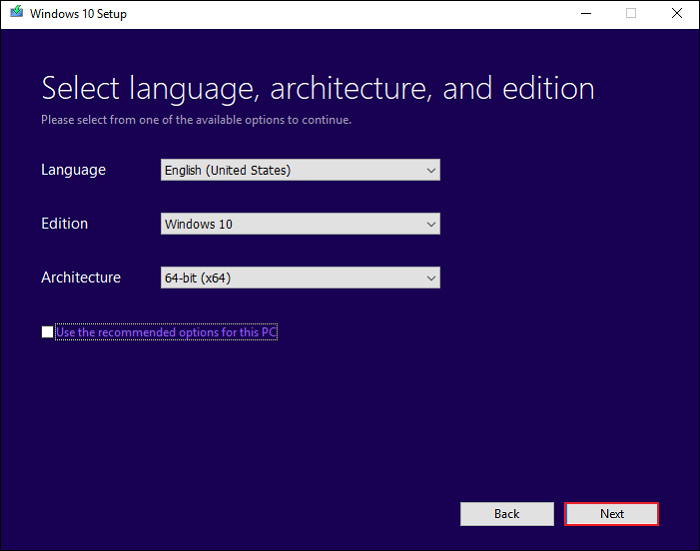
Step 2. Select the desired language, Windows edition, and architecture for creating the installation media, and then click Next.
Step 3. You selected a USB flash drive. Click Next.
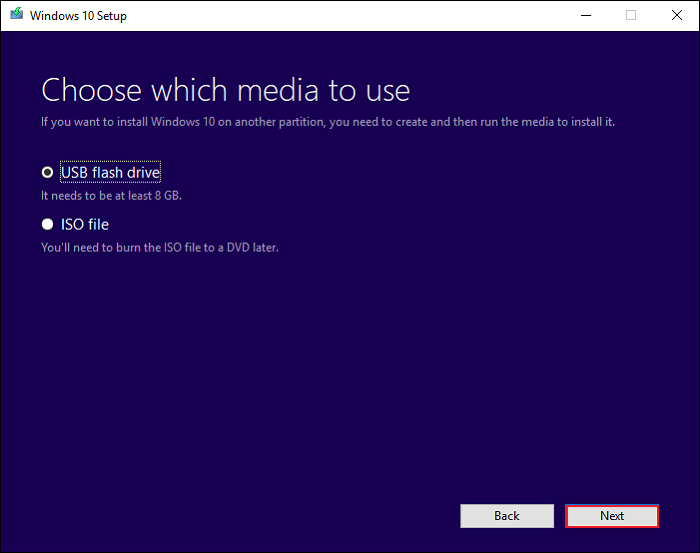
Step 4. Select a USB drive to create Windows 10 installation media and click Next.
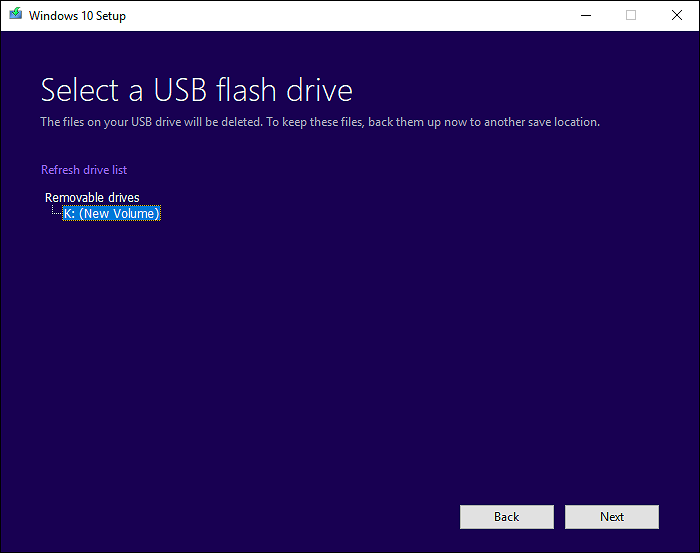
Step 5. It will start downloading Windows 10 installation files on your computer.
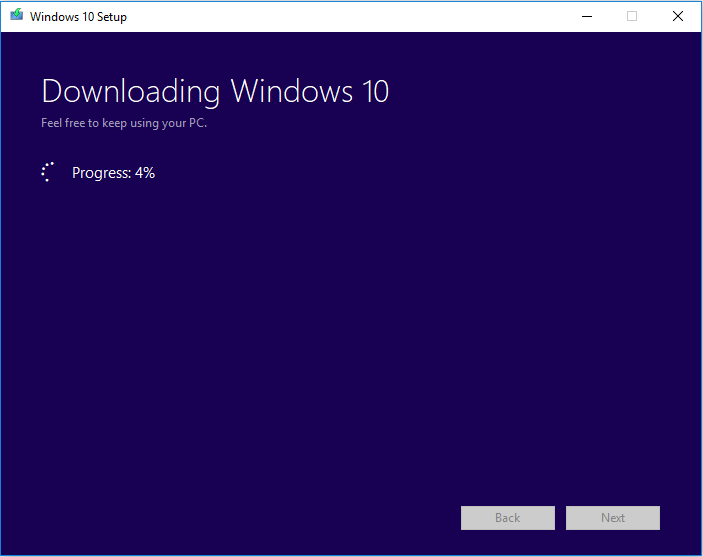
Step 6. When the download is complete, it will start creating Windows 10 media.
Step 7. Once done, click Finish.
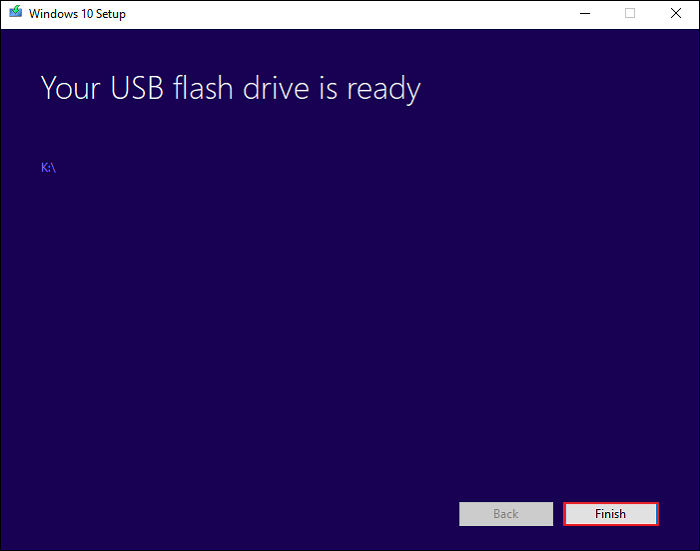
You can use the USB drive to boot up the computer and reinstall Windows 10.
Best Way to Reinstall Windows Without Losing Data
Can you reinstall Windows without losing programs? You can use various methods to reinstall Windows without losing programs or files, as described in this article. Options include using Qiling Backup, Backup and Restore, or the Windows 10 Media Creation Tool to perform a fresh install of Windows while keeping your programs intact.
I suggest using Qiling Backup since it offers advanced options to manage backups and is compatible with Windows 10/11, unlike Backup and Restore and Windows 10 Media Creation Tool. It also allows for other backup and recovery tasks. Try it for a smooth experience.
FAQs
1. Can I reset my PC without losing everything?
Refreshing your computer reinstalls Windows and keeps your files, settings, and apps, including those from the Microsoft Store, while resetting it reinstalled Windows and deletes all files, settings, and apps except for those pre-installed on your PC.
2. What happens if I reinstall Windows 10?
When you reinstall Windows, your files and software will remain, but certain items like custom fonts, system icons, and Wi-Fi credentials will be deleted. However, the setup process will also create a Windows. Old. Windows folder, which should contain everything from your previous installation.
3. Is cloud download better than local reinstall?
If you have a fast internet connection and enough data, it's best to choose cloud download to save time. However, if your connection speed is slow or you want to avoid extra downloads, choose local reinstall instead.
4. Will installing Windows erase my hard drive?
The operating system will format the hard drive before installation starts, so any data on the drive should be backed up to another drive beforehand to prevent loss.
Related Articles
- How to Use SSD as External Storage | Find Your Answer Here!
- How to Factory Reset PC Without Losing Data in Windows
- 3-Minute Understanding SSD Cache in Windows 10/11: Is It Worth It?
- How to Open Outlook Backup Files in PST Format: Step-by-Step Guide
- Create SSD Backup Image For Continuous Data Protection
Creating a SSD backup image is a crucial step in protecting your data, and scheduling it as a regular task ensures your information is always safe and secure. - 2 Easy Methods for Creating System Image in Windows 11
You can learn 2 simple methods to create system image in Windows 11. Both Windows built-in tool and free backup software can help you. You can read on for more details.
Products
Articles & Tutorials
- Data Recovery
- Data Backup
- File Recovery
- File Backup
- System Backup and Restore
- Disk and Partition Clone
- Technical articles
- Mobile articles
- Disk Master Help
- Windows Data Recovery Tutorials
- Windows Secure Delete Tutorials
- Windows Partition Management Tutorials
- Windows File Backup and Restore Tutorials
- Windows System Backup and Restore Tutorials
- Windows Disk Backup and Restore Tutorials
- Windows Clone Tutorials