(Updated!) Top 5 Driver Backup Software for Windows 11/10/7/XP
Driver backup software Driver Talent is a software that creates backups of your computer's drivers and hardware, and allows you to restore them if needed, keeping your drivers up to date and safe.
There are various driver backup software programs available for different devices, including printers, scanners, sound cards, and video cards. These programs often support multiple languages, making them suitable for use in non-English speaking countries. They provide a convenient way to back up and restore drivers, ensuring that devices continue to function properly even after system updates or hardware changes.
Most driver backup software offers a wide range of features, allowing you to easily make backup copies of your drivers with just a few clicks. Additionally, these programs enable you to schedule driver updates and have them installed automatically, eliminating the need for manual intervention.
For Windows 11, 10, 8.1, 7, and XP users, there are five top-notch driver backup software programs available, all with free plans and developed by reputable companies. These programs offer robust features to make driver backup and restore a breeze, providing a reliable solution for users who want to safeguard their system's drivers. Some of the best options include:
- 1. DriverMax
- 2. Double Driver
- 3. Driver Genius
- 4. DriverBackup!
- 5. Driver Magician
Facts Checking: What Makes the Best Drive Backup Software for PC/Laptop
In computing, a driver is a small piece of code that enables hardware components to communicate with each other, such as a printer or internet connection. Think of it like a GPS for your car, facilitating navigation and connection between different parts. When considering the best driver backup software, it's essential to understand the role of drivers in your computer's functioning.
Most driver backup software programs support major hardware brands such as Intel, AMD, NVIDIA, and Realtek, and a variety of devices.
Drivers are constantly being updated to keep pace with new hardware releases and software developments that interact with them. To ensure seamless communication between hardware and software, it's crucial to have driver backup software to create and restore backups of your drivers in case something goes wrong.
When selecting satisfactory driver backup software, there are a few key things to consider. Look for programs that can automatically scan and back up your drivers, as well as restore them if needed.
- Ease of use: The best driver backup software is user-friendly and doesn't require technical expertise. It should allow users to create backups of their drivers with minimal effort, often just a few clicks.
- Compatibility: The best driver backup software for Windows should be compatible with all major hardware brands and a wide range of devices, allowing it to support millions of devices' drivers, making the installation process of various drivers straightforward and efficient.
- Automation: Automated driver backup software should allow you to schedule driver updates and install them automatically, eliminating the need for manual intervention.
- Features: The best driver backup software not only creates backups of your drivers, but also offers a wide range of additional features, such as creating an emergency boot CD or USB drive, uninstalling, restoring, and updating drivers.
- Pricing: The available driver backup software is typically free to download and use, or costs a few dollars, making it a relatively affordable option compared to comprehensive Windows backup software.
A computer's functionality heavily relies on drivers, but it's equally important to consider the operating system (OS), which can be vulnerable to attacks like ransomware, Windows update installation issues, and system file corruption. To ensure a stable and secure system, it's crucial to create a backup of your data regularly, install necessary drivers, and keep your OS up-to-date with the latest security patches and updates. This multi-faceted approach will help prevent potential problems and keep your computer running smoothly.system image Qiling Backup is an all-around backup utility for Windows devices, allowing users to back up files, folders, and system settings with ease.
Top 1. DriverMax - Best Choice for Audio/Video Driver Backup
Tags: free, rich-featured
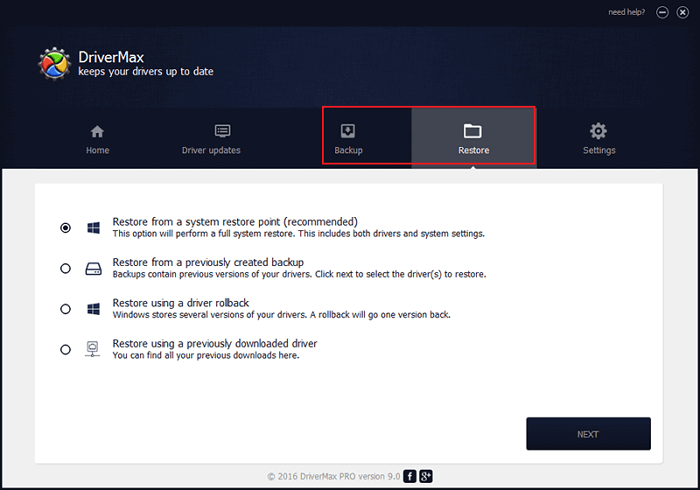
DriverMax is a driver updater that finds and downloads the latest driver updates for your computer. With its simple interface, it makes it easy to find, download, and install drivers. Additionally, DriverMax allows you to create backups of your drivers and restore them if needed.
Features:
- The tool analyzes existing drivers and provides the latest version for over 2 million devices, ensuring that users have the most up-to-date software for their hardware.
- Automated installs, scheduled scans, and full device driver backups
- The command backs up the current drivers and creates a system restore point, allowing for easy recovery in case of any issues.
- Allows a quick rollback of the Windows installation and drivers
Pricing:
DriverMax offers 2 free driver updates per day, but the driver backup feature is completely free to use.
Top 2. Double Driver - Best Portable Driver Backup Tool
Tags: free, portable
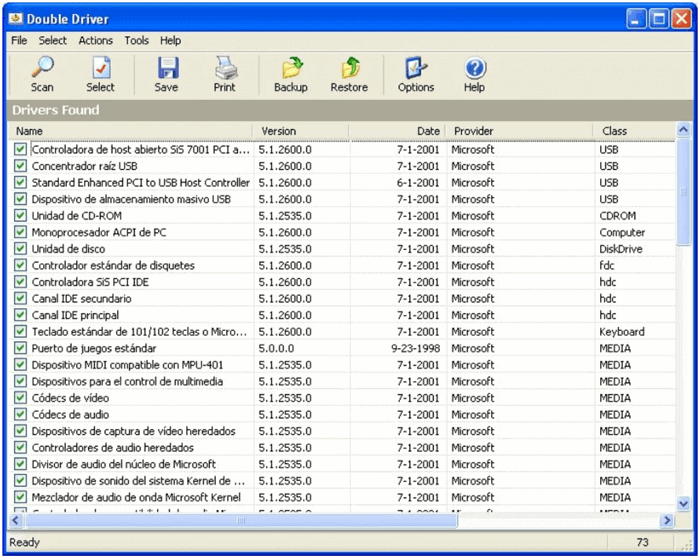
Double Driver is a portable driver backup and recovery application that allows users to scan, select, save, print, backup, and restore drivers on their computer without the need for installation. This makes it a highly competitive option due to its convenience and flexibility, allowing users to take it with them on a USB flash drive and use it on any computer.
Features:
- Scans driver information from offline or non-booting Windows system
- Supports viewing all installed drivers on your system
- Backup, restore, save and print all chosen drivers
- Analyze the system and list the most important drivers with detailed information for you to make a backup
- Lets you select which drivers to back up or restore
Pricing:
Double Driver is donationware, which is free to try.
Top 3. Driver Genius - Driver Expert with 20 Years of Experience
Tags: user manual available
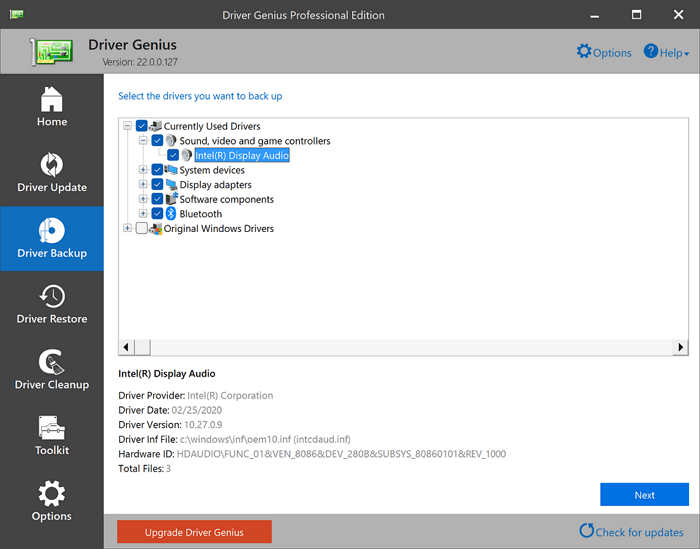
Driver Genius, available at https://www.driver-soft.com, is a tool that detects and quickly backs up the drivers on your current system, ensuring a smooth Windows reinstallation by eliminating the need to install necessary drivers. It can also find drivers for devices not working properly or recognized by Windows, and scans your computer to identify driver problems, automatically fixing them or recommending fixes.
Features:
- Automatic notifications and updates for driver changes
- Backup, restore, and update drivers
- Roll back driver changes
- Create driver backups by driver type or device
- Well-organized user interface design
Pricing:
The price for Driver Genius starts at $29.95 for a single-user license, with a free trial available that has limited features.
Top 4. DriverBackup! - Open Source Free Driver Backup Software
Tags: free, open source
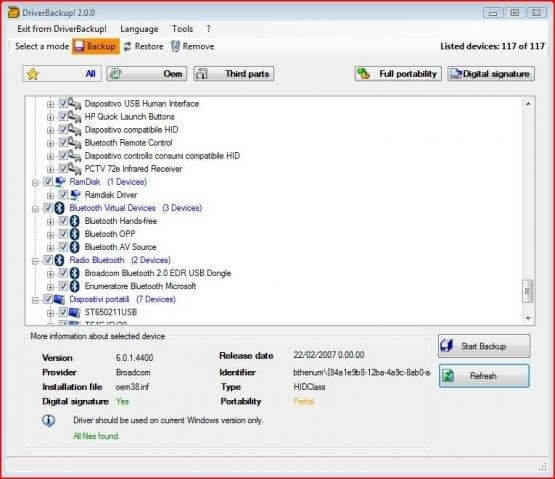
DriverBackup! is an Open Source utility that creates compressed backups of driver files, allowing users to easily manage and restore driver backups on different computers. The program can be run directly from a zip file without installation, making it simple to use. Users can choose which drivers to back up and where to save them, making it a convenient tool for managing various types of driver backups.
Features:
- Choose all or specific drivers to back up
- The tool allows users to filter specific lists for OEM drivers or third-party drivers, making it easier to identify and manage these types of drivers.
- Simple, professional, and easy to use for driver backup purposes
- Integrated with command line switches (English is not available)
Pricing:
DriverBackup! is free and open-source software. There is no paid version available.
Top 5. Driver Magician - Driver Backup and Update in One Tool
Tags: built-in database to receive driver updates
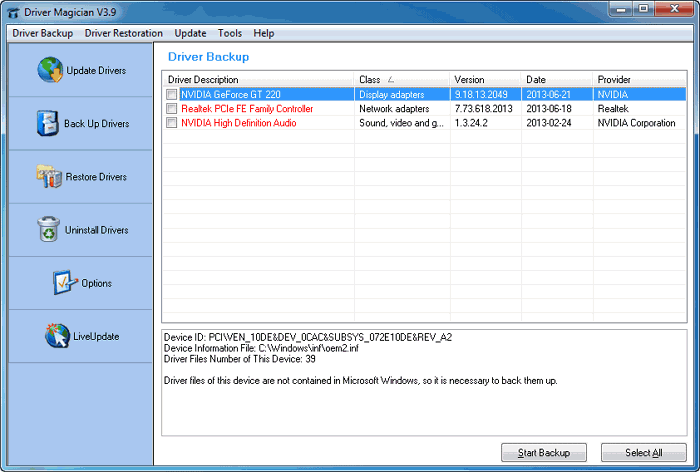
Driver Magician is a professional tool that helps manage device drivers in Windows, allowing you to back up, restore, update, and remove drivers with ease. It can extract and backup driver files from your current system or from downloaded driver files, and its built-in database of over 100,000 drivers is constantly updated to support the latest hardware devices.
Features:
- Drivers database keeps updating
- Back up My Documents and Desktop folders besides drivers
- Clone all drivers to an auto-To restore drivers without installing Driver Magician, you can set up a package (.exe) that allows you to do so. This package can be created to include the necessary drivers for your system, making it easier to restore them without having to reinstall Driver Magician.
Pricing:
Driver Magician offers commercial licenses for use, with discounts available for bulk purchases. A free version, Driver Magician Lite, is also available, allowing users to identify hardware drivers and back up associated drivers from their hard disk.
Is Driver Backup Enough?
Drivers play a crucial role in a computer's software and accessories, and losing or damaging them can cause significant problems. However, backing up drivers can help resolve issues such as corrupted, missing, or incompatible drivers by allowing users to redownload or reinstall them.
While driver backup software can be helpful, it's not a comprehensive solution for protecting your computer. Driver backup only saves driver files, not the entire system or hard drive. To truly safeguard your computer, consider using disk imaging or an entire system backup, which can save a snapshot of your entire system, including all files, settings, and applications. This provides a more robust form of protection than just backing up driver files.
Disk Imaging: All-in-One Solution to Protect Your Computer, including Drivers
Creating a disk image of your entire hard drive, including the operating system, associated drivers, installed programs, and all data, is a crucial step in a comprehensive backup strategy. This allows for a quick and easy recovery in case of a hardware failure or other catastrophe, such as a computer crash, saving time and preventing data loss.
Qiling Backup is a free disk imaging software that allows Windows users to create backups of their entire hard drive, partitions, systems, and files, ensuring zero data loss. It's a good idea to take a driver backup first if you think it's important, and then create an image of your entire hard drive to keep everything safe.
To back up your Windows computer with Qiling Backup, simply follow these steps. First, download and install the Qiling Backup software from the official website.
Step 1. Launch Qiling Backup on your computer, and click System Backup on the home screen.

Step 2. Your Windows operating system information and all system-related files and partitions will be automatically selected, so you don't need to do any manual selection at this step. Next, you'll need to choose a location to save the system image backup by clicking on the illustrated area.

Step 3. The backup location can be another local drive, an external hard drive, network, cloud, or NAS. We recommend using an external physical drive or cloud to preserve system backup files.

Step 4. Customization settings, such as enabling automatic backups on a daily, weekly, monthly, or event-based schedule, and making differential and incremental backups, are available in the Options button. Upon clicking Proceed, the Windows system backup process begins, with the completed task displaying on the left side in a card style.

Final Thoughts
We've listed the top 5 driver backup software for Windows 11/10/8.1/7/XP, making driver backup an easy task. However, driver backup alone is not enough to protect our computers from data loss, and a further backup strategy is needed to ensure a secure computing environment.
Qiling Backup is a reliable choice for disk imaging, offering an intuitive interface and robust features. It's a great companion for Windows users, providing driver and system backup capabilities that make it a valuable tool for maintaining computer health and stability.
FAQs
1. How do I backup and restore drivers for Windows 7?
Since Windows 7 doesn't have a native driver backup plan, you'll need to rely on third-party software to back up your drivers. Five top options, including DriverMax, Double Driver, Driver Genius, DriverBackup, and Driver Magician, can be used on a Windows 7 computer to ensure your drivers are safely backed up.
2. What's the difference between driver backup and full system backup?
A full system backup includes not just the operating system and drivers, but also all user data, settings, and applications, providing a complete snapshot of the system, allowing for a full recovery in case of a system failure or disaster. This is in contrast to a driver backup which only protects the operating system resources.
Related Articles
- Backup Solutions for Small and Mid-sized Companies of 2022
- USB External Hard Drive Not Showing Up in Windows 11 (99% Users Rated Useful)
- How to Change Android SD Card to A Bigger One in Windows 10/8/7
- Seagate Backup Plus Software Downloads and Explanation [perfect tips]
- Top 3 Backup Software Free for Windows, Mac and Linux
We recommend 3 of the best backup software free for Windows, Mac and Linux that enables users to say goodbye to data loss. - The Best Free Backup Software That Only Copies Changes
Try to find a backup software that only copies changes? Qiling Disk Master, the best free backup software, will help you achieve this goal easily.
Products
Articles & Tutorials
- Data Recovery
- Data Backup
- File Recovery
- File Backup
- System Backup and Restore
- Disk and Partition Clone
- Technical articles
- Mobile articles
- Disk Master Help
- Windows Data Recovery Tutorials
- Windows Secure Delete Tutorials
- Windows Partition Management Tutorials
- Windows File Backup and Restore Tutorials
- Windows System Backup and Restore Tutorials
- Windows Disk Backup and Restore Tutorials
- Windows Clone Tutorials