How to Migrate Dropbox to OneDrive: Step-by-Step Guide
| Workable Solutions | Step-by-step Troubleshooting |
|---|---|
| Migrate Dropbox to OneDrive |
1. Download Dropbox Files and Upload them...Full steps 2. Sync Dropbox to OneDrive via Desktop Apps...Full steps |
| Clear Dropbox after Migrating | Step 1. Go to your Dropbox، move your mouse over to the "Name", and you'll see a little blank box click on it...Full steps |
| Transfer Dropbox/OneDrive to Another Computer | Step 1. Connect two computers. Ensure that the two computers are on the same LAN. You need to run ...Full steps |
Introduction
OneDrive and Dropbox are two leading cloud storage platforms that offer free and paid versions, allowing users to store and access their files from anywhere. Both platforms have their own storage limits, with Dropbox offering 2 GB of free storage and OneDrive providing 5 GB. If users reach their storage limit, they can create an additional account on another cloud service. To transfer data from Dropbox to OneDrive, users can follow the steps outlined in this article. Using multiple cloud storage platforms is a convenient option for those who want to keep their files secure and accessible, and also obtain more free storage space.
Can I Move Files from Dropbox to OneDrive?
Cloud storage services have made it easier to share files between services or keep information synced across devices, freeing us from cables and manual uploads.
Two general methods allow us to move files from Dropbox to OneDrive most of the time.
1. Download and Upload
To download all your files from Dropbox to your computer or laptop and then upload them to OneDrive, simply organize your files nicely in Dropbox beforehand. Collect all files in one folder to make the process hassle-free. This easy tip will make uploading files to OneDrive a breeze for you.
2. Sync Dropbox to OneDrive via Desktop App
You can easily transfer files between cloud storage services or accounts using the desktop app synchronization feature. To do this, simply download and install both apps, and you'll be able to move files between them with ease. This method is free and convenient, making it a great option for various file transfer needs.
1. Download Dropbox Files and Upload them to OneDrive
Step 1. Log in to your Dropbox account, select the files or folders you want to download and click "Download" at the top center.
Note: All files and folders will be downloaded in a zip folder, which you'll need to unzip. To do this, open the zip folder, copy all the contents, and then create a new folder. Finally, paste the copied files and folders into the new folder.
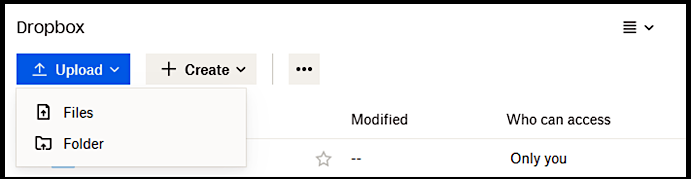
Step 2. To upload files to OneDrive, log in to your account, click the "Upload" button, and select either "Files" or "Folder" to start the upload process from your PC.
2. Sync Dropbox to OneDrive via Desktop Apps
Step 1. To sync files across devices, download and install Dropbox and OneDrive desktop apps on your laptop or computer. This will create sync folders in your Windows File Explorer, allowing you to access and manage your files from a single location.
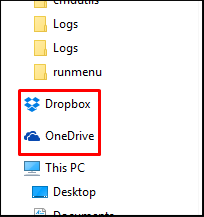
Step 2. Now, you can quickly move your files and folders from Dropbox to OneDrive using the "Cut" and "Paste" or "Drag" and "Drop" features.
How to Clear Dropbox after Migrating Dropbox to OneDrive?
You can quickly clear your Dropbox by deleting all folders and files at once with just a few clicks. To do this, follow these steps: follow the steps below.
Step 1. To rename a file or folder in Dropbox, move your mouse over the "Name" field, click on the blank box that appears, and then you can edit the name of all selected files and folders.
Step 2. Click on the "Delete" button at the top center.
Step 3. Go to "Deleted files" from the bottom left.
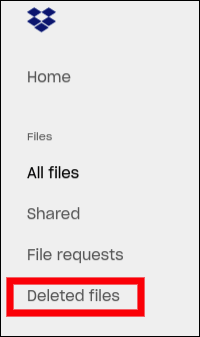
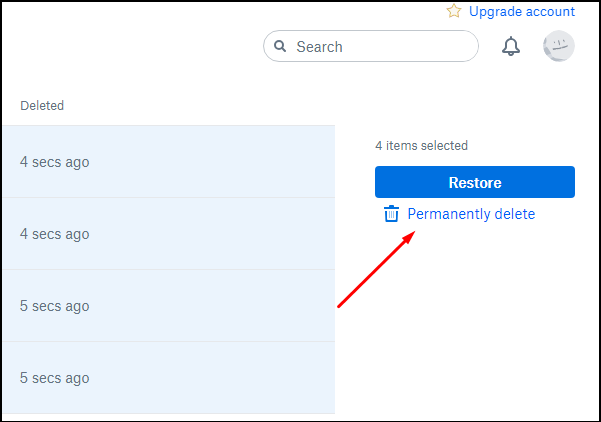
Step 4. To clear your Dropbox, select all files and folders, then click on "Permanently delete" at the top right, which will clear your Dropbox within a few minutes.
Bonus Tip: How to Transfer Dropbox/OneDrive to Another Computer?
Qiling Disk Master makes it easy to transfer files, folders, and data from Dropbox or OneDrive to another computer, moving data quickly and efficiently. As a complete and reliable service for personal or office use, it offers the advantage of having everything in one place, allowing you to save and access your files easily. Additionally, its speed is often faster than internet connections in residential areas, making it a helpful tool when transferring files between computers on a local network. Download Qiling Disk Master to experience its convenient features.
Step 1. Connect two computers
To enable file synchronization between two computers, ensure both are connected to the same local area network (LAN). On both computers, run Qiling Disk Master. On the source computer, go to the "Backup and recovery" page and click "File sync".

To remotely connect to a computer, first recognize the destination computer by its device name. Then, connect to the target PC, and input the account password or verification code of the target PC. This allows for remote access and control.

Step 2. Choose Dropbox to transfer
Now hover your mouse over the "Applications" category.

Locate the Dropbox, tick the box and click "Proceed".
Step 3. Start Dropbox transfer
Qiling Disk Master allows for seamless migration of cloud drive applications from one computer to another, making it easy to transfer cloud drives between devices.
Conclusion
Creating backup copies of your files and storing them in the cloud is a great option, allowing you to access your data from anywhere in the world. This process is simple and free, enabling you to synchronize both platforms or download/upload files. Making backup copies is essential to keep your files safe, especially in the event of a ransomware attack or other threats. Having copies of critical data is crucial, and using a third-party app like Qiling Disk Master can be a good alternative if you prefer a more feature-rich option. Additionally, you can learn how to move installed programs to another drive for further data management.
Related Articles
- How to Transfer Youtube Data to Another Account [Channels, Subscription, Playlist]
- You Must Know How to Move Files from OneDrive to Local Drive
- Window 7 won't boot? Reliable Solutions Is Here
- How to Transfer Photos from One iCloud to Another iCloud
- Disk Backup, MBR/GPT Disk Backup, External Disk Backup
When carrying out the operations of disk backup, all the data, the operating system and programs will be backed up to an image file. - Fast backup and recovery software - QILING Disk Master Professional
The ultimate purpose of backup software is to save companies and business organizations from the massive setbacks that can occur from data loss.
Products
Articles & Tutorials
- Data Recovery
- Data Backup
- File Recovery
- File Backup
- System Backup and Restore
- Disk and Partition Clone
- Technical articles
- Mobile articles
- Disk Master Help
- Windows Data Recovery Tutorials
- Windows Secure Delete Tutorials
- Windows Partition Management Tutorials
- Windows File Backup and Restore Tutorials
- Windows System Backup and Restore Tutorials
- Windows Disk Backup and Restore Tutorials
- Windows Clone Tutorials