Restore Files from Backup Windows 10 [Backup and Restore Available]
Need to Restore Files from Backup Windows 10?
Having a backup of your files is crucial, especially if you've ever lost an important document. A backup is essentially a copy of your files that you can restore if something goes wrong. Fortunately, you have three options to create a backup, allowing you to choose the one that suits your needs best.
Backup Options:
- Qiling Backup Free Backup Windows 10, including the OS, files, disk, and Outlook mail, with support for cloud storage (250GB for free).
- File History: OneDrive Backup backs up copies of files in specific folders on your PC, including Documents, Music, Pictures, Videos, and Desktop, as well as OneDrive files available offline.
- Backup and Restore: back up all data files and system images.
If your Windows 10 computer is about to restore backup files, you can continue learning how to restore files from backup in Windows 10, working for local disk and external hard drive. For safe and quick restore, we recommend using Qiling Backup Free.
Three Solutions to Restore Backup Files:
First Recommendation: Restore Files from Backup with Qiling Backup
File History: Restore Files from Backup Windows 10
To restore backup files from an external hard drive on Windows 10, connect the external hard drive to your computer, go to the "Control Panel" and click on "System and Security," then click on "Backup and Restore (Windows Backup
First Recommendation: Restore Files from Backup with Qiling Backup
Qiling Backup Free is a free disk backup and restore program that works with Windows 10, 8, 7, and XP. It allows you to back up your files and folders to an external hard drive or cloud storage services like Dropbox or Google Drive. Additionally, you can create a bootable rescue disk to recover files if your computer won't start. Overall, Qiling Backup Free is a helpful program that makes it easy to create backups of important files.
To Run Qiling Backup Restore:
Step 1. Launch Qiling Backup, click "Browse for Recovery".

Step 2. To recover a backup, go to your backup destination, select the backup file you want to recover, which is typically an .fvd file created by Qiling Backup.
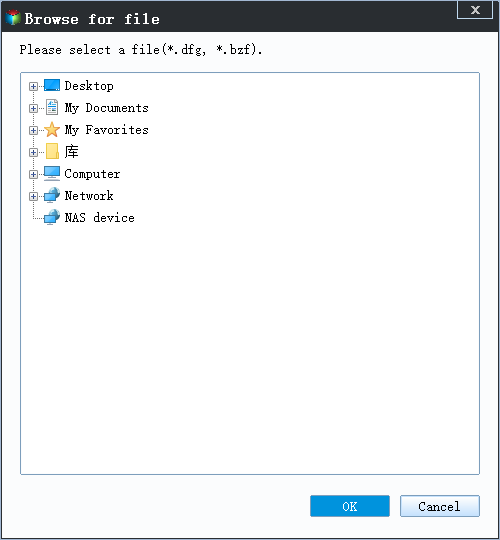
Step 3. To recover data, you can choose to restore it to a specific location or back to its original location.
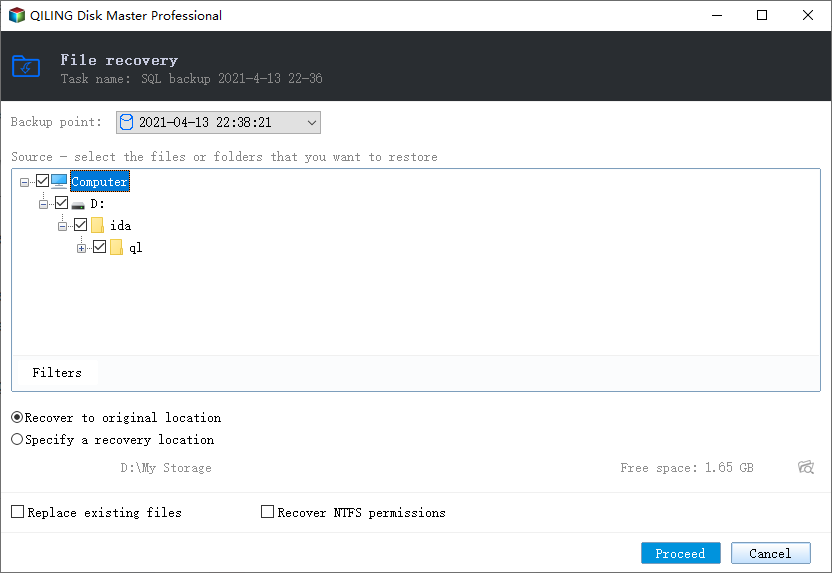
Step 4. Click "Proceed" and the recovery would start.
5 Best Free Backup Software for Windows 11
To safeguard your important files and data, back up all your essential information using the best free Windows 11 backup software. For a step-by-step guide on how to do this, click here.
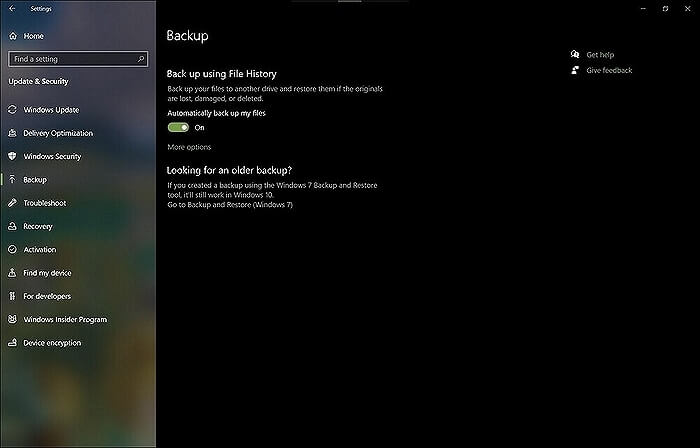
File History: Restore Files from Backup Windows 10
To restore files from a backup in Windows 10, follow these steps:
1. Go to the Start menu and search "Restore files."
2. Click the "Restore your files with File History" result.
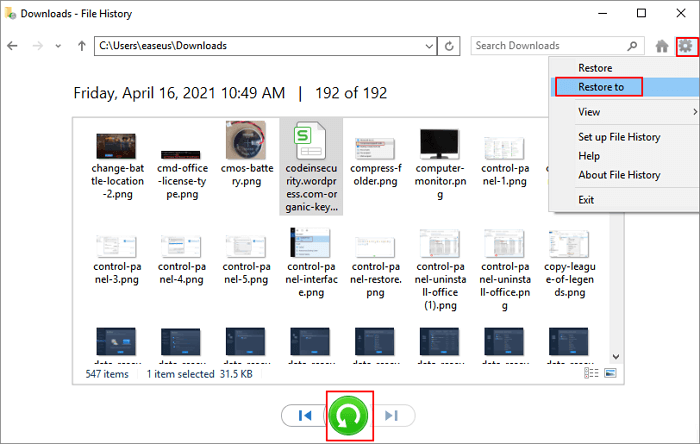
3. Select the drive that contains your backup files, which is likely to be an external hard drive or network location.
4. Select the data you want to restore from and click "Restore" or "Restore to".
How to restore files on Windows 10 - File History
Once the restore process is complete, your computer will be reverted to the selected point in time, and you'll have access to your backed-up files again.
Backup and Restore: How to Restore Backup Files from External Hard Drive Windows 10
Windows 10 includes a built-The "Backup and Restore" tool provides an easy way to create and restore backups, giving users peace of mind knowing their files are safe.
To restore files from a backup using Backup and Restore, simply open the tool, follow the prompts, and select the files you want to restore along with the desired restore location.
To restore your files:
Step 1. The Backup and Restore tool can be opened and the "Restore my files" option can be clicked.
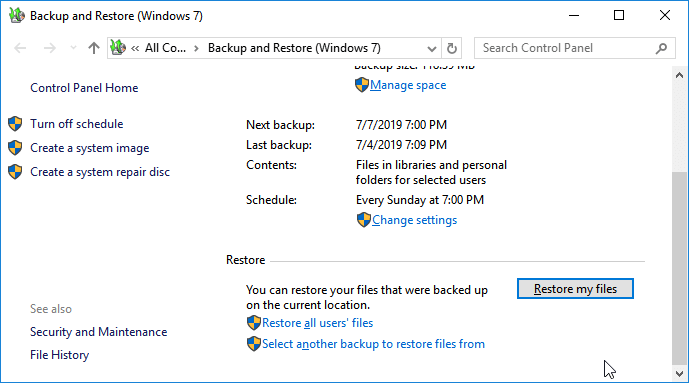
Step 2. Select the location of your backup, choose the files you want to restore, and click "Restore" to have your files restored to their original location.
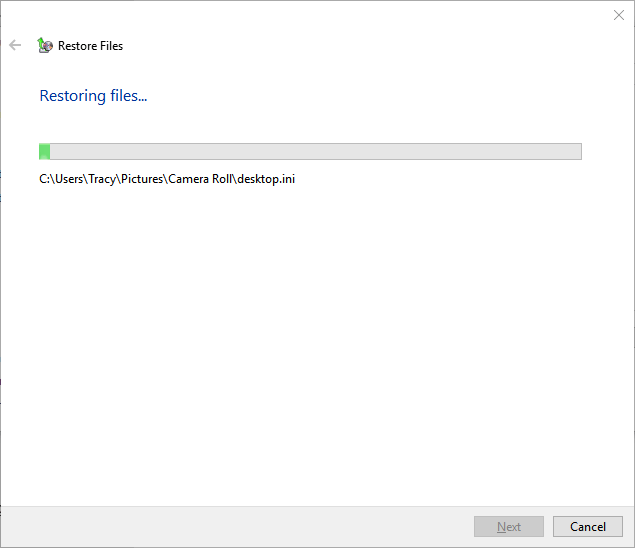
You can easily restore your files with just a few clicks, without any hassle. So, if something goes wrong, don't panic - simply restore your files from backup using the Backup and Restore feature.
Final Verdict
To ensure your important files are safe, it's essential to create regular backups on Windows 10. If something goes wrong with your computer, you can restore your files from the backup. Windows 10 backup software, Qiling Backup, simplifies the process of creating and restoring backups. To restore files, open the software and click "Browser to Recover" to initiate file recovery.
To restore files from a backup in Windows 10, open the Backup and Restore app, select the restore point you want to use, and follow the prompts. This is a straightforward process that allows you to quickly recover your files.
Windows 10 Backup and Restore FAQs
1. How do I restore Windows 10 from a backup? - Quora.com
To restore a Windows 10 computer from a backup, go to the Settings app's Update & Security section, then click on Backup and select Restore from a backup. This will allow you to choose the backup you want to restore from and restore it to your computer.
2. How do I backup all files on Windows 10? - Quora.com
To backup files on a Windows computer, you can use the built-in backup feature in the Settings app, utilize a third-party backup program, or manually copy files to an external drive or cloud storage service.
3. Unfortunately, there is no guaranteed way to recover a file that was lost during a Windows 10 backup process. However, you can try checking the backup logs and the backup folder to see if the file was partially backed up or if there are any remnants of the file that can be recovered. You can also try using file recovery software to scan the hard drive for any deleted files. It's also a good idea to regularly back up your files to an external drive or cloud storage service to prevent data loss in the future.
Recovering deleted data can be challenging, but it's not impossible. If you've lost files, it's worth trying data recovery software to see if they can be retrieved. While it may be difficult to get them back manually, your deleted data is still recoverable with the right tools.
4. Creating a backup of your important files is necessary because it ensures that your data is safe and can be recovered in case of a system failure, data loss, or other unforeseen events. To create a backup, you can use external hard drives, cloud storage services, or backup software. External hard drives are physical storage devices that can be connected to your computer to store your files. Cloud storage services, such as Google Drive, Dropbox, or OneDrive, allow you to store your files online and access them from anywhere.
Having a backup of your important files is crucial to protect yourself from data loss. If your computer crashes or becomes infected with a virus, you could lose all your valuable files unless you have a backup, which can be easily restored to prevent such a loss.
Creating a backup is also important for sharing files between computers.
Creating backup files with File History and Backup and Restore is a straightforward process. Both features make it easy to safeguard your important files and ensure they are not lost in case of a system crash or other disaster.
5. Where are Backup Files Stored on Windows 10/11?
If you've upgraded to a new version of Windows (10 or 11), your backup files are stored in the Windows.old folder. This folder contains all your old system files and is automatically deleted after 30 days. To access your backup files, simply open Windows.old, copy the files you need, and save them to a new location. Be sure to do this before the 30-day mark to avoid losing your files.
Related Articles
- 2022 How to Copy Text That Cannot be Copied: Seven Tips 100% Working
- Clone SSD to HDD with SSD to HDD Cloner for Windows 10/11
- How to Disable Windows 10 Update in Every Way (Windows 11 Supported)
- Detailed Comparison | Virus Protection VS Internet Security
- Restore Windows 10 System Image to New Hard Drive with In-Depth Guide
Learn how to restore a Windows 10 system image to a new hard drive and make the restored system boot correctly. - Can Samsung Data Migration Clone Non-Samsung SSD
Samsung Data Migration is the official tool for Samsung hard drive users to clone and manage their hard drives. However, if you have a non-Samsung SSD, you might wonder if this tool can clone it. The answer to this question will be provided in this article.
Products
Articles & Tutorials
- Data Recovery
- Data Backup
- File Recovery
- File Backup
- System Backup and Restore
- Disk and Partition Clone
- Technical articles
- Mobile articles
- Disk Master Help
- Windows Data Recovery Tutorials
- Windows Secure Delete Tutorials
- Windows Partition Management Tutorials
- Windows File Backup and Restore Tutorials
- Windows System Backup and Restore Tutorials
- Windows Disk Backup and Restore Tutorials
- Windows Clone Tutorials