System Image Backup Fails 0x80780151 Compacting VHD
Quick Navigation:
- What 0x80780151 Means
- Check Space and File Locks
- Keep a Restorable Image
- Create a Complete Image
- Frequently Asked Questions
Windows finishes copying the system image, announces that it is compacting the virtual hard disk, and then fails with 0x80780151. The copy itself may have reached 100 percent, which makes the message look like a minor cleanup problem, but the image is not usable: the VHD was never closed and the backup set cannot be restored. The code belongs to the legacy System Image Backup tool, the one that writes a virtual disk instead of a folder of files. This page explains why the final step fails, what to check on the destination, and how to produce a bootable image without that compaction phase.
What 0x80780151 Means
System Image Backup does not write a folder of files. It creates a virtual hard disk, copies the selected volumes into it, and then compacts the file so that unused blocks are removed and the VHD matches the real size of the data. The compaction runs after the copy has been reported as complete, and 0x80780151 means that this last phase could not finish.
The compaction needs two things that the copy phase can live without: free space for the temporary work and an exclusive handle on the VHD. A destination that is nearly full, a security product that scans the new file, a preview window that has it open, or a second backup touching the same folder can each block the step and return the code.
The result is not a partial success. The virtual disk has no valid footer, so mounting it fails and a recovery environment cannot use it. The file may still look large in File Explorer, which is why some users keep it and later discover that the restore window rejects it.
The tool itself is the old Windows 7 backup feature that still appears in Control Panel on Windows 10 and 11. Microsoft has deprecated it, and the compaction design is one reason: a modern image tool writes a finished file and does not need a second pass at the end.
Check Space and File Locks
Compare the free space on the destination with the used space of the system volume before you try again. The image is roughly the size of the used data, and the compaction needs additional room while it rewrites the file. A drive with less than a fifth of its capacity free is a likely cause, especially when the system volume is large.
Close everything that can hold the new file. Pause real-time scanning for the destination folder during the run, close File Explorer windows that point at it, and stop any other backup task that writes to the same disk. A handle held by a scanner is enough to fail the compaction after a fully successful copy.
The Application log in Event Viewer records the failure under the Windows Backup source and repeats the code beside the destination path. Event Viewer is a Windows built-in tool owned by Microsoft, not a feature of Qiling Disk Master, and it is mentioned here only so you can confirm which phase failed. A failure reported well before the end, with a read error instead of a compaction message, points at the source disk rather than at free space.
Check the file system of the destination as well. A FAT32 volume cannot hold a file larger than 4 GB, so an image of a modern Windows installation fails there regardless of free space. Use an NTFS disk, and prefer a local drive over a network share for this legacy tool.
Keep a Restorable Image
Do not delete the last image that completed successfully. The failed run produced a file that looks like a backup but cannot be mounted, and removing the older set in order to free space would leave you with no restore point at all.
Make room on a different disk rather than on the same one. An external drive with twice the used space of the system volume gives the compaction its working room and keeps the image away from the disk it protects. If no such drive is available, free space on the destination before the next attempt and keep the old image until the new one is verified.
Copy irreplaceable files to a second location before any experiment. Compaction failures do not touch the source disk, but the retries, the cleanup, and the space pressure that follow them are exactly when users delete the wrong folder. A simple copy of the important documents costs little and removes that risk.
Create a Complete Image
Qiling Disk Master writes a system image as a finished set of files and reports the result at the end, so there is no virtual disk to compact and no footer that can be left unfinished. The same task can build bootable recovery media, which is what makes the image useful when Windows no longer starts.
Step 1. Open System Backup
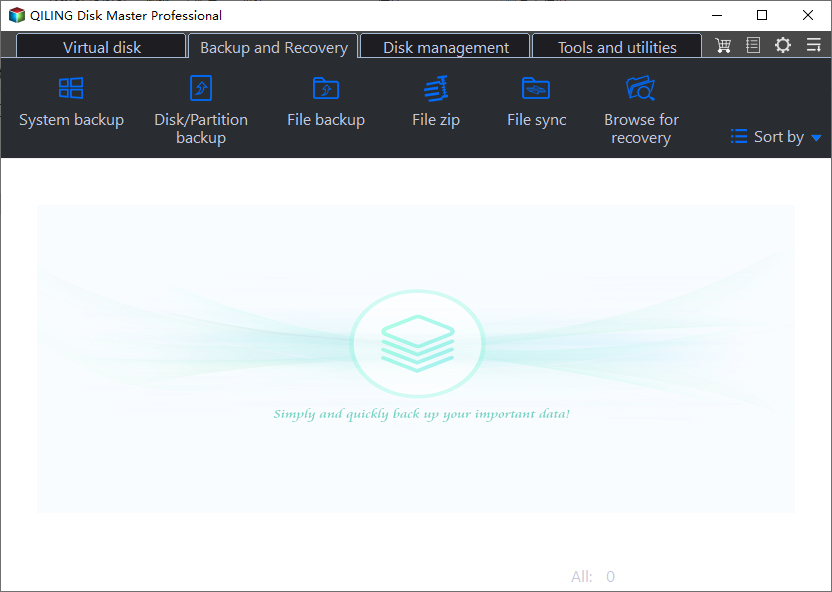
On the Backup and Recovery tab, click System Backup. The home screen is empty until the first task exists, so the run you are about to create will appear there with its destination and result.
Step 2. Select the System Disk
Tick the disk that holds Windows and the system partitions beside it. The bar shows the required space before anything is written, which is the number to compare with the free space on the destination.

Step 3. Choose a Destination With Room
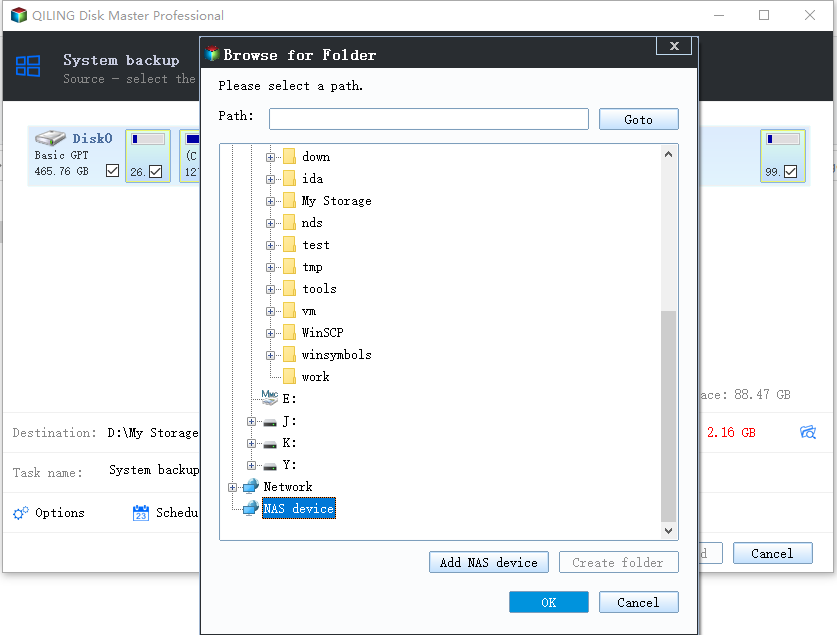
Browse to a folder on another internal disk or an attached drive and keep at least a fifth of the destination free after the image is written. The legacy tool failed because it needed that headroom at the end, and the same rule keeps any image job healthy.
Step 4. Preview and Proceed
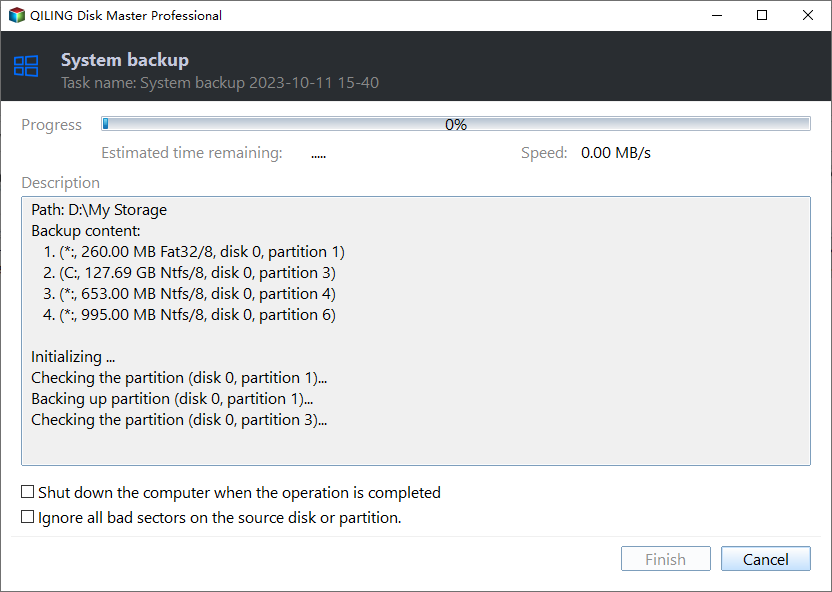
The summary lists the partitions, the destination, and the backup mode. Preview the pending operation and click Proceed; the progress window reports each partition in turn, and the task is complete only when the Finish button becomes available.
Frequently Asked Questions
Can I repair the incomplete VHD?
Rarely. The file was never finalized, so mounting it usually fails and repair tools have no valid header to work from. Delete it and create a new image instead of risking a restore from a half-written disk.
Why does the error appear at 100 percent?
The copy is finished but the compaction is not. The tool needs free space for that step and an exclusive handle on the file, and either one missing produces 0x80780151 at the very end of the job.
Is System Image Backup still supported?
It still runs on Windows 10 and 11, but Microsoft has deprecated it and recommends another image tool. A program that writes its own image format avoids the VHD compaction step entirely.
Related Articles
- Windows Backup Error 0x8078005D: Fix the Image Backup
- Windows Backup Error 0x8098011E: Image Backup Failed
- Windows Backup Error 0x81000019: Shadow Copy Failed
- How to Restore Windows 10 From a Backup
- Windows Server Backup and Its Alternative
Products
Articles & Tutorials
- Data Recovery
- Data Backup
- File Recovery
- File Backup
- System Backup and Restore
- Disk and Partition Clone
- Technical articles
- Mobile articles
- Disk Master Help
- Windows Data Recovery Tutorials
- Windows Secure Delete Tutorials
- Windows Partition Management Tutorials
- Windows File Backup and Restore Tutorials
- Windows System Backup and Restore Tutorials
- Windows Disk Backup and Restore Tutorials
- Windows Clone Tutorials