System Restore Error 0x81000101: Cannot Create Restore Point
Quick Navigation:
- Why the Restore Point Fails
- Cover the Machine First
- Repair System Protection
- Create a Backup Instead
- Frequently Asked Questions
You open System Protection, click Create, and the dialog returns 0x81000101 with the message that the restore point could not be created. The machine is otherwise healthy, which makes the failure puzzling. The code is a snapshot problem: System Protection asked the shadow copy service for a point-in-time view of the system volume and the request was refused. The usual reasons are a shadow storage limit of zero on that volume, System Protection switched off for the drive, a service that no longer starts, or a volume with too little free space to hold the change log. This page explains the cause, how to protect the machine before you edit settings, and how to keep a rollback path that does not depend on restore points at all.
Why the Restore Point Fails
A restore point is a snapshot, not a copy of the disk. Windows records the blocks that change after the point is taken, and those blocks live in a hidden shadow storage area on the same volume. If that area cannot be created or extended, no restore point exists, and System Protection reports 0x81000101 instead of a partial success.
The most common cause is a maximum size of zero. Some cleanup tools and some tuning guides set the shadow storage maximum to zero to reclaim disk space, which silently disables every future restore point while leaving the System Protection page looking normal.
System Protection itself may be off for the system volume. A drive that was replaced, restored from an image, or resized can arrive with protection switched off, because the setting is stored per volume and a new volume starts unprotected.
Service state explains another group. The shadow copy service and its software provider have to start on demand, and a disabled service, a third-party filter driver, or a policy that blocks the service leaves the request unanswered. On managed machines, a group policy can also turn restore points off entirely, which no local setting can override.
Free space is the last common factor. A system volume with a few hundred megabytes free cannot host a change log, and removing a large application or moving a folder is often the only fix that holds.
Cover the Machine First
Create a full image of the system disk before you change services, limits, or protection settings. A restore point is a convenience for undoing a driver or an update; an image is what actually brings the machine back, and you want it in place before you experiment.
Copy the folders that changed today to an external disk as well. An image taken now captures the machine as it is, including any problem you are trying to solve, so the freshest documents deserve their own copy.
Keep whatever restore points still exist. Even an old point is better than none while you work, and the repair steps below do not require you to delete them first.
Repair System Protection
Start on the System Protection page. Select the system volume, click Configure, and confirm that protection is turned on. Then read the disk space section: a maximum near zero, or a slider dragged to the far left, is the answer in many cases. Raise it to a few percent of the volume and apply the change.
If the setting is already correct, check the services that support it. The shadow copy service and the software shadow copy provider must be able to start, and their startup type should not be disabled. A service that fails to start with its own error code points at a filter driver or an antivirus component rather than at System Protection.
Then check free space on the system volume. Restoration needs room for the change log plus room for the files that change, so a volume below ten percent free will keep failing no matter how the slider is set.
On a managed machine, confirm with the administrator that a policy is not disabling restore points. Disk Management, PowerShell, the Services console, and the vssadmin and wbadmin utilities are all built into Microsoft Windows and belong to Microsoft, not to Qiling Disk Master. They read and change the same shadow layer, so use them carefully and note the original values before you edit anything.
Create a Backup Instead
Qiling Disk Master gives the machine a rollback path that does not need a shadow area at all. An image of the system disk can be applied to the same disk or to a replacement, and a file-level task covers the folders that change daily, so a failed restore point no longer leaves you without a way back.
Operation 1: Image the System Disk
Use this operation when you want one file that can rebuild Windows, its programs, and its settings after a bad update or a failed drive.
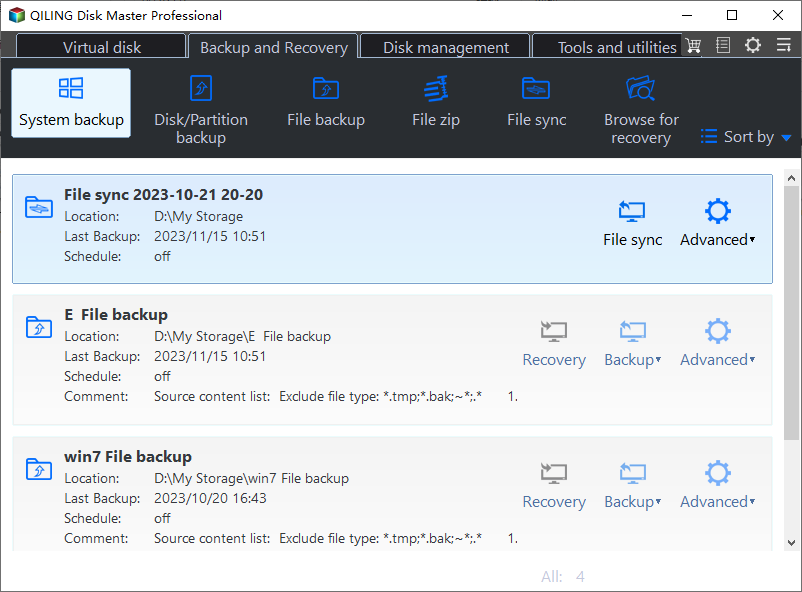
Step 1. Open System Backup. On the Backup and Recovery tab, click System Backup. The wizard pre-selects the system and boot partitions, and the list shows their sizes so you can confirm that both are included.
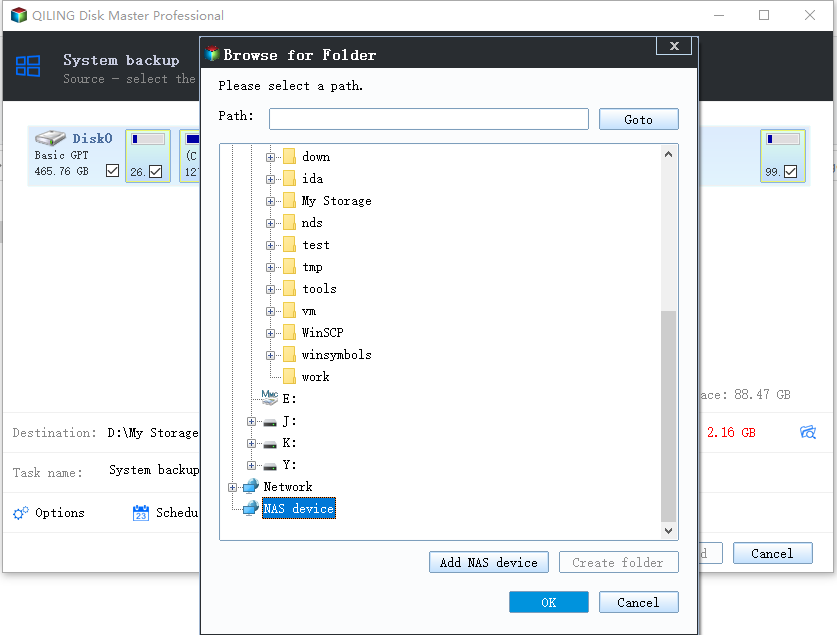
Step 2. Choose a destination on another disk. Click the folder icon beside Destination and pick a folder on a disk that holds nothing you need to protect. The free space under the path should cover at least one more full image, so the next run does not fail for lack of room.
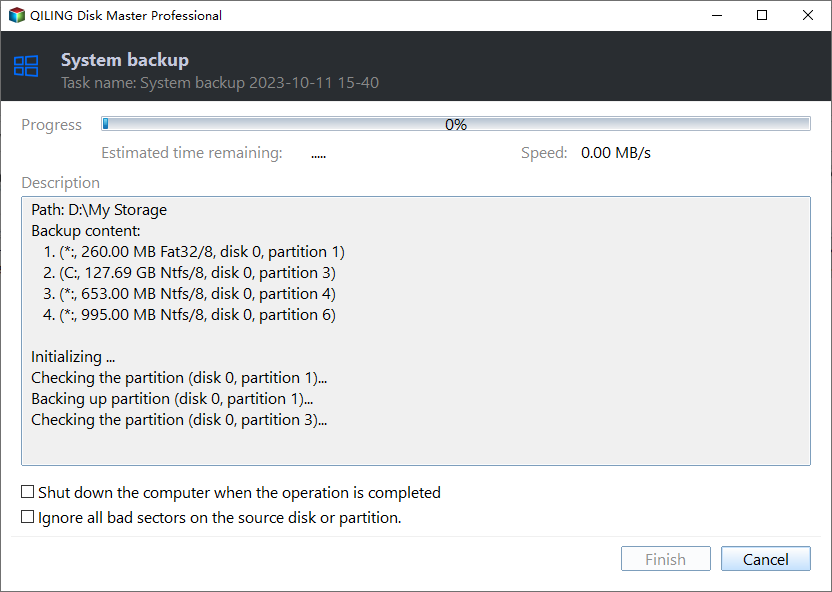
Step 3. Preview the task and click Proceed. Review the source, the destination, and the compression setting in Preview, click Proceed, and wait until the window reports that the backup has completed. Note the date, because that timestamp is what you will look for if a restore is ever needed.
Operation 2: Protect the Folders That Change Daily
Use this operation when you need a version of a document from last week, which an image alone cannot give you without a full restore.
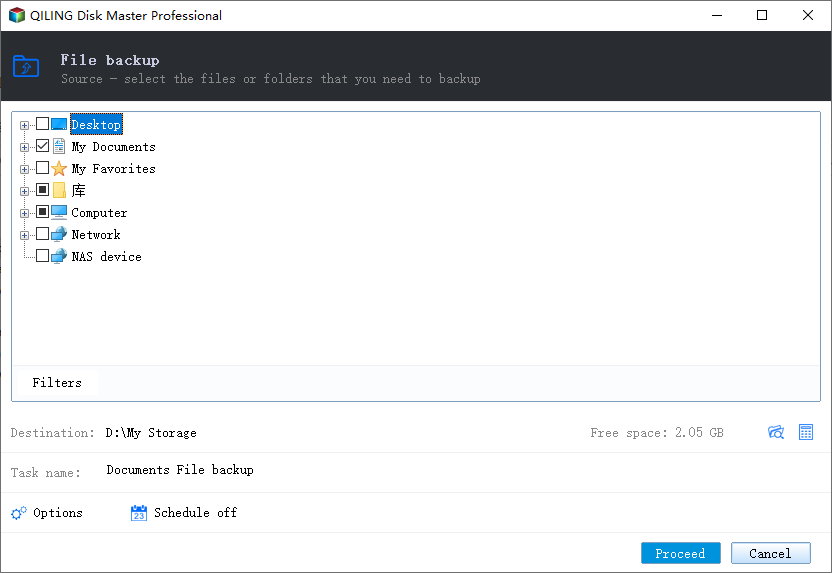
Step 1. Open File Backup and tick the folders. Click File Backup on the same tab and expand Computer until the user folders appear, then tick the ones that hold work rather than downloads.
Step 2. Set the destination and keep several versions. Use the folder icon beside Destination to pick the same external disk, then open the backup scheme and keep a daily task with automatic cleanup, so older versions stay available without filling the disk.
Step 3. Preview the job and click Proceed. Check the summary in Preview, click Proceed, and wait for the completion prompt. Then open the destination and confirm that the folder tree matches the source.
Frequently Asked Questions
Does 0x81000101 damage existing restore points?
No. The failed request creates nothing and deletes nothing, so the points already listed remain available.
Can I raise the shadow storage limit without rebooting?
Usually yes. The new maximum applies to the next snapshot, so a retry a minute later shows whether the change worked.
Is a system image a replacement for restore points?
For recovery, yes. An image restores the whole disk, while a restore point only rewinds system files, so many people keep the image as the main path and restore points as a quick undo.
Related Articles
- Windows 10 System Restore Stuck
- VSS 0x80042324: Shadow Copy Not Supported
- VSS Error 0x80042306: Shadow Copy Provider
- Windows 10 Backup Is Disabled
- Windows 11 Backup Options Explained
Products
Articles & Tutorials
- Data Recovery
- Data Backup
- File Recovery
- File Backup
- System Backup and Restore
- Disk and Partition Clone
- Technical articles
- Mobile articles
- Disk Master Help
- Windows Data Recovery Tutorials
- Windows Secure Delete Tutorials
- Windows Partition Management Tutorials
- Windows File Backup and Restore Tutorials
- Windows System Backup and Restore Tutorials
- Windows Disk Backup and Restore Tutorials
- Windows Clone Tutorials