How to Transfer Twitter from One Account to Another
| Workable Solutions | Step-by-step Troubleshooting |
|---|---|
| 1. About Twitter | Among the most renowned platforms, Twitter stands to be the most up-to-date social media news platform...Full steps |
| 2. Can I Merge Two Twitter Accounts Into One? | Twitter, to this date, does not offer any particular method that combines two Twitter accounts into one...Full steps |
| 3. How to Transfer Twitter from One Account to Another? | Step 1: Open the Twitter account whose username you want to shift to the other Twitter account on the...Full steps |
| 4. How toTransfer Tweets from One Account to Another? | Apart from transferring Twitter from one account to another, there is another option available for transferring...Full steps |
| 5. How to Transfer Tweet to Another Person? | This may be the simplest of the methods to transfer Twitter to another person. Rather than shifting usernames...Full steps |
| 6. How to Manage Multiple Twitter Accounts? | Step 1: Open your Twitter account on the computer. Tap on the "three-dotted" icon presenton the profile icon...Full steps |
| 7. How to Move Twitter Desktop App Between PCs? | you can consider using tools like Qiling Disk Master to transfer content and settings from one computer to...Full steps |
Part 1: Things About Twitter
Twitter, one of the most popular social media platforms, stands out for its real-time news updates. With millions of users worldwide, it provides a vast array of knowledge and information. To enhance user experience, Twitter has made several updates, making it a go-to platform for staying up-to-date with the latest news and trends.
Twitter is expected to introduce upgrades, including a feature called Notes, which will allow users to publish longer blog posts of up to 2500 words within their tweets, potentially expanding the platform's functionality and adaptability in real-time systems.
Twitter is launching Twitter Blue, a premium monthly subscription service for all users, which will provide feature upgrades such as Downvotes and Flock to enhance the user experience. Additionally, Twitter Communities, a new feature, will be introduced into the Twitter ecosystem, offering users more exclusive services.
This article explores the various options available to transfer Twitter from one account to another, providing a comprehensive guide for users looking to switch their Twitter handle.
Part 2: Can I Merge Two Twitter Accounts Into One?
Unfortunately, Twitter does not provide a built-in method to merge two Twitter accounts together, nor does it offer any options to migrate data such as tweets, following, and followers from one account to the other. This means you won't be able to combine two Twitter accounts into one.
Part 3: Transfer Twitter from One Account to Another
To transfer Twitter from one account to another, you can create a similar Twitter account and follow these steps: create a new Twitter account with the same username and profile information as the original account, then use the new account to post the same tweets and engage with the same followers as the original account. This can be done by using Twitter's "Find Friends" feature to connect with the original account's followers, and by posting tweets that are similar in content to the original account's tweets. By doing so, you can effectively transfer the Twitter account from one account to another.
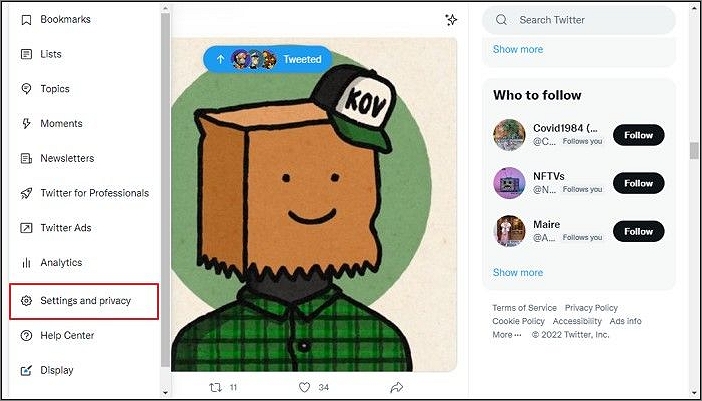
Step 1: To shift a Twitter username to another account, open the Twitter account on the desktop through a browser, tap on "More" to open a menu, and select "Settings and privacy" from the available options.
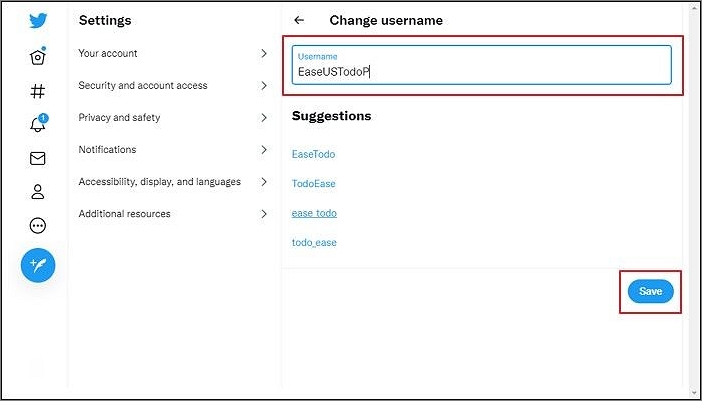
Step 2: To access and change your username, click on "Your account" and then "Account information" on the window. If a password is required, enter it. Then, click on "Username" and select a new option. Finally, tap "Save" to confirm the change.
Step 3: To transfer Twitter from one account to another, log out of the current account and select "Sign In" to access the other account. Then, follow the same steps to access the username of the second account and replace it with the new account's username. This will allow you to transfer your Twitter account to the new one.

Part 4: Transfer Tweets from One Account to Another
Apart from transferring Twitter from one account to another, there are other options available for transferring tweets with ease. Two significant methods are available to fulfill this idea, allowing users to transfer their tweets from one account to another.
Manual Method to Transfer Tweets
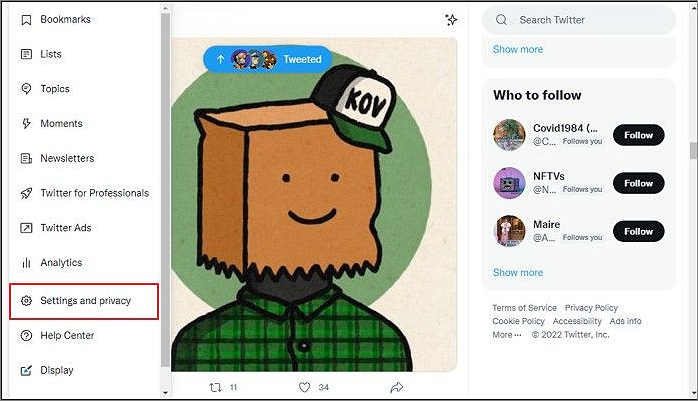
Step 1: To access your older Twitter account's settings, log in to the account, go to the "More" option on the left-side pane, and select "Settings and privacy" from the available options.
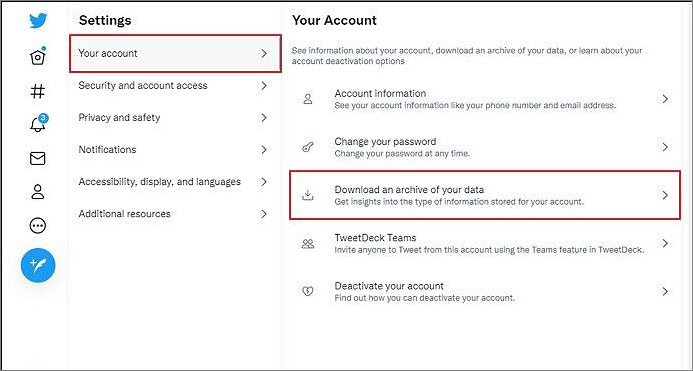
Step 2: In the "Your account" section, you can download an archive of all your tweets.
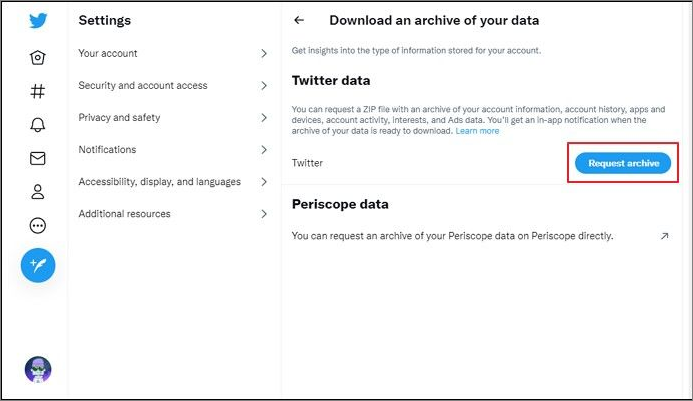
Step 3: To download your Twitter archive, first, log in to your Twitter account. Then, navigate to the "Settings and privacy" section, followed by "Your account" and then "Request an archive." Click on the "Request archive" button. This will prompt Twitter to process your request, and your Twitter archive will be sent to your email address within 24 hours.
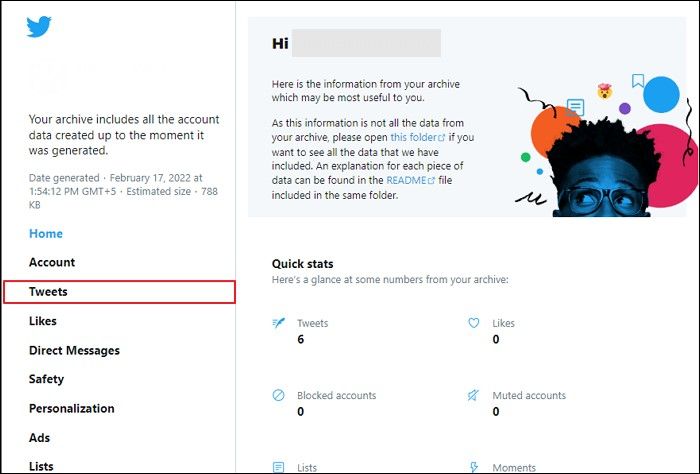
Step 4: To view your Twitter archive, download the link provided in your email to your computer, then extract all contents of the archive. Open the Twitter Archive file in Chrome, where you'll find the "Tweets" section in the left pane. From there, you can access and view the tweets added through your Twitter account.
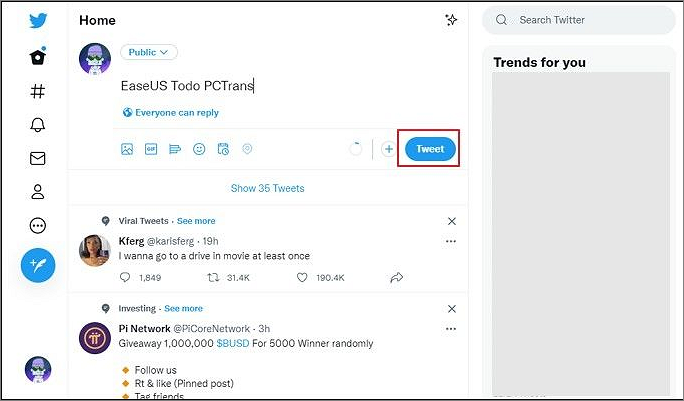
Step 5: To start a new tweet on Twitter, log in to your account on your computer, navigate to the "Tweets" file, scroll down to find the desired tweet, copy its content, and paste it into the "What's happening?" section of the Twitter homepage. If needed, add attachments from the "Data" folder.

Step 6: To transfer all tweets from one Twitter account to another, tap on "Tweet" to add it to your new account, then manually copy and paste the content from one account to another, repeating this process for each tweet.
Retweeting from New Account
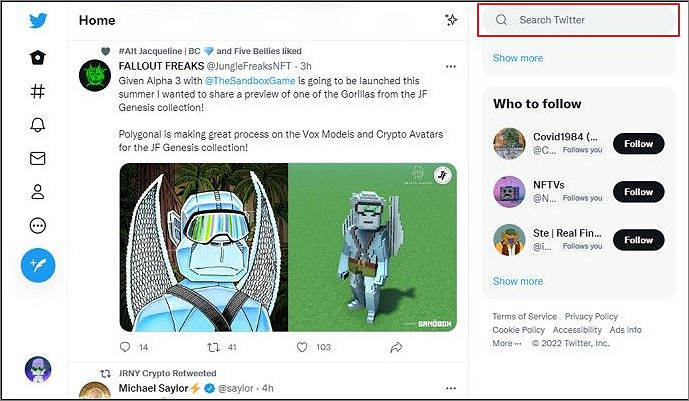
Step 1: Users are prompted to log in with their new Twitter account, and can find their old Twitter account by searching for their username in the Twitter search bar.
Step 2: To add a tweet from the new Twitter account to the older one, click on the first tweet on the older account and then click the "Retweet" button.
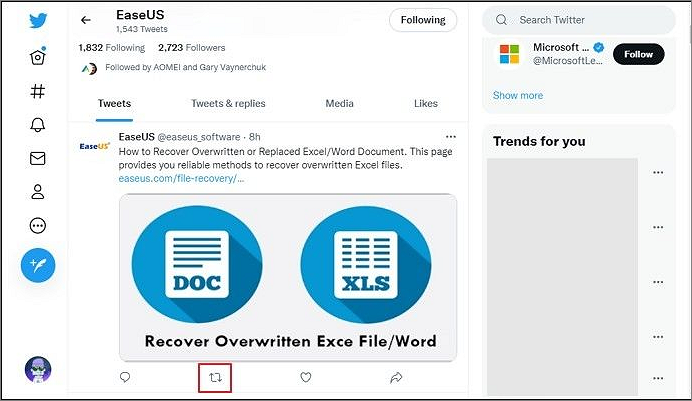
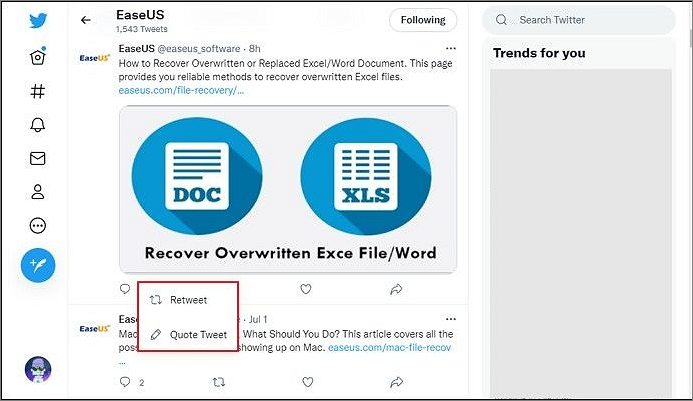
Step 3: To retweet or quote tweet a post, select the option that suits your preference. If you want to simply share the post, choose "Retweet.
Part 5: Transfer Tweet to Another Person
Transferring Twitter to another person can be as simple as changing the password and sharing it with the other user. Instead of shifting usernames or tweets, you can follow the steps below to change your Twitter password and share it with the other user.
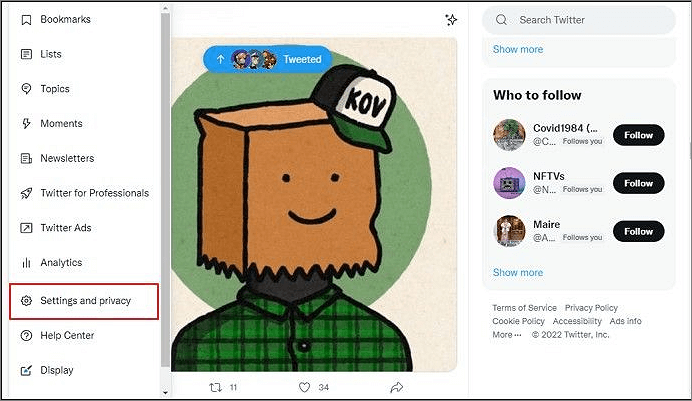
Step 1: To access your Twitter account settings, open Twitter on your computer and click the "More" button, which is typically located on the left side of the screen. From the dropdown menu, select the "Settings and privacy" option to access your account settings.
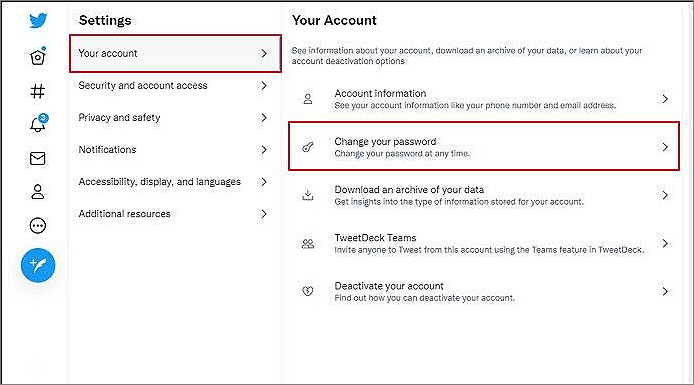
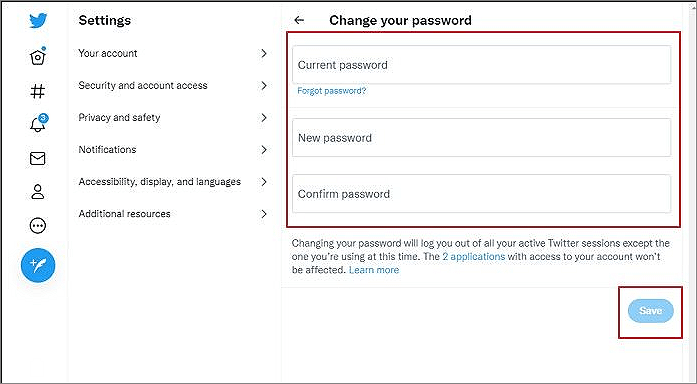
Step 2: To change your password, go to the "Your account" section and click on the "Change your password" option.
Step 3: To update your Twitter password, go to the Twitter account settings, enter the current password, input the new password, confirm the new password, and click "Save" to save the changes. Share the new credentials with the other user.
Part 6: Manage Multiple Twitter Accounts
Managing multiple Twitter accounts on your computer is simpler than transferring Twitter from one account to another. To figure out how to manage multiple Twitter accounts, follow these steps.
Step 1: To add an existing Twitter account on a computer, first open your Twitter account on the computer, then tap on the three-dotted icon next to your profile icon in the bottom-left corner of the screen, and finally select the "Add an existing account" option from the menu.
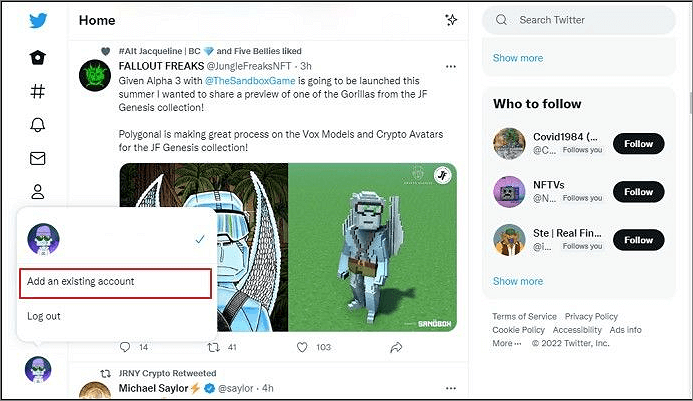
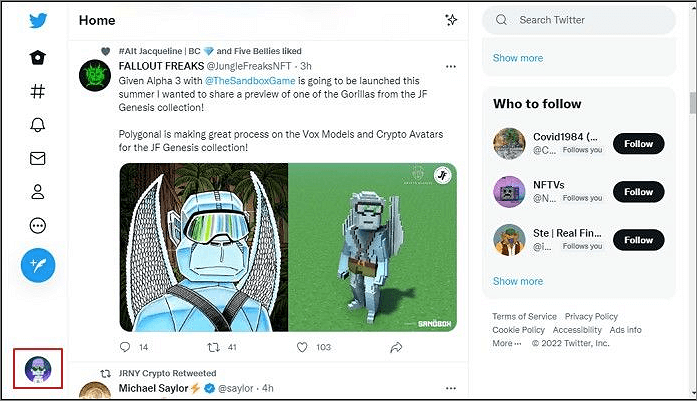
Step 2: To switch between Twitter accounts, click on the "Profile" tab at the bottom-left section of the screen and select the other added account. This will allow you to access and manage multiple accounts from the same menu. Simply provide the necessary credentials for each account and sign in successfully to switch between them.
Bonus Tip: Move Twitter Desktop App Between PCs
Some users download the Twitter app on their PCs, but when they want to move installed desktop applications to a new computer, they can use tools like Qiling Disk Master to transfer content and settings efficiently, making the process easier and less cumbersome.
Why Should You Consider Qiling Disk Master?
- The tool is easy to use with a secure and fast system that allows users to transfer applications, files, and settings from one PC to another.
- There is no data loss in the process, Qiling Disk Master transfers the whole data in one go.
- You don't need to reinstall programs on your new computer.
- It provides technical support to its users at all times.
Steps to Use Qiling Disk Master
To transfer your Twitter application from one computer to another, follow these steps:
Step 1. Run Qiling Disk Master on both PCs
On the source PC, select "File sync" on the main screen of Qiling Disk Master and proceed with the process.

Step 2.Connect two computers
1. Connect to a target PC via its IP address or device name and click "Connect".
2. To log in to a target PC, enter the password and click "OK" to confirm.
If you didn't see the target PC in the listed devices, you can manually connect the target PC by clicking "Add PC" and entering its IP address or device name.

Step 3. Select apps, programs, and software and transfer to the target computer
1. You can select and choose what you want to transfer from the current computer to the target PC.
2. To begin the process, click "Proceed" after selecting the desired applications and programs. This will initiate the transfer.

Conclusion
To transfer Twitter from one account to another, various methods can be employed, including techniques for managing multiple accounts on a single computer. Additionally, users can utilize Qiling Disk Master to transfer the Twitter application from one computer to another. This article provides a comprehensive guide to cater to these requirements.
Related Articles
- (Top 5 Ways) How to Uninstall Apps on Windows 11/10
- Top 7 Best Software Uninstaller for Windows 11/10 in 2022 [Paid & Free]
- How to Move Overwatch to Another Drive or Another PC Quickly
- How to Move Desktop Folder to Another Drive on Windows and Mac in Simple Ways
- (Easiest Way) How to Move MySQL Database to Another Server
To migrate a MySQL database to another server, you can use Qiling Disk Master, a professional database moving software, or utilize the backup program of MySQL to export and import the database. - How to Move Steam Game to Another Drive 2022
For Steam gamers, moving games to another drive without reinstalling is a convenient solution. There are three ways to achieve this: moving a single game, moving multiple games, or using a more advanced method to relocate all games to a new drive.
Products
Articles & Tutorials
- Data Recovery
- Data Backup
- File Recovery
- File Backup
- System Backup and Restore
- Disk and Partition Clone
- Technical articles
- Mobile articles
- Disk Master Help
- Windows Data Recovery Tutorials
- Windows Secure Delete Tutorials
- Windows Partition Management Tutorials
- Windows File Backup and Restore Tutorials
- Windows System Backup and Restore Tutorials
- Windows Disk Backup and Restore Tutorials
- Windows Clone Tutorials