Fix Windows 11 Won't Shut Down with 10 Easy Solutions
Page Content:
- Part 1. Why Is My Windows 11 Not Shut Down
- Part 2. Alternative Ways to Shut Down Your Computer (5 Ways)
- Part 3. Create a Bootable Windows 11 Backup (Important!)
- Part 4. Completely Fix the Windows 11 Not Shutting Down Problem (8 Ways)
If you're experiencing a common computer glitch, shutting down your device can be the simplest solution, and Windows 11 is no exception. However, if you encounter a problem where Windows 11 won't shut down, don't worry, as there are several simple solutions available.
Shutting down and restarting Windows 11 computers are common methods to resolve various issues. A Refresh or Restart is often helpful in resolving minor or temporary problems, such as specific errors or slow speeds. However, if your computer gets stuck on the shutdown screen or restarts instead of shutting down, it can be frustrating. Don't worry, as we have covered various solutions to this problem, including ways to resolve issues where the computer won't shut down and instead restarts.
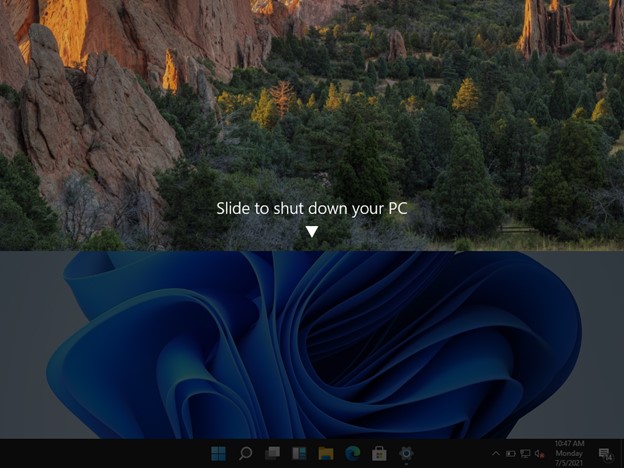
Why Is My Windows 11 Not Shut Down?
You're experiencing issues shutting down your computer, possibly due to a problem with the Windows 11 operating system or an application interfering with the shutdown process.
A computer may not shut down properly due to a broken power button or an unusual situation where a specific option is switched off, preventing shutdown even when the power button is pressed. However, other methods of shutting down Windows 11 do not require the actual power button.
To fix Windows 10 automatically restarting, you can try disabling the "Restart on System Failure" option, which is usually enabled by default. This setting is responsible for restarting your computer if it encounters a system failure.
Many users have reported that Windows 10 won't shut down, instead restarting automatically when they try to turn it off.

Alternative Ways to Shut Down Your Windows 11 Computer
The most straightforward method to resolve the issue is to shut down your computer, wait for a moment, and then attempt to restart it again.
Resolving the issue of not being able to shut down your computer can be achieved through various methods.
- 1. Use Physical Power Button
- 2. Press Ctrl + Alt + Delete
- 3. Use CMD
- 4. Use Shortcuts Alt+F4
- 5. Use Batch File
Now let's learn each of these solutions one by one:
1. Use Physical Power Button to Shut Down
If your computer won't shut down using the mouse or keyboard, pressing and holding the power button for several seconds will usually force it to shut down, regardless of the power button settings in Control Panel.
2. Press Ctrl + Alt + Delete to Find the Shut Down Option
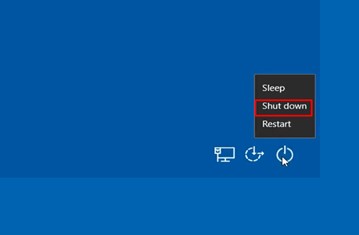
To shut down your Windows 11 PC using the Ctrl+Alt+Delete shortcut keys, press the Ctrl, Alt, and Delete keys simultaneously. This will take you to the Windows Security screen, where you can select "Shut down" or "Restart" to power off or restart your PC. This method is useful when the Start menu or other methods of shutting down your PC are not functioning.
Step 1. Press Ctrl + Alt + Delete
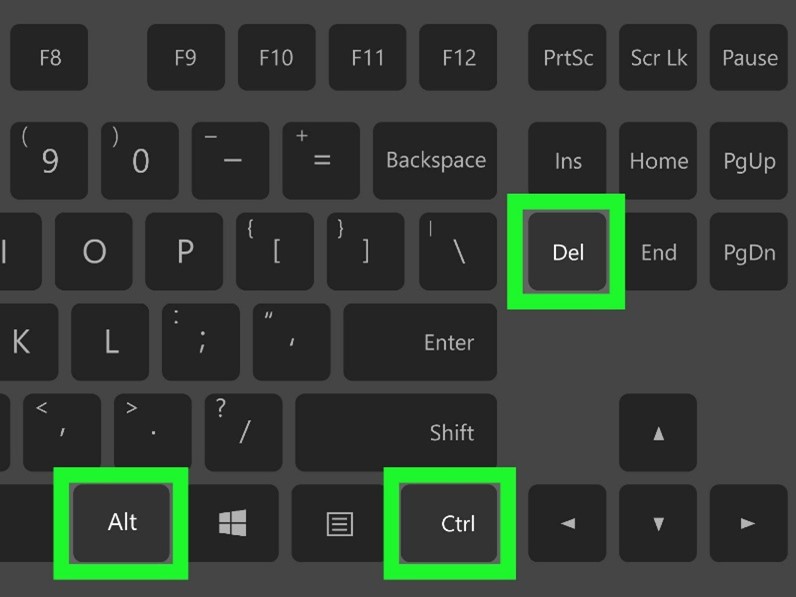
Step 2. Click the Power symbol in the bottom right.
Step 3. Select Shutdown/Reboot
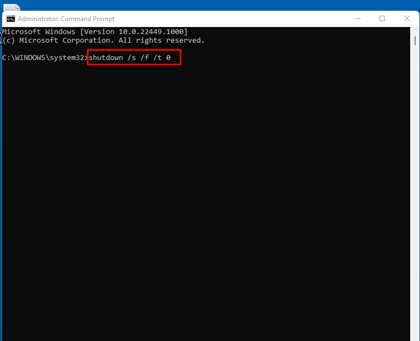
3. Shut Down Windows 11 Using CMD
To quickly shut down a local machine, add the /S argument to the shutdown command. This enables a quick shutdown, but you must be logged in as an administrator to remotely shut down the system.
Step 1. Press Win+S.
Step 2. Enter CMD.
Step 3. Right-click on the Command Prompt under the Best match tab.
Step 4. Click on Run as administrator
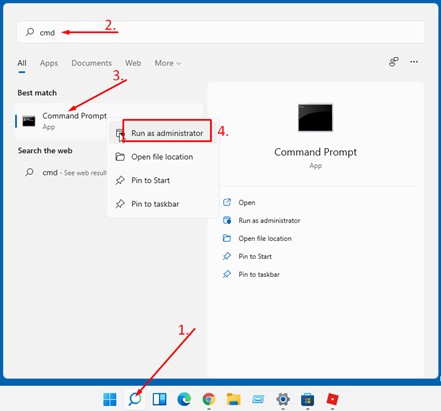
Step 5. When prompted by UAC, choose Yes to run the Command Prompt.
Step 6. Then right-click the prompt and paste the command.
Step 7. To execute the command, press Enter.
4. Use Windows 11 Shut Down Shortcuts Alt+F4
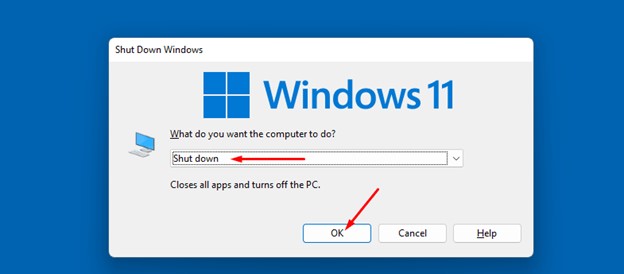
If Windows 11 doesn't shut down properly, you can use Alt+F4 as an alternative. This will bring up a 'Shut Down Windows' box with various options. It works best when no programs are running or are minimized to the taskbar.
Step 1. Close or minimize all running applications.
Step 2. Press F4 and Alt together.
Step 3. Shutdown should be the default option. Press OK or Enter.
5. Customize a Shutdown Button Using Batch File
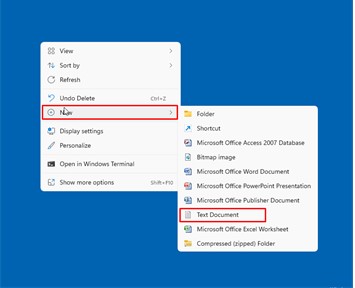
To create a custom shutdown button for Windows 11 that doesn't shut down, you can use a batch file.
Step 1. Right-click desktop and choose New and select Text Document
Step 2. Copy shutdown /s /f /t
Step 3. Copy the Command into the text file.
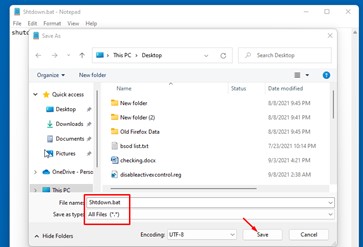
Step 4. Go to File > Save As.
Step 5. Select All Files (*.*) as the Save As Type.
Step 6. Type "Shutdown.bat" as the File name and Save.
Next, Create a Bootable Windows 11 Backup
If restarting your computer doesn't solve the problem, repairing it should be the last resort. Not shutting down your computer can lead to the Windows 11 won't boot issue, so it's essential to back up your files and applications before attempting to fix it.
We recommend using Qiling Backup Free to make a backup of critical data on a disk or partition, which can also function well in hard drive and partition backups, and even clone disks and OS with a few clicks. This allows you to restore files from a backup location in case of a corrupted hard disk.
Get this reliable and efficient Windows free backup program and start backing up your data for free.
If you're looking for a reliable backup software, the guide below may be helpful.
Step 1. Prepare a USB drive which can be written and read.
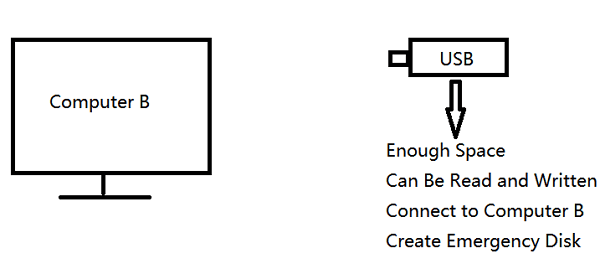
Step 2. Launch and install Qiling Backup on the Computer B.
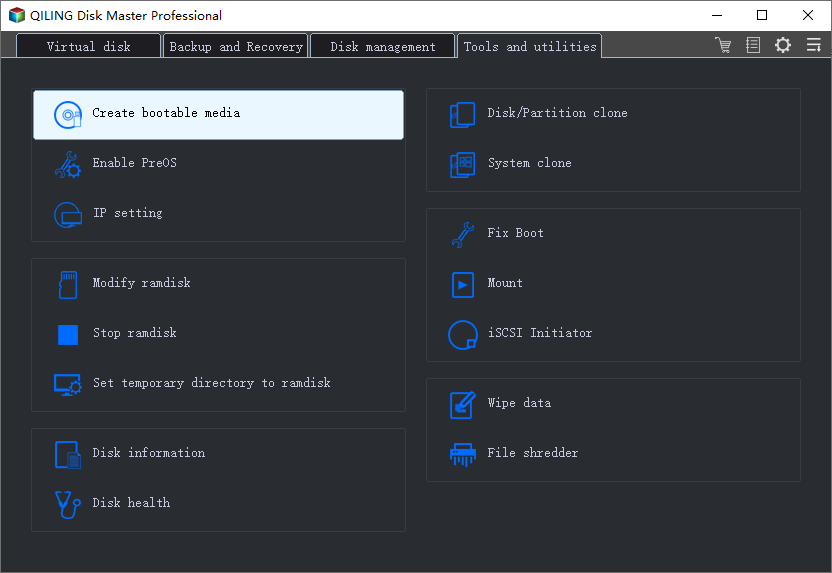
Step 3. Click on "Tools and utilities" and select "Create bootable Disk" from the options.
Step 4. To begin the process of creating a bootable media, you need to select the location where the boot disk will be created, which can be either an ISO file, a bootable USB drive, or a CD/DVD disc.
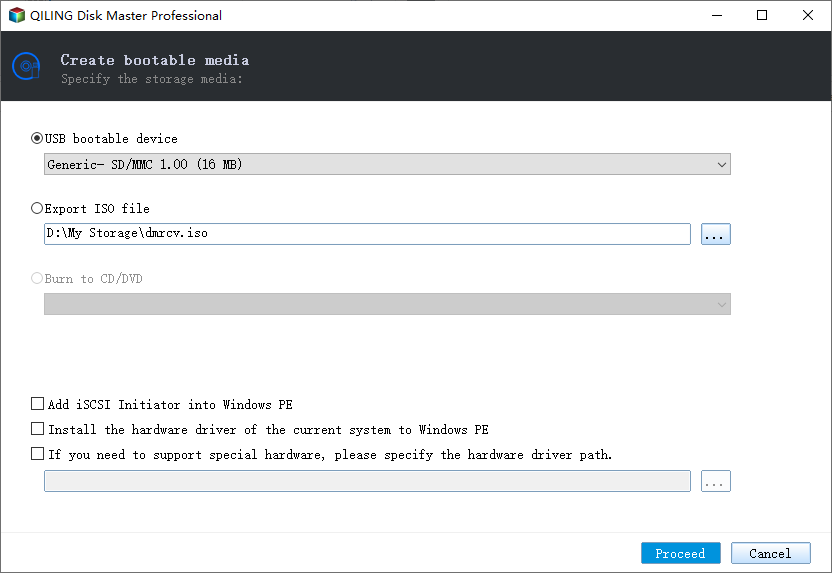
Step 5. Then click "Proceed" to start.
At Last, Completely Fix the Windows 11 Not Shutting Down Problem
If clicking the power button doesn't completely shut down your computer, there are alternative methods that may help. You can try holding down the power button for a few seconds, pressing the Windows key + X and selecting Shut down or restart, or using the Start menu to shut down your computer.
| Workable Solutions | Step-by-step Troubleshooting |
|---|---|
| Simple Win 11 Shut Down Methods |
Fix 1. Change Power Settings...Full steps Fix 2. Disable Fast Start-up...Full steps Fix 3. Run Power Troubleshooter...Full steps Fix 4. Update the Windows...Full steps |
| Advanced Win 11 Shut Down Methods |
Fix 1. Update Drivers...Full steps Fix 2. Run System File Checker...Full steps Fix 3. Scan and Remove Third-party Programs...Full steps Fix 4. Reinstall Windows 11...Full steps |
1. Change Power Settings
To resolve the issue with Windows 11 not shutting down due to mismatched power choices, and the hardware power button not turning off the computer, start by verifying the power settings. Check if the power button is set to shut down the computer or put it to sleep. If it's set to sleep, change it to shut down. Also, ensure that the power button is not set to restart or hibernate.
Step 1. Open the Taskbar, click Start. Type Control and press Enter.
Step 2. To change the icons size in the Control panel, select Large icons or Small icons from the drop-down menu.
Step 3. Click on Power Options.
Step 4. Choose "Choose what the power button does."
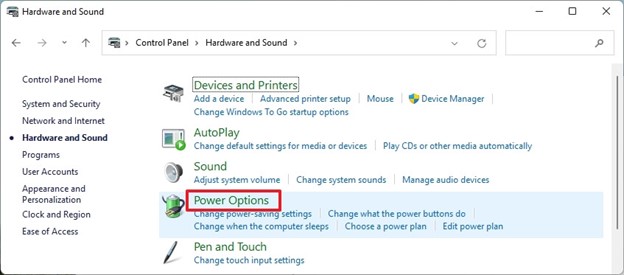
Step 5. Select "Shut down" under "When I hit the Power button."
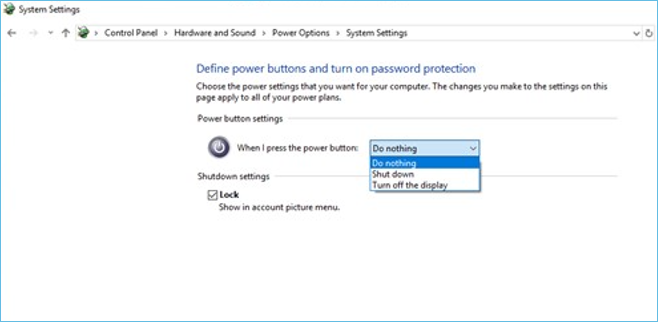
Step 6. Click "Save."
2. Disable Fast Start-up
Fast start-Windows' Fast Startup feature can cause issues with shutdowns, leading to problems if Windows 11 won't shut down. To resolve this, disable Fast Startup.
Step 1. Press Win+S, Type Control, and Press Enter.

Step 2. Control Panel > Power Options.
Step 3. Select the "Choose what the power button does."
Step 4. On the next window, click the Change unavailable settings.
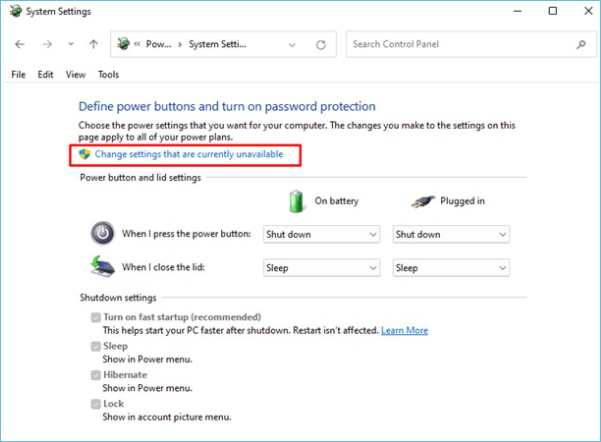
Step 5. After clicking "Turn on quick start-up (recommended)" and "Save changes," the system will automatically turn on quick start-up. This will enable the system to start up more quickly.
3. Run Power Troubleshooter
The Power troubleshooter is a suggested fix for Windows 11 not shutting down correctly. It identifies the problem and provides a fix or recommends a solution to resolve the issue.
Step 1. Press Windows + I key
Step 2. Go to the right window and scroll down.
Step 3. Troubleshoot the problem.

The Power Troubleshooter says: "If your computer won't turn on, check the power cord first. Make sure it's securely plugged into both the computer and the wall outlet. If that's not the issue, try resetting the power by unplugging the cord, waiting for 30 seconds, and then plugging it back in.
4. Update the Windows
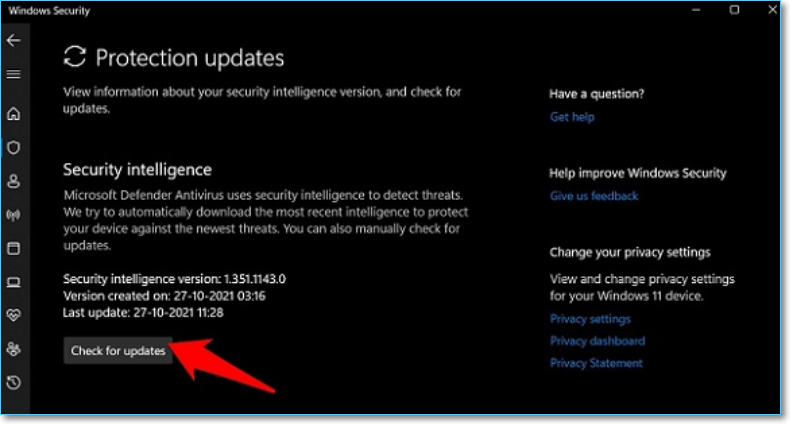
If you're experiencing issues with Windows 11 not shutting down, try checking for updates and installing any pending ones. This may resolve system problems and bugs, and also ensure you have the latest OEM drivers. Follow the instructions to check for updates.
Step 1. Press the Window key + and Check for updates.
Step 2. To resolve the issue, first, ensure that all pending updates on your PC are activated. This can be done by checking for updates in the Settings app, and then clicking on the "Restart now" button to apply the updates and restart your PC. By doing so, you may be able to resolve any issues that are causing the problem.
5. Update Drivers
If your Windows 11 PC won't shut down, check for outdated drivers. Windows has a built-in Device Manager tool that allows you to roll back, uninstall, update, and view driver data and attributes. To update drivers manually, follow these procedures in the Device Manager tool.
Step 1. To open the Device Manager, open the Run Window on your computer and type "devmgmt.msc" (without quotes), then press the Enter key. This will launch the Device Manager window, where you can view and manage the hardware devices installed on your system.
Step 2. The GUI will display a list of all installed devices and drivers, and by double-clicking each item, a yellow warning mark can be found, indicating potential issues.
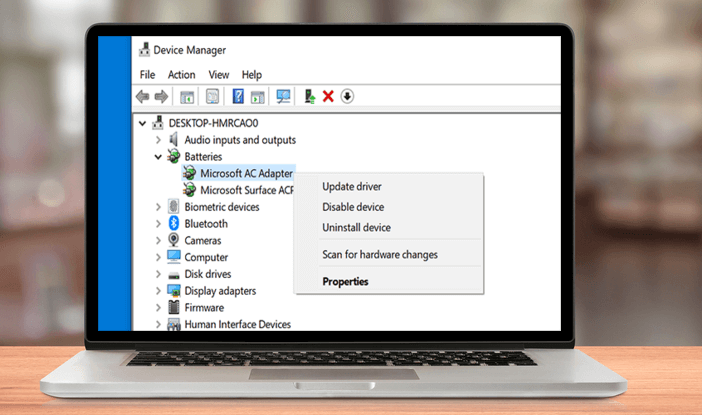
Step 3. If detected, right-click and choose – Update Driver.
Step 4. Then, choose Auto search for drivers from the wizard's menu.
Step 5. Check if the best drivers for your system are installed. If not, reinstall with the drivers that were previously cautioned, and see if Windows 11 shuts down normally now.
6. Run System File Checker
The System File Checker (SFC) is a universal solution for Windows 11 to repair issues caused by missing or damaged system files, and it's a must-have program that can even resolve a Windows 11 shutdown issue. To run SFC, follow these instructions to run the System File Checker from the Command Prompt.
Step 1. Enter cmd.exe in Windows Search. Then press Ctrl+Shift+Enter to finish.
Step 2. When UAC prompts, choose Yes.
Step 3. The command "SFC /scan now" is used in the Command Prompt to initiate a scan of the system files and replace any corrupted ones. This command is a part of the System File Checker (SFC) tool, which is a built-in Windows utility that checks and repairs corrupted system files.
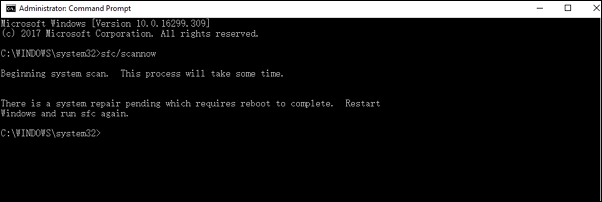
Step 4. Wait for a few minutes and then restart the machine.
7. Scan and Remove Suspicious Third-party Programs
If you are a gamer and have loaded heavy gaming programs and software, the laptop may not shut down properly. Remove them as stated below:
Step 1. Open the taskbar's Search and type Apps & features
Step 2. To remove unwanted applications, find them in your list of installed apps and select the three dots menu next to each one. From the menu, choose the "Uninstall" option to remove the unwanted app.
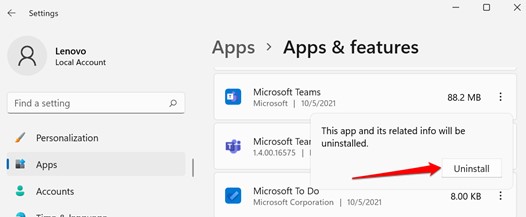
Step 3. Re-click 'Uninstall' to confirm.
8. Reinstall Windows 11
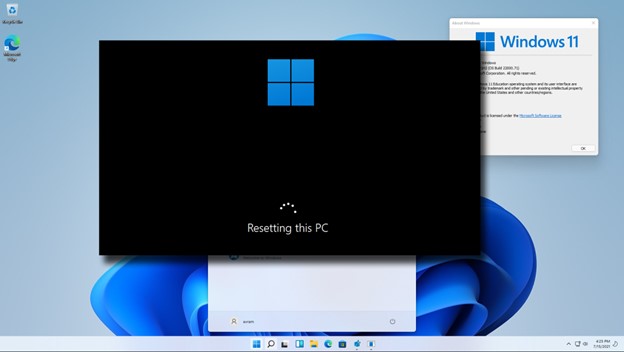
If you're unable to troubleshoot and resolve the issue, you may need to reset Windows. This process will erase all installed applications, settings, and user accounts, returning your device to its original state. You can choose to keep or delete personal files during the reset process. To initiate the reset, go to the "Settings" app, then select "Update & Security," followed by "Recovery.
Step 1. To access advanced options in Windows Update, press the Windows key + I to open Settings. From there, navigate to the Windows Update tab and select Advanced Options.
Step 2. Scroll down to Recovery and click.
Step 3. To reset your PC, click on the "Get started" button next to "Reset PC" and follow the on-screen instructions. This process will erase all data on the PC, so make sure to back up any important files and documents beforehand.
What Should You Concern When Fixing Windows 11 Not Shutting Down Problem?
To resolve the Windows 11 Won't Shut Down issue, follow the procedures outlined on this page. Be cautious, as some solutions are straightforward and safe, while others may pose a risk of data loss. To mitigate this risk, use the Qiling Backup program to create a backup of your data before attempting any potentially hazardous solutions. This precautionary measure will ensure that your data is safe, even if you encounter any issues during the troubleshooting process.
Related Articles
- Backup and Sync No Longer Available: Try Another Way
- Tips for Clean Install Windows 10 without Losing Data
- How to Install Windows 10/11 on NVMe SSD Drives (99% Have Learned)
- [Data Protection] The Differences between System Image and Full Backup
- Suggestions for SD Card Backup Devices [Hot in 2022]
SD card backup devices enable users to securely save important files such as pictures, videos, audio, and documents. - (2022) SD Card Backup and Restore on Android, PC and Raspberry Pi
This guide will walk you through the process of backing up your SD card on various devices using proper backup tools. Backing up an SD card involves creating an identical copy of everything on the memory card, or taking a backup image in a specific file format.
Products
Articles & Tutorials
- Data Recovery
- Data Backup
- File Recovery
- File Backup
- System Backup and Restore
- Disk and Partition Clone
- Technical articles
- Mobile articles
- Disk Master Help
- Windows Data Recovery Tutorials
- Windows Secure Delete Tutorials
- Windows Partition Management Tutorials
- Windows File Backup and Restore Tutorials
- Windows System Backup and Restore Tutorials
- Windows Disk Backup and Restore Tutorials
- Windows Clone Tutorials