Erase All Data on iPhone 7/8/X/XS/XS Max/11/12/13
Summary
If you're experiencing issues with your iPhone, like if it's freezing or glitching, erasing all data or resetting the device to its factory settings may solve the problem. Here we will offer you three easy ways to erase all data on your iPhone.
3 Ways to Erase All Data on iPhone 7/8/X/XS/XS Max/11/12
Apple's iPhones are highly sought-after technology products, known for their exceptional cameras, user-friendly interface, and stunning visuals. However, with an abundance of data, they can sometimes become slow.
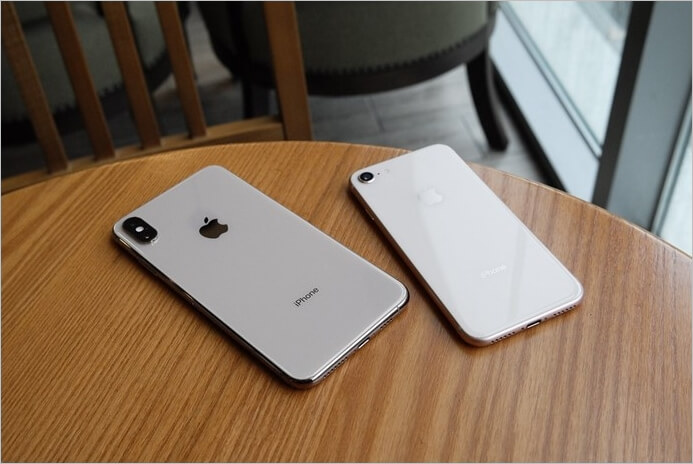
Many iPhone users face reduced performance due to low storage, especially those with limited storage capacity. If you're looking to erase all data on your iPhone, follow these steps. For iPhone 7/8/X/XS/XS Max/11/12 users, a safe way to remove data is crucial, as low storage can cause a cascade of issues, including slowed-down performance.
To safely and securely erase all data on an iPhone, users can consider factory-resetting their device, which not only deletes personal data but also updates the iOS version, eliminating the performance slowdown caused by bulky updates. This process can be done in three main ways, which we will explore, and is a recommended solution for users who want to maintain their phone's performance and keep the latest iOS version.
Tips: Backup iPhone to iCloud
To back up your phone's data, start by going to Settings > [your name] > iCloud > iCloud Backup. Make sure that iCloud Backup is turned on, and then tap "Back Up Now" to create a local backup of your data. Alternatively, you can also back up your data using iTunes by connecting your phone to your computer and opening iTunes. Select your phone from the top left menu, then click "Summary" and select "This computer" under "Backups.
Step 1. Tap on the "Settings" icon on your home screen
Step 2. Tap your Apple ID on top of all options
Step 3. Navigate down, find and tap "iCloud"
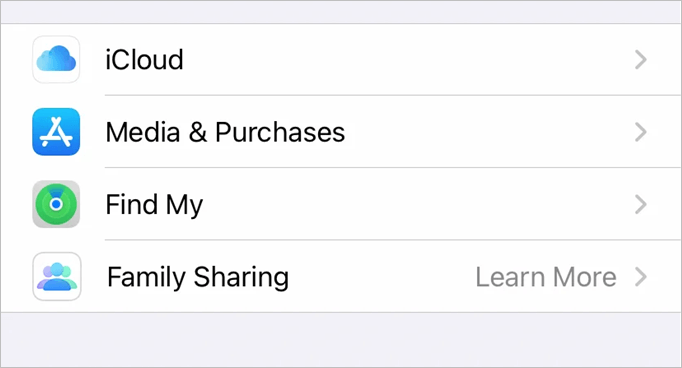
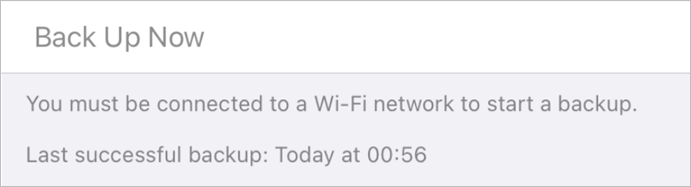
Step 4. Scroll all the way down and tap Back Up Now
To ensure your data is safe and secure, log out of your Apple account, and then proceed to erase your phone properly. This will prevent any Apple ID requirements upon reentering.
Step 1. Open the "Settings app" again
Step 2. Tap on your name at the top of the options
Step 3. Scroll all the way down
Step 4. Find and click "Sign Out"

This will secure your data and ready your iPhone for any data erasing.
The 3 Ways to Erase All Data on iPhone
There are three ways to wipe data on an iPhone, each with its own trade-offs. The first, and most straightforward, method involves using the built-in "Erase All Content and Settings" feature, which is easily accessible through the Settings app. However, this method can be unsafe if you've forgotten your passcode or haven't backed up your data. The second method involves using a third-party app or software to erase the data, which can be more time-consuming but provides a safer and more secure way to wipe the device. The third method, which is not recommended, involves using a hardware reset or DFU restore, which can potentially cause data loss or damage to the device.
Method 1. Erase All Content and Settings via iPhone (Not Safe)
The first way to do it is by using your iPhone's setting app. All you need to do is this:
Step 1. Go to the "Settings app".
Step 2. Scroll down and tap "General".

Step 3. Tap "Transfer" or Rest iPhone.

Step 4. To reset the iPhone, go to Settings, then General, then scroll down to the bottom and tap "Erase All Content and Settings".

Step 5. Your phone will give a warning; tap "Continue" once you see "Erase This iPhone" on the screen.

Erasing all data on your iPhone will completely remove all content, settings, and apps, but this should only be done if you've backed up your data beforehand and signed out of your Apple ID to ensure your security.
Method 2. Reset iPhone to Factory Settings with iTunes
To erase all data on your iPhone using iTunes, connect your iPhone to your PC or Mac, open iTunes, select your iPhone from the top left corner, click on "Summary" and then click on "Restore iPhone" and follow the on-screen instructions. This will completely erase all data on your iPhone, including contacts, photos, and apps. Please note that this method will also erase any data that is synced with your iPhone, such as music, movies, and contacts. Make sure to back up any important data before proceeding.
Step 1. Open "iTunes" on your PC or Mac.
Step 2. To connect your iPhone to your PC or Mac, use the USB cable that came with your iPhone. Simply plug one end of the cable into the iPhone and the other end into a free USB port on your computer.
Step 3. Allow the PC to access iPhone by picking the "Trust This Computer" option.
Step 4. Click on the "iPhone" icon on iTunes' sidebar.
Step 5. Click on "Restore" iPhone.
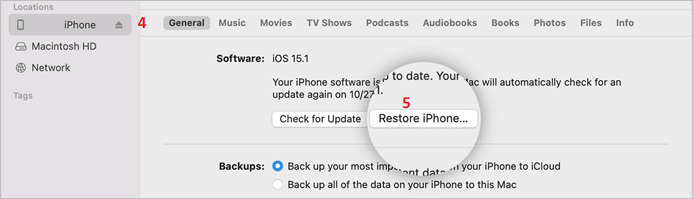
Step 6. Click on "Restore" once more when prompted to confirm erasure.
This process will completely erase all data from your iPhone, upgrade it to the latest iOS version, and ensure your computer is not running any other apps during the process.
Method 3. Wipe Your iPhone Remotely via iCloud
To remotely wipe your iPhone using iCloud, sign in to your iCloud account on a computer, select the device you want to erase, and click "All Devices" at the top of the page. Then, click on the device you want to erase and select "Erase iPhone" from the dropdown menu. Confirm that you want to erase the device, and it will be erased remotely.
Step 1. Open a browser on your PC or Mac.
Step 2. Head to iCloud.com.
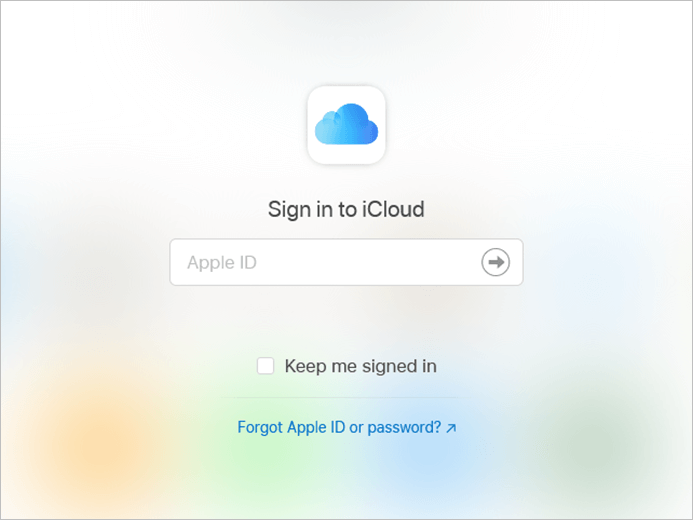
Step 3. Sign in to your Apple ID, and then click on "Find iPhone" in the account settings.
Step 4. To erase your iPhone, click on "Your iPhone" and select "Erase iPhone". Follow the on-screen instructions to complete the process.
This technique remotely removes all data from iPhone devices, including lost ones, making it ideal for those who have lost or had their iPhones stolen, but not recommended for users who still have their iPhones.
Recover Lost Data on iPhone After Erasing
Now that you've erased your data, what happens if you lost important messages or files, such as a crucial email or a vital document, or even a cherished memory or a treasured photo, or a vital phone number or a cherished contact, or a vital reminder or a cherished calendar event, and you wish you could recall them? You can try to recover them, but it's not always possible, and even if you can, it might not be in the original state.
- WhatsApp Messages
- Photos
- Videos
- Documents
- Kik Messages
- Facebook & Messenger messages
- Line messages and data

You can use Qiling MobiSaver to save or recover your files after a factory reset. This professional iPhone/iPad data recovery tool allows you to recover various types of data, including contacts, messages, photos, videos, and more, in cases where data loss occurs due to a factory reset, accidental deletion, or other reasons.
- Virus Attacks
- Accidental deletions
- Bad factory reset
- Water or physical damage to the device
This tool supports up to the latest iPhone 13, including its Pro and Max versions, making it easy to recover files from older phones as well. We recommend it to anyone looking to save files after a factory reset or forgotten backups.
How to Recover Deleted/Erased Data on iPhone
To recover your lost files using this program, you'll need the latest iTunes on your PC or Mac. Simply download the program from here and follow the steps below. Start by ensuring you have the latest iTunes installed and a working USB cable, and then proceed with the recovery process. This will help you recover your data seamlessly.
Step 1. Connect iPhone to Your PC
Launch Qiling MobiSaver, click "Recover from iOS device" and then click "Start".
Step 2. Scan for Lost iPhone Data
Qiling MobiSaver will automatically scan your iPhone/iPad/iPod, finding both existing and lost data, and you just need to wait for the scan to finish.
Step 3. Click the "Recover" Button
You can choose the type of lost data you want to recover, such as photos, videos, contacts, SMS, notes, voice mails, and other files, and save them to a new location.
Summary
Before resetting your iPhone, make sure to back up your data and remove your Apple ID to avoid any issues when setting up your iPhone again. If you follow the steps carefully, you should be fine, but if something goes wrong, you can rely on Qiling MobiSaver to recover your data. Just follow the steps above and don't forget to back up.
Erase All Data FAQs
Here are the answers to some frequently asked questions you might have:
Is erasing all content and settings the same as factory reset?
The term "erase all content and settings" is essentially Apple's way of saying Factory Reset, as it completely erases all of your content and settings, effectively resetting your phone back to its factory settings and wiping all your data clean.
How to factory reset your iPhone?
Before erasing your iPhone, follow these three major steps: back up your data to ensure everything is saved, sign out from your Apple ID to prevent any unwanted purchases or subscriptions, and then proceed to Erase All Content and Settings. This will completely reset your device, so make sure to take these steps carefully and in the correct order to avoid any complications.
Related Articles
- iPhone4 Data Recovery Freeware
- How to Recover Deleted Messages from TextMe App
- Easiest way to Fix iTunes Error 3194
- How to Recover Deleted Kik Messages or Chat History on iPhone
- How to Recover Files Lost in Cut and Paste
Deep Data Recovery Professional is a powerful software that can help you recover files lost in cut and paste operations, making it a reliable tool for data recovery. - How to Tell if Your Computer Is 32 or 64 Bit Windows 10 [Full Ways]
To determine if your Windows 10 computer is 32-bit or 64-bit, you can follow various methods. You can check the version of Windows 10 you're running, which will indicate whether it's 32-bit or 64-bit. These methods also apply to Windows 11, 8, and 7.
Products
Articles & Tutorials
- Data Recovery
- Data Backup
- File Recovery
- File Backup
- System Backup and Restore
- Disk and Partition Clone
- Technical articles
- Mobile articles
- Disk Master Help
- Windows Data Recovery Tutorials
- Windows Secure Delete Tutorials
- Windows Partition Management Tutorials
- Windows File Backup and Restore Tutorials
- Windows System Backup and Restore Tutorials
- Windows Disk Backup and Restore Tutorials
- Windows Clone Tutorials