How to See Blocked Messages on iPhone
Summary
If you're unable to see blocked messages on your iPhone, don't worry - there are some workable solutions to help you access them.
"Is it possible to see blocked messages on your iPhone?"
You can't retrieve blocked messages from someone, but you can retrieve other deleted messages from them before they were blocked. If you want to see the blocked messages, you'll need to unlock their phone number and ask them to resend them.
Whether you want to see blocked messages or retrieve text messages on your iPhone, below are the detailed instructions to do it.
How to Unblock Messages on Your iPhone
It is easy to unblock messages on your iPhone. To do this, follow the steps, and after unblocking, you can receive and see messages again. If you want to know how to do it, here are the steps.
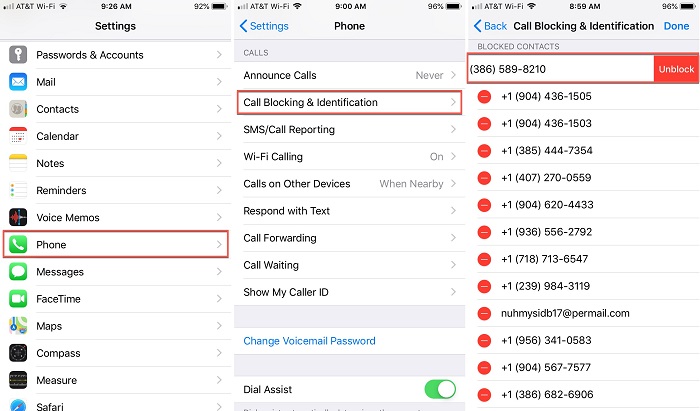
Step 1. On your iPhone, go to the Settings app.
Step 2. Tap "Phone," then tap "Call Blocking & Identification."
Step 3. To see a list of all the phone numbers you've blocked on your iPhone, go to Settings > Phone > Blocked Contacts. This will show you a list of all the phone numbers you've blocked, allowing you to easily view and manage your blocked contacts.
Step 4.To unblock a number, swipe it to the left and then tap "Unblock".
Step 5. You will be able to make and receive FaceTime calls, send and receive messages, and make voice calls. The number will no longer be blocked for these services.
How to Filter Messages BetweenKnown and Unknown Senders
Starting from iOS 14, Apple adds a feature to its native Messages app that allows you to filter incoming messages by sorting them into separate lists, making it easier to distinguish between messages from strangers and your friends. To use this function, you can follow a series of steps.
Step 1. Open your iPhone and go to the Settings app.
Step 2. Scroll down and tap "Messages."
Step 3. From the Messages page, enable the "Filter Unknown Senders" tab.
How to Retrieve Deleted Messages on iPhone with/without Backup
Sometimes, you may accidentally delete important messages, requiring a lot of time and energy to recover them. If you've made an iCloud or iTunes backup, you can restore your device, but this will erase your current data. A more convenient option is to use a professional iPhone data recovery tool like Qiling MobiSaver for iOS, which allows you to selectively recover deleted photos, contacts, messages, or other data from iTunes/iCloud backup or directly from your device without backup.
Tips for a successful recoveryon the iPhone:
- Stop using your deviceafter deleting the messages asthe newly added data overwrites the deleted messages.
- Be cautious of fake data recovery software, especially cracked versions from untrustworthy sources, as they can infect your device with malware or viruses.
To retrieve deleted messages on an iPhone, download Qiling MobiSaver and follow these simple steps. With just three easy steps, you can recover your deleted messages and have them back on your iPhone.
Step 1. Choose the Recovery Mode
Connect your iPhone to your PC, launch Qiling MobiSaver, click "Recover from iOS Device" on the left, and then click "Start".
Step 2.Scan iPhone for Lost Messages
Qiling MobiSaver will automatically scan your iPhone and find lost messages and message attachments.
Step 3.Preview and Restore Lost Messages
Select the messages and attachments you want to recover, then choose to recover them to your PC or device.
In Conclusion
Through this guide, you should be able to check blocked messages on your iPhone. Note that there is no direct way to recover blocked messages unless unlocking them. However, you can still recover deleted messages from your iPhone with the help of Qiling MobiSaver for iOS. That's the summary of this guide. If you have any further questions, feel free to contact us.
Related Articles
- Fixed: iPhone Stuck in Recovery Mode after Failed Update
- How to Recover Deleted Text Messages from iPhone SE
- Where Do Deleted Text Messages Go on iPhone [Text Message Recovery Tips]
- IMO Delete Message Recovery: How to Recover IMO Chat History
- How to Fix 'The semaphore timeout period has expired'
People get the error “The semaphore timeout period has expired” on two occasions: when the location is not accessible and when the semaphore timeout period has expired. To resolve these issues in Windows 10/8.1/8/7, this guide will provide a solution without requiring much effort. - [Solved] There Are No Previous Versions Available Windows 10/8/7
When the “Restore Previous Versions” feature is not working properly, the “Previous Versions” tab may show that there are no previous versions available, making it difficult to recover lost files.
Products
Articles & Tutorials
- Data Recovery
- Data Backup
- File Recovery
- File Backup
- System Backup and Restore
- Disk and Partition Clone
- Technical articles
- Mobile articles
- Disk Master Help
- Windows Data Recovery Tutorials
- Windows Secure Delete Tutorials
- Windows Partition Management Tutorials
- Windows File Backup and Restore Tutorials
- Windows System Backup and Restore Tutorials
- Windows Disk Backup and Restore Tutorials
- Windows Clone Tutorials