Fix iPhone 8/8 Plus/iPhone X Stuck in Recovery Mode Error
Summary
If your iPhone 8, 8 Plus, X, or 11 gets stuck in Recovery Mode, don't worry - you can easily fix it without losing any data. There are two reliable methods to restore your device out of this problem, and you can find them in this article. By following the steps, you'll be able to get your iPhone back to normal mode and avoid any further issues. So, take a deep breath and follow the guide to resolve the iPhone stuck in Recovery Mode error and get your device up and running smoothly again.
iPhone 8/8 Plus/iPhone X stuck in Recovery Mode, how to restore?
iPhone users may easily get their iPhone stuck in Recovery Mode due to various reasons, making it a recurring issue.
If your iPhone 8, 8 Plus, X, or 11 gets stuck in Recovery Mode, you're not alone. This issue can also affect new iPhone models. To fix the problem without losing your iOS data, you can try two reliable methods. The first method allows you to restore your iPhone from Recovery Mode, and the second method enables you to fix the issue without losing any data. By following either of these methods, you can get your iPhone out of Recovery Mode and have your data intact.
Part 1. Restore iPhone 8/8 Plus/iPhone X stuck in Recovery Mode
Regardless of how your iPhone ended up in Recovery Mode, you can resolve the issue by following either one of the methods below to restore your iPhone 8, iPhone 8 Plus, iPhone X, or iPhone 11.
Method 1. Restore stuck iPhone 8/8 Plus/iPhone X from Recovery Mode without using PC
1. Turn on iPhone 8/8 Plus/X/11;
2. To hard reset your iPhone 8, 8 Plus, X, or 11, press and hold the Home and Power buttons simultaneously for exactly 10 seconds. Release the buttons when the screen turns off.
3. To reboot your iPhone, press and hold the Home + Power buttons together for 8 seconds, until you see the Apple logo, then release them when the screen turns off.
4. Press and hold the power button for 20 seconds, then release it and immediately hold the home button for 8 seconds.
Wait 20 seconds, then release the Home button to allow your iPhone 8/8 Plus/X/11 to load normally again.
Note: If the method above doesn't work, you can try another method to fix the issue.
Method 2. Use iTunes to fix iPhone 8/8 Plus/iPhone X stuck in recovery Mode error
1. Update iTunes into the latest version:
Open iTunes > click Help > Select Check for Updates;
Then iTunes will be upgraded to the latest version;
2. To connect your iPhone 8/8 Plus, iPhone X, or iPhone 11 to your laptop or PC, open iTunes on your computer and then follow the usual steps to establish a connection.
3. Press and hold the Sleep/Wake button and the Home button at the same time on your iPhone. This will force restart your device.
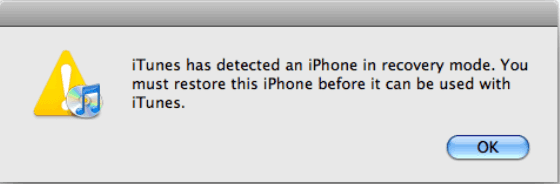
4. A message will appear stating that your iPhone is in recovery mode and needs to be restored. Click OK to proceed.
4. On your iPhone 8/8 Plus/iPhone X/11, click on your device icon in the top left corner of the iTunes window, then go to the Summary tab.
5. To restore your iPhone settings, select the "Restore" option in iTunes and follow the prompts to back up your iPhone settings.
6. Restore iPhone back to previous settings.
Now that you shall be able to use your iPhone 8, iPhone 8 Plus, iPhone X, or iPhone 11 again.
If you've lost data saved on your iPhone 8/8 Plus, iPhone X, or iPhone 11 while restoring the phone from Recovery Mode, don't worry - you can recover your data with the help of a reliable iOS data recovery software. Follow the solution in Part 2 to get started.
Part 2. Restore lost data from iPhone after fix stuck in Recovery Mode
If you've restored your iPhone 8, 8 Plus, X, or 11 from Recovery Mode and some saved files, photos, or documents have disappeared, don't worry! Professional iOS data recovery software can help you recover lost data on your iPhone with just 3 simple steps.
To recover lost iPhone data after a stuck in Recovery Mode error, download and install a software. Follow these steps:
Step 1. Connect iPhone to Your PC
Launch Qiling MobiSaver, click "Recover from iOS device" and then click "Start".
Step 2. Scan for Lost iPhone Data
Qiling MobiSaver will automatically scan your iPhone/iPad/iPod, detecting both existing and lost data, and then wait for the scan to complete.
Step 3. Click the "Recover" Button
You can select the lost data you want to recover, such as photos, videos, contacts, SMS, notes, voice mails, and other files, and save them to a new location.
After restoring your iPhone 8/8 Plus/iPhone X/11 from an iCloud or iTunes backup, you can then import all the restored iOS data back to your device and continue using it again.
Related Articles
- iPhone4 Data Recovery Freeware
- Where Do the Deleted Files Go on iPhone, How to Recover Deleted Files on iPhone 13/SE/12/11
- Easiest way to Fix iTunes Error 3194
- What Is the Latest Version of iTunes 2022
- Excel File Recovery: How to Recover Deleted XLSX Files Without Effort
This tutorial provides a step-by-step guide on how to recover a deleted XLSX file in three ways. You can recover the file from the Recycle Bin, utilize Qiling's Excel file recovery to retrieve the lost XLSX, or restore the deleted Excel file from previous versions. - 2 Ways to Backup Windows 7 PC
To backup a Windows 7 PC, you can use the built-in Backup and Restore feature, which allows you to create a system image and back up your files, or you can use an external hard drive or cloud storage service like OneDrive to manually select and back up specific files and folders.
Products
Articles & Tutorials
- Data Recovery
- Data Backup
- File Recovery
- File Backup
- System Backup and Restore
- Disk and Partition Clone
- Technical articles
- Mobile articles
- Disk Master Help
- Windows Data Recovery Tutorials
- Windows Secure Delete Tutorials
- Windows Partition Management Tutorials
- Windows File Backup and Restore Tutorials
- Windows System Backup and Restore Tutorials
- Windows Disk Backup and Restore Tutorials
- Windows Clone Tutorials