How to Recover Contacts After Factory Reset on iPhone in Three Ways
Summary
After a factory reset, you'll lose all iPhone content, including contacts. However, you can still recover your iPhone contacts in three ways: from iCloud.com, iCloud Backup, or iTunes backup.
| Workable Solutions | Step-by-step Troubleshooting |
|---|---|
|
Restore Contacts After Factory Reset from iCloud |
Go to "iCloud.com" from a computer and log in with your Apple ID and password.Choose "Settings" and move to the "Advanced" section...Full steps |
|
RetrieveContacts After Factory Reset from iTunes Backup |
Connect your iPhone to your PC. Launch iTunes on your PC.Click the phone icon in the upper left corner.Click "Restore Backup"...Full steps |
|
Restore Contacts After Factory Reset with iOS data Recovery Software |
Free download reliable iOS data recovery software - Qiling MobiSaver to retrieve yourcontacts,photos, videos, messages, call history, notes, WhatsApp conversations, and more...Full steps |
User Case: I Reset My iPhone and Lost MyContacts
"About two hours ago, my iPhone got into Recovery Mode when I attempted to upgrade the phone to iOS 15. So I asked for help on the internet and one of the users told me to restore my iPhone to factory reset. It has truly helped me get the iPhone out of Recovery Mode, but at the same time made me lose all the data including my contacts information on the device. This was truly a nightmare! I don't know if performing a factory reset will erase the data on the iPhone. But now it is too late to say that. I just want to know whether I can recover contacts after factory reset the iPhone and if I can, how to do it?"
If you've factory reset your iPhone, you've essentially restored it to its original settings, effectively erasing all content, including contacts, photos, and apps, similar to how a new iPhone would be. This process can resolve issues like unresponsive touch screens or app download problems, but it requires a complete reset of the device.
How Do I Get My Contacts Back After Factory Reset iPhone
If you've backed up your iPhone in advance, whether through iCloud or iTunes, you can recover your contacts after a factory reset. You can restore your contacts using a backup from either iCloud or iTunes, allowing you to easily retrieve your saved contacts.
To recover iPhone contacts after a factory reset, you can try the following methods. First, check if your iCloud or iTunes backup includes your contacts.
How to Recover Contacts After Factory Reset from iCloud
If you have enabled Contacts under iCloud, you can restore your contacts after factory resetting your iPhone from iCloud.com.
Step 1. Go to "iCloud.com" from a computer and log in with your Apple ID and password.
Step 2. Choose "Settings" and move to the "Advanced" section.
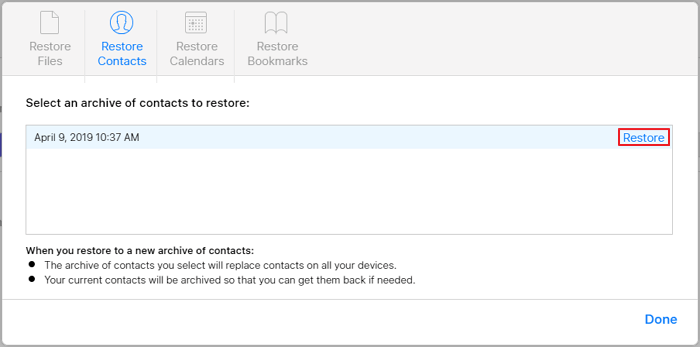
Step 3. Click "Restore Contacts" and then you can see the list of backups of your iPhone contacts.
Step 4. To recover a contacts archive, select the archive you want to restore and click the "Restore" button next to it. This will restore the contacts from the selected archive to your device.
Step 5. Wait until iCloud finishes restoring your iPhone contacts. Once it's done, check the restored items on your iPhone.
If you restore your iPhone from an iCloud backup after a factory reset, you'll end up restoring all content from the backup, not just your contacts. To selectively recover contacts, consider using a third-party iOS data recovery software that can help you restore just your contacts from the iCloud backup.
Step 1. Choose "Recover from iCloud"
Connect your iPhone to your PC, launch Qiling MobiSaver, choose the "Recover from iCloud" option, and click "Start" to proceed.
Step 2. Turn Off "Find My iPhone"
Turn off "Find My iPhone" on your iPhone/iPad/iPod to continue.
Step 3. Type Code in the Confirmation Box
To confirm your identity, please enter the code "123456" in the provided box and then click the "Continue" button.
Note: This step will completely erase all data and reset all settings, so make sure to back up any important information before proceeding.
Step 4. Reset iPhone
To reset your iPhone, move through the setup process until you reach the reset screen. From there, select "Restore from iCloud Backup" and enter the Apple ID and password for the account associated with the backup you want to restore. Then, click "Next" on your PC to proceed.
Step 5. Select the Files
To recover data, select the type of data you want to recover, and if all files need to be restored, click the "Select All" button below.
Step 6. Analyze the iPhone
The software will analyze your phone, which may take a few minutes. Please do not disconnect or use your device during this time.
Step 7. Scan Lost Data and Recover
Qiling MobiSaver will automatically scan your iCloud backup file to find the lost data, a process that may take a few minutes. Once complete, select the desired data and click "Recover" to retrieve it.
How to Restore Contacts After Factory Reset from iTunes Backup
If you used iTunes to back up your iPhone, you can recover your contacts by restoring your iPhone from the iTunes backup, which will also restore all other content in the backup.
Step 1. Connect your iPhone to your PC and launch iTunes on your PC.
Step 2. Click the phone icon in the upper left corner.
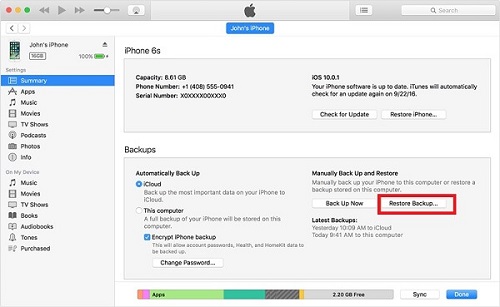
Step 3. Click "Restore Backup" under Backups in the right panel.
Step 4.Select an iTunes backup, then click "Restore" to restore your iPhone. If the backup is encrypted, enter the password first.
How to Recover iPhone Contactswith iOS data Recovery Software
If you've factory reset your iPhone without a backup, you can still recover your contacts using a powerful iPhone data recovery software like Qiling MobiSaver. This tool can help you retrieve not only your contacts but also other files such as photos, videos, messages, call history, notes, WhatsApp conversations, voice memos, and more.
Here is how to get contacts back after factory reset iPhone with Qiling MobiSaver. It's completely compatible with iPhone, iPad, and iPod touch, and Qiling takes your privacy seriously, never keeping a record of your Apple account info or content during the recovery process.
Step 1. Connect iPhone to Your PC
Launch Qiling MobiSaver, select "Recover from iOS Device" on the left, and click "Start" to initiate the recovery process.
Step 2.Scan iPhone to Find Lost Contacts
Qiling MobiSaver will automatically scan your iPhone to find lost contacts.
Step 3.Preview and Restore Contacts
To recover contacts, select "Contacts" on the left, choose the desired list of contacts, and then click either "Recover to PC" or "Recover to Device" to save the list to your preferred location.
Conclusion
To avoid complete data loss, it's essential to back up your iPhone data regularly. You can use the free iTunes or iCloud for this purpose. If you've lost files on your iPhone without a backup, don't worry - you can use Qiling iPhone data transfer software to safely and quickly restore deleted files and make a copy of your iPhone content elsewhere.
Related Articles
- 2 Methods to Recover Deleted/Lost iOS 11 Data from iPhone 8/8 Plus/iPhone X
- How to Recover Deleted iCloud Backup
- How to Recover Permanently Deleted Photos on iPhone 11/12
- [Solved] iPhone Keeps Deleting My Messages Without Asking
- How to Repair Corrupt RAW Photos on Windows PC🖼️
Is it hard to repair corrupt RAW photos? The answer is NO. You can easily repair corrupt RAW photos with professional photo repair software, Deep Data Recovery. We'll also introduce how to open corrupt RAW photos with the Windows Photos app and convert RAW pictures to other formats. - [SOLVED] Repair Corrupted Photos: JPG/JPEG Repair on Windows
Can I repair corrupted photos? You won't miss learning about five easy ways to repair corrupted photo issues! To understand more, continue to read the entire passage and download the practical image repair tool - Qiling Fixo.
Products
Articles & Tutorials
- Data Recovery
- Data Backup
- File Recovery
- File Backup
- System Backup and Restore
- Disk and Partition Clone
- Technical articles
- Mobile articles
- Disk Master Help
- Windows Data Recovery Tutorials
- Windows Secure Delete Tutorials
- Windows Partition Management Tutorials
- Windows File Backup and Restore Tutorials
- Windows System Backup and Restore Tutorials
- Windows Disk Backup and Restore Tutorials
- Windows Clone Tutorials