AOMEI Cloner Review 2026: Clone SSD and HDD
AOMEI offers two cloning products: AOMEI Backupper and the dedicated AOMEI Cloner. Both can move Windows to a new SSD, but their free editions differ in what they support, and system clone is often locked behind the paid tier.
This review covers what AOMEI can clone, where the free limits kick in, and how it compares to alternatives for a typical SSD upgrade.
PAGE CONTENT
- What AOMEI Cloner Can Do
- Free Edition Limits
- When AOMEI Is a Good Fit
- Clone with Qiling Disk Master
- Compare with Alternatives
- FAQs About AOMEI Cloner
- Back Up Before the Clone
What AOMEI Cloner Can Do
- Disk clone. Copy an entire disk to another with resize support.
- System clone. Move only the Windows and boot partitions to a smaller SSD.
- Partition clone. Duplicate a single volume without touching the rest.
- Sector-by-sector clone. Bit-for-bit copy for encrypted or special disks.
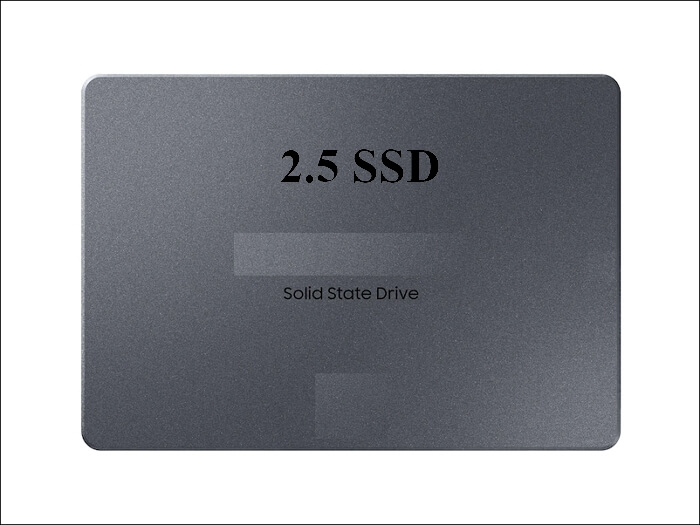
- SSD alignment. The tool aligns partitions to 4K for SSD performance.
AOMEI Cloner is a focused tool: it does clone and little else. AOMEI Backupper adds backup, restore, and sync, which is useful if you want one app for both tasks.
Free Edition Limits
- System clone is paid. The free version clones whole disks but not the OS partition alone.
- No sector-by-sector in free. Encrypted drives need the paid edition.
- No command-line clone. Scripted migrations require a license.
- Support is community only. Paid users get priority email support.
- Ads in the installer. The free setup may offer bundled software.
For a simple HDD-to-SSD clone where the SSD is the same size or larger, the free AOMEI edition is enough. For smaller SSDs, encrypted drives, or OS-only clones, expect to upgrade.
When AOMEI Is a Good Fit
- Same-size or larger target. Free disk clone handles this well.
- MBR and GPT support. Both styles clone without conversion.
- GUI for beginners. The wizard is clear and hard to misclick.
- Need backup too. AOMEI Backupper covers clone and image backup in one install.
- One-time paid license. AOMEI sells lifetime licenses for the full feature set.
AOMEI is a solid choice when the clone is straightforward. The limits show up with smaller targets or encrypted systems, where another tool may be cheaper.
Clone with Qiling Disk Master
If AOMEI locks the feature you need, Qiling Disk Master offers system clone, sector-by-sector mode, and resize in its free and trial editions. The workflow is similar and the result is a bootable SSD.
Watch the video tutorial below to clone the drive step by step with Qiling Disk Master.
Step 1. Open Qiling Disk Master, choose Clone, and then select Disk Clone.

Step 2. Select the source disk and click Next.

Step 3. Select the destination SSD and confirm that its data will be replaced.

Step 4. Choose the clone mode and resize the partitions to fit the target SSD.

Step 5. Click Proceed, wait for the copy to finish, then shut the machine down before you remove any cable.

Compare with Alternatives
- Qiling Disk Master. Free system clone and sector-by-sector mode; best for smaller or encrypted targets.
- Clonezilla. Free and powerful but command-line based.
- Macrium Reflect. Imaging focused; clone is a secondary feature.
- MiniTool ShadowMaker. Clean GUI but limited free features.
- Samsung Data Migration. Free for Samsung SSDs only.
Pick AOMEI if you want a polished GUI and a same-size clone. Pick a tool with free system clone if the SSD is smaller or BitLocker is on.
FAQs About AOMEI Cloner
Is AOMEI Cloner free?
AOMEI Cloner has a free edition, but system clone and sector-by-sector mode are paid features.
Can AOMEI clone to a smaller SSD?
Yes, but only if the used data fits. For OS-only clones on a smaller SSD, you need the paid edition or another tool.
Does AOMEI support NVMe SSDs?
Yes. AOMEI supports SATA, M.2, and NVMe drives on Windows 11.
Will my cloned SSD boot with AOMEI?
Usually yes, but you must set the SSD first in the boot order. Secure Boot settings must match the disk style.
Is AOMEI Cloner safe?
Yes. It is a well-known tool. Back up first anyway, because any clone can fail.
Back Up Before the Clone
Even a polished tool can fail on a bad sector or a power loss. Back up the system before you start so the clone never becomes a risk.
Watch the video tutorial below to back up Windows and restore it if the clone fails.
Step 1. Open Qiling Disk Master and select System Backup to include the boot partitions.

Step 2. Save the image to a drive other than the target disk and start the backup.

Step 3. Click Proceed to start the system backup and wait patiently until it finishes. You can also tick Shut down the computer when the operation is completed to power off automatically.

Step 4. If AOMEI fails to boot the SSD, restore the image and try a different clone mode or tool.

Conclusion
AOMEI Cloner is a reliable GUI tool for same-size or larger disk clones, and AOMEI Backupper adds backup. Its free limits on system clone and sector-by-sector mode push smaller SSD and encrypted-drive users to the paid edition. For those cases, a tool with free system clone and resize is a cheaper alternative.
For more on cloning tools, see Clonezilla vs Qiling Disk Master, Macrium Reflect vs Samsung Data Migration, Best Free Disk Cloning Software in 2026, and Clone Only the OS Partition to a New SSD.
Related Articles
- Clonezilla vs Qiling Disk Master
Compare two popular clone tools. - Clone a Disk with AOMEI Backupper: Free Edition
Clone a disk or system with AOMEI Backupper and boot from the new drive. - Best Free Disk Cloning Software in 2026
Pick a free clone tool for the upgrade. - Best Free SSD Cloning Software for Windows 2026
Compare free SSD cloning tools that keep Windows bootable in 2026. - AOMEI Partition Assistant Clone Disk: Free Windows Method
Clone a disk with Partition Assistant, not Cloner.
Products
Articles & Tutorials
- Data Recovery
- Data Backup
- File Recovery
- File Backup
- System Backup and Restore
- Disk and Partition Clone
- Technical articles
- Mobile articles
- Disk Master Help
- Windows Data Recovery Tutorials
- Windows Secure Delete Tutorials
- Windows Partition Management Tutorials
- Windows File Backup and Restore Tutorials
- Windows System Backup and Restore Tutorials
- Windows Disk Backup and Restore Tutorials
- Windows Clone Tutorials