Clone Destination Is Write Protected: How to Fix It
Quick Navigation:
- What the Error Actually Tells You
- Software Locks: BitLocker and Group Policy
- Hardware Locks: SD Switch, USB Bridge, Firmware
- Release the Lock or Use Another Disk
- Frequently Asked Questions
A write-protected error means the tool could open the destination for reading but not for writing. The lock can sit inside Windows, in the drive firmware, or in a physical switch on the device, and each one is released in a different place.
What the Error Actually Tells You
Cloning reads the source and writes the destination, so a write error names the destination device. The task stops either before the first byte lands or after the partition table is created, depending on where the lock applies.
Three layers can block a write. The volume can be locked by encryption or by policy, the disk can carry a read-only attribute, or the hardware can refuse writes on its own without telling Windows why.
Identify the layer before changing anything. A firmware lock ignores every Windows setting, and a policy lock returns the moment the disk is plugged back in, so a fix applied at the wrong level looks like it worked and then fails again.
Software Locks: BitLocker and Group Policy
A BitLocker-protected destination stays locked until it is unlocked, and a clone tool cannot write into an encrypted container it does not control. Unlock the volume first, or decrypt it completely when the disk is meant to serve as a plain clone target.
Group Policy can deny write access to removable storage. When the destination is a USB or SD device, that policy makes every write fail while internal disks keep working, which is the quickest way to recognize it.
Windows Disk Management shows the volume state and the read-only flag on the disk. Disk Management is a Windows feature rather than part of Qiling Disk Master, and it can report a lock without being able to clear one that was set below the operating system.
Lift the policy in Local Group Policy Editor, or move the disk to a machine without the restriction. If a plain read-only attribute is the whole problem, the disk properties in Disk Management expose it on some Windows builds.
Hardware Locks: SD Switch, USB Bridge, Firmware
SD and microSD cards carry a physical lock tab. With the tab in the locked position the card mounts read-only and every clone fails, whatever Windows reports in the properties window.
Some USB bridges and enclosures present a read-only disk after a write error or a sudden power loss. The same drive connected over SATA or NVMe usually writes normally, which proves that the bridge, not the disk, is the layer at fault.
Solid-state drives and hard drives can enter a protection mode after repeated errors, and a few OEM drives ship locked to read-only. In that state the disk is failing and should not become the destination of a clone at all.
Card readers behind hubs and front-panel ports sometimes come back read-only after the machine resumes from sleep. Reconnect the device to a rear port and try again before you conclude the disk is locked.
Release the Lock or Use Another Disk
Qiling Disk Master lists a locked destination but cannot write to it, so the fix always happens before the task starts. The steps below confirm the state of the target and run the job on a disk that accepts writes.
The source disk is only read during a clone, so none of these steps writes to it. Testing a second destination is safe while the original stays connected and untouched, and that is also why a failed attempt never damages the drive you are copying from.
Step 1. Open Disk/Partition Clone
On the Tools and utilities tab, click Disk/Partition clone. System clone sits beside it and copies only the Windows partition, so keep it for a destination that already has a boot partition.
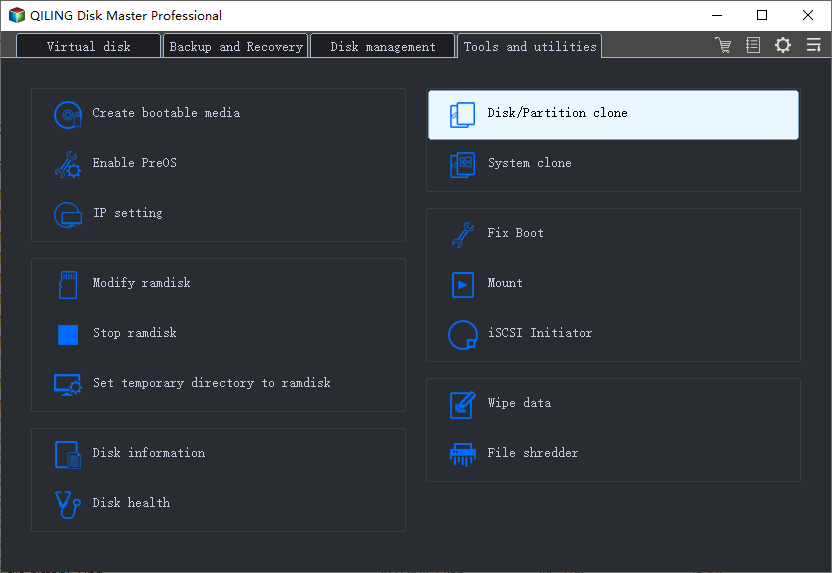
Step 2. Select the Source and Check the Destination List
Pick the source disk and click Next. If the disk you intend to use as the destination is greyed out or missing from the list, the lock sits below Windows and no setting in the tool will release it; unlock it as described above or connect a different disk.
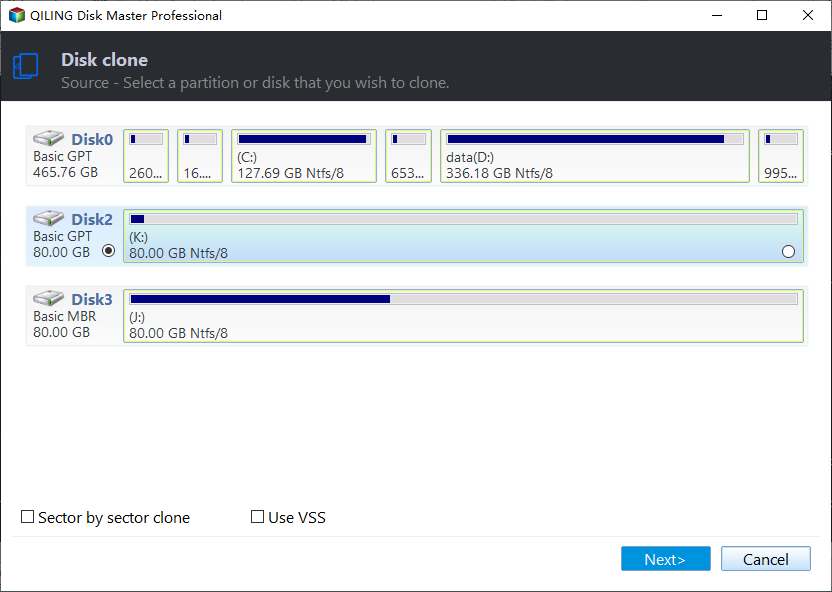
The destination page shows capacity, partitions, and the overwrite note for each candidate. A disk that appears here with its full capacity is readable and usually writable; a disk that is listed but rejected on the next step is the one carrying a lock.
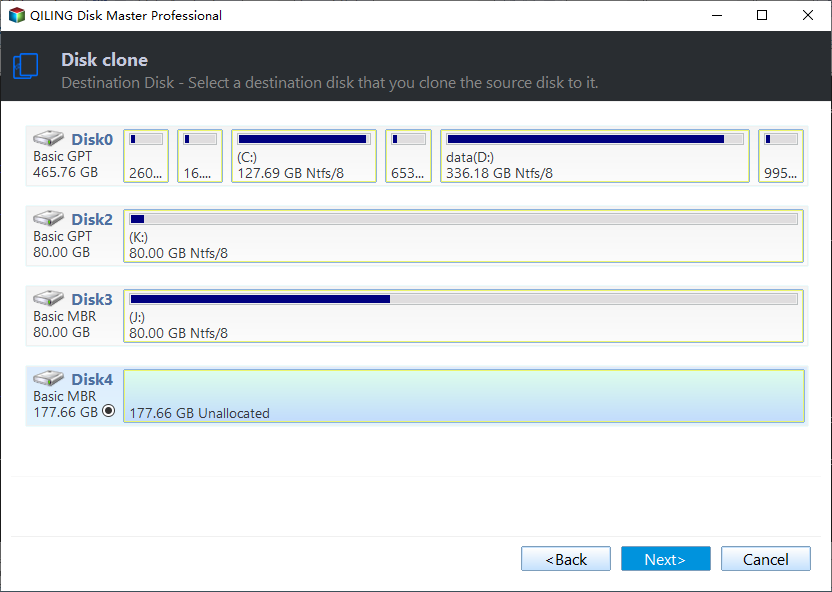
Step 3. Confirm the Preview and Click Proceed
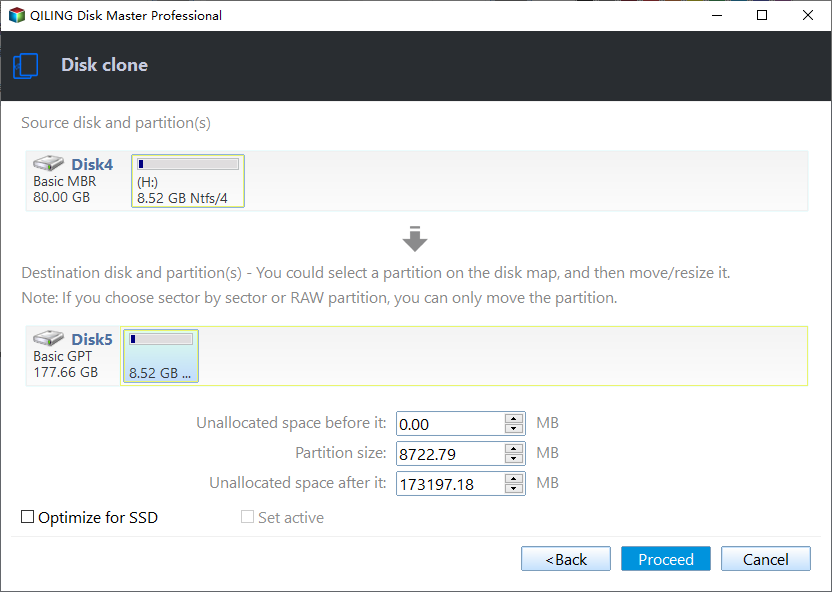
The preview page shows both layouts and the options that control the result. Autofit the disk scales the partitions to the new capacity, Copy as the source keeps the original sizes, and Edit disk layout allows a manual change.
Verify that the boot and system partitions appear on the destination side, then click Proceed and confirm the overwrite warning. If the write is going to be refused, it is refused here rather than after an hour of copying.
Step 4. Check the Finish Message
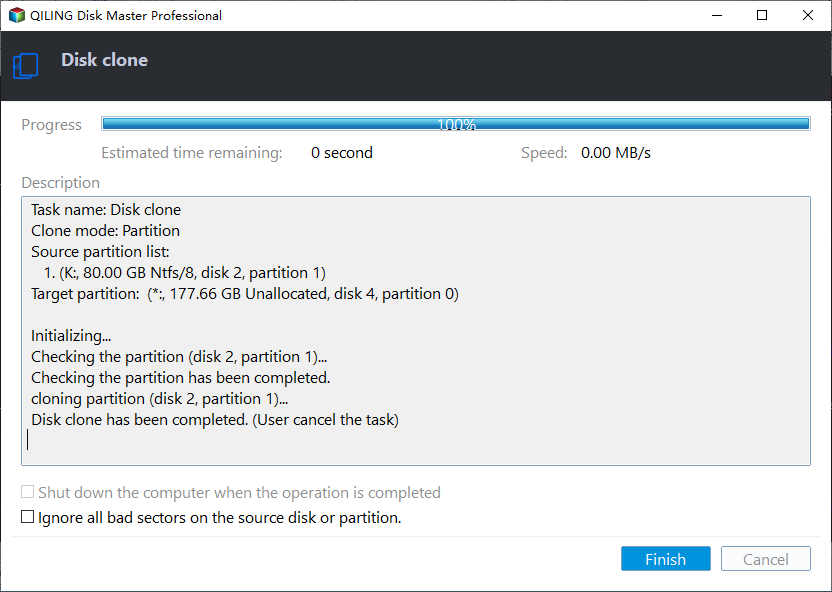
A completed run shows the progress at 100 percent, the line Disk clone has been completed, and an enabled Finish button. A run that stops early still opens this window, and its description names the phase that failed.
For an encrypted destination, the procedure differs because the unlock happens before the clone. See how to clone a BitLocker-encrypted drive when the target itself is protected.
Frequently Asked Questions
Does unlocking BitLocker erase the destination?
No. Unlocking only makes the volume readable and writable while Windows runs. Decrypting removes the encryption layer, takes time, and keeps the files.
Why does the disk work in Explorer but fail in the clone?
Explorer writes inside the mounted volume. A clone writes sectors outside it, and a policy or firmware lock can block that path while ordinary file copies still succeed.
Can I clone to a disk that locks itself once and then recovers?
Not safely. A destination that switches itself to read-only is warning about its own health. Use another disk and keep this one, if at all, as a source.
For a lock that appears on any disk rather than on one clone target, see the disk is write protected.
Related Articles
- How to Resolve: The Disk Is Write Protected
- How to Clone a BitLocker-Encrypted Drive
- How to Clone an HDD to an SSD With Only a USB Cable
- Clone a Drive with a Docking Station: What Works
- Fix an Offline or Read-Only Disk in Windows Server 2025
Products
Articles & Tutorials
- Data Recovery
- Data Backup
- File Recovery
- File Backup
- System Backup and Restore
- Disk and Partition Clone
- Technical articles
- Mobile articles
- Disk Master Help
- Windows Data Recovery Tutorials
- Windows Secure Delete Tutorials
- Windows Partition Management Tutorials
- Windows File Backup and Restore Tutorials
- Windows System Backup and Restore Tutorials
- Windows Disk Backup and Restore Tutorials
- Windows Clone Tutorials