Clone a Drive with a Docking Station: What Works
A docking station is a fast way to connect a bare drive without opening a computer. Many docks also have a clone button that copies one bay to the other with no PC involved, and those two paths behave very differently.
This guide explains when a dock is enough for a real clone, what the offline button can and cannot do, and how to confirm the result before you try to boot from it.
PAGE CONTENT
- Understand Dock Modes and Bays
- Clone in USB Bridge Mode
- Limits of the Offline Clone Button
- Clone with Qiling Disk Master
- Check the Result After Cloning
- Docking Station Questions
- Back Up Before You Clone
Understand Dock Modes and Bays
- Bridge mode. The dock appears as a normal USB drive in Windows, so cloning software can read the source and write the target exactly as it would with an enclosure.
- Offline clone. A dual-bay dock with a clone button copies bay A to bay B without a host. It is convenient, but it makes a block-level copy and gives you little control.
- Single or dual bay. A single-bay dock works only in bridge mode. A dual-bay unit usually offers both modes, and the button is often the only thing that differs from an enclosure.
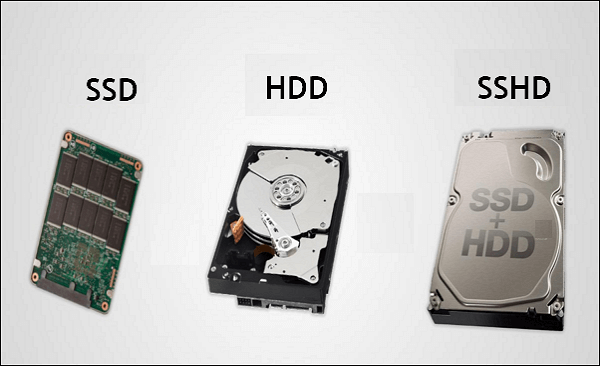
- SATA or NVMe. SATA docks accept 2.5-inch and 3.5-inch drives, while NVMe docks accept M.2 modules. A SATA dock cannot read an NVMe drive, so match the dock to the drive type.
- Power. Desktop drives need external power through the dock. A weak power supply can cause dropouts in the middle of a long copy.
Read the dock manual before you connect anything, because the clone button and the bridge mode are often selected by the same switch.
Clone in USB Bridge Mode
- Connect. Place the source in one bay, the target in the other, and connect the dock to the PC by USB. Both drives should appear in Disk Management.
- Identify. Note the disk number and capacity of each drive before you start. A dock makes two drives look alike, and selecting the wrong one erases your source.
- Clone mode. Run the clone from Windows with an intelligent copy that can resize the target partition when the new drive is larger.
- Alignment. Check that the tool aligns the partition to 4K boundaries, because an old dock copy can leave the SSD unaligned and slower.
- Safe removal. Wait for the tool to finish, close any window that touched the target, then eject the dock before you unplug it.
Bridge mode is the only dock path that lets software resize partitions, verify files and write a log you can read afterward.
Limits of the Offline Clone Button
- Exact copy. The button usually copies the whole drive block by block, so free space is copied too. A large source can take far longer than a file-level copy.
- No resize. Many docks require the target to be the same size or larger, and they do not expand partitions. A bigger SSD may still show the old capacity.
- No alignment control. The button does not expose 4K alignment options, so an old MBR layout can be reproduced exactly, including its inefficiencies.
- Little feedback. Progress is often a blinking light with no percentage and no log. You cannot tell a slow copy from a stalled one.
- One-way only. The direction is usually fixed from one bay to the other, and reversing it may not be supported on cheaper models.
Use the button for quick duplicates of data drives or for a same-size replacement. For a system migration to a larger SSD, use software in bridge mode.
Clone with Qiling Disk Master
Qiling Disk Master reads the dock as a normal USB drive, so it can clone the disk, resize the target partition, align it for an SSD and keep a progress log. It also handles the backup step shown at the end.
Watch the video tutorial below to clone the drive step by step with Qiling Disk Master.
Step 1. Open Qiling Disk Master, choose Clone, and then select Disk Clone.

Step 2. Select the source disk and click Next.

Step 3. Select the destination SSD and confirm that its data will be replaced.

Step 4. Choose the clone mode and adjust the partition size if the target is larger.

Step 5. Click Proceed, wait for the copy to finish, then shut the machine down before you remove any cable.

Check the Result After Cloning
- Capacity. Open Disk Management and confirm the target shows the expected size. A drive that still shows the old size was copied with an exact-size setting.
- Partitions. Check the EFI, recovery and main volumes. A missing EFI partition means the copy will not boot.
- Boot test. Install the target in the machine or select it in the boot menu. Keep the source drive untouched until the new one boots cleanly.
- Drive letters. Windows may assign a new letter or hide a partition. Fix letters only after the system boot is confirmed.
- Health. Read the SMART data of the target, and confirm that the dock did not report write errors during the copy.
If the dock copied but the machine will not boot, compare the boot mode in firmware and the partition style on the target before you clone again.
Docking Station Questions
Can a docking station clone a laptop system drive?
Yes, but only when the laptop drive is removed and the laptop is not running from it. The dock is a USB bridge, so software can copy the drive like any other external disk.
Does the clone button resize partitions?
Usually not. Most docks make an exact block copy and require a target that is at least as large. Any extra space stays unallocated until you extend it with software.
Will a SATA dock work with an NVMe SSD?
No. The connectors and protocols differ, and a SATA bay cannot read an M.2 NVMe module. Use an NVMe enclosure or an NVMe-capable dock instead.
Why is the copy slower than expected?
The dock may be limited by its USB bridge, its cable or the drive itself. A USB 3 port and a good cable matter, and a very full or failing source drive slows everything down.
Can I clone to a smaller drive with a dock?
The offline button cannot, because it copies block by block. Software can sometimes shrink partitions first, but the used data must fit within the smaller capacity.
Back Up Before You Clone
A dock adds a cable, a bridge chip and external power to the copy, so there are more places for the process to fail. A system image on another drive means a failed clone costs you time rather than data.
Watch the video tutorial below to back up Windows and restore it if the clone fails.
Step 1. Open Qiling Disk Master and select System Backup to include the boot partitions.

Step 2. Save the image to a drive other than the target disk and start the backup.

Step 3. Click Proceed to start the system backup and wait patiently until it finishes. You can also tick Shut down the computer when the operation is completed to power off automatically.

Step 4. If the clone fails, restore the image and check the source disk before you retry.

Conclusion
A docking station is a useful bridge and a poor migration tool when you rely only on its clone button. Use bridge mode with real cloning software when the target is larger, and treat the offline button as a same-size duplicate feature.
For related guides, see Copy a Hard Drive to an SSD, 4K Alignment When Cloning an SSD, Clone an SSD to a Same Size SSD, and Best Free SSD Cloning Software.
Related Articles
- Clone an HDD to an SSD with a USB Cable Only
A USB adapter cable can replace a dock for a single drive, with the same software steps and the same cable checks. - Clone a Drive with an NVMe Enclosure
An NVMe enclosure adds a USB slot for M.2 drives, which a SATA dock cannot read at all. - Clone an HDD to an SSD on Windows 10
The full Windows 10 migration order, from checking health to confirming the first boot on the new SSD. - Clone an SSD to a Larger SSD
Resize the partition during the clone so the extra capacity is usable, instead of leaving it unallocated. - Fix a Cloned Drive That Will Not Boot
Boot mode, EFI partition and clone mode are the usual causes when a copied drive will not start.
Products
Articles & Tutorials
- Data Recovery
- Data Backup
- File Recovery
- File Backup
- System Backup and Restore
- Disk and Partition Clone
- Technical articles
- Mobile articles
- Disk Master Help
- Windows Data Recovery Tutorials
- Windows Secure Delete Tutorials
- Windows Partition Management Tutorials
- Windows File Backup and Restore Tutorials
- Windows System Backup and Restore Tutorials
- Windows Disk Backup and Restore Tutorials
- Windows Clone Tutorials