How to Clone an SSD to an SSD of the Same Size
Replacing an SSD with a new drive of the same capacity is the cleanest upgrade available. Nothing has to shrink or grow, so every partition fits the target exactly as it sat on the source.
This guide covers the checks that make a same-size clone predictable, the copy itself, and the test that proves the new drive works without the old one attached.
PAGE CONTENT
- When a Same-Size Clone Makes Sense
- Compare Both Drives First
- Keep the Partition Layout Identical
- Clone with Qiling Disk Master
- Verify the New Drive Works Alone
- FAQs About Same-Size Clones
- Back Up Before the Clone
When a Same-Size Clone Makes Sense
- The old drive is failing. A clone moves Windows before the SMART warnings turn into a dead disk.
- The replacement is newer and faster. Same capacity, better controller, lower latency under load.
- Nothing needs resizing. Every partition lands at its original offset with no free space decisions.
- Licences stay intact. Windows and most applications see the same disk size and hardware.
- The process stays short. Fewer decisions means fewer places for the copy to go wrong.
Nominal sizes differ slightly between models, even when both are sold as 1 TB. A drive rated 931 GB and another rated 953 GB are not identical, and the smaller one sets the limit for the copy.
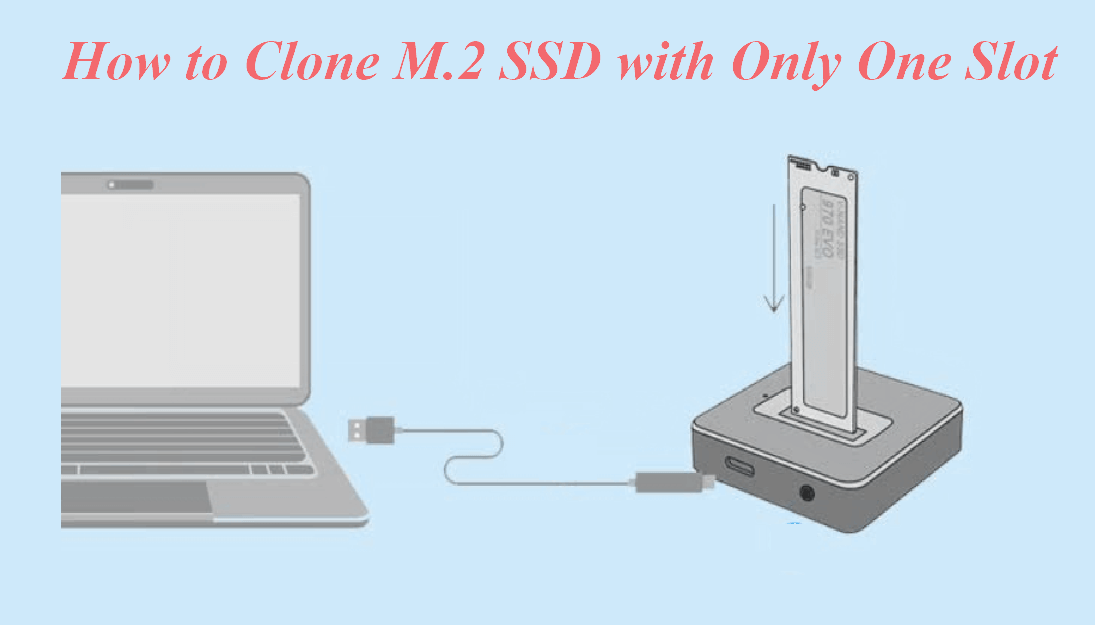
Compare Both Drives First
- Read the real capacity. Check the byte count in Disk Management or the drive datasheet.
- Confirm the target is not smaller. A few gigabytes less is enough to block the final partition.
- Match the interface. A SATA drive cannot accept a PCIe-only NVMe target without the right adapter.
- Note the partition style. MBR sources need an MBR target, GPT sources a GPT target.
- Check the sector size. A 512-byte source cloned to a 4K-native drive needs alignment handling.
The byte count, not the marketing label, decides whether the partitions fit. Compare the two numbers before you open the clone wizard, and the copy will not stall halfway.
Keep the Partition Layout Identical
- Copy the EFI partition. Without it the firmware has no bootloader to start.
- Copy the recovery volume. Windows repair tools live there and are useless if the copy drops it.
- Keep the MSR partition. An MBR-to-GPT layout depends on the reserved Microsoft partition.
- Do not reformat the target first. A prepared volume can shift the layout and block the copy.
- Leave the offsets alone. Sector-by-sector preserves them, while a file copy rewrites them.
A same-size clone should look like a photograph of the old disk. If Disk Management shows an extra gap after the copy, the wizard dropped a partition rather than resized one.
Clone with Qiling Disk Master
Qiling Disk Master clones a same-size disk without asking you to resize anything. Connect both drives, run the wizard, and choose disk clone so every partition travels with the system.
Watch the video tutorial below to clone the drive step by step with Qiling Disk Master.
Step 1. Open Qiling Disk Master, choose Clone, and then select Disk Clone.

Step 2. Select the source SSD and click Next.

Step 3. Select the new SSD as the destination and confirm that its data will be replaced.

Step 4. Choose the clone mode and confirm that every partition keeps its original size.

Step 5. Click Proceed, wait for the copy to finish, then shut the machine down before you remove any cable.

Verify the New Drive Works Alone
- Remove the old drive. A same-size pair looks identical to the firmware and can confuse the boot choice.
- Boot with the new disk only. This is the real test of a completed clone.
- Check the drive letters. The system volume should return as C without prompting.
- Run a benchmark. Confirm the new drive reads at its rated speed and reports no errors.
- Reconnect the old drive as a spare. Format it only after the new disk has survived several boots.
Two identical disks attached at the same time can trigger duplicate disk signature warnings. Keep them apart until the new drive has started cleanly at least twice.
FAQs About Same-Size Clones
Do I need to shrink partitions before a same-size clone?
No. Every partition fits the target as it is, provided the real byte count of the new drive is not smaller.
What if the new SSD reports slightly less capacity?
Triple check the byte count first. If the drive is genuinely smaller, omit unused partitions or shrink them.
Can two identical SSDs stay connected after the clone?
They can, but Windows may warn about a duplicate disk signature. Disconnect the old drive for the first boot.
Is a same-size clone faster than a larger-target clone?
About the same. Both read the same data, and the larger target adds a resize step at the end.
Will the cloned SSD keep its TRIM support?
Yes, as long as the clone preserves the partition offsets and Windows recognizes the drive as an SSD.
Back Up Before the Clone
A same-size clone leaves both drives looking identical, which makes a mistake easy to miss. Image the system first so the old disk can be rebuilt even if the copy is written the wrong way round.
Watch the video tutorial below to back up Windows and restore it if the clone fails.
Step 1. Open Qiling Disk Master and select System Backup to include the boot partitions.

Step 2. Save the image to a drive other than the target disk and start the backup.

Step 3. Click Proceed to start the system backup and wait patiently until it finishes. You can also tick Shut down the computer when the operation is completed to power off automatically.

Step 4. If the clone will not start, restore the image to the original SSD and repeat the copy.

Conclusion
A same-size SSD clone removes the resize question entirely, so the only real risks are capacity rounding and a dropped boot partition. Compare the byte counts, keep the layout identical, and test the new drive with the old one disconnected. When those three habits hold, the upgrade is dull in the best way.
For more on SSD upgrades, see Clone a Larger SSD to a Smaller SSD, How to Clone an SSD to a Larger SSD, Clone an M.2 SSD With Only One Slot, and Cloned Drive Won't Boot - Fix.
Related Articles
- Clone a Larger SSD to a Smaller SSD
Shrink the layout to fit. - How to Clone an SSD to a Larger SSD
Grow the system onto a bigger drive. - How to Clone an SSD to a New SSD Without Reinstalling Windows
Move Windows and apps from an old SSD to a new SSD in a few steps. - Clone an M.2 SSD With Only One Slot
Upgrade with just one M.2 socket. - Cloned Drive Won't Boot - Fix
Repair a clone that stops at boot.
Products
Articles & Tutorials
- Data Recovery
- Data Backup
- File Recovery
- File Backup
- System Backup and Restore
- Disk and Partition Clone
- Technical articles
- Mobile articles
- Disk Master Help
- Windows Data Recovery Tutorials
- Windows Secure Delete Tutorials
- Windows Partition Management Tutorials
- Windows File Backup and Restore Tutorials
- Windows System Backup and Restore Tutorials
- Windows Disk Backup and Restore Tutorials
- Windows Clone Tutorials