Clone Failed: MFT Corrupt, Unable to Match Partition
Quick Navigation:
- What the Error Actually Reports
- Check the Source Disk First
- Repair the File System, Then Clone
- Copy the Disk with Qiling Disk Master
- Frequently Asked Questions
A clone that stops halfway with the message MFT corrupt, unable to match partition is not a random failure. The tool read the partition table, opened the source disk, and then found that the NTFS master file table described a different layout from the one recorded in the partition entries. Because the two records disagree, the copy cannot continue. The disagreement almost always sits on the source disk, not inside the cloning software.
What the Error Actually Reports
The master file table is the index of an NTFS volume. Every file, folder, and piece of metadata has an entry there, including the location of its data on the disk. When the table is damaged, whole ranges of entries become unreadable, and a tool that walks the table to copy only the used blocks reaches a point where the next entry cannot be resolved.
The second half of the message, unable to match partition, describes the moment the tool compares the partition table with the file system it finds inside that partition. If the start sector, the length, or the file system signature does not agree, the tool refuses to guess. It stops instead of writing a destination disk that would not mount afterward.
Several conditions produce that mismatch. Physical bad sectors in the area that holds the table are the most common. An interrupted write, a sudden power loss, or a repair job that was started and never finished can leave the table half updated. A third-party utility that copied only the partition table, without the file system metadata behind it, creates the same symptom on the destination.
Check the Source Disk First
Before changing anything, listen to the drive and watch how it behaves. Rhythmic clicking, repeated spin-up cycles, or a disk that disappears from the file manager under load point to a hardware problem rather than a logical one. In that case the priority is to read the data out, not to repair the volume in place.
Read the SMART attributes next. A rising reallocated sector count, pending sectors, or uncorrectable errors confirm that the surface is failing. A drive with a healthy surface and a clean history is more likely to have a logical fault that a file system check can fix without risk.
Back up before any repair. Copy the folders you cannot lose to another disk, or create a full image of the source if space allows. Repair tools write to the volume, and on a drive with weak sectors that write can turn a readable file into an unreadable one. The backup is what makes the next steps safe to attempt.
Repair the File System, Then Clone
If the disk is physically healthy, run a file system check on the source volume. CHKDSK is a Microsoft tool that ships with Windows and is not part of Qiling Disk Master. Run it from an elevated command prompt with the read-only scan first, review what it reports, and only then allow the repair pass with a full surface scan.
Read the result carefully. Messages about corrected errors in the master file table mean the logical damage was repairable. Messages about bad clusters mean the surface has failed areas, and those clusters are now marked so they will not be reused. A run that cannot complete, or that stalls at a fixed percentage, is a sign the drive cannot be repaired by software.
When the repair succeeds, retry the normal clone. When it fails, or when the drive is clearly failing, switch to a sector-level copy. A sector-by-sector clone reads the source exactly as it is, ignores the damaged index, and reproduces every sector in order. The destination then holds the same damage, so plan a repair on the new disk afterward, but the data is preserved.
Copy the Disk with Qiling Disk Master
Qiling Disk Master performs both the standard clone and the sector-level copy from one wizard. Use the sector option when the source file system is damaged or the drive is failing, because the normal mode depends on a readable master file table and will stop at the same point again.
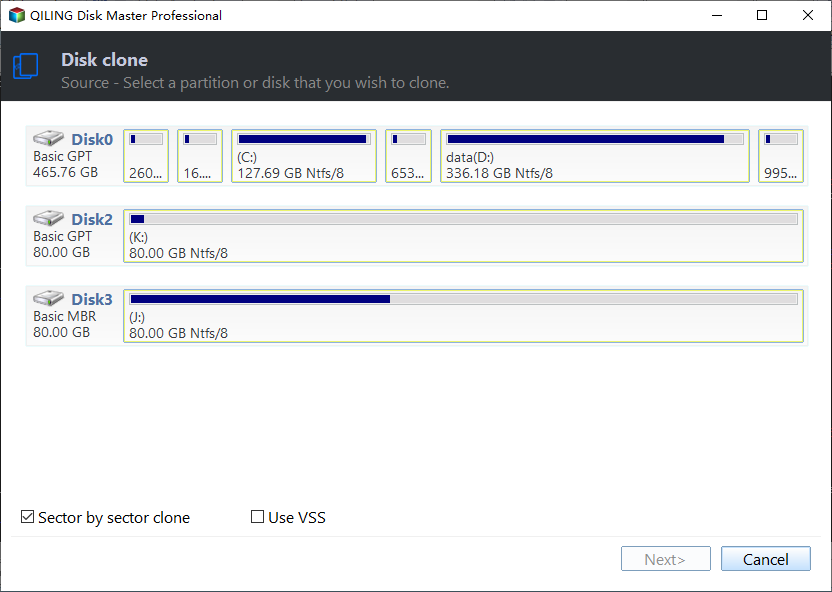
Step 1. Select the Source Disk
Open Disk/Partition clone, choose Disk Clone, and select the damaged disk as the source. Tick Sector by Sector Clone so every sector is read in physical order, including the area that holds the broken master file table. The destination must be at least as large as the entire source, because free space is copied as well.
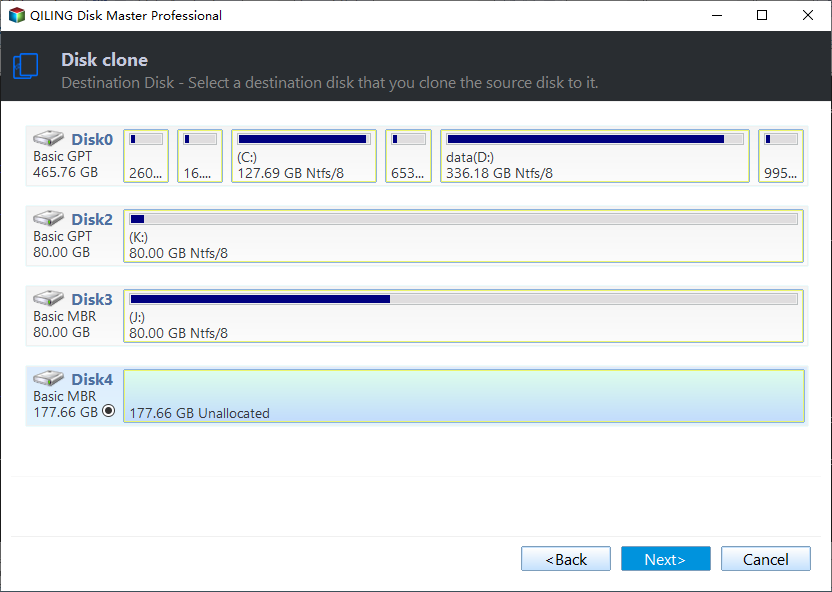
Step 2. Select the Destination Disk
Pick the target disk and confirm its capacity against the full size of the source, not against the used space. A destination that is even slightly smaller cannot accept a sector-level copy and the wizard will refuse to continue. If the target holds partitions, note that they will be overwritten before you confirm.
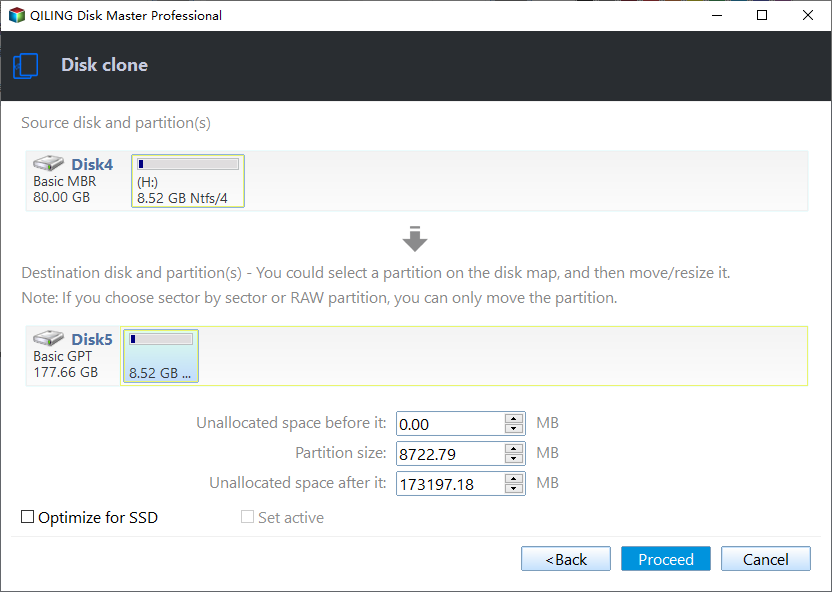
Step 3. Preview the Layout
The preview page lists the partitions that will be written to the destination. With a sector-level copy the sizes match the source exactly, so there is little to adjust. Check that the EFI or system reserved area, the Windows volume, and the recovery partition all appear, then continue to the last page.
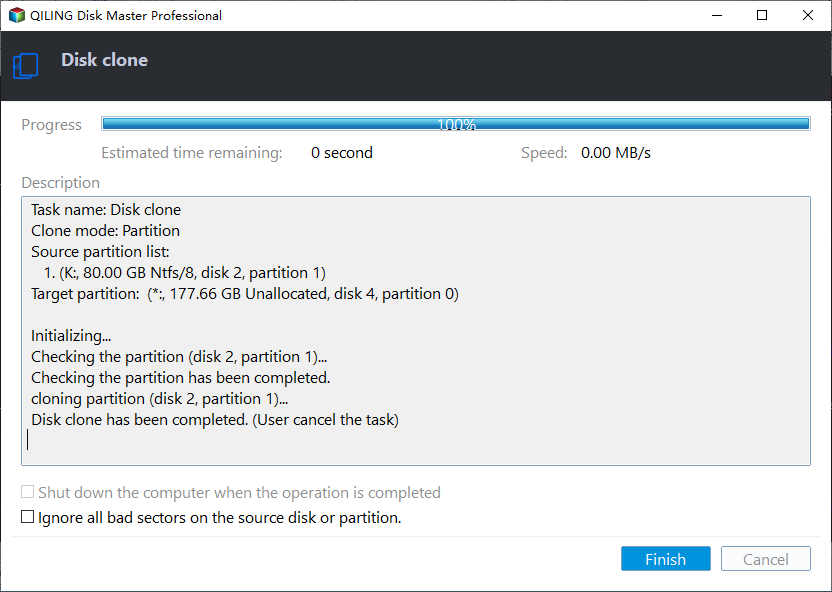
Step 4. Click Proceed and Watch the Progress
Click Proceed and accept the overwrite warning, then watch the progress bar rather than leaving the machine. A sector-level job on a weak drive can slow sharply where the surface is bad, and a job that stops moving for a long time is a sign the source is failing. Keep the machine powered until the finish window reports completion.
Frequently Asked Questions
Can a clone continue past a corrupt MFT?
Only with a sector-level copy, which reads the disk without relying on the file index. The destination will carry the same logical damage, so run a file system check on it afterward before you rely on it as a boot disk.
Does repairing the source disk delete files?
A repair pass can remove entries it cannot reconcile, which is why a backup comes first. On a healthy surface the risk is low, but on a drive with bad sectors the repair can make some files unreachable, so copy important data out first.
Why does the error return after a successful repair?
Because the underlying surface is still failing, or because the repair ran on a different volume than the one being cloned. Check SMART again and confirm the drive letter and partition number before you start the next attempt.
Related Articles
- Clone a Hard Drive with Bad Sectors
- Clone a Failing Drive with ddrescue
- Clone a Drive with a Dirty Bit Set
- Clone Fails at the Finalizing Stage
- Clone Verification Failed After the Copy
Products
Articles & Tutorials
- Data Recovery
- Data Backup
- File Recovery
- File Backup
- System Backup and Restore
- Disk and Partition Clone
- Technical articles
- Mobile articles
- Disk Master Help
- Windows Data Recovery Tutorials
- Windows Secure Delete Tutorials
- Windows Partition Management Tutorials
- Windows File Backup and Restore Tutorials
- Windows System Backup and Restore Tutorials
- Windows Disk Backup and Restore Tutorials
- Windows Clone Tutorials