Clone Fails With Fast Startup Enabled: What to Turn Off
Quick Navigation:
- Why Fast Startup Breaks a Clone
- Turn Fast Startup Off
- Shut Down Fully and Check the Locks
- Clone Again and Handle Two Identical Disks
- Frequently Asked Questions
The clone reaches the end without an error, the new SSD goes in, and Windows either demands a disk check or refuses to start at all. In plenty of these cases the copy itself was fine and the source was the problem: Fast Startup had turned the last shutdown into a partial hibernation, so the system volume was still marked as in use when the copy was taken. The fix costs one reboot and a setting that takes thirty seconds to change.
Why Fast Startup Breaks a Clone
Fast Startup is a Windows power feature that turns a normal shutdown into a hybrid one. Instead of closing every process and flushing the file system, the system writes the kernel session and the device state to the hibernation file, then powers off. The next start reads that file back, which is why the desktop appears so quickly and why a shutdown is not the clean stop it used to be.
For a clone, the consequence is a source volume that was never cleanly dismounted. NTFS keeps a dirty flag for exactly this situation, and the hibernation file still holds open handles to the file system at the moment of the copy. The clone engine reads the blocks as they are, so the new disk inherits a volume that Windows treats as needing repair, and a boot that depends on state stored in a hibernation file that the target does not have.
There is a second layer to the problem. The hibernation file is large, it sits on the system volume, and it is locked while the session is suspended in it. A copy that includes that file can end with a target whose boot configuration points at a resume image that no longer matches, which is how a clone that completed normally still ends at a chkdsk prompt or a blue screen.
Turn Fast Startup Off
The setting lives in the classic Control Panel, not in Settings. Open Control Panel, go to Hardware and Sound, then Power Options, and click Choose what the power buttons do in the left pane. Click Change settings that are currently unavailable to unlock the shutdown options, clear the box next to Turn on fast startup, and save the change.
If the checkbox is missing entirely, hibernation has already been disabled on the machine, which is the state you want for cloning. You can confirm it from an elevated Command Prompt with powercfg /a, which lists the sleep states the firmware and the current configuration allow.
Optionally, run powercfg /h off from the same elevated prompt. That removes the hibernation file and frees several gigabytes on the system drive, and it guarantees that no suspended session can survive the shutdown that precedes the clone. Hibernation can be switched back on with powercfg /h on once the new disk is running.
None of this changes your files or your programs. It changes only how Windows shuts down, so the next power-off becomes a real one with every handle closed.
Shut Down Fully and Check the Locks
Changing the setting affects the next shutdown, not the current session, so shut the machine down completely now. Use Shut down rather than Restart: a restart skips the hybrid path anyway on most systems, but a full power-off and power-on leaves no suspended state at all, which is the clean starting point you want before a disk copy.
After the machine comes back, check two things. Look for hiberfil.sys in the root of the system drive with hidden and protected operating system files shown; if it is gone, hibernation is genuinely disabled. Then open an elevated Command Prompt and run fsutil dirty query C: to read the dirty bit. A volume that reports clean is ready to copy.
If the query reports dirty, let chkdsk run to completion on the source before cloning, and shut down again afterward. Copying a volume with a dirty bit produces a target that will ask for the same repair on first boot, and the repair can fail there because the target's layout differs from the source.
Clone Again and Handle Two Identical Disks
Qiling Disk Master copies the volume as it finds it, so a source that is clean before the job starts produces a target that boots without a repair prompt. Work from the running system, keep the new disk attached, and confirm the preview before Proceed.
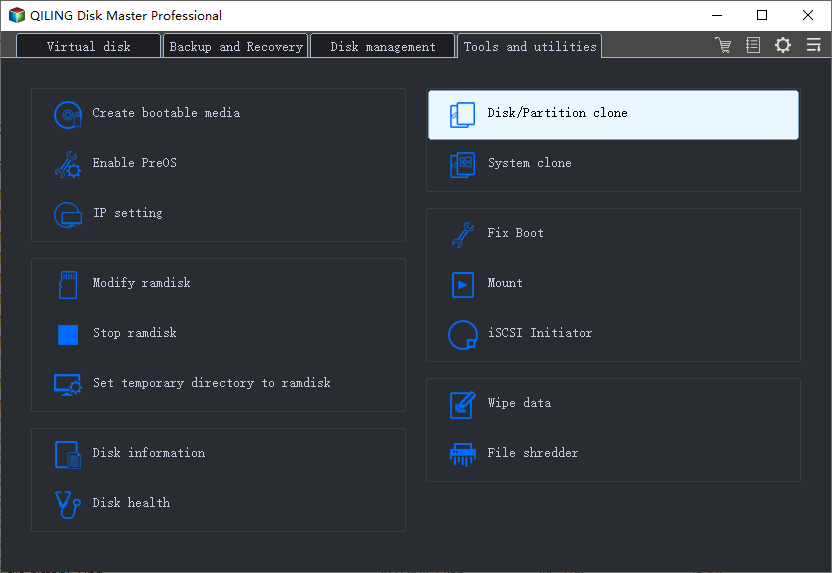
Step 1. Open Disk/Partition clone from the Tools and utilities tab. Choose Disk Clone when the whole disk has to move, or Partition Clone when only the Windows volume and its boot files need to be copied. The disks attached to the machine are listed in the window and are selected directly, with no separate step to add a disk.
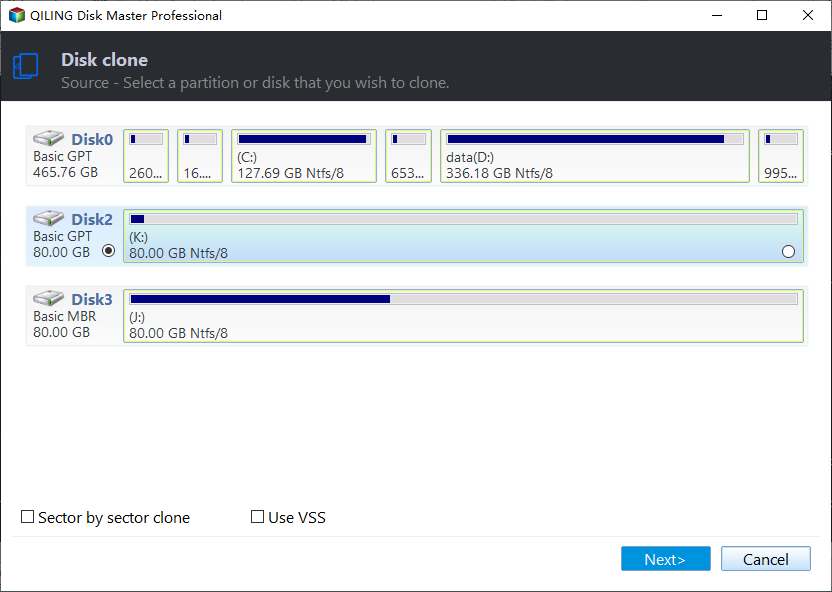
Step 2. Select the source disk. Tick the disk that holds the Windows installation you just shut down cleanly. Read the model and capacity rather than the drive letters, because letters can shift between boots and the disk number is what identifies the drive.
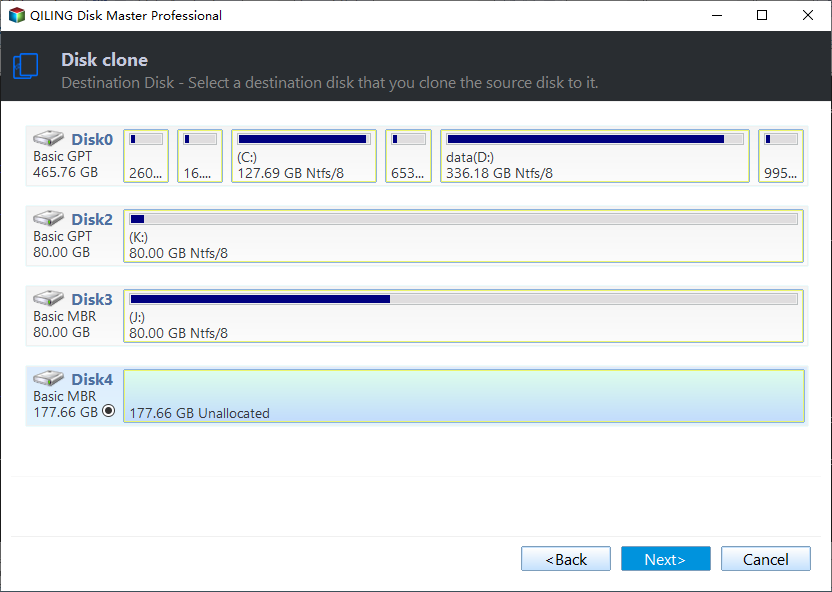
Step 3. Select the target disk. Confirm the destination by number and capacity before you go on, because the disk you pick loses its current partitions as soon as the job starts.
Step 4. Check the preview and size the partitions. Verify on the preview page that the EFI system partition, the Windows volume, and the recovery partition are all present on the target side. Enable SSD alignment when the destination is a solid state drive, and extend the last partition if the new disk is larger.
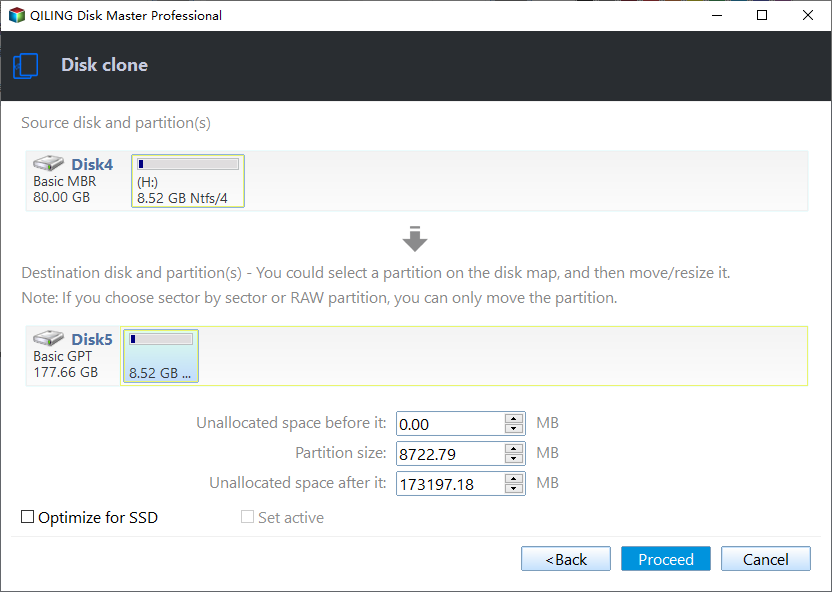
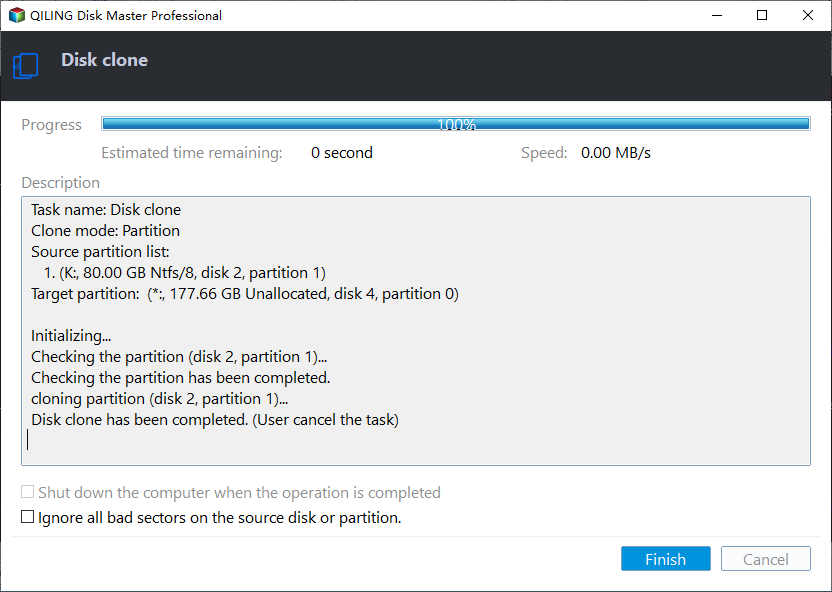
Step 5. Click Proceed and wait for the completion window. Accept the warning about the partitions on the target and leave the machine running until Finish appears. Do not sleep, hibernate, or unplug the target while the job is in progress.
Before the first boot from the new disk, disconnect the old one. Two disks carrying the same disk signature and the same boot entries confuse the firmware, and Windows can mount the old volume instead of the new one, which makes a good clone look like a failed one. If both must stay connected, change the signature of the old disk or set the new one first in the boot order.
Frequently Asked Questions
Does a restart also clear the hibernated state?
A restart usually bypasses Fast Startup, but it does not guarantee the same clean state as a full shutdown and power-on. Disable the feature, shut down, and start again so the source volume is closed without a suspended session behind it.
Will disabling Fast Startup slow down my boot?
Slightly, by a few seconds on most machines. Once the clone is verified and the old disk is out of the system, the setting can be turned back on; it has no effect on the data the clone wrote.
Why does the cloned disk still ask for a disk check?
The source was copied while its dirty bit was set, which happens when a volume was not shut down cleanly. Run chkdsk on the source, shut down fully, and clone again; a repair prompt on the target after that points at the boot configuration rather than the file system.
Related Articles
- Clone a Drive With a Dirty Bit and Chkdsk
- Clone Fails Because Antivirus Blocks VSS
- NVMe to SATA Clone Won't Boot
- UEFI Boot Entry Missing After Clone
- Inaccessible Boot Device After Cloning
Products
Articles & Tutorials
- Data Recovery
- Data Backup
- File Recovery
- File Backup
- System Backup and Restore
- Disk and Partition Clone
- Technical articles
- Mobile articles
- Disk Master Help
- Windows Data Recovery Tutorials
- Windows Secure Delete Tutorials
- Windows Partition Management Tutorials
- Windows File Backup and Restore Tutorials
- Windows System Backup and Restore Tutorials
- Windows Disk Backup and Restore Tutorials
- Windows Clone Tutorials