NVMe to SATA Clone Won't Boot: Causes and Fixes
Quick Navigation:
- Why the SATA Copy Stops at Boot
- Back Up Before You Change Anything
- Check the Boot Mode, the Driver, and the Layout
- Clone Again with Qiling Disk Master
- Frequently Asked Questions
A system disk copied from an NVMe drive to a SATA SSD or a hard disk can reach 100 percent, report success, and then stop at the first restart with a blinking cursor or an INACCESSIBLE_BOOT_DEVICE error. The data arrived intact. What did not arrive is the boot path the firmware and the Windows kernel expect on a different storage controller, and that path is decided by the firmware mode, the driver that starts at boot, and the partition layout on the target disk.
Why the SATA Copy Stops at Boot
The two drive types are served by different drivers. NVMe disks run through the native NVMe driver, while SATA disks depend on the AHCI driver, and Windows loads a boot-critical driver for the controller it starts from. If the AHCI driver is not configured to start at boot, the kernel initializes without a working storage stack, cannot read the system volume, and stops with the inaccessible boot device code. The files are present and the boot files are correct, which is why the error looks like corruption and is not.
Many laptops ship with the Intel storage mode set to RAID or VMD rather than plain AHCI. In that mode the NVMe disk is reached through a different driver, and a SATA disk attached to an AHCI port may not be visible at all until the firmware mode changes. Switching that mode after Windows is installed can make the source installation unbootable, so it is not a setting to change casually on a live system.
The boot order adds a second, simpler failure. The firmware keeps its NVMe entry in first place and never tries the SATA disk, or it tries it and finds a layout it cannot use because the copy is MBR while the board boots UEFI only. A board with CSM disabled refuses a legacy layout, and a board with CSM enabled may start the copy in the wrong mode and fail on the EFI partition.
Hardware details account for the rest. Some M.2 slots disable a SATA port when both are populated, a SATA cable or enclosure that drops the link produces a target Windows cannot see, and a smaller SATA SSD forces the clone to shrink partitions in the preview. A 4Kn SATA disk on an older controller is another combination that ends before Windows starts.
Back Up Before You Change Anything
The NVMe disk is the only working copy of the installation, and every repair below either reads it or writes to the SATA disk. Keep the NVMe drive untouched and connected until the new disk has started on its own, and do not erase it to make room for experiments.
Create an image of the source, or copy the folders you cannot lose to a third disk, before you change firmware settings. A mode change that goes wrong can leave the original installation unable to start, and the image is then the only route back without a reinstall.
Write down the firmware settings as they are now: boot mode, CSM state, Secure Boot state, and the storage mode. A clone made in one configuration and started in another has two faults at once, and the note is what separates them later.
Check the Boot Mode, the Driver, and the Layout
Restart into the firmware setup and read three values. The boot mode must match the layout on the SATA disk, UEFI for a GPT copy and legacy for an MBR one. The storage mode must be the one the installation expects, because a copy started in a mode its driver does not support stops before Windows loads. Secure Boot only matters when the copy carries a loader that is not signed.
Open Disk Management with the SATA disk attached and read its layout: an EFI system partition, a reserved partition, the Windows volume, and usually a recovery partition for a UEFI copy. diskpart reports the same information in text and names the partition style, which is the quickest way to tell a GPT copy from an MBR one when the layout looks correct at a glance.
Disk Management, diskpart, bcdboot, and bootrec are Microsoft tools that ship with Windows. None of them is part of Qiling Disk Master, and the clone engine does not change firmware modes or install drivers. Use them to read the state of the disks and to repair the boot records, and keep the copy itself separate from that work.
Where the driver is the problem, the practical answer depends on the machine. A desktop that can be set to AHCI permanently should be cloned while that mode is active, because a copy taken under one mode and started under another has no boot driver for the target controller. A laptop locked to RAID mode needs the clone started in the same mode, or a generalized image that lets Windows detect the controller during the first start.
Clone Again with Qiling Disk Master
Qiling Disk Master copies the partition layout exactly as the preview shows it, so the SATA disk can be given a complete UEFI layout in a single pass. Attach the SATA target while the machine still runs from NVMe, keep the firmware in the mode the copy is meant to boot with, and read the preview before you start.
Operation 1: Select the Source and the SATA Target
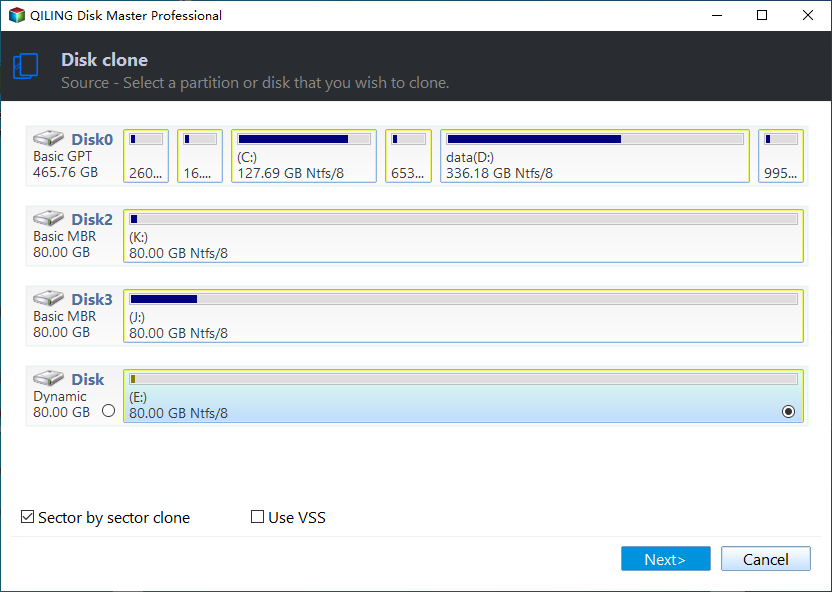
Step 1. Select the source disk or partition. Open Disk/Partition clone from the Tools and utilities tab and choose Disk Clone so the EFI partition and the recovery volume travel with the Windows volume. The attached disks are listed and selectable directly: tick the NVMe disk that boots today, with no separate step to add it. Tick Sector by Sector Clone only for a failing source.
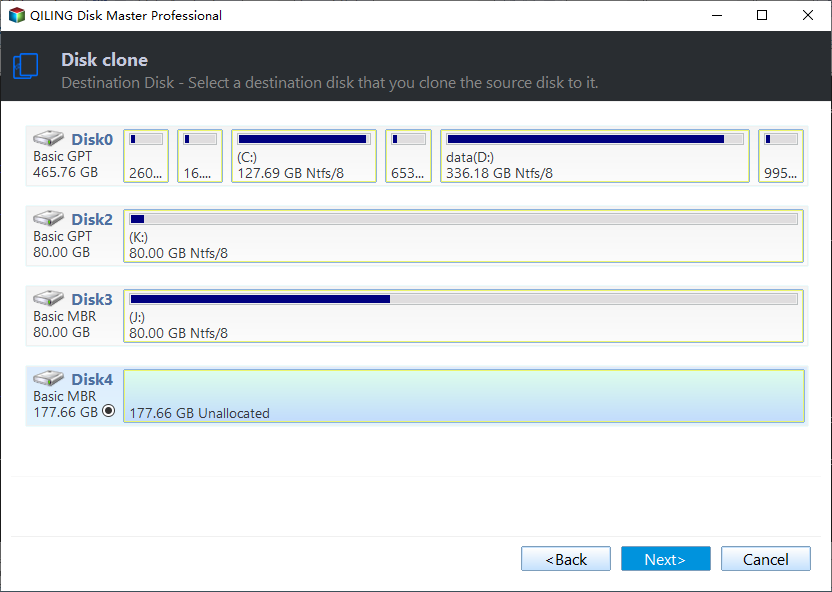
Step 2. Select the target disk. Pick the SATA SSD or hard disk and confirm its number and capacity. A SATA disk attached through a USB adapter works for a data copy but is a poor target for a boot disk, because the bridge can change how the disk is enumerated on the first start.
Operation 2: Preview the Layout and Align the SATA SSD
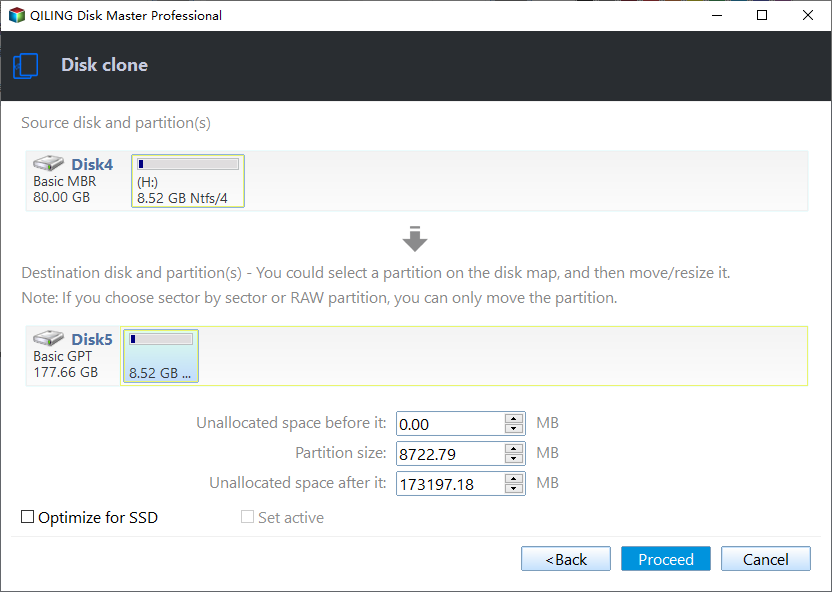
Step 3. Preview the layout, align the SSD, and adjust the partitions. The preview shows the source partitions on the left and the planned target on the right. Turn on SSD alignment, keep the EFI partition first on a UEFI copy, and use the extra space on a larger target to widen the Windows volume. On a smaller SATA SSD, move and shrink partitions in the preview rather than after the copy, because a layout that does not fit stops the job.
Operation 3: Proceed, Then Change the Boot Order
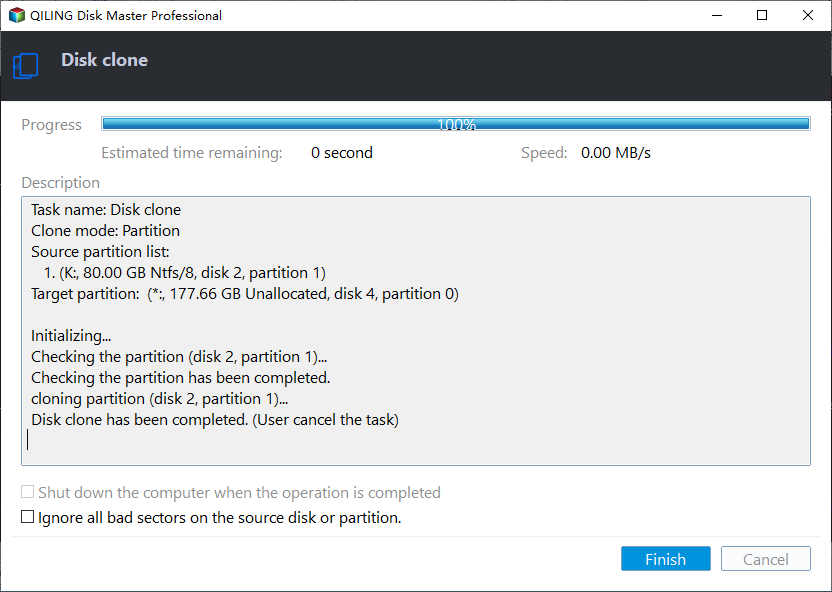
Step 4. Click Proceed and watch the progress to the end. Accept the overwrite warning, keep the machine powered, and wait for the completion window with Finish enabled. Then shut down, open the firmware boot menu, and put the SATA disk first, or remove the NVMe disk for the first start so the board has no other choice.
If the machine still stops with the inaccessible boot device code while the SATA disk is first in the boot list, the firmware mode and the driver do not match and no further copy will change that. Match the storage mode, or plan a clean installation on the SATA disk. A boot error with a different code points at the boot configuration instead of the driver.
Frequently Asked Questions
Can a SATA SSD boot a Windows installation that was cloned from NVMe?
Yes, when the AHCI driver is present as a boot-start driver and the firmware mode, boot order, and partition layout all match the copy. The drive type itself is not the obstacle; the controller stack and the boot configuration are.
Why does it stop with INACCESSIBLE_BOOT_DEVICE?
Because Windows started but could not read its own system volume through the controller it was handed. On a clone from NVMe this almost always means the target controller has no boot-start driver, which a storage mode mismatch makes certain.
Do I have to change the boot order after cloning?
Yes. The firmware list lives on the board and is not part of the copy, so the SATA entry has to be moved to the top or selected once from the boot menu. If no SATA entry exists, check the boot mode before cloning again.
Related Articles
- Clone an M.2 SSD to a SATA SSD
- Clone a SATA SSD to an NVMe SSD
- Switch From IDE to AHCI After Cloning
- Clone Fails in Intel RST RAID Mode
- Cloned Drive Gives 0xc000000e Boot Error
Products
Articles & Tutorials
- Data Recovery
- Data Backup
- File Recovery
- File Backup
- System Backup and Restore
- Disk and Partition Clone
- Technical articles
- Mobile articles
- Disk Master Help
- Windows Data Recovery Tutorials
- Windows Secure Delete Tutorials
- Windows Partition Management Tutorials
- Windows File Backup and Restore Tutorials
- Windows System Backup and Restore Tutorials
- Windows Disk Backup and Restore Tutorials
- Windows Clone Tutorials