INACCESSIBLE_BOOT_DEVICE After Cloning: Fix Windows Boot
INACCESSIBLE_BOOT_DEVICE is a very common blue screen after a disk clone. The stop code, often written as 0x7B, means Windows started loading but could not reach the volume that holds its own system files, so the boot sequence halted before the desktop appeared.
The copied files are usually intact. What failed is the handshake between the boot loader, the storage controller and the driver stored in the image. This article shows how to repair that handshake and how to clone so it does not happen again.
PAGE CONTENT
- Why 0x7B Appears on a Clone
- Check the Setup Before Rebooting
- Repair the Driver and Boot Entry
- Clone Again the Right Way
- Confirm the Disk Boots Alone
- FAQs About 0x7B
- Back Up Before the Repair
Why 0x7B Appears on a Clone
- Wrong storage driver. The clone booted with a driver for the old controller still enabled.
- AHCI versus IDE. A clone moved between controller modes cannot load the disk driver.
- Driver missing from the image. Windows does not ship a driver for every new controller.
- Boot order shifted. Firmware still points at the old disk or a stale entry.
- Signature clash. Two disks with the same identifier confuse the boot loader.
The message means Windows could not access the boot volume, so treat it as a driver and configuration problem first, not as a sign that the clone destroyed your data.
Check the Setup Before Rebooting
- Keep the old disk. Leave it attached until the new disk proves stable.
- Record the controller mode. Note whether the BIOS uses AHCI, RAID or IDE.
- Match the port. Place the SSD on the same port type as the original drive.
- Remove extra disks. Unplug USB drives and spare SATA devices.
- Boot into firmware once. Confirm the SSD is detected before Windows starts.
If the SSD is listed in firmware but Windows still fails, the problem sits in the driver or the boot entry rather than in the hardware itself.
Repair the Driver and Boot Entry
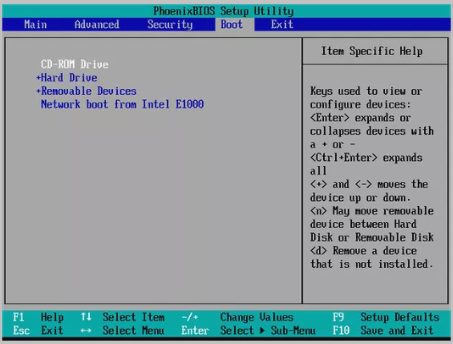
- Restore the controller mode. Switch the BIOS back to the mode the old disk used.
- Pick the SSD in boot order. Make the new disk first, then save and exit.
- Inject the driver offline. Use DISM from a Windows USB to add the storage driver.
- Rebuild the BCD. bootrec /rebuildbcd restores the path to the new volume.
- Try Safe Mode once. Safe Mode loads a basic driver and lets Windows repair itself.
Mode changes explain most cases, but if the driver is genuinely absent from the image you must add it before the disk can ever start. Rebuilding the BCD cannot substitute for a missing driver.
Clone Again the Right Way
If the repair keeps failing, re-clone with a tool that prepares the target disk for the controller in use and recovers the boot files automatically.
Watch the video tutorial below to clone the drive step by step with Qiling Disk Master.
Step 1. Open Qiling Disk Master, choose Clone, and then select Disk Clone.

Step 2. Select the source disk and click Next.

Step 3. Select the destination SSD and confirm that its data will be replaced.

Step 4. Choose the clone mode and confirm the system partition gets the C letter on the target.

Step 5. Click Proceed, wait for the copy to finish, then shut the machine down before you remove any cable.

Confirm the Disk Boots Alone
- Boot without the old disk. Remove it or disable it in firmware.
- Watch for the stop code. No 0x7B means the driver loaded correctly.
- Open Device Manager. The storage controller should show no warning icon.
- Restart twice. A repeatable start proves the fix is stable.
- Keep the old disk as a backup. Do not wipe it until the clone has run for a week.
A clean boot on the new disk alone is the only proof that the clone is complete. Booting with both disks attached can hide a broken boot entry.
FAQs About 0x7B
What does 0x7B mean after cloning?
Windows cannot access the boot volume, usually because the storage driver or the controller mode changed.
Will this blue screen damage my files?
No. The files are intact; only the boot path and the driver binding are broken.
Can I fix it without reinstalling Windows?
Yes. Match the controller mode, correct the boot order, or inject the driver from a USB drive.
Why does the old disk boot but the new one does not?
The old disk still carries the matching driver and signature, so Windows loaded the right stack on it.
Should I clone while the BIOS is in AHCI mode?
Yes. Clone in AHCI so the image already contains the driver the new disk needs.
Back Up Before the Repair
Changing controller modes and rebuilding the boot configuration can leave the machine unbootable. Keep a system image on a separate disk so you can restore in minutes if the repair goes wrong.
Watch the video tutorial below to back up Windows and restore it if the clone fails.
Step 1. Open Qiling Disk Master and select System Backup to include the boot partitions.

Step 2. Save the image to a drive other than the target disk and start the backup.

Step 3. Click Proceed to start the system backup and wait patiently until it finishes. You can also tick Shut down the computer when the operation is completed to power off automatically.

Step 4. If the clone or the boot repair fails, restore the image and then reassign drive letters or rebuild the boot records from Windows Recovery.

Conclusion
INACCESSIBLE_BOOT_DEVICE after cloning is a boot-path problem, not lost data. Match the controller mode, fix the boot order, and inject the missing driver when the image does not carry it. If the repair fails, re-clone with Qiling Disk Master so the boot records are prepared for the new disk.
For more on boot problems after a clone, see Cloned Drive Won't Boot? Fix It, Fix the Drive Letter After Cloning, Clone an MBR Disk to a GPT SSD, and Clone the Windows 11 System Reserved Partition.
Related Articles
- Switch from IDE to AHCI After Cloning
Change the mode without a boot loop. - SSD Not Detected After Cloning
When the firmware cannot see the disk. - Clone a Boot Drive with Multiple EFI Partitions
Keep every boot loader in place. - Clone a GPT Disk to an MBR Disk
Match the firmware boot mode. - Cloned SSD Not Showing Full Capacity
Fix the size after a clone.
Products
Articles & Tutorials
- Data Recovery
- Data Backup
- File Recovery
- File Backup
- System Backup and Restore
- Disk and Partition Clone
- Technical articles
- Mobile articles
- Disk Master Help
- Windows Data Recovery Tutorials
- Windows Secure Delete Tutorials
- Windows Partition Management Tutorials
- Windows File Backup and Restore Tutorials
- Windows System Backup and Restore Tutorials
- Windows Disk Backup and Restore Tutorials
- Windows Clone Tutorials