SSD Not Detected After Cloning - Fix It in BIOS and Windows
A clone that finishes without an error can still leave the new SSD invisible. The drive sits in the machine but never appears in Disk Management, the boot menu, or the firmware list, which makes the upgrade look like a failure.
This guide works from the hardware outward: confirm the firmware sees the disk, fix the controller mode, and only then look at Windows and the clone itself.
PAGE CONTENT
- Why the SSD Disappears
- Check the BIOS Drive List
- Fix the Controller Mode
- Re-clone with Qiling Disk Master
- Get Windows to See the Drive
- FAQs About Missing SSDs
- Back Up Before You Retry
Why the SSD Disappears
- The slot is not wired or not enabled. Some M.2 sockets share lanes with a disabled SATA port.
- The controller mode changed. A clone from a RAID or IDE system can hide an AHCI drive.
- The partition table is unreadable. A damaged clone leaves the disk unformatted and without a letter.
- The drive is not initialized. A brand-new disk appears as unallocated space, not as a letter.
- The firmware lacks NVMe support. Older boards list an NVMe drive only after a BIOS update.
Start with the firmware. If the drive is absent from the BIOS list, Windows has nothing to detect, and every repair inside the operating system will fail.
Check the BIOS Drive List
- Enter the firmware setup. Press the vendor key during start-up and open the storage page.
- Look for the drive model. A listed model means the hardware connection works.
- Check the slot mapping. Move the drive to a slot wired directly to the CPU if one is free.
- Reseat the module. Reinstall the SSD and confirm the standoff screw holds it flat.
- Try another port or cable. A failed SATA cable produces exactly this symptom.
If the model appears in the firmware but not in Windows, the problem is software. If the model never appears, the drive, the slot, or the cable is at fault, and no clone setting will change that.
Fix the Controller Mode
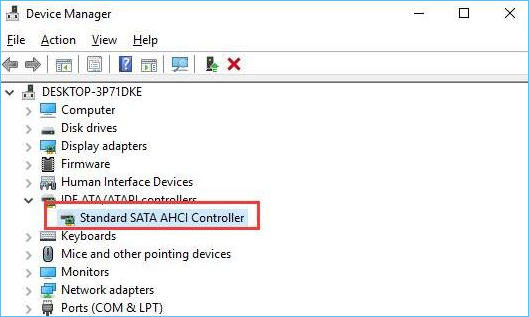
- Set SATA mode to AHCI. RAID and legacy IDE modes can hide an SSD from the clone wizard and from Windows.
- Change the mode before booting. Switching after an install can trigger a stop error.
- Use the safe-boot workaround. Boot into Safe Mode once after the change so Windows loads the AHCI driver.
- Check the NVMe setting. Some boards ship with NVMe RAID enabled, which hides single drives.
- Disable the RAID flag last. Only turn RAID off when no array depends on it.
Controller mode is the most common cause after a motherboard change. The clone is fine, but the driver that reads the disk is no longer loaded at start-up.
Re-clone with Qiling Disk Master
If the drive is visible in firmware and still refuses to appear, redo the copy with a tool that writes a complete partition table. Qiling Disk Master rebuilds the layout on the target instead of copying a broken header.
Watch the video tutorial below to clone the drive step by step with Qiling Disk Master.
Step 1. Open Qiling Disk Master, choose Clone, and then select Disk Clone.

Step 2. Select the source disk and click Next.

Step 3. Select the destination SSD and confirm that its data will be replaced.

Step 4. Choose the clone mode and keep the same partition style as the source.

Step 5. Click Proceed, wait for the copy to finish, then shut the machine down before you remove any cable.

Get Windows to See the Drive
- Open Disk Management. Press Win+X and choose the disk tool to list every attached drive.
- Initialize an unallocated disk. A blank disk needs a partition table before it can hold volumes.
- Assign a drive letter. A volume without a letter never appears in File Explorer.
- Rescan the disks. Use Action and Rescan Disks after attaching hardware.
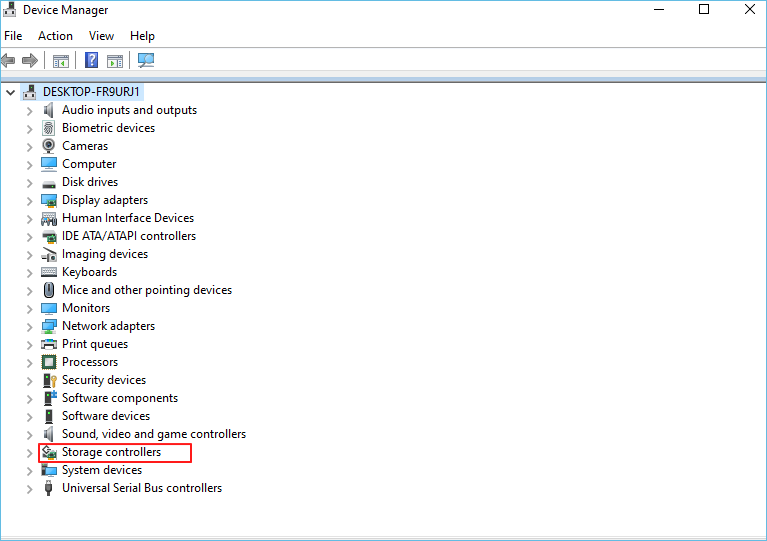
- Reinstall the storage driver. Remove the controller entry and let Windows detect it again.
An offline disk is the giveaway: it shows in Disk Management with a black bar but no letter. Marking it online and assigning a letter usually restores access without touching the clone.
FAQs About Missing SSDs
Why does the BIOS not list my cloned SSD?
The connection is failing, the slot is disabled, or the drive needs a BIOS update. Check the cabling and slot first.
Is the clone lost if Windows does not see the disk?
Not usually. If the firmware lists the drive, the data is there and only the volume state is wrong.
Should I format the SSD to make it appear?
No. Formatting erases the clone. Diagnose the connection and the partition table before any format.
Why is the SSD visible in BIOS but not in Disk Management?
The disk is likely offline, uninitialized, or missing a letter. Fix those states in the disk tool.
Does a Secure Boot setting hide the new drive?
Rarely. Secure Boot affects booting, not detection, though a firmware update can reset the boot list.
Back Up Before You Retry
Retrying a clone means overwriting the target again, and a diagnostic step can erase the only good copy. Keep a system image on a separate disk before you change settings or re-clone.
Watch the video tutorial below to back up Windows and restore it if the clone fails.
Step 1. Open Qiling Disk Master and select System Backup to include the boot partitions.

Step 2. Save the image to a drive other than the target disk and start the backup.

Step 3. Click Proceed to start the system backup and wait patiently until it finishes. You can also tick Shut down the computer when the operation is completed to power off automatically.

Step 4. If the drive stays undetected, restore the image to the old disk and confirm the machine still starts.

Conclusion
A missing SSD is a diagnostic order problem, not a single bug. Confirm the drive in firmware, fix the controller mode, then check the volume state in Windows, and only re-clone after those steps have failed. The copy is rarely the culprit, and the settings around it are usually the reason the new disk never shows up.
For more on post-clone problems, see Cloned Drive Won't Boot - Fix, Switch from IDE to AHCI After Cloning, Cloned SSD Not Showing Full Capacity, and Fix Drive Letter After Cloning.
Related Articles
- Cloned Drive Won't Boot - Fix
Repair a clone that stops at boot. - Switch from IDE to AHCI After Cloning
Change the controller mode safely. - Cloned SSD Not Showing Full Capacity
Recover the space left behind. - Fix Drive Letter After Cloning
Restore C on the new drive. - SSD Slow After Cloning - Fix
Speed up a sluggish clone.
Products
Articles & Tutorials
- Data Recovery
- Data Backup
- File Recovery
- File Backup
- System Backup and Restore
- Disk and Partition Clone
- Technical articles
- Mobile articles
- Disk Master Help
- Windows Data Recovery Tutorials
- Windows Secure Delete Tutorials
- Windows Partition Management Tutorials
- Windows File Backup and Restore Tutorials
- Windows System Backup and Restore Tutorials
- Windows Disk Backup and Restore Tutorials
- Windows Clone Tutorials