Clone Windows to a USB4 80 Gbps SSD
Quick Navigation:
- When an External Clone Makes Sense
- Check the Link and Enclosure
- Run the Clone
- Test the Boot
- Frequently Asked Questions
A USB4 SSD running at 80 Gbps is fast enough to make an external clone practical, but the external path adds three variables that an internal drive never has: the rate the link actually negotiates, the bridge chip inside the enclosure, and whether the firmware is willing to boot from USB at all.
When an External Clone Makes Sense
An external clone is a working spare rather than a backup. It pays off when you want a second disk that can boot the same machine, or when the internal slot cannot be reached without opening the case.
The external disk has to be at least as large as the source and has to use the same partition style as the firmware mode in use. A USB4 enclosure with an NVMe drive inside meets both conditions without any special handling.
Expect the first boot to be slower than one from an internal disk. The link is fast, but the firmware's USB stack and the bridge add time before Windows starts to load.
Check the Link and Enclosure
Confirm that the port and the cable both support the rate you expect. A USB4 drive on a USB 3.2 port negotiates a much lower rate, and a cable rated mainly for charging may carry data far below 80 Gbps.
Check the bridge chip inside the enclosure and its firmware. Some early USB4 enclosures drop the link when a large write runs for several minutes, which shows up as a clone that stops near the end.
Confirm that the firmware can boot from the external port, and that the port belongs to the chipset rather than an add-in card. Test the boot order before you spend an hour on the copy.
Run the Clone
Remove every partition from the external disk so the clone starts from unallocated space. A disk that still holds an old layout can push the boot partition into the wrong position.
Keep the source disk idle while the copy runs: close virtual machines, stop large file transfers, and suspend encryption on the source if it is enabled, because a locked volume is copied as ciphertext.
Connect the enclosure to the port you tested rather than to a hub. A hub shares the link between devices and can drop it once the write load rises.
Test the Boot
Qiling Disk Master copies the whole disk in one pass and shows the partition mapping before it writes, which matters when the target sits behind a bridge chip that can fail late in the job.
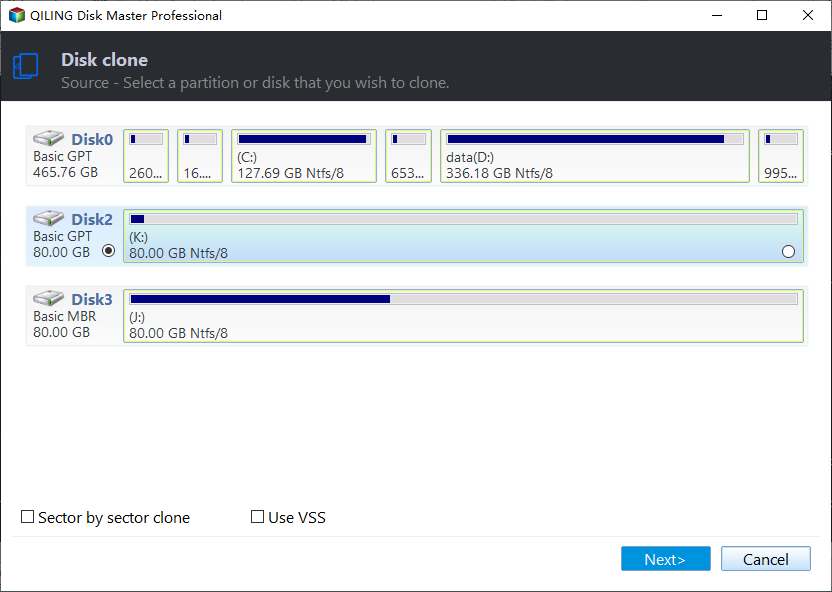
Step 1. Select the Source Disk
Open Disk Clone, choose Disk Clone, and select the internal disk that holds Windows. The partition list should show the boot partition and, on most machines, the recovery partition as well.
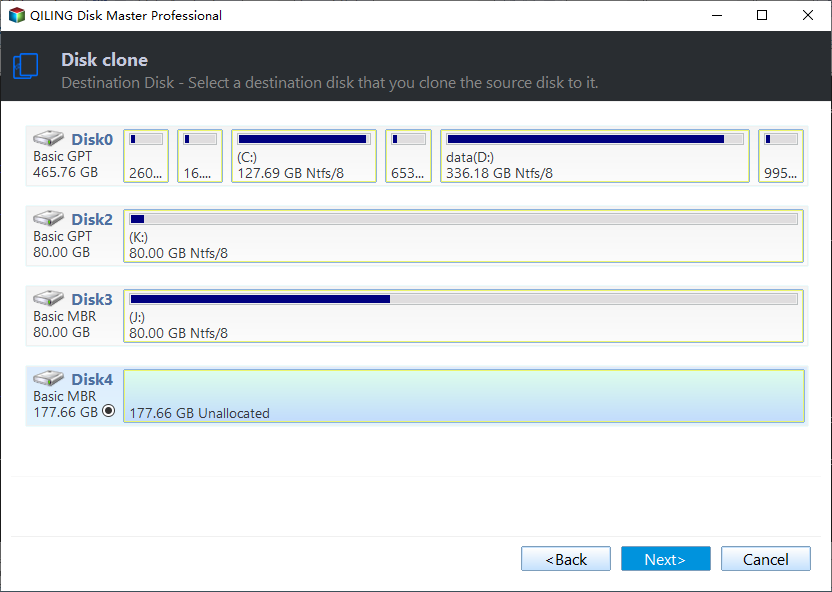
Step 2. Select the USB4 Disk as the Target
Pick the external disk and confirm its capacity and partition style in the list. If the entry cannot be selected, the enclosure is not presenting the drive as a fixed disk and the bridge needs attention first.
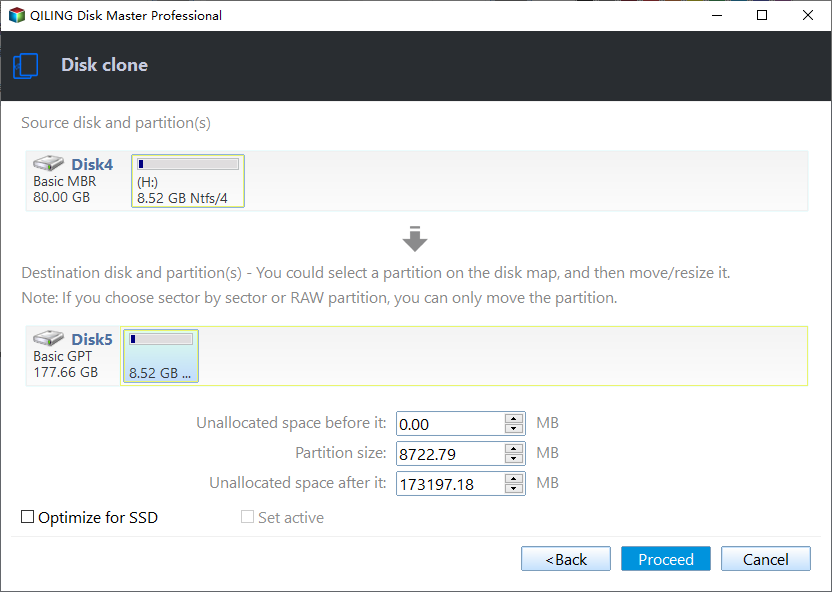
Step 3. Preview and Execute
Read the preview to confirm that every source partition maps onto the external disk, then click Proceed. Keep the enclosure connected and the machine awake until the finish message appears, since a dropped link leaves the copy incomplete.
Then restart, enter firmware setup, and set the external disk as the first boot device. A clone that reaches the desktop from the USB4 disk is finished; one that fails at this point needs the boot entry and the controller mode checked before anything else.
Frequently Asked Questions
Can Windows boot from a USB4 SSD permanently?
It can, but the firmware and the enclosure both have to support it, and an internal disk remains the faster and more reliable long-term choice.
How long does a clone to a USB4 disk take?
Roughly what the same clone takes on an internal SATA SSD, because the link is no longer the limit. The enclosure and the drive decide the rest.
Does the target need the same sector size?
It must not report a larger logical sector size than the source. A 4Kn enclosure on a 512-byte source produces a disk that will not boot.
Related Articles
- Clone a Drive with an NVMe Enclosure
- Clone Windows 11 to a Smaller SSD
- Clone an SSD with Bad Sectors
- No Bootable Device After Cloning
- System Image Recovery vs. System Restore
Products
Articles & Tutorials
- Data Recovery
- Data Backup
- File Recovery
- File Backup
- System Backup and Restore
- Disk and Partition Clone
- Technical articles
- Mobile articles
- Disk Master Help
- Windows Data Recovery Tutorials
- Windows Secure Delete Tutorials
- Windows Partition Management Tutorials
- Windows File Backup and Restore Tutorials
- Windows System Backup and Restore Tutorials
- Windows Disk Backup and Restore Tutorials
- Windows Clone Tutorials