How to Clone a WD SSD (Western Digital) to a New Drive
Western Digital ships Acronis True Image for Western Digital with its SSDs, and the download unlocks only while a WD drive is connected. That is fine for a desktop with a free M.2 slot, but it becomes awkward when the only slot is occupied by the drive you want to replace.
This guide explains how the WD bundle works, how to handle a single-slot laptop, and how to clone with Qiling Disk Master when the bundled tool is not an option.
PAGE CONTENT
- WD Clone Bundles Explained
- Prepare the WD SSD
- Handle a Single M.2 Slot
- Clone with Qiling Disk Master
- Boot from the WD SSD
- FAQs About WD Clones
- Back Up Before the Clone
WD Clone Bundles Explained
- Acronis for Western Digital is free. The license comes with most WD Blue and WD Black SSDs.
- Activation needs a WD drive. The tool checks for a WD model before it unlocks.
- It covers clone and image backup. The bundle includes disk clone and basic backups.
- It runs on Windows only. macOS and Linux users need another tool.
- It is a generic Acronis build. The interface matches the retail version, minus paid extras.
The bundle is a real benefit, but it is not a magic switch. The clone still depends on the partition style, the controller mode, and the free space on the target.
Prepare the WD SSD
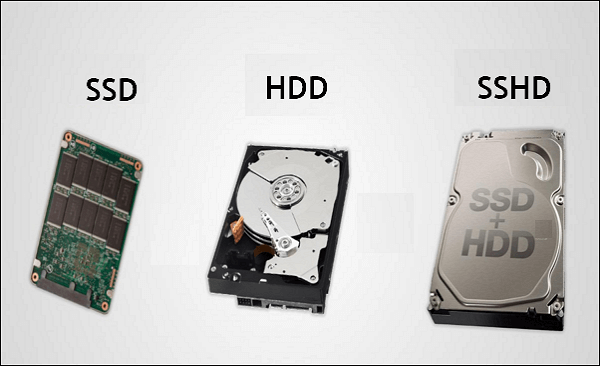
- Update the firmware. Use Western Digital Dashboard to check for updates.
- Install the drive before activation. The Acronis build scans for a WD model at launch.
- Switch to AHCI. RAID mode can hide the drive and break activation.
- Confirm the capacity. The used data must fit inside the WD drive.
- Note the partition style. MBR sources need an MBR target, GPT sources a GPT target.
Western Digital Dashboard is also the place to check health and temperature. A used WD drive that already reports reallocated sectors is not a safe clone target.
Handle a Single M.2 Slot
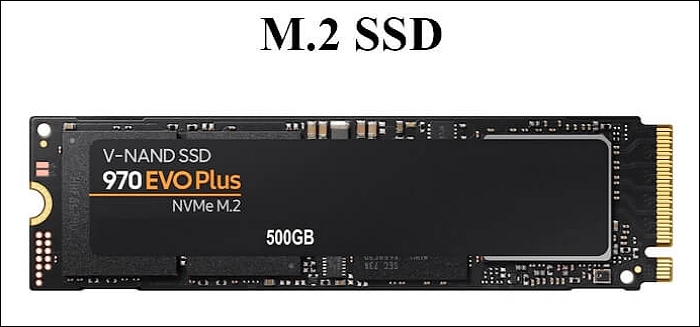
- Use a USB NVMe enclosure. Put the WD SSD in an enclosure and clone to it over USB.
- Check enclosure support. A PCIe 4.0 drive needs an enclosure rated for that speed.
- Expect the bundle to complain. The Acronis build may not see the model through USB.
- Use a brand-neutral tool. Qiling Disk Master writes to any drive it can see, including USB.
- Swap after the copy. Power off, move the WD drive into the internal slot, and boot.
A single-slot laptop is the most common case for this problem. The enclosure route avoids opening the machine twice and keeps the original drive untouched until the WD drive proves bootable.
Clone with Qiling Disk Master
Qiling Disk Master clones to WD Blue, WD Black, and older WD drives without a brand check. It also writes through a USB enclosure, which the OEM bundle often refuses.
Watch the video tutorial below to clone the drive step by step with Qiling Disk Master.
Step 1. Open Qiling Disk Master, choose Clone, and then select Disk Clone.

Step 2. Select the source disk and click Next.

Step 3. Select the WD SSD as the destination and confirm that its data will be replaced.

Step 4. Choose intelligent clone and fit the partitions to the WD capacity.

Step 5. Click Proceed, wait for the copy to finish, then shut the machine down before you remove any cable.

Boot from the WD SSD
- Move the drive to the internal slot. Remove it from the enclosure after the copy.
- Set the WD SSD first. Change the boot order in the UEFI firmware.
- Keep the old drive unplugged. A second system disk can capture the boot files.
- Reinstall the heatsink. WD Black drives throttle without the factory thermal pad.
- Check the drive letter. The system volume should still be C after the first boot.
If the WD drive does not show in the boot menu, the enclosure may have written the clone to a partition table the firmware does not accept. Re-clone directly through the internal slot.
FAQs About WD Clones
Is Acronis True Image for Western Digital really free?
Yes. It is bundled with most WD SSDs and covers disk clone and basic backups, but it unlocks only while a WD drive is connected to the system.
Can I clone to a WD SSD inside a USB enclosure?
With a brand-neutral tool, yes. The OEM Acronis build may not detect the model over USB and refuse to activate.
Will cloning to a larger WD SSD use the extra capacity?
Only if the clone tool fits the partitions to the new disk. Otherwise the extra space stays unallocated.
Does the WD clone tool support Windows 11?
Yes. Use the current build from the Western Digital support page, since older installers predate Windows 11.
Can I clone a BitLocker drive to a WD SSD?
Yes, after suspending BitLocker or by using a sector-by-sector copy that keeps the encryption intact.
Back Up Before the Clone
A single-slot laptop leaves no fallback if the clone fails, because the only drive has already been replaced. Create a full image on an external drive before you start.
Watch the video tutorial below to back up Windows and restore it if the clone fails.
Step 1. Open Qiling Disk Master and select System Backup to include the boot partitions.

Step 2. Save the image to a drive other than the target disk and start the backup.

Step 3. Click Proceed to start the system backup and wait patiently until it finishes. You can also tick Shut down the computer when the operation is completed to power off automatically.

Step 4. If the WD SSD will not start, restore the image to the original drive and repeat the clone with the internal slot.

Conclusion
Western Digital gives buyers a free Acronis build, but it locks to a connected WD model and dislikes USB targets. Prepare the drive, match the partition style, and clone with a brand-neutral tool when the machine has a single M.2 slot. After the copy, move the drive inside, set the boot order, and keep the thermal pad fitted.
For more on brand SSD upgrades, see How to Clone a Hard Drive to a SanDisk SSD, Clone an M.2 SSD With Only One Slot, How to Clone an SSD to a Larger SSD, and Clone HDD to SSD Without Software.
Related Articles
- Clone a Drive with WD Edition Acronis True Image
Clone a WD drive with the free bundled Acronis tool and repair a boot failure. - How to Clone a Hard Drive to a SanDisk SSD
Move Windows to a SanDisk drive safely. - How to Clone an SSD to a Larger SSD
Grow the system onto a bigger drive. - How to Clone a Corsair SSD to a New Drive
Migrate Windows to a Corsair Force MP600 or MP700 gaming SSD. - WD SSD Dashboard Clone: Move Windows to a Western Digital SSD
See what the WD dashboard can and cannot clone.
Products
Articles & Tutorials
- Data Recovery
- Data Backup
- File Recovery
- File Backup
- System Backup and Restore
- Disk and Partition Clone
- Technical articles
- Mobile articles
- Disk Master Help
- Windows Data Recovery Tutorials
- Windows Secure Delete Tutorials
- Windows Partition Management Tutorials
- Windows File Backup and Restore Tutorials
- Windows System Backup and Restore Tutorials
- Windows Disk Backup and Restore Tutorials
- Windows Clone Tutorials