How to Clone a Corsair SSD to a New Drive
Corsair Force series SSDs, especially the MP600 and MP700, are built for gamers who want fast game loading and short boot times. Corsair does not ship an official cloning application, and its SSD tool only monitors health. You need a third-party tool to copy Windows to a Corsair Force drive.
This guide explains the Corsair Force lineup, the thermal requirements of PCIe 4.0 and 5.0 SSDs, and the steps to clone your system onto a Corsair SSD without losing boot.
PAGE CONTENT
- Corsair Force SSD Lineup
- Thermal and Form Factor Notes
- Prepare the Corsair SSD for Cloning
- Clone with Qiling Disk Master
- Boot and Tune the Corsair SSD
- FAQs About Cloning Corsair SSDs
- Back Up Before You Clone
Corsair Force SSD Lineup
- Force MP600. A PCIe 4.0 NVMe drive with up to 4,950 MB/s sequential read, popular for mid-range gaming builds.
- Force MP700. The flagship PCIe 5.0 model that can exceed 10,000 MB/s and needs active cooling for full speed.
- Force MP510. An older PCIe 3.0 NVMe drive still found in prebuilt systems and laptop upgrades.
- No bundled clone tool. Corsair SSD Toolbox reads SMART values and updates firmware but cannot migrate the OS.
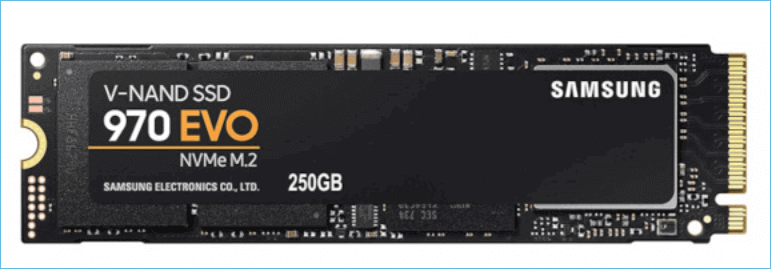
- All use M.2 2280. Every current Corsair Force model is an M.2 2280 stick that fits a standard NVMe slot.
Corsair focuses on raw throughput for game assets, so the right clone method preserves the partition layout and ensures the boot records point to the new controller.
Thermal and Form Factor Notes
- PCIe 4.0 and 5.0 run hot. Sustained writes on MP600 and MP700 push the controller past 70C without cooling.
- Heatsink thickness matters. A tall aftermarket heatsink can collide with the GPU backplate or the motherboard shield.
- M.2 2280 clearance. Check that the Corsair SSD plus heatsink fits under the motherboard M.2 cover before screwing it down.
- Boot from PCIe 5.0. Older motherboards may not support booting from a PCIe 5.0 slot, so update the BIOS first.
- Game load optimization. DirectStorage titles benefit most from a fast NVMe drive with low queue-depth latency.
Attach the Corsair SSD to a slot wired directly to the CPU for the lowest latency. A secondary chipset slot still works but adds latency and shares bandwidth with other devices.
Prepare the Corsair SSD for Cloning
- Mount the M.2 stick. Insert the Corsair SSD into the slot at an angle and secure the end screw, then fit the heatsink.
- Update the motherboard BIOS. A current BIOS improves NVMe detection and adds PCIe 5.0 boot support.
- Confirm the drive in Disk Management. The Corsair SSD should appear as unallocated space with the correct capacity.
- Empty the target if it has data. Cloning wipes every partition on the Corsair SSD, so back up its contents first.
- Turn off fast startup. This prevents Windows from leaving the source volume locked during the clone.
Do not manually create partitions on the Corsair SSD. Let the clone tool build the EFI, recovery, and system volumes from the source layout.
Clone with Qiling Disk Master
Qiling Disk Master handles Corsair Force PCIe 4.0 and 5.0 SSDs, aligns partitions at 4K, and fixes the boot records so Windows starts from the new drive.
Watch the video tutorial below to clone the drive step by step with Qiling Disk Master.
Step 1. Open Qiling Disk Master, choose Clone, and then select Disk Clone.

Step 2. Select the current system disk as the source and click Next.

Step 3. Pick the Corsair Force SSD as the destination and confirm that its data will be replaced.

Step 4. Enable SSD optimization and 4K alignment so the Corsair drive reaches its rated speed.

Step 5. Click Proceed, wait for the copy to finish, then shut down before changing the boot order.

Boot and Tune the Corsair SSD
- Set the Corsair SSD first in BIOS. Move it to the top of the UEFI boot order.
- Boot with the old drive unplugged. This confirms the Corsair SSD can start Windows on its own.
- Install Corsair SSD Toolbox. Check the firmware version and apply any available update.
- Monitor temperatures. Use Corsair Toolbox or HWMonitor to ensure the controller stays under the throttle point.
- Test game load times. Compare a DirectStorage title before and after the swap to confirm the upgrade.
If the Corsair SSD is not listed in the boot menu, reboot into BIOS and enable the NVMe slot or switch it to UEFI mode. Legacy BIOS cannot boot from a GPT NVMe drive.
FAQs About Cloning Corsair SSDs
Does Corsair include cloning software with its SSDs?
No. Corsair does not bundle a clone utility. Corsair SSD Toolbox only reports health and updates firmware, so use a third-party tool such as Qiling Disk Master.
Can I clone to a Corsair Force MP700 PCIe 5.0 SSD?
Yes, as long as your motherboard supports PCIe 5.0 boot. Update the BIOS first and make sure the slot is set to UEFI mode.
Why is my Corsair SSD throttling after cloning?
PCIe 4.0 and 5.0 drives get hot during the clone and under heavy game loads. Add a heatsink or use the motherboard M.2 shield to keep temperatures down.
Will a tall heatsink on the Corsair SSD block my GPU?
Possibly. Measure the clearance under the GPU backplate and under the motherboard cover before buying a heatsink. Low-profile models are safer.
Do I need to reinstall Windows after cloning to a Corsair SSD?
No. A proper clone copies the system partition and rebuilds the boot records, so Windows boots directly from the Corsair SSD without reinstallation.
Back Up Before You Clone
Cloning to a Corsair SSD wipes the target and can fail if the source has errors. Back up Windows first so you can restore if the new drive does not boot.
Watch the video tutorial below to back up Windows and restore it if the clone fails.
Step 1. Open Qiling Disk Master and select System Backup to include the boot partitions.

Step 2. Save the image to a drive other than the Corsair target and start the backup.

Step 3. Click Proceed to start the system backup and wait patiently until it finishes. You can also tick Shut down the computer when the operation is completed to power off automatically.

Step 4. If the Corsair SSD fails to boot, restore the system image and retry the clone with SSD alignment enabled.

Conclusion
Corsair Force MP600 and MP700 SSDs deliver high gaming performance but come without cloning software. Use a tool that aligns 4K sectors, rebuilds the boot records, and handles PCIe 4.0 and 5.0 controllers. Add a heatsink to avoid throttling, set the Corsair SSD first in BIOS, and boot it alone to confirm the migration.
For more on high-speed SSD upgrades, see Clone to a PCIe 5.0 SSD, Clone Windows to a PCIe 4.0 SSD, Clone an NVMe SSD to a Larger NVMe, and SSD Slow After Cloning? Fix It.
Related Articles
- How to Clone an ADATA SSD to a New Drive
Migrate Windows to XPG Gammix and Ultimate ADATA SSDs. - How to Clone a Kingston SSD to a New Drive
Move the system to Kingston NV2, NV3, and A400 drives. - How to Clone a Crucial SSD to a New Drive
Clone to Crucial MX500, P3, and P5 Plus SSDs. - How to Clone a Samsung 990 PRO SSD
System migration for Samsung's flagship PCIe 4.0 SSD. - Clone an SSD to a Larger SSD
Expand storage while keeping Windows bootable.
Products
Articles & Tutorials
- Data Recovery
- Data Backup
- File Recovery
- File Backup
- System Backup and Restore
- Disk and Partition Clone
- Technical articles
- Mobile articles
- Disk Master Help
- Windows Data Recovery Tutorials
- Windows Secure Delete Tutorials
- Windows Partition Management Tutorials
- Windows File Backup and Restore Tutorials
- Windows System Backup and Restore Tutorials
- Windows Disk Backup and Restore Tutorials
- Windows Clone Tutorials