How to Clone a Samsung 990 PRO SSD to a New Drive
The Samsung 990 PRO is one of the fastest consumer NVMe SSDs ever released. It uses a PCIe 4.0 x4 interface in an M.2 2280 form factor and reaches sequential read speeds above 7,000 MB per second. Whether you want to move its Windows installation to a larger drive or rescue data from a failing 990 PRO, cloning is the right approach.
This guide explains what makes the 990 PRO special, what Samsung Data Migration can and cannot do, why cooling matters, and the steps to clone the drive with a reliable third-party tool.
PAGE CONTENT
- What Makes the Samsung 990 PRO Special
- Samsung Data Migration Limits
- Prepare the 990 PRO and the Target Drive
- Clone the 990 PRO with Qiling Disk Master
- Boot from the New Drive
- FAQs About Cloning the 990 PRO
- Back Up the 990 PRO First
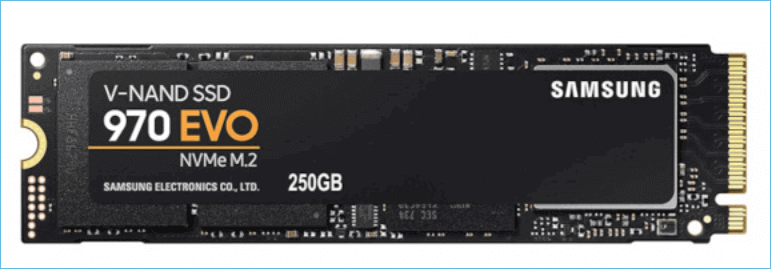
What Makes the Samsung 990 PRO Special
- PCIe 4.0 x4 NVMe. The 990 PRO uses four PCIe 4.0 lanes for up to 7,450 MB per second sequential reads.
- M.2 2280 form factor. It measures 22 mm wide by 80 mm long, the most common M.2 size for desktop NVMe slots.
- V-NAND TLC. Samsung stacks TLC memory cells to combine high capacity with good endurance.
- Pascal controller. The in-house controller delivers low latency and strong sustained performance.
- High power and heat. Under heavy load the 990 PRO pulls up to 9 watts, so it needs a heatsink or motherboard cooling.
Because the 990 PRO runs hot, it often comes with a heatsink in the retail box or relies on the motherboard's M.2 shield. When cloning it through a USB enclosure, make sure the enclosure actively cools the drive; throttling from heat can slow the clone or even stop it.
Samsung Data Migration Limits
- Samsung target only. Samsung Data Migration only works when the destination is a Samsung SSD.
- System disk only. SDM clones the current boot disk; it cannot clone a secondary data drive.
- No partition resizing. SDM does not let you resize or rearrange partitions on the target disk.
- Single source volume. It copies the system disk as one unit and ignores extra disks.
- Limited error recovery. If the source has bad sectors, SDM may fail without a skip option.
If you are moving from a 990 PRO to a non-Samsung drive, or you need to resize partitions, Samsung Data Migration is the wrong tool. A general-purpose clone utility such as Qiling Disk Master supports any brand of source and target and lets you adjust partition sizes during the job.
Prepare the 990 PRO and the Target Drive
- Confirm PCIe 4.0 support. The motherboard and CPU must support PCIe 4.0 for the 990 PRO to run at full speed.
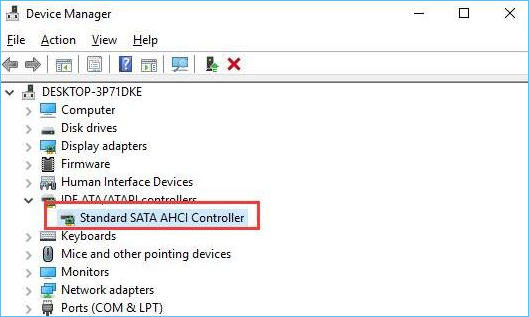
- Use AHCI mode. Set the SATA storage controller to AHCI in BIOS, not RAID or IDE, so NVMe drives are detected correctly.
- Keep the drive cool. Attach a heatsink to the 990 PRO during the clone, especially when using a USB enclosure.
- Check target capacity. The target drive must be at least as large as the used space on the 990 PRO.
- Update firmware. Run Samsung Magician to update the 990 PRO firmware before cloning a failing unit.
If the 990 PRO is failing and throwing SMART warnings, prioritize backing up personal files first. Then run the clone; a sector-by-sector copy can often recover data that the file system can no longer read.
Clone the 990 PRO with Qiling Disk Master
Qiling Disk Master can clone the 990 PRO to any brand of NVMe or SATA SSD. It preserves the NVMe boot layout, aligns partitions for 4K, and supports bad-sector skip so a failing source does not abort the job.
Watch the video tutorial below to clone the drive step by step with Qiling Disk Master.
Step 1. Open Qiling Disk Master, choose Clone, and then select Disk Clone.

Step 2. Select the Samsung 990 PRO as the source disk and click Next.

Step 3. Choose the new target SSD and confirm that its existing data will be erased.

Step 4. Enable SSD Alignment, optionally resize partitions, and enable bad-sector skip if the 990 PRO is failing.

Step 5. Click Proceed, wait for the copy to finish, then shut down and swap the drive before the first boot.

Boot from the New Drive
- Power down fully. Shut Windows down completely; do not use hibernate or sleep before swapping the SSD.
- Swap the M.2 drive. Remove the 990 PRO from its slot and install the new target SSD in the same slot.
- Reattach the heatsink. Put the motherboard heatsink or the retail cooler back on the new NVMe drive.
- Check the boot order. Enter BIOS and make sure the new SSD is listed as the first boot device.
- Boot and test. Start Windows, open Disk Management, and confirm the new drive holds the system volume.
If Windows fails to boot, enter BIOS and confirm the storage controller is set to AHCI. The 990 PRO uses NVMe, so RAID or IDE mode can leave the new drive invisible. You can also run Startup Repair from a Windows USB to rebuild the boot loader.
FAQs About Cloning the 990 PRO
Can I use Samsung Data Migration to clone the 990 PRO to a WD Black SSD?
No. Samsung Data Migration only supports Samsung target drives. For a non-Samsung target, use a third-party tool such as Qiling Disk Master.
Why does my 990 PRO get so hot during cloning?
The 990 PRO draws up to 9 watts under sustained load. Add a heatsink or place the laptop on a cooling pad; overheating causes thermal throttling and can stop the clone.
Will the 990 PRO work in a PCIe 3.0 slot?
Yes, but it will be limited to PCIe 3.0 speeds around 3,500 MB per second. Cloning still works; only the transfer speed is reduced.
Do I need to reinstall Samsung Magician on the cloned drive?
No. Magician is a Windows application and is copied with the rest of the system. You may need to re-run firmware updates after the first boot on the new drive.
Can I clone a 1 TB 990 PRO to a 2 TB drive and keep the extra space?
Yes. During the clone, resize the Windows partition to fill the target, or extend it afterward in Disk Management to use the full 2 TB.
Back Up the 990 PRO First
When the source is a fast NVMe drive, a clone is quick, but a failing 990 PRO can throw read errors at any moment. A system image backup protects your data if the clone is interrupted or the source drops offline.
Watch the video tutorial below to back up Windows and restore it if the clone fails.
Step 1. Open Qiling Disk Master and select System Backup to image the 990 PRO system disk.

Step 2. Save the image to a separate internal or USB drive and start the backup.

Step 3. Click Proceed to start the backup and wait for the progress bar to finish. The larger the drive, the longer this takes.

Step 4. If the cloned drive will not boot, restore the image to the new SSD and run Startup Repair from Windows Recovery.

Conclusion
Cloning the Samsung 990 PRO requires attention to heat, PCIe generation, and the limits of Samsung Data Migration. Use a third-party tool when moving to a non-Samsung drive or when you need partition resizing. Keep the drive cool, enable AHCI in BIOS, and make sure the target has enough capacity for the used space on the 990 PRO.
For more on NVMe cloning and boot fixes, see Clone an NVMe SSD to a Larger NVMe, SSD Slow After Cloning? Fix It, Cloned Drive Won't Boot? Fix It, and 4K Alignment When Cloning an SSD.
Related Articles
- Samsung Data Migration Not Working
Troubleshoot common Samsung Data Migration failures. - Clone a Western Digital SSD
Move Windows to a WD Blue, Black, or Green SSD. - Clone a Crucial SSD
Clone to a Crucial MX or P series solid-state drive. - Clone an SK Hynix SSD
Transfer data to an SK Hynix Platinum or Gold SSD. - Clone Windows to a Samsung 970 EVO Plus SSD
Clone Windows to this PCIe 3.0 NVMe drive and avoid boot problems.
Products
Articles & Tutorials
- Data Recovery
- Data Backup
- File Recovery
- File Backup
- System Backup and Restore
- Disk and Partition Clone
- Technical articles
- Mobile articles
- Disk Master Help
- Windows Data Recovery Tutorials
- Windows Secure Delete Tutorials
- Windows Partition Management Tutorials
- Windows File Backup and Restore Tutorials
- Windows System Backup and Restore Tutorials
- Windows Disk Backup and Restore Tutorials
- Windows Clone Tutorials