Samsung Data Migration Not Working? Fix Clone Errors
Samsung Data Migration is bundled with Samsung SSDs, but it often stops with a generic error during the clone. The tool is strict about the source disk, the target size, and the storage controller mode, and any of these can make the migration fail.
This guide covers the most common Samsung Data Migration failures, the quick fixes for each, and a reliable alternative when the Samsung tool keeps rejecting the disk.
PAGE CONTENT
- Common Failures and Causes
- Fix the Source Disk Errors
- Match the Target Size and Mode
- Clone with Qiling Disk Master
- Boot from the Samsung SSD
- FAQs About Samsung Migration
- Back Up Before the Clone
Common Failures and Causes
- "Cloning failed. Check the source disk." Bad sectors or file system errors on the source stop the copy.
- "Target disk is not connected." A USB bridge that the tool does not recognize hides the SSD.
- "Target disk is too small." Used space exceeds the Samsung SSD even if raw capacity is larger.
- "Samsung Data Migration has stopped working." The tool crashes on AHCI/RAID mode or old drivers.
- Errors are rarely the SSD. The tool fails on the environment, not the drive itself.
Most errors are not the SSD itself. The migration tool reads the disk in a rigid way and gives up at the first sign of trouble instead of repairing it.
Fix the Source Disk Errors
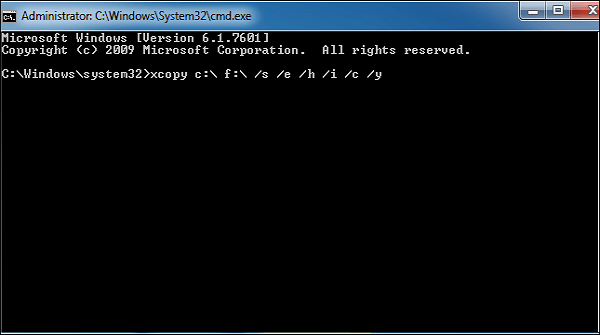
- Run chkdsk /r. Open Command Prompt as administrator and run chkdsk C: /r to repair bad sectors.
- Run SFC and DISM. System file corruption can break the clone at the system volume.
- Check SMART. A failing source disk will not clone with any tool.
- Clean up junk files. Smaller used data makes a smaller-target clone succeed.
- Restart after repairs. chkdsk and SFC changes apply fully after a reboot.
chkdsk needs a restart on the system drive. Let it finish before running the migration again.
Match the Target Size and Mode
- Connect the SSD directly. Use an M.2 slot or a SATA port, not a USB adapter that hides the model.
- Free up the source. Delete old files until used space is below the target capacity.
- Switch to AHCI. Enter BIOS and set the SATA controller to AHCI, not RAID or IDE.
- Update the driver. Install the latest Samsung NVMe driver for the SSD.
- Update the migration tool. Older builds fail on new SSD models.
Samsung Data Migration expects a clean AHCI environment and a target it can identify as a Samsung SSD. A USB bridge often makes the SSD look like a generic drive and the tool refuses it.
Clone with Qiling Disk Master
If Samsung Data Migration still fails, Qiling Disk Master clones any brand of SSD, works over USB, and skips errors automatically. The steps are the same for Samsung, Crucial, WD, or Kingston drives.
Watch the video tutorial below to clone the drive step by step with Qiling Disk Master.
Step 1. Open Qiling Disk Master, choose Clone, and then select Disk Clone.

Step 2. Select the source disk and click Next.

Step 3. Select the destination Samsung SSD and confirm that its data will be replaced.

Step 4. Choose Fit partitions to entire disk if the Samsung SSD is larger, or keep sizes if it matches.

Step 5. Click Proceed, wait for the copy to finish, then shut the machine down before you remove any cable.

Boot from the Samsung SSD
- Shut down fully. Do not restart; power off before swapping drives.
- Set the SSD first. In BIOS, put the Samsung SSD at the top of the boot order.
- Check Secure Boot. A GPT clone needs Secure Boot on; MBR needs it off.
- Disconnect the old drive. Boot once with only the SSD to confirm it is bootable.
- Update Samsung Magician. Use the latest version for firmware and driver updates.
If the Samsung SSD will not boot, the SATA mode probably differs from the source. Switch between AHCI and IDE or boot into Safe Mode so Windows loads the matching driver.
FAQs About Samsung Migration
Why does Samsung Data Migration say the target disk is not connected?
The SSD is behind a USB adapter the tool does not recognize. Connect it directly to an M.2 or SATA port, or use a different cloning tool.
Can Samsung Data Migration clone to a smaller SSD?
Only if the used space fits. Clean up the source first, or use a tool that resizes partitions automatically.
Does Samsung Data Migration support NVMe?
Yes, but the NVMe driver and AHCI mode must be installed. Older versions fail on PCIe 4.0 and 5.0 drives.
What should I do if the clone keeps failing?
Run chkdsk, check SMART, switch to AHCI, and try again. If it still fails, use a third-party cloning tool.
Will my Samsung warranty be void if I use another tool?
No. The SSD hardware warranty is not affected by the software used to clone it.
Back Up Before the Clone
A failed migration can leave the Samsung SSD unformatted. Back up the source before you try any fix so you can restore if the tool corrupts the target.
Watch the video tutorial below to back up Windows and restore it if the clone fails.
Step 1. Open Qiling Disk Master and select System Backup to include the boot partitions.

Step 2. Save the image to a drive other than the target disk and start the backup.

Step 3. Click Proceed to start the system backup and wait patiently until it finishes. You can also tick Shut down the computer when the operation is completed to power off automatically.

Step 4. If Samsung Data Migration corrupts the target, restore the image to the Samsung SSD and try a different cloning tool.

Conclusion
Samsung Data Migration fails on bad sectors, unrecognized USB bridges, and strict size and mode requirements. Fix the source with chkdsk, connect the SSD directly, and use AHCI. If the tool still refuses the disk, a third-party clone utility such as Qiling Disk Master finishes the same Samsung SSD upgrade reliably.
For more on Samsung and other SSD upgrades, see Macrium Reflect vs Samsung Data Migration, Clone Windows to a PCIe 4.0 SSD, and Clone an M.2 SSD With Only One Slot.
Related Articles
- Macrium Reflect vs Samsung Data Migration
Compare two popular clone tools. - How to Clone a Samsung 990 PRO SSD to a New Drive
Clone the Samsung 990 PRO PCIe 4.0 NVMe SSD to a larger drive. - Samsung Magician Data Migration: Clone to Samsung SSD
Move Windows to a Samsung SSD with the Data Migration wizard and fix a stalled clone. - Cloned Drive Won't Boot? Fix It
Repair the boot after a failed clone.
Products
Articles & Tutorials
- Data Recovery
- Data Backup
- File Recovery
- File Backup
- System Backup and Restore
- Disk and Partition Clone
- Technical articles
- Mobile articles
- Disk Master Help
- Windows Data Recovery Tutorials
- Windows Secure Delete Tutorials
- Windows Partition Management Tutorials
- Windows File Backup and Restore Tutorials
- Windows System Backup and Restore Tutorials
- Windows Disk Backup and Restore Tutorials
- Windows Clone Tutorials