DiskPart List Disk Shows No Disks: What to Check
Quick Navigation:
- What an Empty List Means
- Restart the Service and Rescan
- Prove the Disk Is Alive
- Refresh the List, Check the Partition, and Back Up
- Frequently Asked Questions
An empty disk list is a statement about visibility, not about capacity. A disk tool lists only the disks that the storage stack has successfully enumerated, so a controller without a driver, a service that is not running, or an array that has not been imported leaves the list blank while the hardware is perfectly healthy. Working out which layer is missing is faster, and far safer, than reinstalling anything. The checks below start at the top of that stack and work down towards the drive.
What an Empty List Means
DiskPart is a Microsoft command-line tool that ships with Windows and is not part of Qiling Disk Master. It is mentioned here only to explain why its list can be empty; the steps in this guide use the graphical disk map and the partition tools instead, so nothing below requires a command prompt or a typed command of any kind at all.
The tool asks Virtual Disk Service for the disk list, and the service in turn asks each storage driver. A break at any point in that chain removes the disk from the answer. A stopped service, a missing driver, and an adapter that never enumerated all produce the same blank output, which is why the message alone does not identify the real cause of the problem.
A disk that is offline still appears in the list, and so does an uninitialized disk, which is shown without a partition style. When nothing at all is listed, the device never reached the stack, and the fault sits below the partition level rather than in the volume itself that you were still trying to repair in the first place.
Restart the Service and Rescan
Open the services console and confirm that Virtual Disk Service is running. Start it if it is stopped, then reopen the disk tool and rescan. A service that failed after an update or a crash is a common reason for a list that was complete yesterday, and the restart costs nothing. When a service is not running, no disk appears no matter how many times the machine reboots.
Then check Device Manager for unknown devices, devices with a warning icon, and storage controllers that show a generic name. A controller in that state has no driver, and every disk behind it is invisible until the driver is installed from the board or the card vendor. On a machine set to RAID or VMD, the disks also belong to an array that must be imported in the firmware utility before Windows can present them.
Prove the Disk Is Alive
Look at the firmware list at boot. A drive that is absent there is a cabling, power, or slot problem, and no driver will bring it back. Reseat the drive, try another port, and listen for it spinning up if the unit is mechanical rather than solid state. A drive that is present in firmware but absent from Windows points at the driver or the mode instead.
A drive that appears on another machine but not this one points at the board, and testing the same disk in a different enclosure separates the medium from the bridge in a few minutes. Do not initialize or format a disk just because a tool offers to do it. An offer to initialize means the partition table could not be read, and confirming it writes a new table over the old one.
Refresh the List, Check the Partition, and Back Up
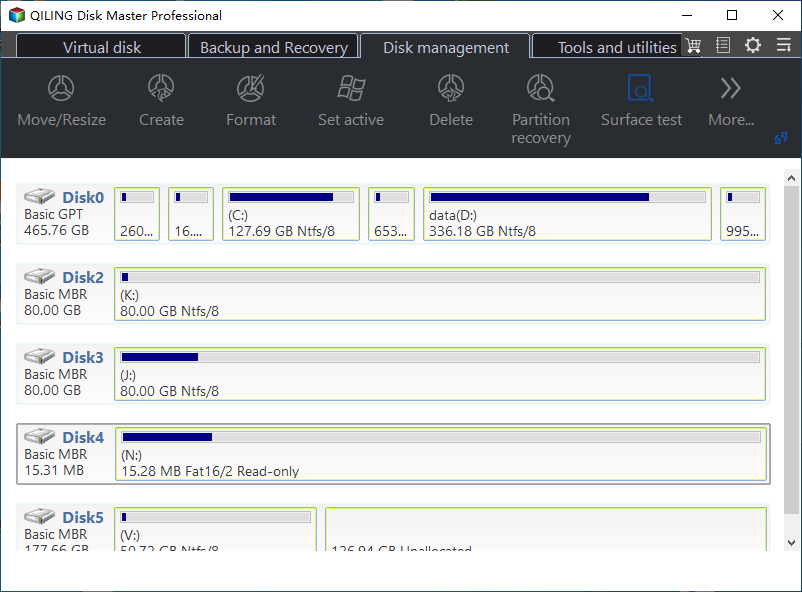
Qiling Disk Master builds its disk map from the same storage stack, so it is a quick way to see whether anything changed after a service or driver fix. The map also shows the partition style and the free space of each disk in one view, which is useful before any repair is attempted on a drive that has already been misbehaving.
Step 1. Refresh the Disk Map
Open the application and look at the disk map. Each row is one physical disk with its number, style, capacity, and partitions. Compare the rows with the drives in the case; a drive that is missing here is missing from Windows as well, and the map is rebuilt every time the window opens again, so a fresh look costs nothing.
Step 2. Check the Partition
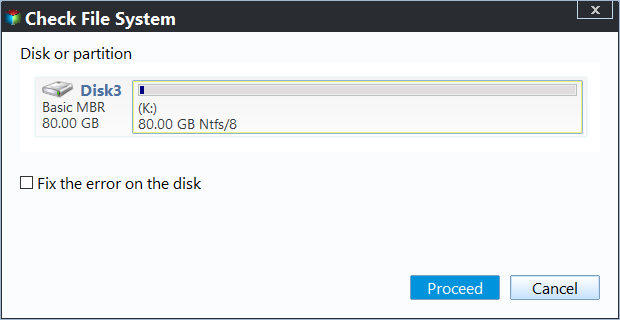
Right-click the volume and open Advanced, then Check File System, and run the first pass without the repair option. The report names index, security descriptor, and journal errors, which is the information you need before deciding whether the volume should be repaired or only copied. A volume that was never checked before may report entries that are harmless, so read the log rather than the headline.
Step 3. Back Up the Disk
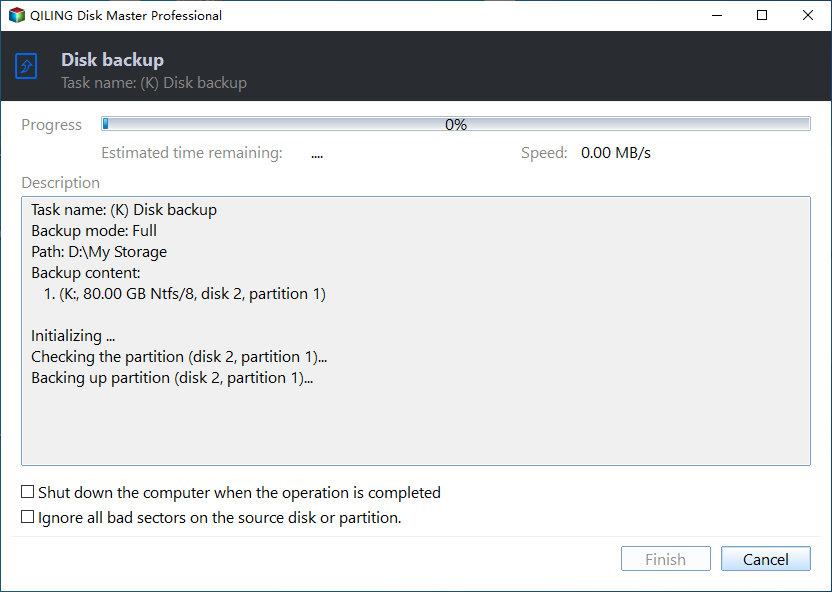
Open the Backup and Recovery tab, choose Disk/Partition backup, and tick the disk. Set the destination on another physical disk, check the free space, then preview the task and click Proceed. Watch the first percentage: a task that stops at the same place twice is reading a failing area rather than a busy file, and a second copy is worth more than a repair.
Frequently Asked Questions
Will a rescan bring back a disk with no driver?
No. Rescanning asks the existing drivers again, and a controller without a driver cannot answer. Install the driver first, then rescan, and the disks behind that controller appear in the same pass without a restart. If the disks are still missing after that, the fault is in the slot, the cable, or the drive itself rather than in Windows at that stage.
Why does a USB drive list without a capacity?
That is a bridge or media condition, not a Windows one. The reader is present but no medium is being reported, so check the card, the enclosure, and the cable before you assume the drive has failed. A card that works in another reader tells you clearly that the reader, not the card, is the real problem in the end.
Do I need a command-line tool to fix this?
No. The service state, the driver, and the disk layout can all be read from the graphical tools, and those are less likely to write to the wrong disk while a device is disappearing and returning. The command line is useful for scripting, not for diagnosing a disk that keeps vanishing in the middle of a task at the worst possible moment.
Related Articles
- Disk Management Keeps Refreshing and Shows No Disks
- Disk Offline After a Windows Update
- Windows 10 Drive Converted to RAW Format
- Laptop Shows Only the C Drive and No Other Drives
- Storage Spaces Disk Missing and Cannot Be Removed
Products
Articles & Tutorials
- Data Recovery
- Data Backup
- File Recovery
- File Backup
- System Backup and Restore
- Disk and Partition Clone
- Technical articles
- Mobile articles
- Disk Master Help
- Windows Data Recovery Tutorials
- Windows Secure Delete Tutorials
- Windows Partition Management Tutorials
- Windows File Backup and Restore Tutorials
- Windows System Backup and Restore Tutorials
- Windows Disk Backup and Restore Tutorials
- Windows Clone Tutorials