External Drive Randomly Goes Offline: Causes and Fixes
Quick Navigation:
- Why the Drive Goes Offline at Random
- Copy the Data While It Is Online
- Check Power, Policy, and the Log
- Back Up, Test, and Clone the Drive
- Frequently Asked Questions
The external drive is in File Explorer, then it is not, and Disk Management shows it as offline until the cable is pulled and plugged back in. The word offline matters here. A disk that is offline still has power and a link, so the volume was unmounted rather than disconnected, while a disk that disappears from the list lost the link itself. The two states have different causes, and telling them apart is the first step toward a fix that holds.
Why the Drive Goes Offline at Random
USB selective suspend can power down an idle port while the machine is awake. When the enclosure bridge wakes more slowly than the controller expects, Windows marks the device as not present, and the volume vanishes until the bus is scanned again. A drop that arrives on a schedule, always after the same idle period, is almost always this setting.
Power is the second cause. A desktop enclosure with an undersized adapter, a portable drive on a bus-powered hub, and an old cable with thin conductors all fail in the same way: the link holds until the motor draws current, then the bridge browns out and reconnects. Sleep and resume add a second power event on top of that.
The offline state itself can come from policy. Windows can leave a disk offline after a surprise removal, and a disk whose signature duplicates another disk is kept offline on purpose so that two volumes with the same identity are never written at once. In both cases the drive is healthy and the volume is simply not mounted.
The enclosure bridge is the part most often overlooked. Bridge chips have their own firmware, their own idle timer, and their own handling of spin-down. Some power the SATA side down while the USB side stays up, and Windows records that as a disk that stopped responding. A bridge that resets under a large transfer produces the same random pattern.
Copy the Data While It Is Online
The drive being offline does not mean the data is gone, but repeated surprise removals can leave the file system inconsistent. Copy what matters while the drive is online and stable, and do not format or initialize it in response to a warning, because the partitions are usually still intact.
Sort the folders by size and copy in batches so an interruption costs minutes. Write to a disk on the internal controller rather than to another external drive, so that one power event cannot interrupt both ends of the transfer. If the drive stays online for only a few minutes at a time, copy the smallest and most important folders first.
An image of the whole partition is worth the extra time when the drive has already dropped several times, because it preserves files that no longer open. Store the image on a disk that is not in the same enclosure and not on the same hub, and verify it by reading a folder back before the drive is unplugged for testing.
Check Power, Policy, and the Log
Device Manager, Disk Management, Event Viewer, Power Options, and PowerShell are Microsoft tools and are not part of Qiling Disk Master. They are described here only to read the state of the drive; the backup, surface test, and clone later in this guide are performed with Qiling Disk Master.
In Power Options, disable USB selective suspend for both battery and plugged-in, and set the hard disk turn-off time to Never while you test. In Device Manager, open each USB root hub and clear the option that lets Windows turn the device off to save power. Change one setting at a time and use the drive for an hour before changing the next.
In Disk Management, note whether the disk is listed as offline or is absent from the list, then bring an offline disk back online from its context menu. If it returns offline again after an idle period, the cause is power management rather than a failing drive. Event Viewer shows whether the volume was removed without an eject and whether the controller reset at the same moment.
Then test the hardware around the drive. Move the cable to a rear port with no hub in between, use the enclosure's own power adapter if it has one, and replace the cable with a short known-good one. A drive that stays online on a rear port but drops on a dock or a hub has a power problem, not a disk problem.
Back Up, Test, and Clone the Drive
Qiling Disk Master works on the drive while Windows has it online. The three operations below answer three different questions: the backup protects the data, the surface test decides whether the drive or the bridge is at fault, and the clone moves the contents to a disk that stays connected. Finish the backup before the drive is moved to another port.
Operation 1: Back Up the External Drive
This operation applies as soon as the drive is online and readable, and it is the only step that must finish before any cable or enclosure is changed.
Step 1. Select the drive and a destination on the internal disk. Open Backup and Recovery, choose Disk/Partition backup, and tick the external drive. Set the destination to the internal disk so the image does not depend on the enclosure that keeps dropping.
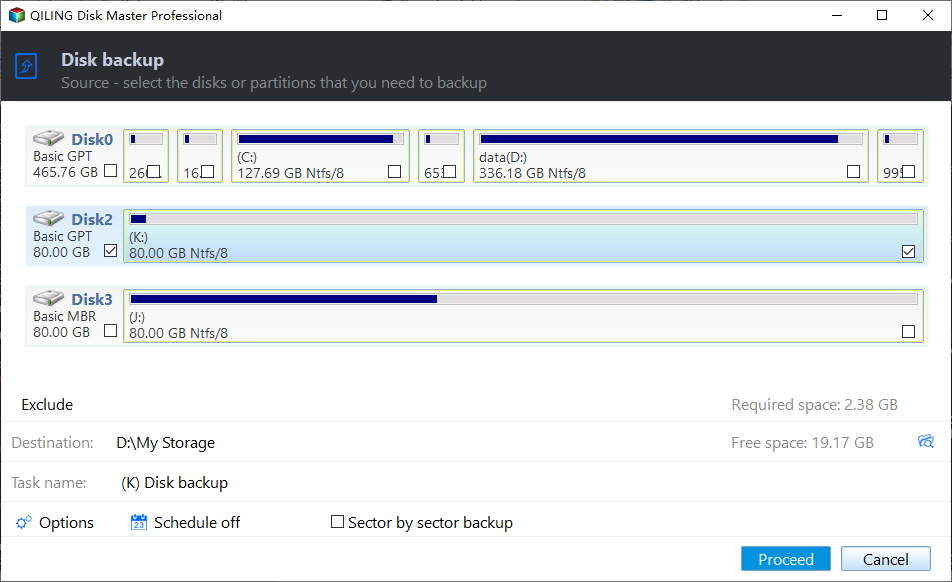
Step 2. Preview the task, click Proceed, and verify the image. Check the source and the destination in the preview, run the task, then read a folder back from the image. Keep the drive connected and the cable still until the task reports that it has finished.
Operation 2: Test the Disk Inside the Enclosure
This operation applies when the drive goes offline without a pattern and you need to know whether the platters or the bridge are responsible. The test reads every sector and writes nothing.
Step 1. Start the surface test on the external disk. Select the disk in the main window, open Disk Surface Test, and begin the scan. Do not move the enclosure during the test, and stop it if the drive drops, because a drop hides the result.
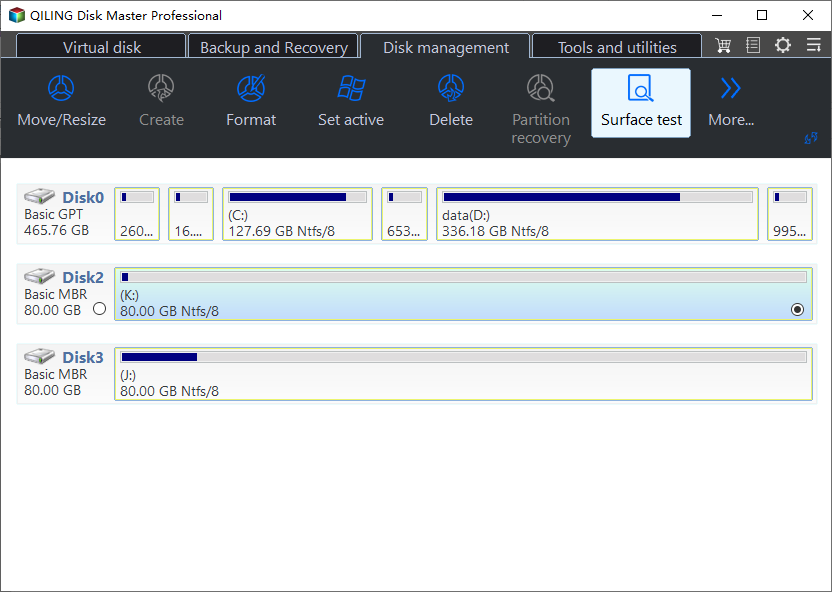
Step 2. Compare the result with the drops you saw. Unreadable blocks mean the drive is failing and the data should move now. A clean scan points at the bridge, the cable, or the power path, and the enclosure is then the part to replace.
Operation 3: Clone to a Disk That Stays Online
This operation applies when the contents have to leave the enclosure, either because the drive failed the test or because the bridge cannot be trusted. The destination disk is overwritten.
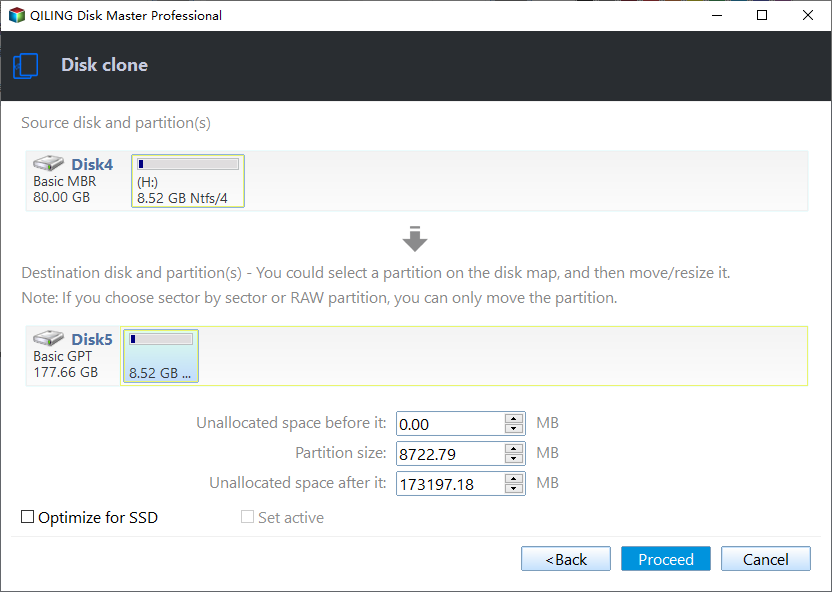
Step 1. Choose the external drive as the source and an internal disk as the destination. Open Disk/Partition clone, select the external drive, then the destination. A larger destination keeps the extra space unallocated until you use it.
Step 2. Preview the task and click Proceed. Confirm both disks in the preview, run the clone, and leave the enclosure alone until it finishes. Read the new disk once before the old enclosure is retired.
Frequently Asked Questions
Why does the drive go offline only after sleep?
The port loses power or the bridge wakes slower than the controller timeout, so Windows records the device as missing. Disable selective suspend, clear the hub power option, and test sleep again before you replace the enclosure.
Is an offline disk the same as a disconnected disk?
No. An offline disk still has power and a link but its volume is not mounted, while a disconnected disk has left the bus entirely. The first points at policy or power management, the second at the cable, the port, or the bridge.
Can I bring the disk online without losing data?
Usually yes, from the disk's context menu in Disk Management. The data is intact as long as the volume is not formatted or initialized, so copy it first and only then decide whether the disk or the enclosure has to be replaced.
Related Articles
- External Drive Missing After Sleep
- USB-C Port Not Detecting an External Drive
- Mapped Network Drive Disconnects in Windows 11
- USB4 or Thunderbolt 5 External SSD Not Detected
- Crucial X9 Pro Not Detected in Windows
Products
Articles & Tutorials
- Data Recovery
- Data Backup
- File Recovery
- File Backup
- System Backup and Restore
- Disk and Partition Clone
- Technical articles
- Mobile articles
- Disk Master Help
- Windows Data Recovery Tutorials
- Windows Secure Delete Tutorials
- Windows Partition Management Tutorials
- Windows File Backup and Restore Tutorials
- Windows System Backup and Restore Tutorials
- Windows Disk Backup and Restore Tutorials
- Windows Clone Tutorials