USB-C Port Not Detecting an External Drive
Quick Navigation:
- Separate the Port From the Cable
- Check the Power Role
- Confirm in Device Manager and Disk Management
- Copy the Data Once It Appears
- Frequently Asked Questions
USB-C describes a connector, not a capability. The same port can carry USB data, DisplayPort video, power delivery, or only power, and a cable can support charging without supporting high-speed data. A drive that works on one port and not another is usually hitting one of those limits rather than a hardware fault.
Separate the Port From the Cable
Try the same drive and cable in a port known to carry data, such as a USB-A port with an adapter. If the drive appears, the cable is fine and the USB-C port is the limitation.
Then try a different USB-C cable. A cable supplied for charging often carries only USB 2.0 data or no data at all, and the drive never enumerates.
Check the port specification in the machine manual. Some laptop ports are charging-only, and some share lanes with a display output.
Check the Power Role
A port in a charging role may not supply enough current for a mechanical drive. Bus-powered 2.5-inch drives need more than a flash drive and fail to spin up on a limited port.
Use a powered hub or the drive's own power adapter when the port cannot deliver enough current.
A drive that spins up and then disconnects is drawing more current than the port sustains, which is a power problem rather than a detection problem.
Confirm in Device Manager and Disk Management
Open Device Manager with the drive connected and watch for a device appearing when you plug it in. A device that appears with a warning is a driver problem; a device that never appears is a link problem.
Open Disk Management and rescan the disks. A drive that appears there without a letter is a mount problem and needs no further hardware testing.
Test the same port with a known-good flash drive. If that also fails, the port itself is the fault.
Copy the Data Once It Appears
As soon as the drive is detected, copy the data. Qiling Disk Master can copy the folders to an internal disk so the data no longer depends on an unreliable port.
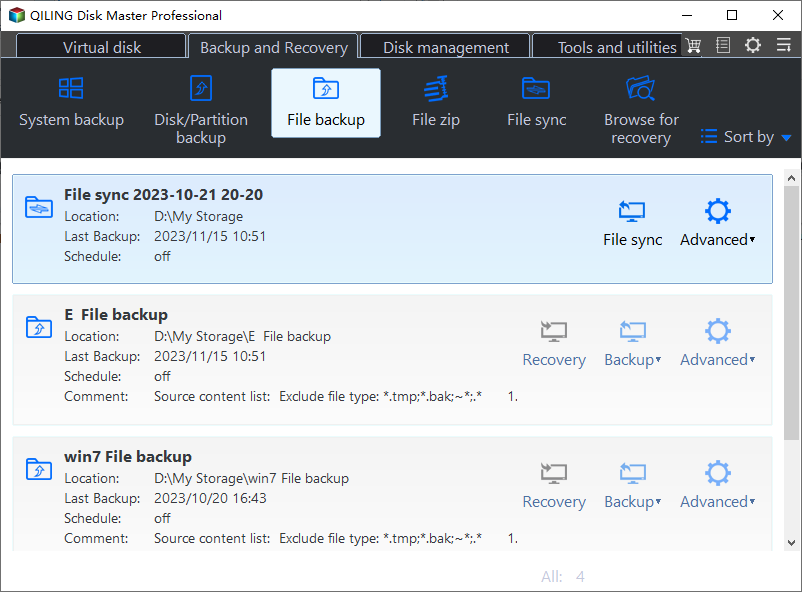
Step 1. Choose File Backup
Open the Backup and Recovery tab and select File Backup, or Disk Clone for an exact copy of the drive.
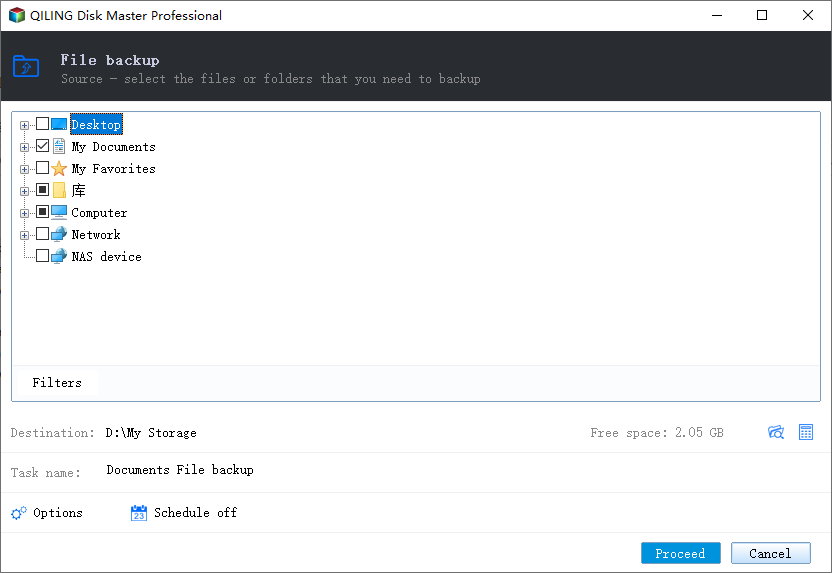
Step 2. Select the External Drive
Expand Computer and tick the drive by its letter. Confirm the capacity in the task summary before you continue.
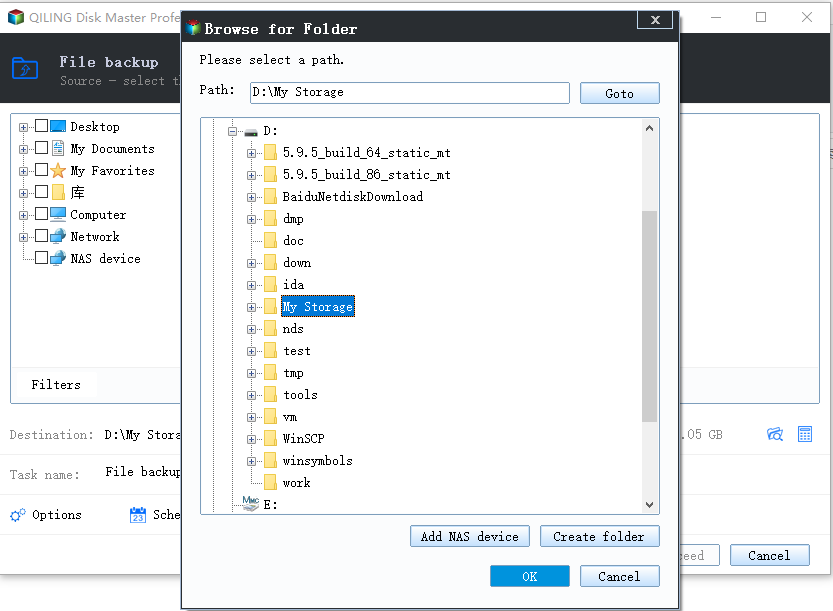
Step 3. Choose an Internal Destination
Write to an internal disk, not back to the same drive or to another device on the same port.
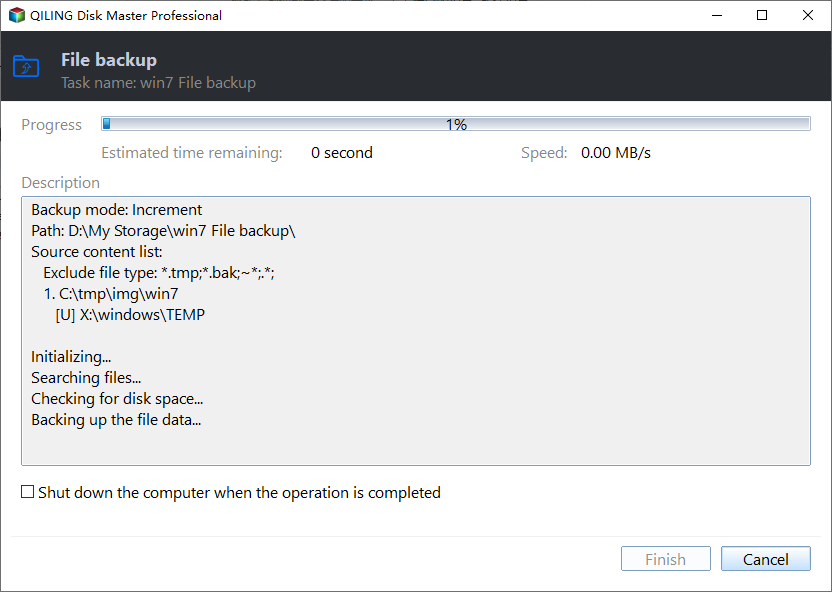
Step 4. Preview and Proceed
Run the job and check the result. If the drive disconnects mid-copy, the port or cable is still the limiting factor.
Frequently Asked Questions
Can a USB-C port be charging-only?
Yes. Some ports are documented as charging-only or as data-capable at a lower speed. The machine manual states which is which.
Why does the drive work on my phone but not my laptop?
The phone may supply a different current or negotiate a different role. The laptop port may be data-limited or power-limited.
Is a USB-C to USB-A adapter a valid test?
Yes. It isolates the cable and the port, which is the fastest way to find which one is at fault.
Does a hub help?
A powered hub can supply the current a drive needs, but it can also reduce reliability. Prefer a direct connection when copying important data.
For a drive that is detected but never stays connected, see USB4 enclosures that disconnect randomly.
Related Articles
- USB Drive Not Recognised After a Windows Update
- USB4 SSD Enclosure Randomly Disconnects
- External Hard Drive Disconnects During Copy
- Assign a Drive Letter in Windows
- Disk Offline Because of the SAN Policy
Products
Articles & Tutorials
- Data Recovery
- Data Backup
- File Recovery
- File Backup
- System Backup and Restore
- Disk and Partition Clone
- Technical articles
- Mobile articles
- Disk Master Help
- Windows Data Recovery Tutorials
- Windows Secure Delete Tutorials
- Windows Partition Management Tutorials
- Windows File Backup and Restore Tutorials
- Windows System Backup and Restore Tutorials
- Windows Disk Backup and Restore Tutorials
- Windows Clone Tutorials